Adding Users #
User management in Emeron ERP includes creating and managing user accounts, defining roles, and assigning these roles to users based on their responsibilities. Administrators can configure detailed permissions for each role by specifying the level of access to modules within the system.
Users can be added by the System Manager. To add users go to: > Home > Users and Permissions > User
There are two main types of users:
Website users: Customers, Suppliers, Students, etc., who have access only to the portal and not to any modules. System Users: People using Emeron ERP in the Company with access to modules, company data, etc.
Under User, a lot of info can be entered. For the sake of usability, the information entered for web users is minimal: First Name and Email.
An Email address is the unique key (ID) identifying the Users.
- How to Create a New User
- Go to the User list, click on New.
- Add an Email address and name of the user.
- Save.
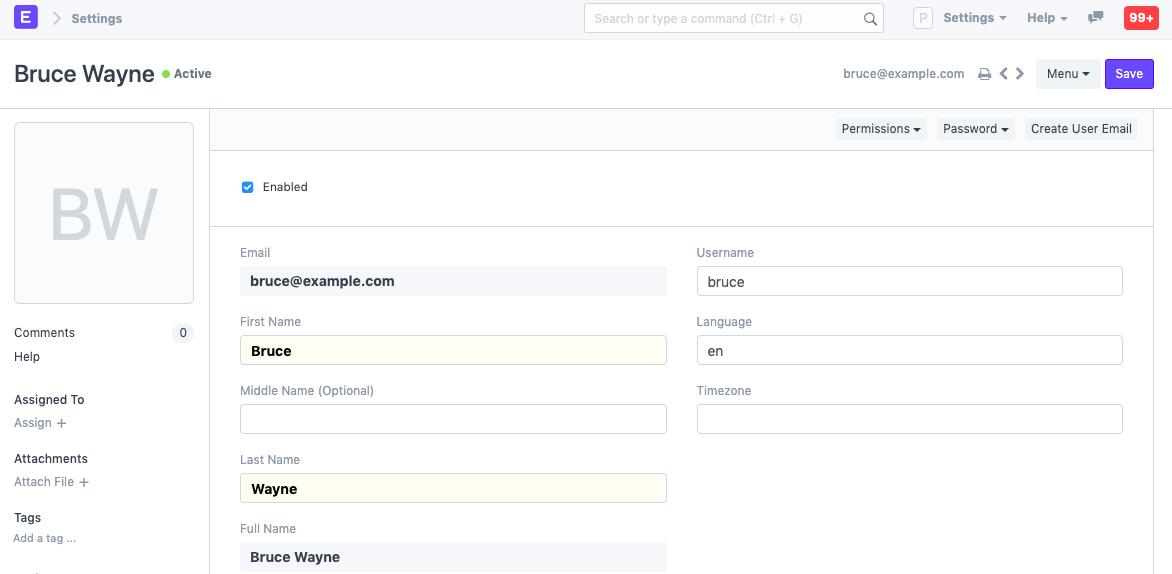
Details like Username and Language can also be changed.
- Features
2.1 Setting Roles #
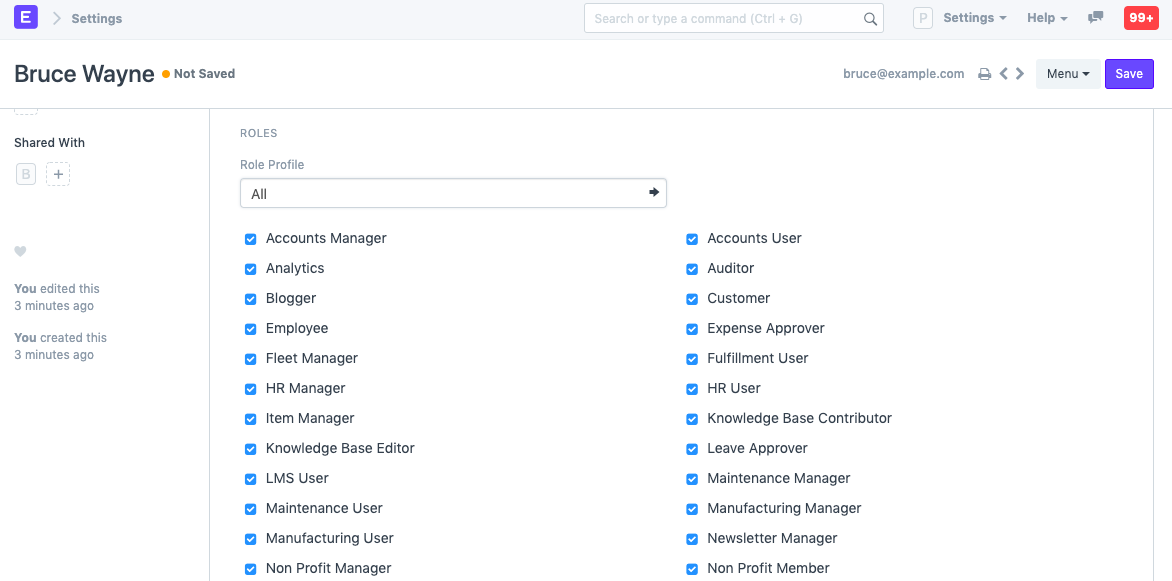
After saving, you will see a list of roles and checkboxes next to them. Just check the roles you want the user to have and save the document. The roles have pre-defined permissions, to know more about roles. You can set Role profiles to use as a template which selects multiple roles together.
2.2 More Information #
More information about the employee can be set from this section:
- Gender
- Phone
- Mobile No
- Birth Date
- Location
- Interests
- Bio
- Banner Image
Ticking on ‘Mute Sounds’ will mute sounds that play on interacting with documents. The user may need to do a Settings > Reload for the changes to take place.
2.3 Change Password #
- Set New Password: As a System Manager, you can set a new password for the user if it needs to be changed.
- Send Password Update Notification: Send an email notification to the user that their password has been changed.
- Log out from all devices while changing Password: When changing the user’s password, this logs out the user from PC and any mobile device they may have logged into.
2.4 Document Follow #
With this option you can follow various documents in the system and get email notifications when they are updated. Know more here.
2.5 Email Settings #
- Send Notifications for Email threads: The user will get notifications for Email conversations that take place in document types like Opportunities.
- Send Me A Copy of Outgoing Emails: Sends the user a copy of the emails they send. This is useful for keeping track if the email got sent.
- Allowed In Mentions: Allow this user’s name to appear in thread conversations so that they can be mentioned using ‘@’.
- Email Signature: Adding an email signature here will set it as default for all outgoing emails for the user. This is different from a footer which is set from the Company master.
2.6 Email Inbox #
Subscribe the user to different mailing lists of your company from this section. Add a new row and select the mailing list to assign this user. For example, mailing lists can be jobs, support, sales, etc. To know more about Email Inbox, click here.
2.7 Allow Module Access #
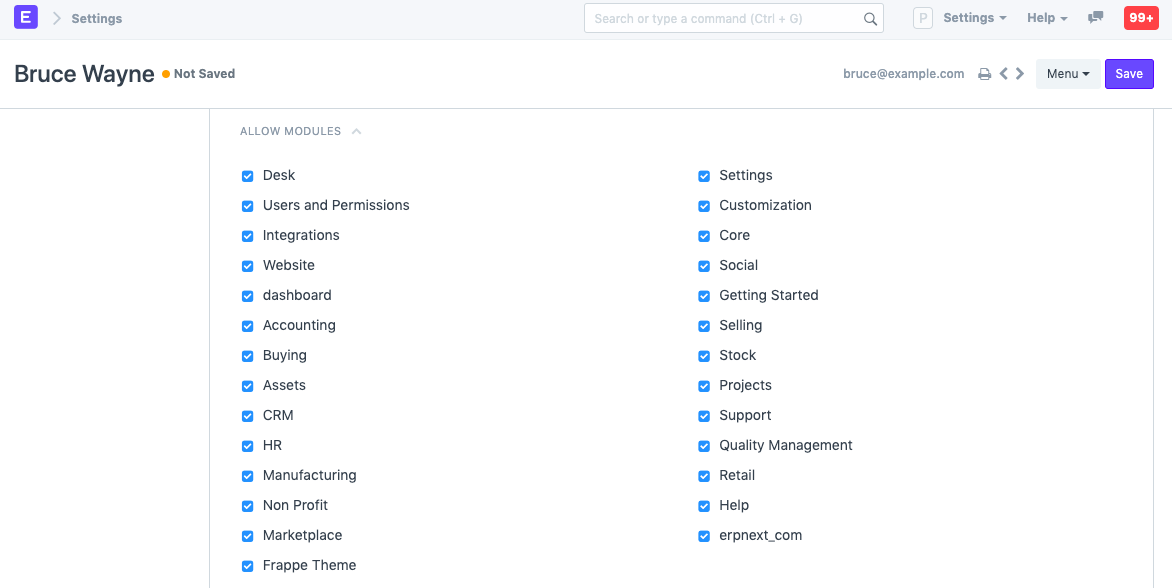
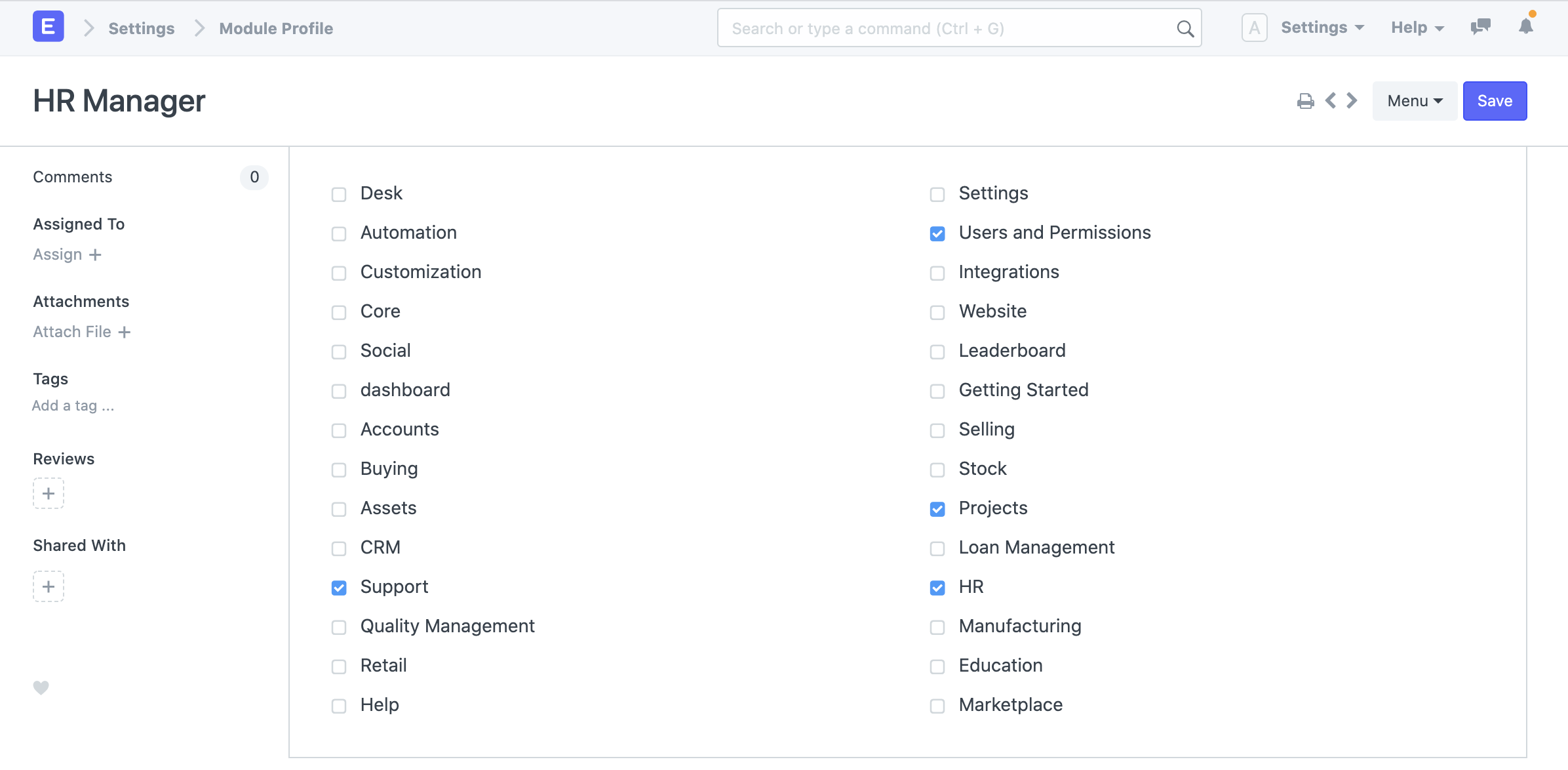
Users will have access to all modules for which they have role-based access. If you want to restrict access of certain modules for this user, un-check the modules from this list.
2.7.1 Module Profiles #
Role Profiles act as a template to store and select access to multiple modules. This Role Profile can then be assigned to a User. For example, HR Users will have access to multiple modules like HR, Payroll, etc. Role Profiles are useful to provide access to multiple modules at once when adding multiple users.
2.8 Security Settings #
- Simultaneous Sessions: Simultaneous login sessions the user is allowed. You can use the same set of credentials for multiple users by allowing more sessions. This can be restricted from System Settings globally. For cloud account, the total number of simultaneous sessions cannot exceed the total number of subscribed users.
- User Type: If the user has any role checked other than Customer, Supplier, Patient, or Student they automatically become a System User. This field is read-only.
- Login After, Login Before: If you wish to give the user access to the system only between office hours, or during weekends, specify it here. For example, if office hours are from 10 am to 6 pm, set the Login After, Login Before hours as 10:00 and 18:00.
- Restrict IP: Restrict user login to the IPs specified here. This can be used so that the user can log in only from office computers. Multiple IPs can be added separated by commas.
This section also shows other details like Last Login, Last IP, and Last Active time for the user.
2.9 Third Party Authentication #
This will allow users to use Facebook, Google, or GitHub to log in. To use this feature, signup for a developer account with Facebook, Google, GitHub, etc. Create an app on their console, specify an app name, the originating URL and callback URL, copy the client ID and client secret info here to start using.
2.10 API Access #
You can generate API Secret keys from this section using the Generate Keys button. This can be used to access your account’s data from another application, for example, an offline POS system.
2.11 After saving #
After saving a user, these buttons will be seen on the dashboard area of the User master.

Permissions #
- Set User Permissions: Will take you to the User Permissions page of Bruce from where you can restrict Bruce’s access to documents.
- View Permitted Documents: Will take you to the ‘Permitted Documents For User’ report for this user. Here you can see which documents does Bruce have access to. For example, on selected Sales Order, the list of Sales Orders Bruce has access to will be displayed.
Password #
- Reset Password: An email with instructions to reset the user’s password will be sent to the user’s Email Account.
- Reset OTP Secret: Reset OTP Secret for logging in via Two Factor Authentication.
Create User Email will let you create an Email Account for the user based on the email entered in the User master.
3. Login Methods #
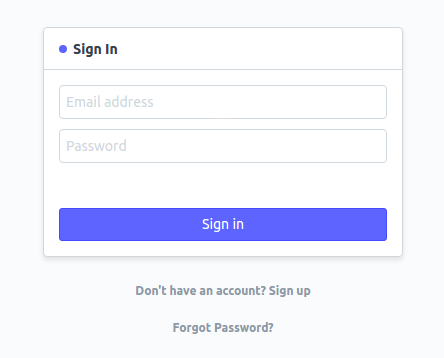
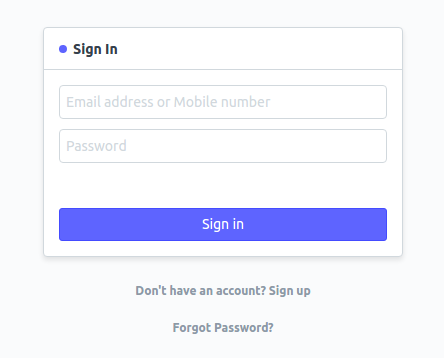
In System Settings, under the Security section, if you check the ‘Allow Login using Mobile No’ checkbox, a mobile number can also be used to log in. While a Mobile No will be unique, it will not be treated as a user ID.
Login with Email:
Login with Email or Mobile:
After adding these details, save the user.
4. Impersonating a user #
New in version 15.
Sometimes to understand a specific problem a user is facing, you might have to log in as that user. Administrator user can impersonate as any other user using the “Impersonate” button on the user document.
Note:
- An activity log will be created whenever Administrators use “Impersonate” feature.
- Any document change where track changes are enabled will also indicate original user who impersonated someone else while modifying the document.
- The user you’re impersonating will be notified.
Role Based Permissions #
Permission to different documents can be controlled using Role Based Permissions.
Emeron ERP has a role-based permission system. It means that you can assign Roles to Users, and Permissions can be set on Roles. The Role Permissions Manager allows you to set which roles can access which documents and with what permissions (read, write, submit, etc.).
Once roles are assigned to a user, their access can be limited to specific documents. The permission structure allows you to define different permission rules for different fields using a concept called Permission Level of a field.
- How to use the Role Permissions Manager
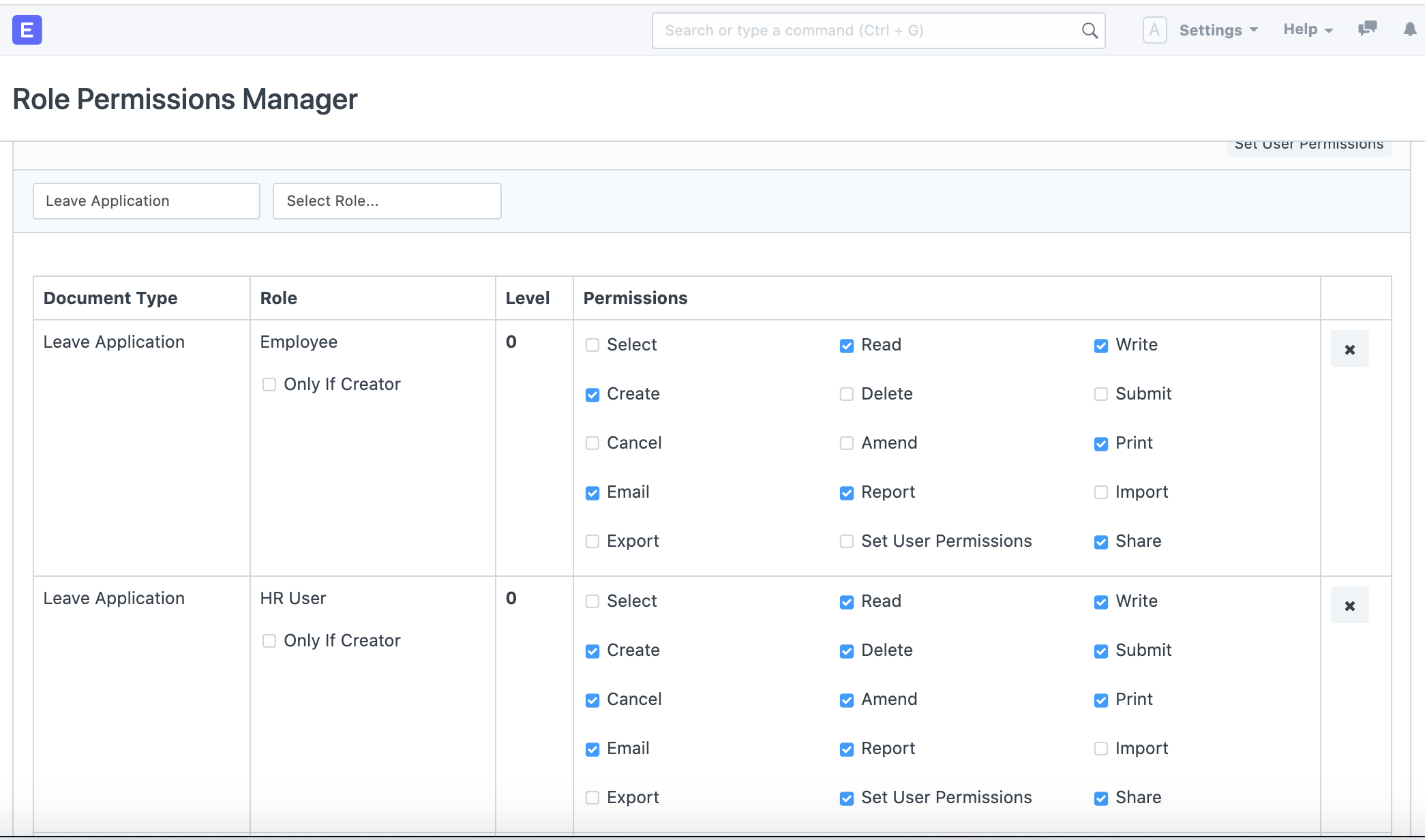
To start using the Role Permission Manager, go to: > Home > Users and Permissions > Role Permissions Manager
Permissions are applied on a combination of:
- Roles: As we saw earlier, Users are assigned Roles and it is on these Roles that permission rules are applied. For example, a sales user may be given the roles of an Employee and a Sales User.
Examples of Roles include Accounts Manager, Employee, HR User, etc.
- Document Types: Each type of document, master or transaction, has a separate list of role-based permissions as seen in the preceding screenshot.
Examples of Document Types are Sales Invoice, Leave Application, Stock Entry, etc.
- Permission Levels: In each document, you can group fields by “levels”. Each group of fields is denoted by a unique number (0 to 9). A separate set of permission rules can be applied to each field group. By default, all fields are of level 0.
Permission “Level” connects fields with level X to a permission rule with level X. To know more click here.
- Document Stages: Permissions are applied on each stage of the document like Creation, Saving, Submission, Cancellation, and Amendment. A role can be permitted to Print, Email, Import or Export data, access Reports, or define User Permissions.
- User Permissions: Using User Permissions in Emeron ERP a user can be restricted to access only specific Documents for that Document Type. Eg: Only one Territory from all Territories. User Permissions defined for other Document Types also get applied if they are related to the current Document Type through Link Fields.
For example, a Customer is a link field in a Sales Order or Quotation. In the Role Permissions Manager, User Permissions can be set using the ‘Set User Permissions’ button.
To set User Permissions based on documents/fields go to: > Home > Users and Permissions > Permissions > User Permissions
- Add a New Rule: In the Role Permissions Manager, to add a new rule, click on the Add a New Rule button and a pop-up box will ask you to select a Role and a Permission Level. Once you select this and click on ‘Add’, this will add a new row to your rules table.
- How Role Based Permissions Work
Leave Application is a good example that encompasses all areas of a Permission System.
- It should be created by an Employee. For this, Employee Role should be given Read, Write, Create permissions.
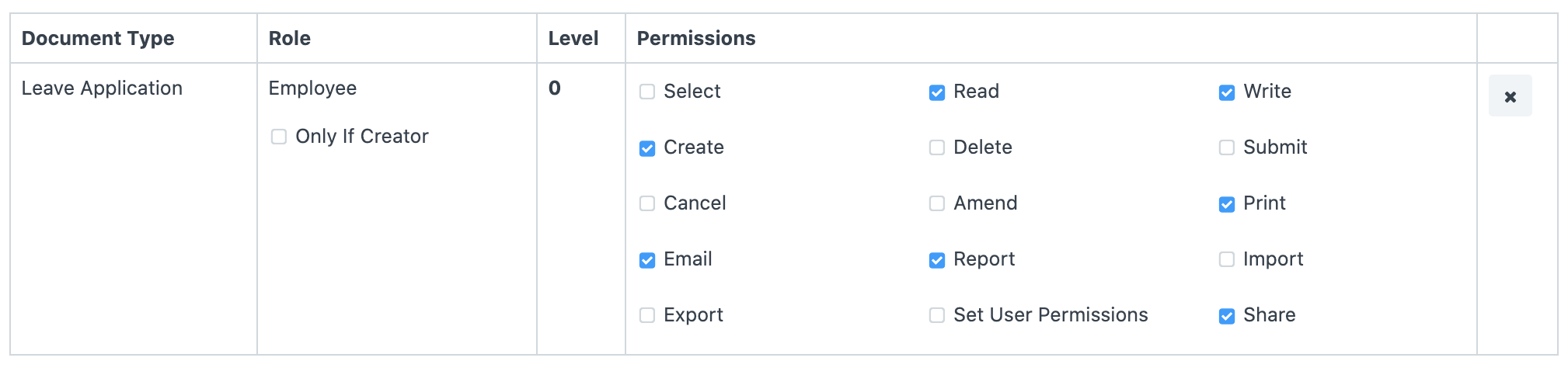
- An Employee should only be able to access his/her Leave Application. Hence, User Permissions record should be created for each User-Employee combination.
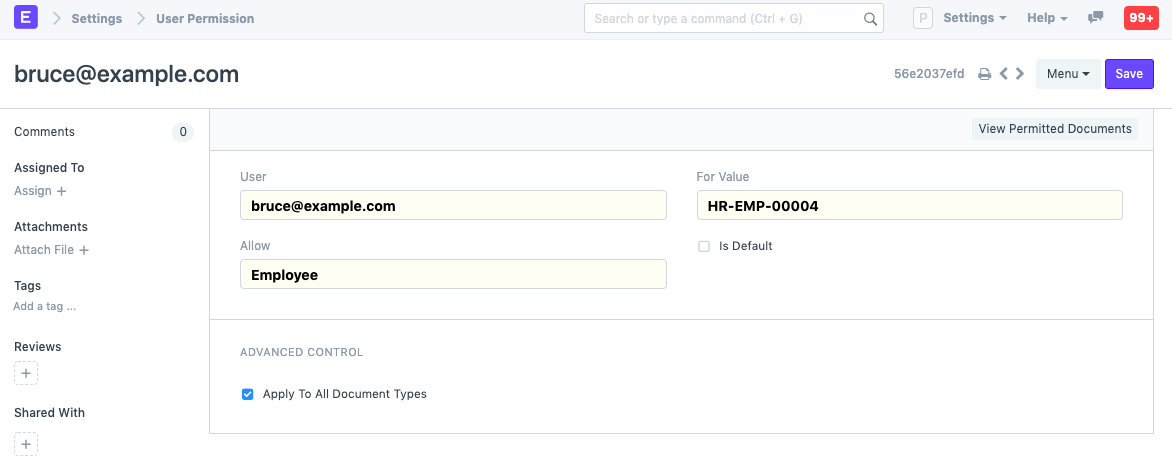
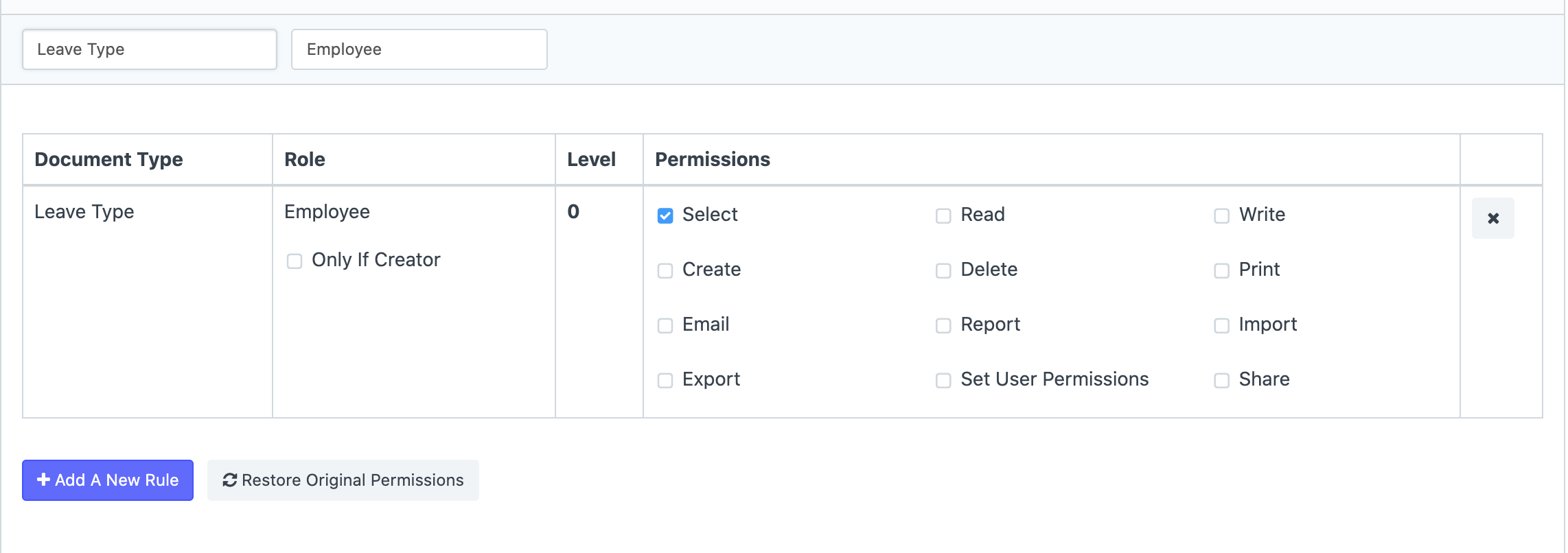
- If you want an Employee to only select a document in another document and not have read access to that document as a whole, then grant only Select perm to the role, Employee.
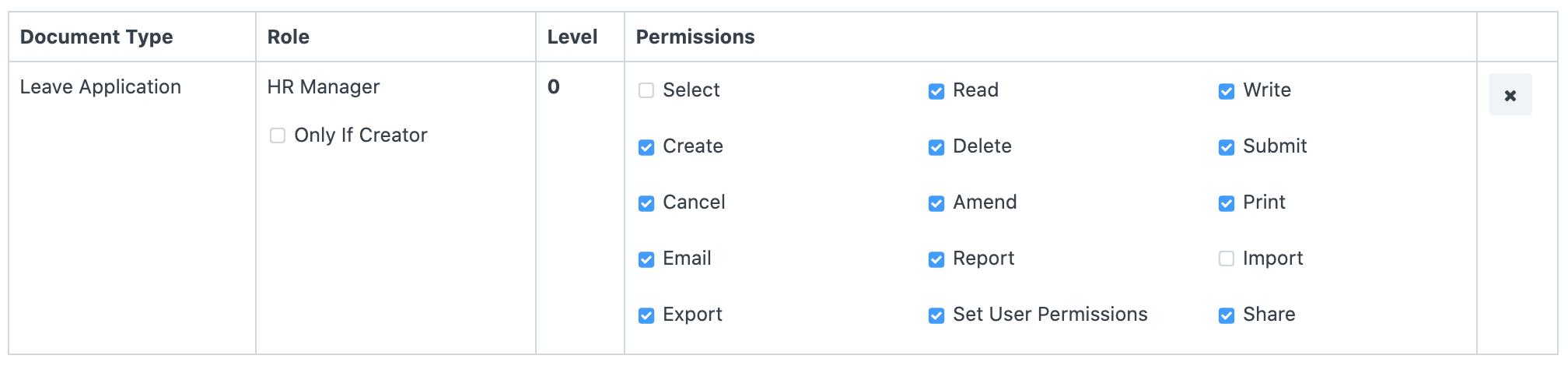
- HR Manager should be able to see all Leave Applications. Create a Permission Rule for HR Manager at Level 0, with Read permissions. Apply User Permissions should be disabled.
- Leave Approver should be able to see and update Leave Applications of employees under him/her. Leave Approver is given Read and Write access at Level 0. Relevant Employee Documents should be enlisted in the User Permissions of Leave Approvers. (This effort is reduced for Leave Approvers mentioned in Employee Documents, by programmatically creating User Permission records).
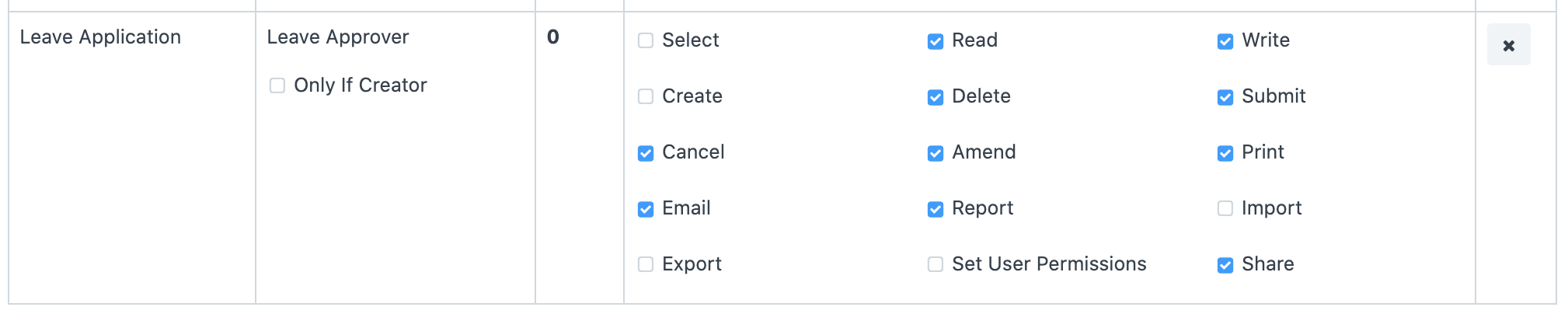
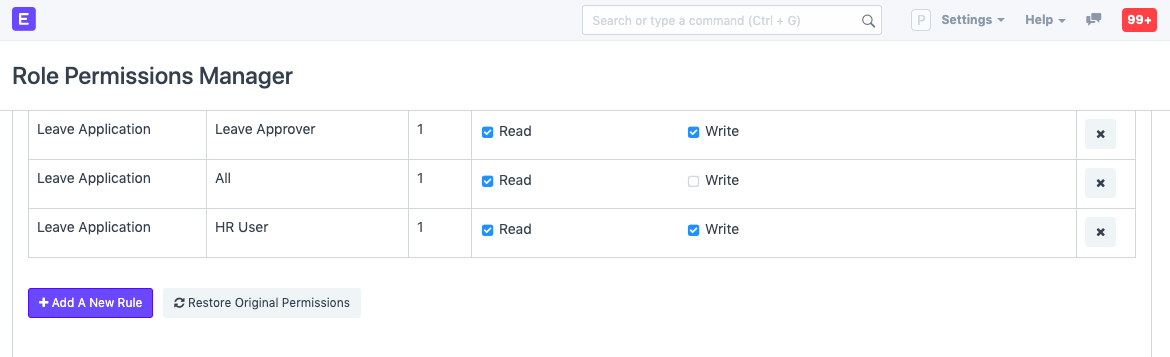
- It should be Approved/Rejected only by HR User or Leave Approver. The Status field of a Leave Application is set at Level 1. HR User and Leave Approver are given Read and Write permissions for Level 0, while everyone else (All) are given Read permission for Level 1.
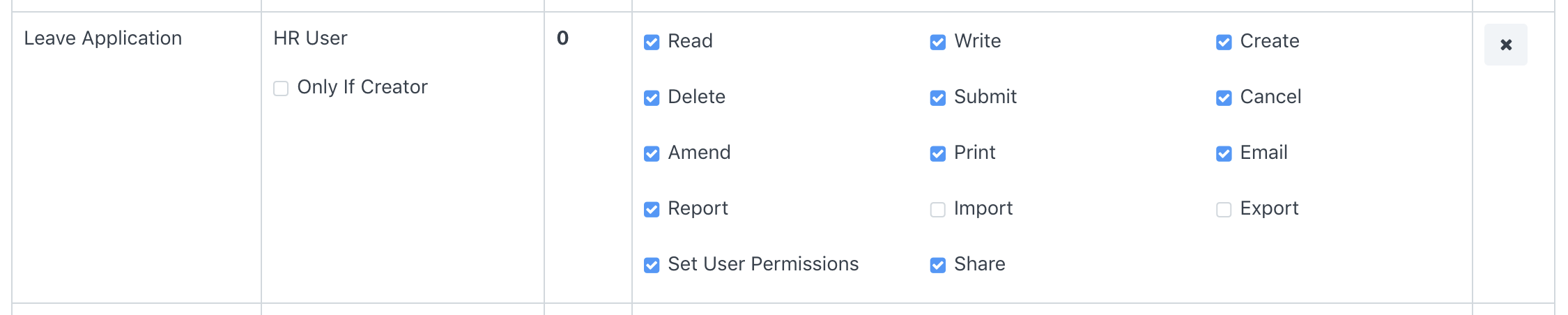
- HR User should be able to delegate Leave Applications to his/her subordinates. HR User is given the right to Set User Permissions. A User with HR User role would be able to define User Permissions on Leave Application for other users.
In case you have correctly assigned the roles but still you’re getting errors when accessing documents
User Permissions #
User permissions is a way of restricting user access to particular documents.
Role based permissions allow setting complete (by default) access to a document type (doctype) like Sales Invoice, Orders, Quotation, etc. This means that when you assign a Sales User role to a user, they can access all the Sales Orders and Quotations.
User Permissions can be used to restrict access to select documents based on the link fields in the document. For example, consider that you do business with multiple territories and you want to restrict access of certain Sales Users to Quotations/Sales Order belonging to a particular territory. This can be done via User Permissions. The restrictions can be set on Customer, Supplier, Customer Group, Supplier Group, etc.
Setting User Permissions are particularly useful when you want to restrict based on:
- Allowing user to access data belonging to one Company
- Allowing user to access data related to a specific Customer or Territory
To access User Permissions, go to: > Home > User and Permissions > User Permissions
- How to create User Permissions
- Go to the User Permissions list, click on New.
- Select the user for which the rule has to be applied.
- Select the type of document to be allowed (for example “Company”).
- Under For Value, select the specific item that you want to allow (the name of the “Company).
- If you check ‘Is Default’, the value selected in ‘For Value’ will be used by default for any future transactions by this user. That is if company ‘Unico Plastics Inc.’ is selected as ‘For Value’, this Company will be set as default for all future transactions by this user.
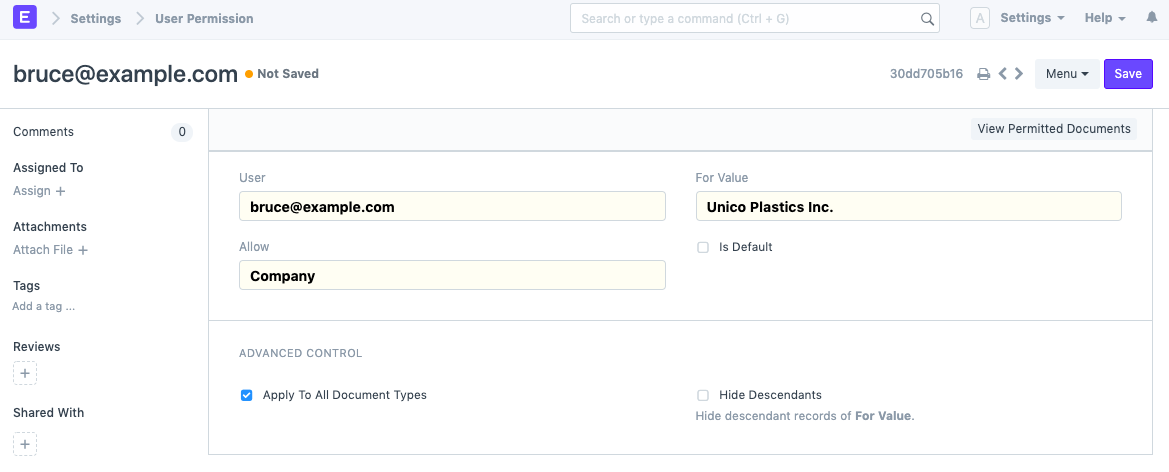
Note: Only a single user permission can be set as default for a particular document type for a specific user.
- More User Permission actions
2.1 Advanced Control #
In Advanced Control, you can have better command over where the User Permission is applied.
2.1.1. Applicable For #
You can optionally apply user permissions only for specific document type by setting the Document Type after unchecking the Apply To All Document Types checkbox. Setting Applicable For option will make the current user permission applicable only under the selected Document Type master.
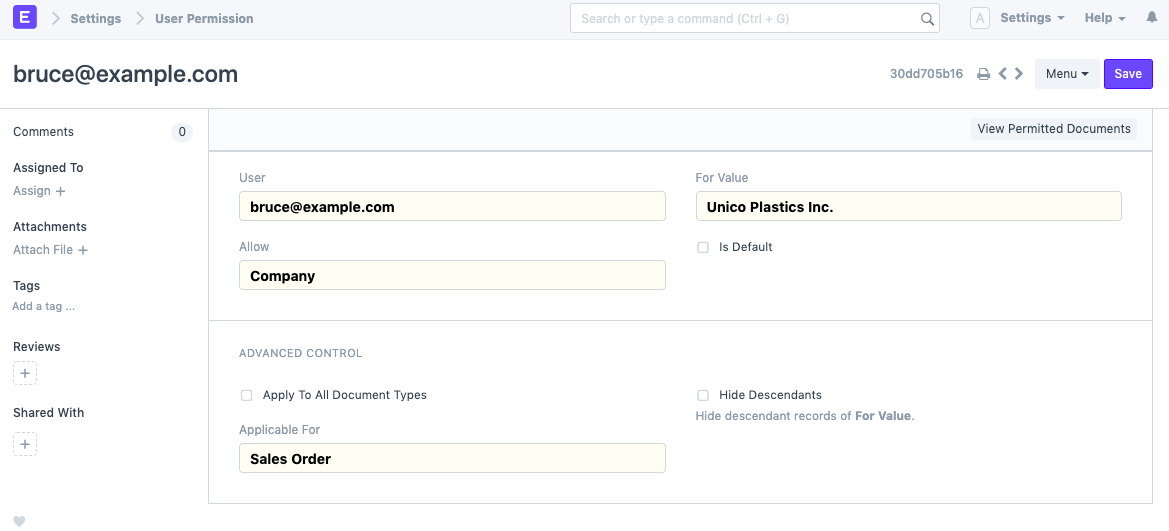
In the above User Permission, the user will be able to access only Sales Orders of the selected company.
Note: If Applicable For is not set, User Permission will apply across all related Document Types.
2.1.2. Hide Descendants #
The value of Allow could be a DocType with a Tree View, which will have records with a parent-child or ancestor-descendant relationship.
Let’s assume For Value, ‘Unico Plastics Inc.’, has a child company ‘Unico Toys’. When a User Permission is created for ‘Unico Plastics Inc.’, permissions for its descendants are granted as well.
Hide Descendants is visible only on selecting a Tree View DocType. By enabling this checkbox, permissions for descendants of For Value will not be granted.
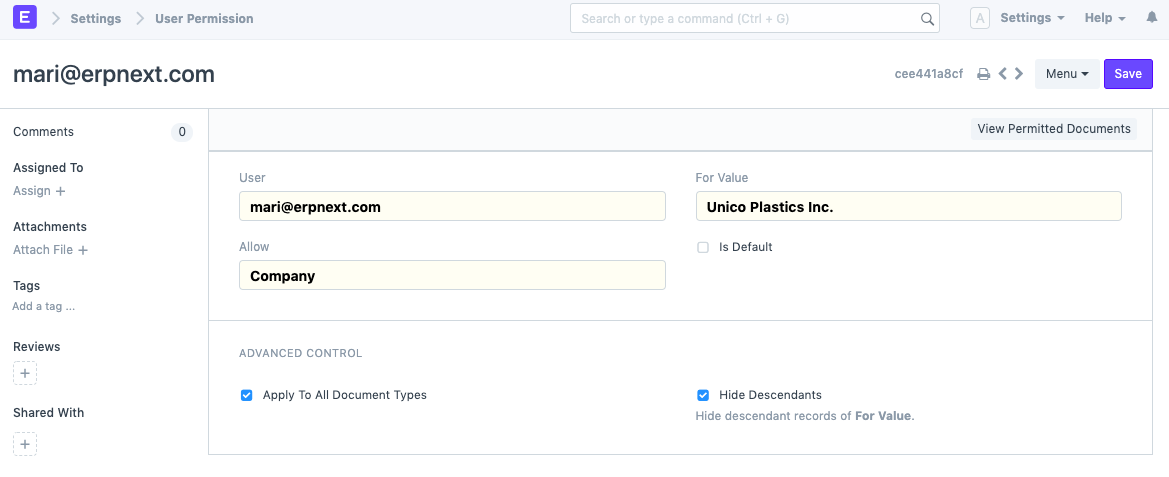
A user that can view records of ‘Unico Plastics Inc.’ will not be able to view those of ‘Unico Toys’.
2.2 Ignoring User Permissions on Certain Fields #
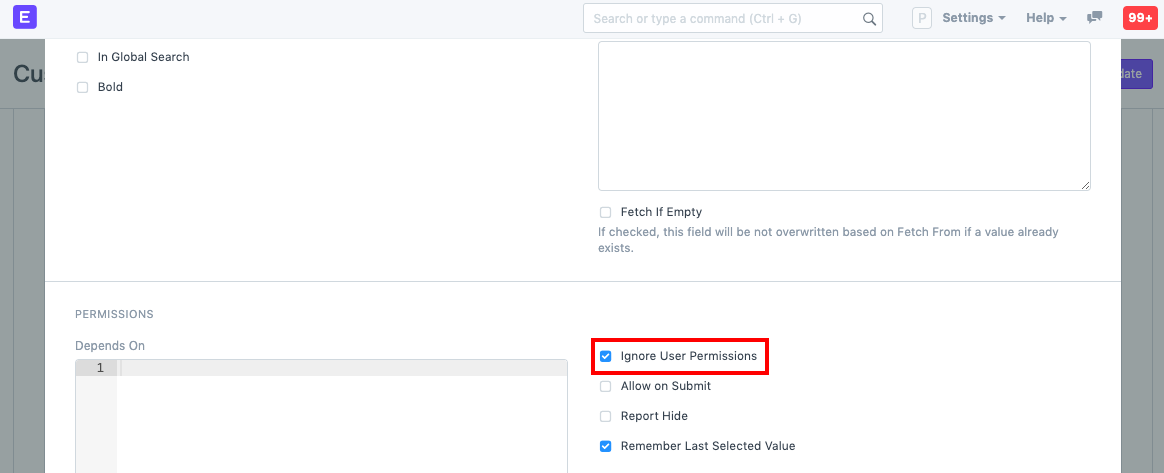
Another way of allowing documents to be seen by everyone that have been restricted by User Permissions is to tick “Ignore User Permissions” on a particular field by going to Customize Form.
For example, you don’t want Assets to be restricted for any user, then select Asset in form type. Under the fields table, expand the Company field and tick on “Ignore User Permissions”.
2.3 Strict Permissions #
When user permissions are defined, for a particular role – the role permissions are only applied when the user permission are defined. When there are no user permissions for a particular user, there could be two interpretations:
- Show everything (nothing is restricted)
- Show nothing (nothing is permitted)
You can choose how to interpret this the way you want by checking “Apply strict permissions” on the System Settings page.
To know more, go to the System Settings page.
2.4 Checking How User Permissions are Applied #
Finally, once you have created your air-tight permission model, and you want to check how it applies to various users. You can see it via the Permitted Documents for User report. Using this report, you can select the User and document type and view which documents a particular user can access.
Ticking on the Show Permissions checkbox will show the read/write/submit and other access levels.
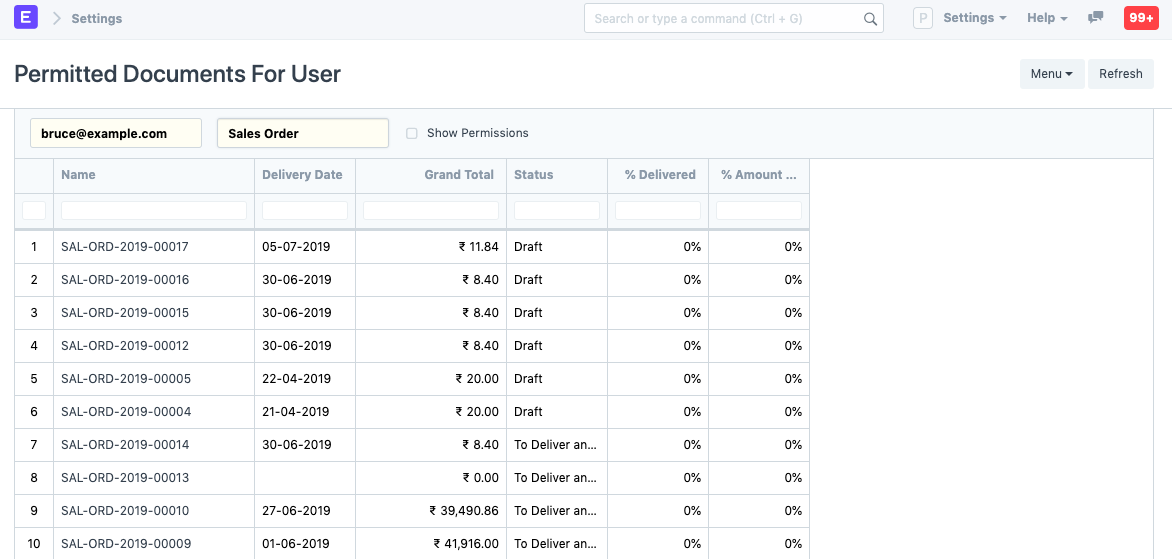
Note: If you cannot access Sales Order or any other document type in this list, make sure you’ve set the roles correctly.
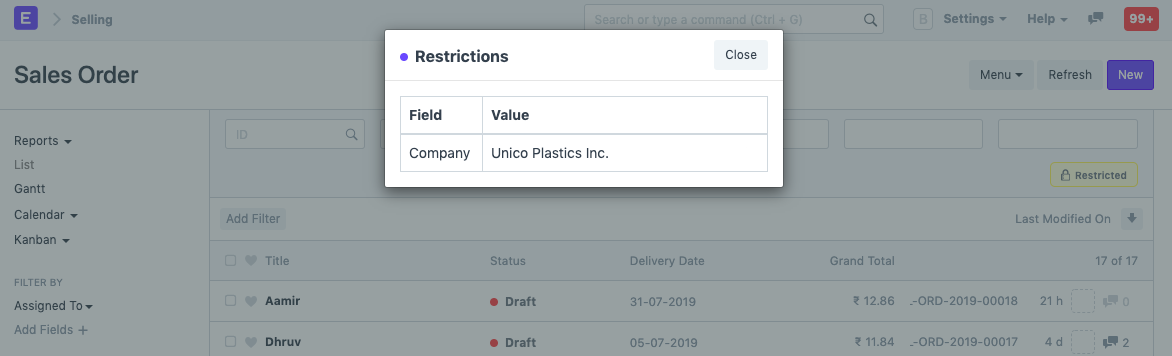
For example, the user, Bruce is restricted to Company ‘Unico Plastics Inc.’