

The Chart of Accounts is the blueprint of the accounts in your organization.
The overall structure of your Chart of Accounts is based on a system of double entry accounting that has become a standard all over the world to quantify how a company is doing financially.
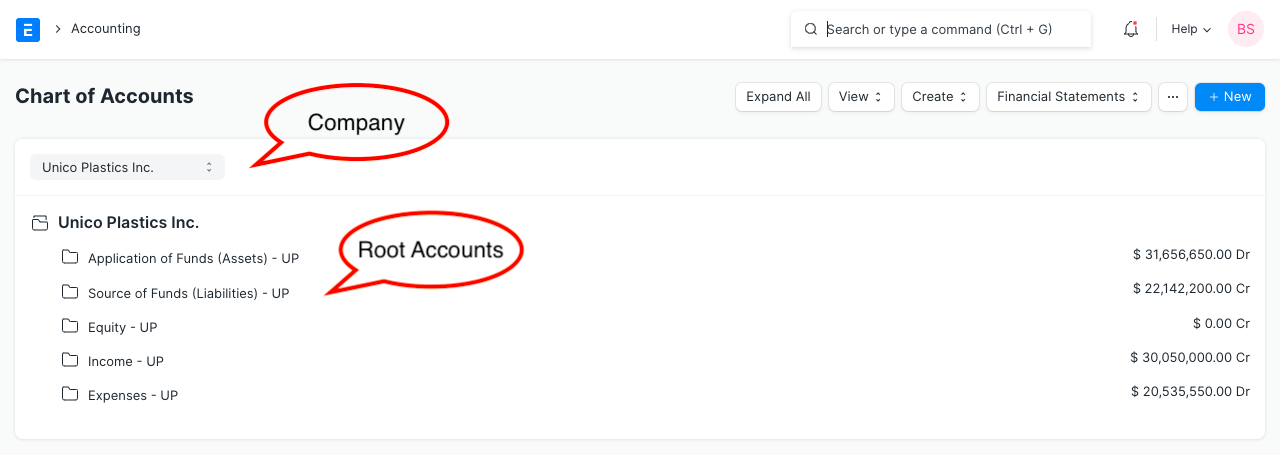
Chart of Accounts is a tree view of the names of the Accounts (Ledgers and Groups) that a Company requires to manage its books of accounts. Emeron ERP sets up a simple chart of accounts for each Company you create, but you can modify it according to your needs and legal requirements.
For each company, Chart of Accounts signifies the way to classify the accounting entries, mostly based on statutory (tax, compliance to government regulations) requirements.
The Chart of Accounts helps you to answer questions like:
- What is your organization worth?
- How much debt have you taken?
- How much profit are you making (and hence paying tax)?
- How much are you selling?
- What is your expense break-up?
As someone managing a business, it is very valuable to see how well your business is doing.
Tip: If you can’t read a Balance Sheet it’s a good opportunity to start learning about this. It will be worth the effort. You can also take the help of your accountant to set up your Chart of Accounts.
To access the Chart of Accounts, go to:
Home > Accounting > Accounting Masters > Chart of Accounts
- How to Create/Edit Accounts
Emeron ERP comes with a standard set Chart of Accounts. Instead of creating/modifying, you can also use the Chart of Accounts Importer tool. Note that the existing Chart of Accounts will be overwritten when this tool is used.
- Go to the Chart of Accounts
Here you can open group accounts which contain other accounts. There are options to “Add Child” in an account, Edit or Delete the account.
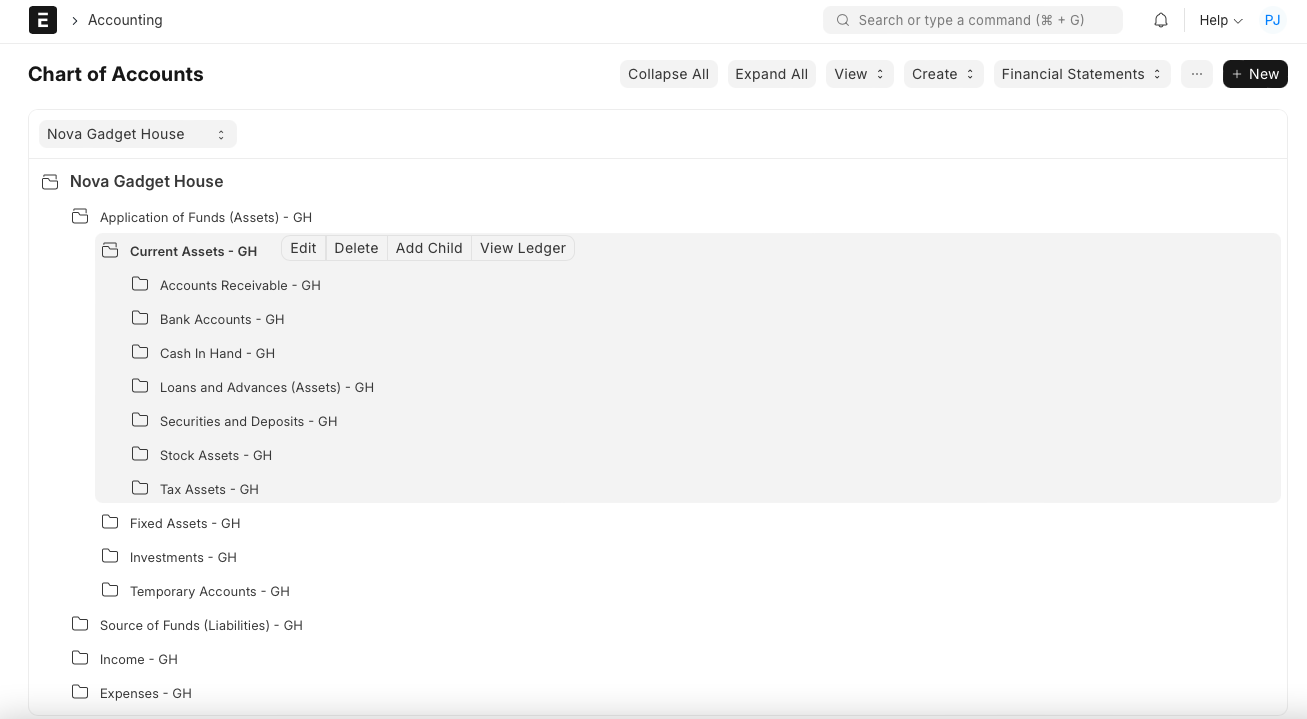 2. The option to create a child account will only appear if you click on a Group (folder) type Account. 3. Enter a name for the account. 4. Enter a number for the account. 5. Tick ‘Is Group’ if you want this to be a group account which can contain other accounts. 6. Select the Account Type. Selecting this is important as some fields allow selecting only specific type of accounts. 7. Change the currency if this account will be used for transactions with different currency. By default, it’s the Company’s currency. To know more, visit the Multi Currency Accounting page. 8. Click on Create New.
Typically, you might want to create Accounts for:
- Travel, salaries, telephone, etc. under Expenses.
- Value Added Tax (VAT), Sales Tax, Equity, etc. under Current Liabilities.
- Product Sales, Service Sales, etc. under Income.
- Building, machinery, furniture, etc. under Fixed Assets.
Tip: Accounts with different currencies are created when you receive or make payments to or from different currencies. For example if you are based in India and transact with USA, you may need to create accounts like ‘Debtors US’, ‘Creditors US’, etc.
Let us understand the main groups of the Chart of Accounts.
- Account Types
Account types are mainly classified as income, expense, asset, or liability.
2.1 Balance Sheet Accounts #
Balance Sheet accounts are ‘Application of Funds (Assets)’ and ‘Sources of Funds (Liabilities)’ that signifies the net-worth of your company at any given time. When you begin or end a financial period, all the Assets are equal to the Liabilities.
A note on Accounting: If you are new to accounting, you might be wondering, how can Assets be equal to Liabilities? That would mean the company has nothing of its own. That’s correct! All the “investments” made in the company to buy assets (like land, furniture, machines) is made by the owners. The owners are a liability to the company since the profits belong to the owners.
If a company were to shut down, it would need to sell all the assets and pay back all the liabilities (including profits) to the owners, leaving itself with nothing.
All the accounts under Balance Sheet accounts represent an asset owned by the company like “Bank Account”, “Land and Property”, “Furniture” or a liability (funds that the company owes to others) like “Owners funds”, “Debt” etc.
Two special accounts to note here are Accounts Receivable (money you have to collect from your Customers) and Accounts Payable (money you have to pay to your Suppliers) under Assets and Liabilities respectively.
2.2 Profit and Loss Accounts #
Profit and Loss is the group of ‘Income’ and ‘Expense’ accounts that represent your accounting transactions over a period.
Unlike Balance Sheet accounts, Profit and Loss accounts (or PL accounts) do not represent net worth (Assets), but rather represent the amount of money spent and collected in servicing customers during the period. Hence, at the beginning and end of your Fiscal Year, they become zero.
In Emeron ERP it is easy to keep track of Profit and Loss via the Profit and Loss chart.
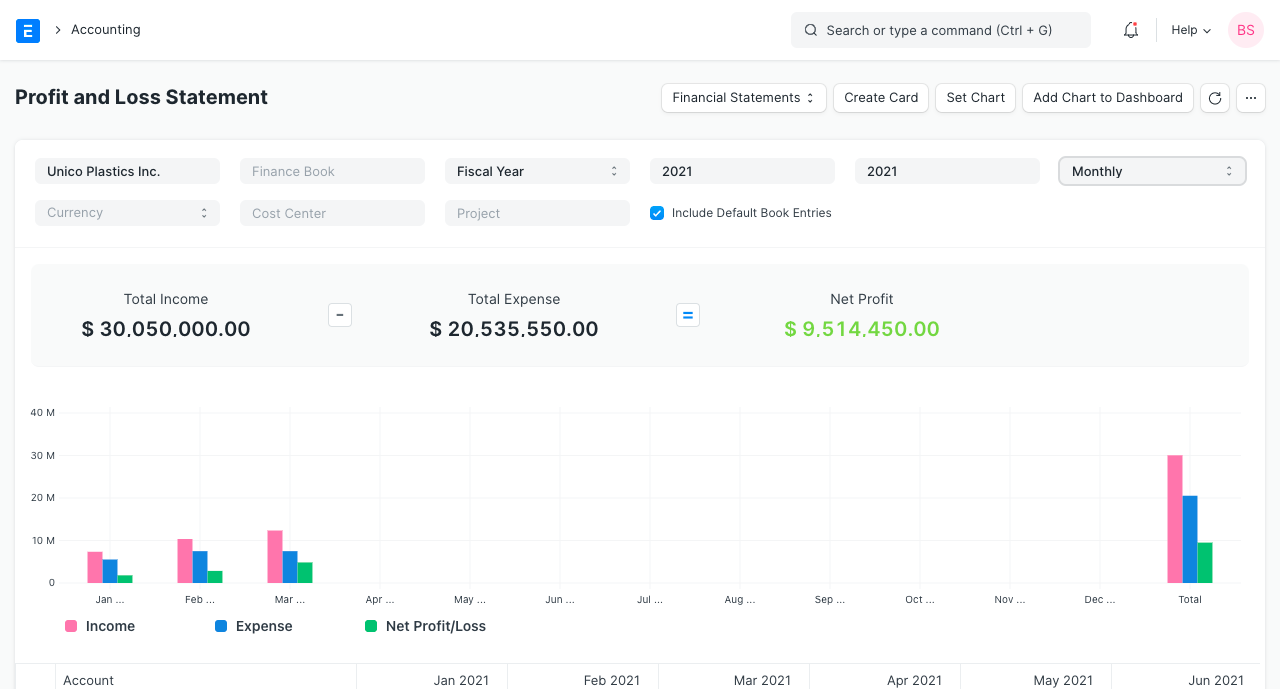
Note that, on the first day of the year you have not made any profit or loss, but you still have assets, hence balance sheet accounts never become zero at the beginning or end of a period.
2.3 Groups and Ledgers #
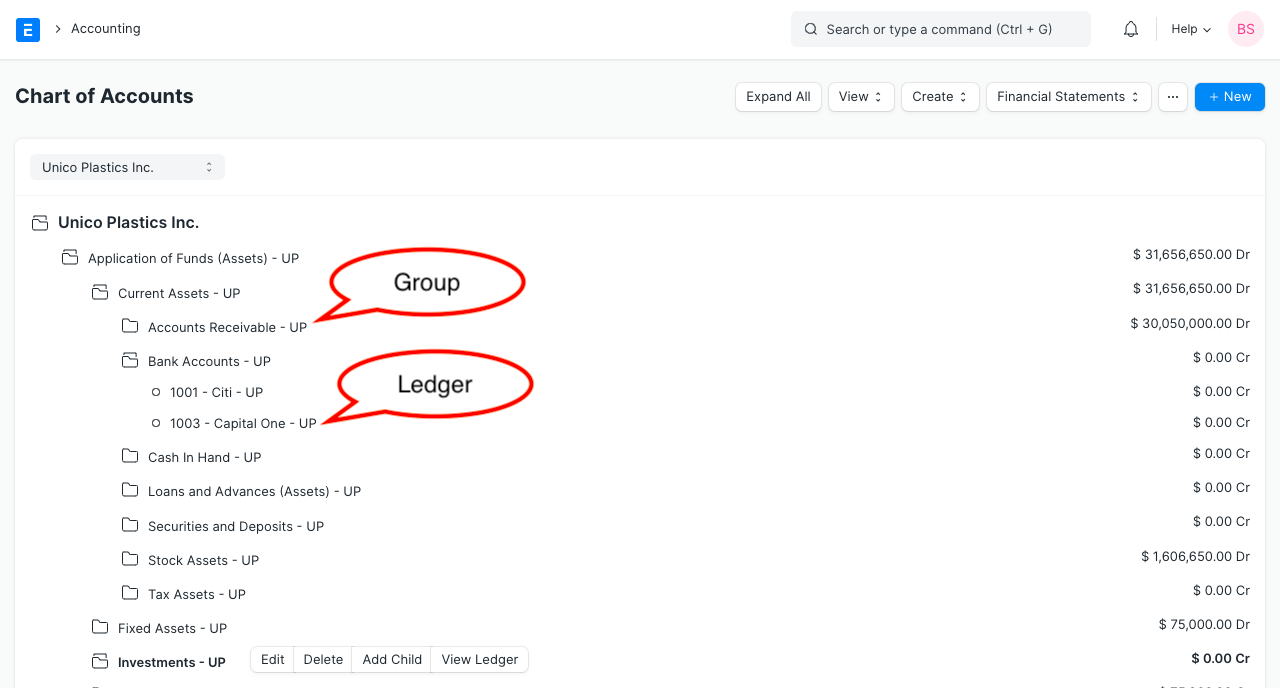
There are two main kinds of Accounts in Emeron ERP – Group and Ledger. Groups can have sub-groups and ledgers within them, whereas ledgers are the leaf nodes of your chart and cannot contain more accounts in them.
Accounting Transactions can only be made against Ledger Accounts (not Groups)
Info: The term “Ledger” means a page in an accounting book where entries are made. There is usually one ledger for each account (like a Customer or a Supplier).
Note: An Account “Ledger” is also sometimes called as Account “Head”.
2.4 Other Account Types #
In Emeron ERP, you can also specify more information when you create a new Account, this is there to help you select that particular account in a scenario like ‘Bank Account’ or a ‘Tax Account’ and has no effect on the Chart itself.
Explanation of account types:
- Accumulated Depreciation: To store the total accumulated depreciation information of the Company Assets. Accumulated depreciation appears on the balance sheet.
- Asset Received But Not Billed: A temporary liability account which holds the value of Asset received but not billed yet.
- Bank: The account type under which bank accounts will be created. There must be at least one group account of type “Bank” in the CoA.
- Cash: The account type under which cash account will be created. There must be at least one group account of type “Cash” in the CoA.
- Chargeable: Additional charges applied to Items can be stored in accounts of this type. For example, “Freight and Forwarding Charges”.
- Capital Work in Progress: Current charges when creating Fixed Assets are stored in CWIP accounts. For example, construction costs when constructing a building. In Emeron ERP Assets are booked against CWIP accounts when they are not yet being used.
- Cost of Goods Sold: An account under this type is used to book the accumulated total of all costs incurred while manufacturing/purchasing a product or service, sold by a Company.
- Depreciation: The expense account to book the depreciation of the fixed assets. This appears on the Income statement.
- Equity: These type of accounts represent transactions with people that own the business, i.e. the shareholders/owners.
- Expenses Included In Asset Valuation: The account to book the expenses (apart from the direct material costs of Assets) included in the landed cost of an Asset.
- Expenses Included In Valuation: The account to book the expenses (apart from direct material costs) included in the landed cost of an item/product, used in Perpetual Inventory.
- Fixed Asset: The account to maintain the costs of fixed assets.
- Income Account: This type of accounts represents any source of income or revenue booked for the Company.
- Payable: The account type represents the amount owed by a company to its creditors (Suppliers).
- Receivable: The account type represents the amount owed to a company by its debtors (Customers).
- Round Off: In many Invoices there can be some rounding off in the final amount. For accurate tracking, those amounts can be booked to accounts of this type.
- Stock: The account group under which Warehouse accounts will be created.
- Stock Adjustment: An expense account to book any adjustment entry of stock/inventory. Generally comes at the same level of Cost of Goods Sold.
- Stock Received But Not Billed: A temporary liability account which holds the value of stock received but not billed yet and used in Perpetual Inventory.
- Tax: All tax accounts like VAT, TDS, GST, etc. come under this type.
- Temporary: A Temporary account is useful for balancing incomes, expenses and nullifying them when shifting to Emeron ERP mid-year with outstanding accounting entries.
Note: When making Payment Entries, the default bank account will be fetched in the following order if set:
- Company form > * Mode of Payment default account > * Customer/Supplier default bank account > * Select manually in Payment Entry
2.5 Financial statements #
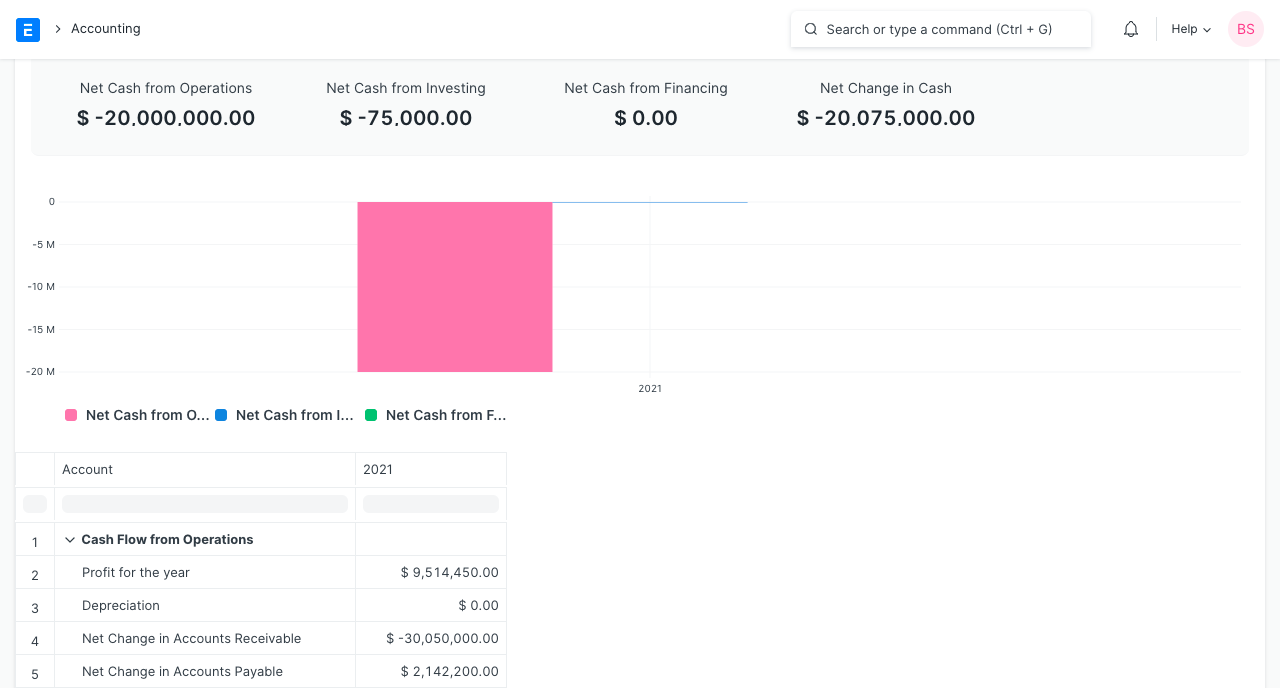
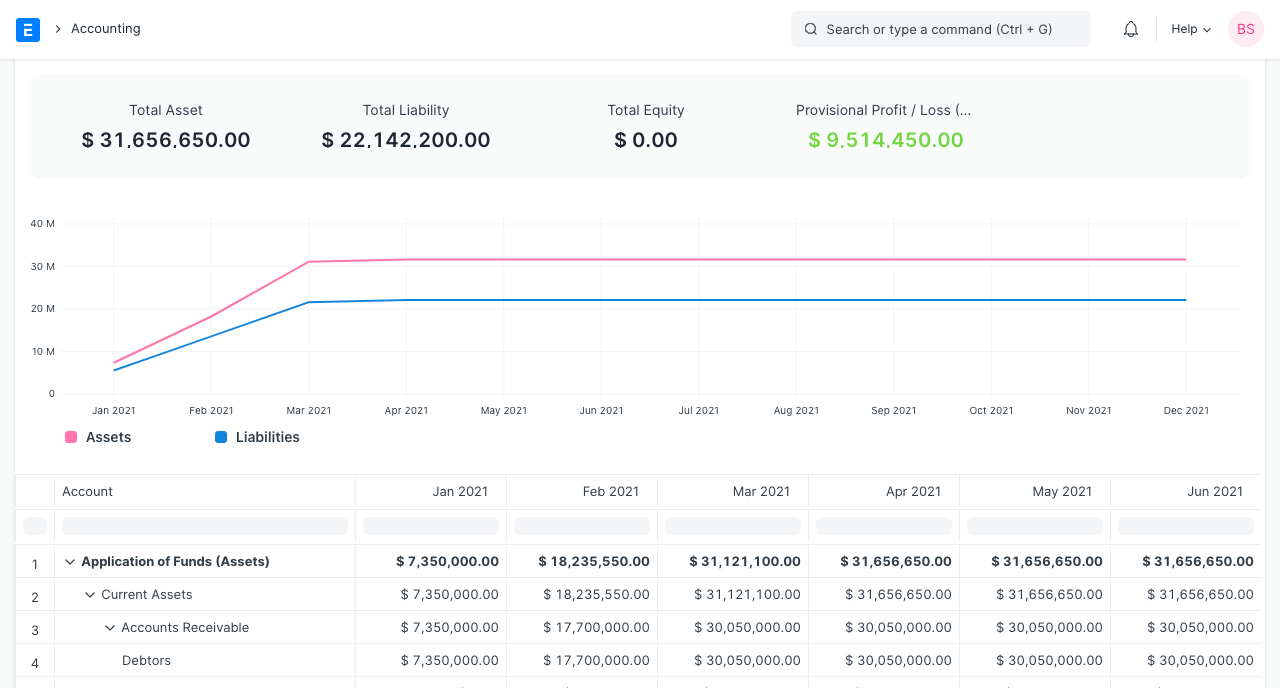
Financial statements for your company are easily viewable in Emeron ERP. You can view financial statements such as Balance Sheet, Profit and Loss statement, and Cash flow statement.
An Example of various financial statement are given below:
- Cash Flow Report:
 2. Profit and Loss Report:3. Balance Sheet Report:
2.6 Account Number #
A standard Chart of Accounts is organized according to a numerical system. Each major category will begin with a certain number, and then the sub-categories within that major category will all begin with the same number. For example, if assets are classified by numbers starting with the digit 1000, then cash accounts might be labeled 1100, bank accounts might be labeled 1200, accounts receivable might be labeled 1300, and so on. A gap between account numbers is generally maintained for adding accounts in the future.
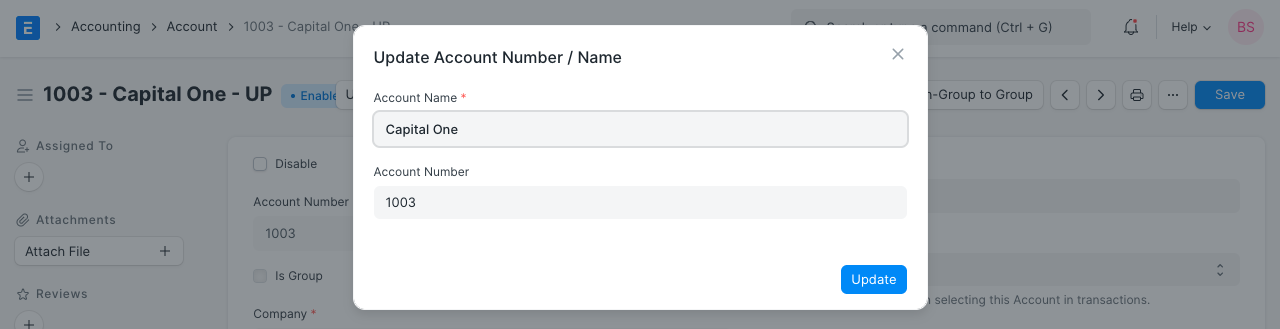
You can assign a number while creating an account from Chart of Accounts page. You can also edit a number from account record, by clicking Update Account Name / Number button. On updating account number, the system renames the account name automatically to embed the number in the account name.
- Video