

Item Tax Template is useful for item wise taxation.
If some of your Items have tax rates different from the standard tax rate assigned in the Taxes and Charges table, then you can create an Item Tax Template and assign it to an Item or Item Group. The rate assigned in the Item Tax Template will get preference over the standard tax rate assigned in the Taxes and Charges table.
For example, if tax GST 18% is added in the Taxes and Charges table in Sales Order, then it will be applied on all the items in that Sales Order. However, if you need to have different tax rate applied on some of the items, the steps are given below
To access the Item Tax Template list, go to
Home > Accounting > Taxes > Item Tax Template
Let’s assume that we are creating a Sales Order. We have the Sales Taxes and Charges Template master for GST 9%. Out of all the Sales Items, on one Item, only 5% GST will be applied, while another item is exempted from tax (non taxable). You need to select the Account Head of the tax and set its overriding rate.
1. Prerequisites #
Before creating and using an Item Tax Template, it is advised to create the following first:
- Item
- Enable ‘Automatically add Taxes and Charges from Item Tax Template’ in Account Settings
2. How to create an Item Tax Template #
- Go to the Item Tax Template list and click on New.
- Enter a title for the Item Tax Template.
- Select an account and set the overriding rate. Add more rows if required.
- Save.
Now the Item Tax Template is ready to be assigned to an Item. To do this, go the Item, Item Tax section and select an Item Tax Template:
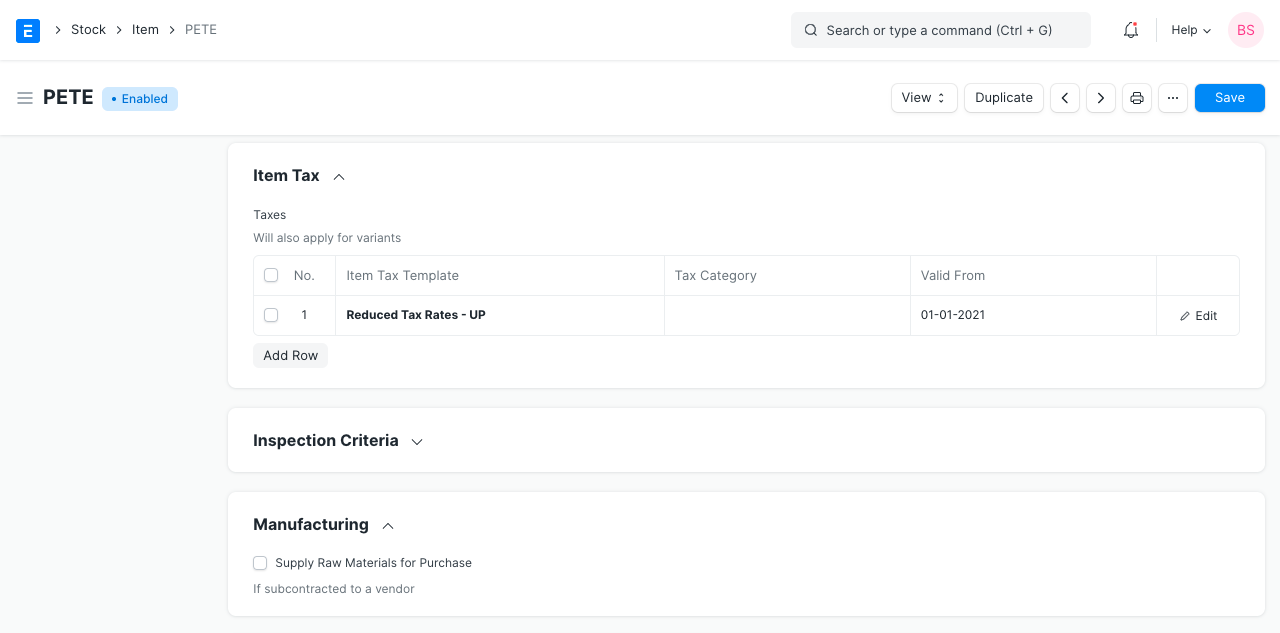
Note: It is advised to not use the Sales/Purchase Template selected here in Tax Rule, it may cause interference. If you want to use same tax rates for Tax Rule and Item Tax Template, use a different name for the Sales/Purchase Tax Templates.
2.1 Mention Tax Applicable in the Item master #
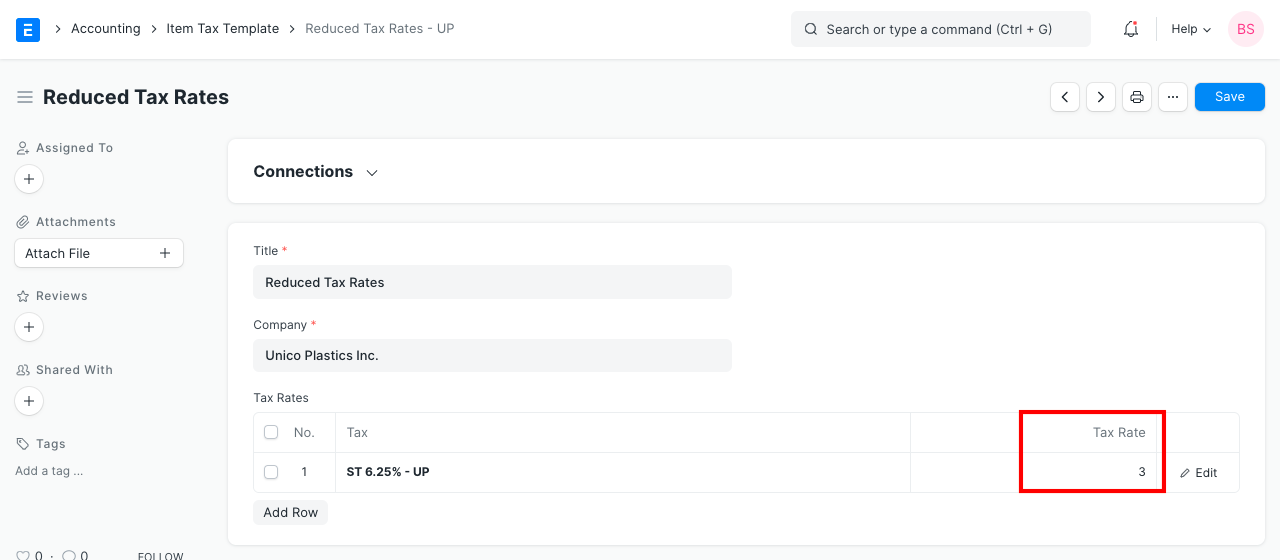
Tax templates are preset with values. For items which have a different tax rate than the others, you need to change it in the Item master. Go to the tax table in the Item, add a row, select the tax type and change the rate. Now, this new rate will over ride the template when creating an order/invoice. For example, in the below screenshot you can see that the tax rate is set as 5 and that’s the rate which will be applied in transactions.
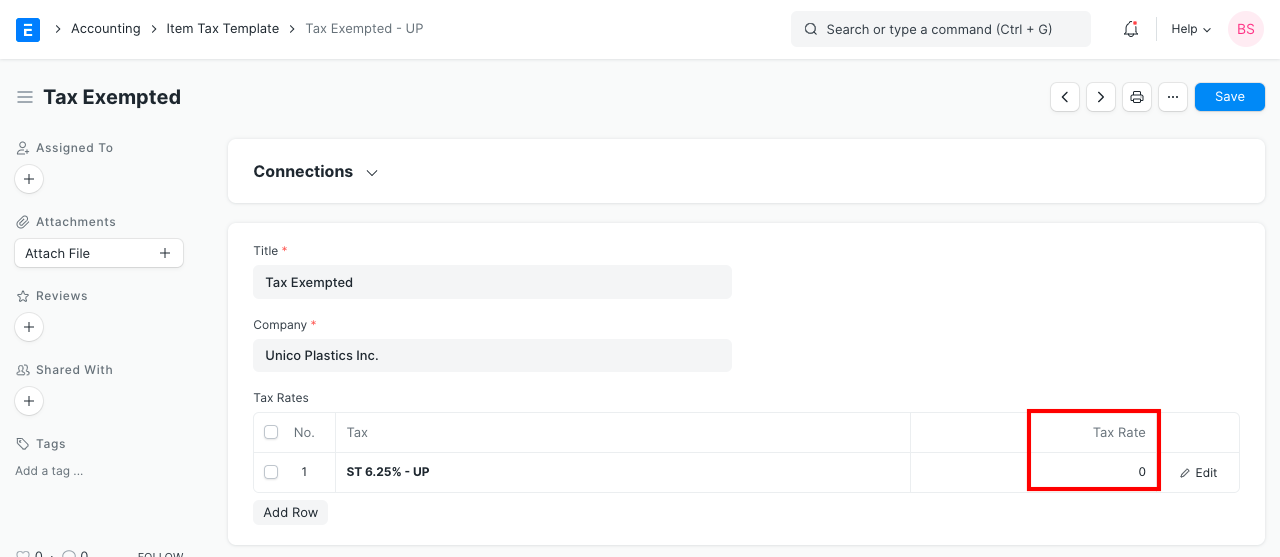
For the Item which is exempted from tax entirely, mention 0% as tax rate in the Item master.
Note: For Item Tax Template to work, you need to ensure that the tax types (accounts) set in Item Tax Template (with changed tax rates) are present in the Sales Taxes and Charges Template.
If you want to include multiple items with different tax rates, you need to have record them under different tax heads. For example, VAT 14%, VAT 5% etc.
2.2 Tax Calculation in transaction #
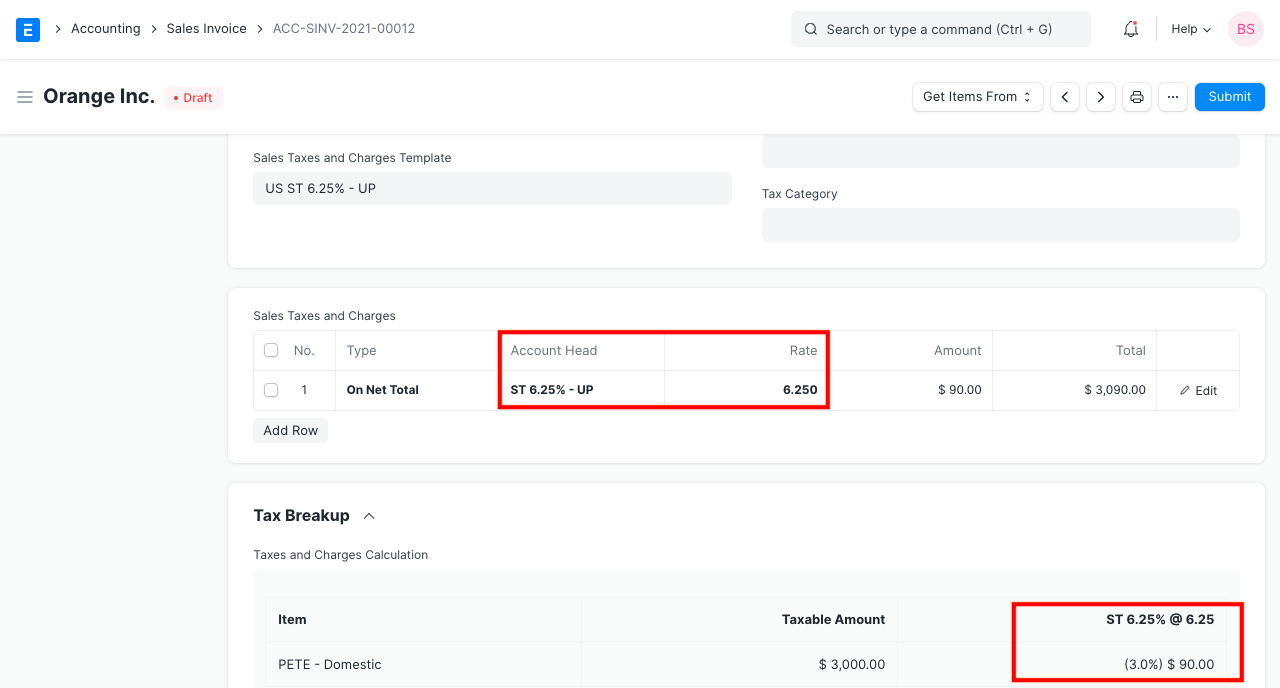
In sales transactions like Quotation, Sales Order, and Sales Invoice the taxes on items are calculated as per the Sales Taxes and Charges Template selected. However, if some items have an Item Tax Template linked, then the taxes are calculated on those items as per the rates mentioned in the Item Tax Template instead of the rates mentioned in the Sales Taxes and Charges Template.
For example, in the following screenshot, you can see that taxes are calculated at 3% even though the rate as per Sales Taxes and Charges Template is 6.25%.
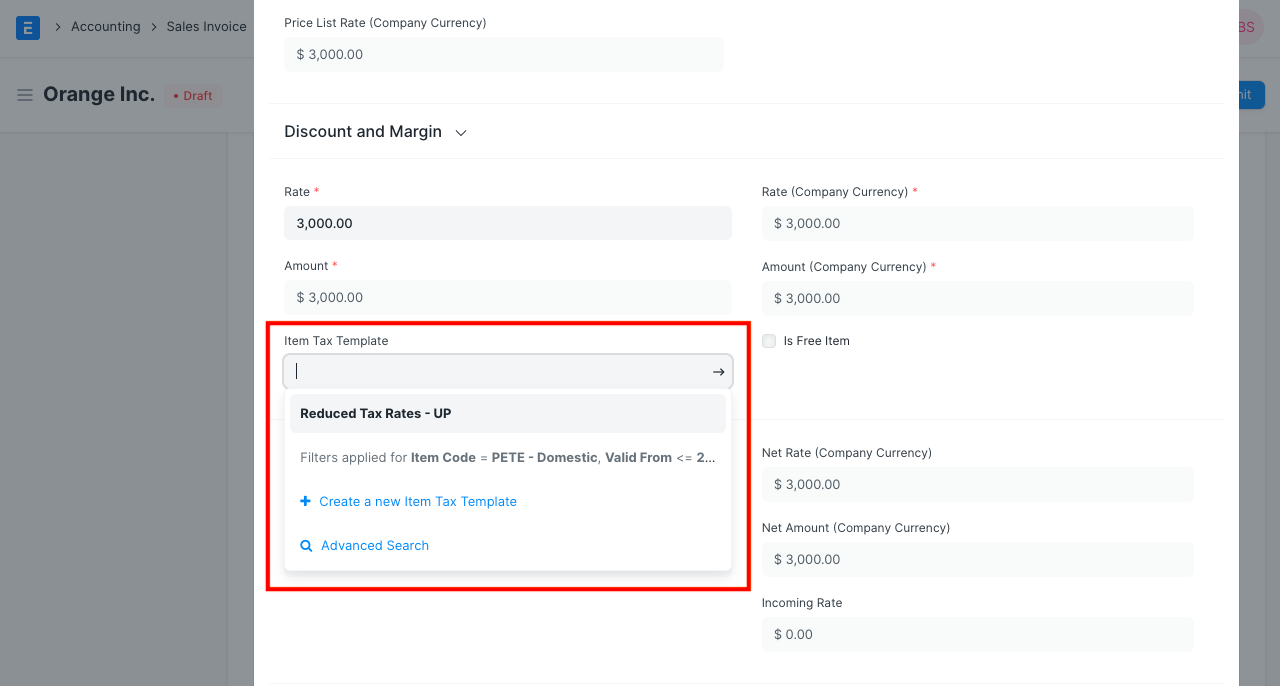
#2.3 Item Tax Template for each Items #
You can also manually select a different Item Tax Template for each Item in a transaction:
2.4 Item wise tax on an Item Group #
You can assign the Item Tax Template to an Item Group by modifying the Item Tax table in the Item Tax section within the Item Group document.
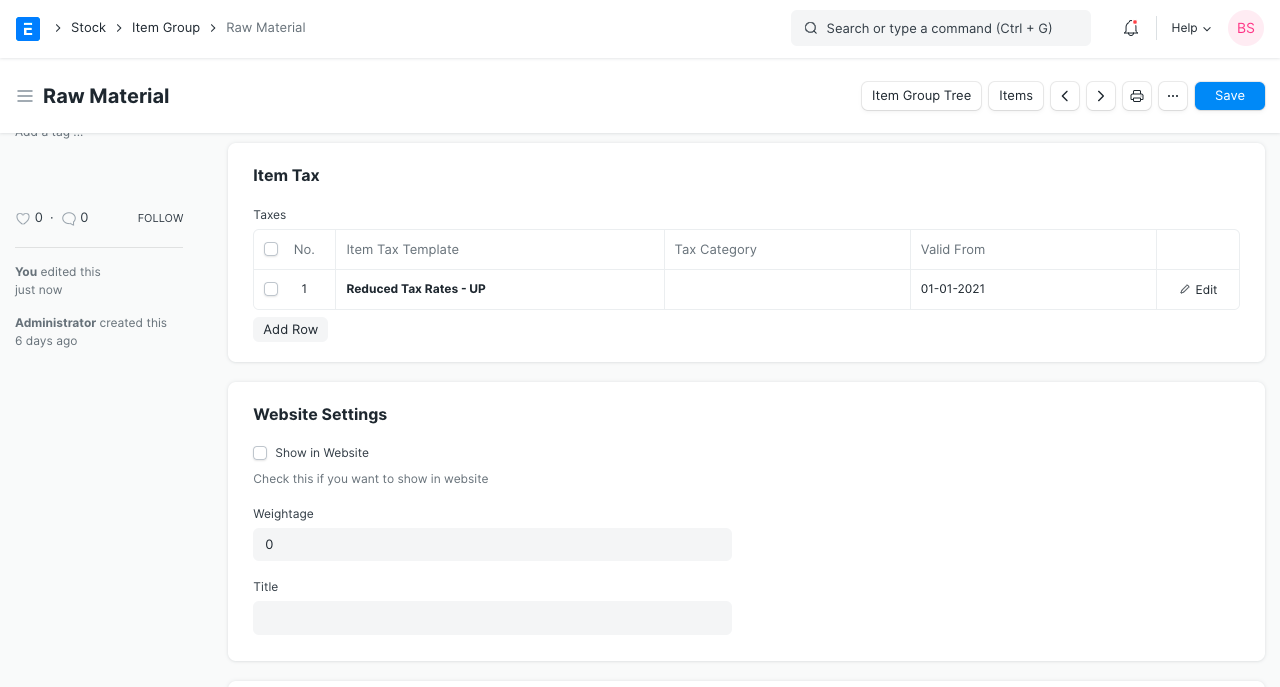
Item Tax Template applied on an Item Group will apply to all Items in that group unless an individual Item in the Item Group has its own Item Tax Template assigned to it.
#2.5 Validity of Item Taxes #
You can also assign validity to tax templates as shown in the image above.
- Based on the posting date of the transaction, a valid tax template will be automatically fetched.
- If there are more than one valid tax templates then the first valid tax template from Item Tax table will be fetched.
- In case when there are no valid tax templates then the first tax template with no ‘Valid From’ date in the Item Tax table will be fetched.
Note: While adding items in Purchase Invoice first preference will be given to ‘Supplier Invoice Date’ instead of ‘Posting Date’ for fetching valid Item Tax Template.
2.6 Some points to note #
- If you set the Tax Category as empty, the default Item Tax Template will be applied to Items in transactions.
- You can apply different Item Tax Templates for different Tax Categories.
- For an Item Tax Template to override taxes, there must be a row in the Taxes and Charges table with the same tax Account Head with a standard tax rate.
- If you wish to apply taxes only on the Items with an Item Tax Template then you can set the standard tax rate as 0.
Types in Tax Template #
In the Sales Taxes and Purchase Taxes master, you will find a column called Type. Following a brief on a meaning of each Type and how you can use it.
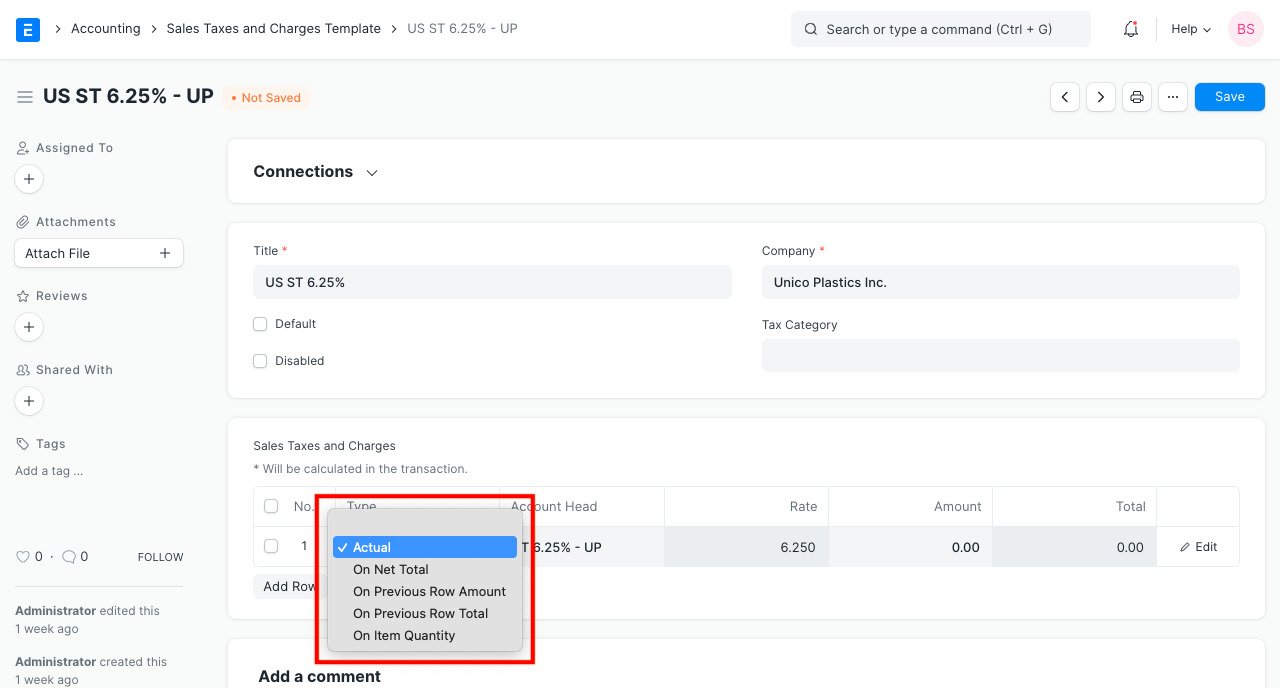
Actual: This allows you to enter expense amount directly. For example, Rs. 500 incurred for Shipping.
On Net Total: If you want to apply any tax or charges on Net Total, select this option. For example, 18% GST applied to all the item in the Sales Order.
On Previous Row Amount: This option helps you want to calculate tax amount calculated based on another tax amount.
Example: Education Cess is calculated based on the amount of GST tax.
On Previous Row Total: For each Tax row, a cumulative tax is calculated in the Total column. For the first row, total tax is calculated as Net Total + Tax amount at first row. If you want to apply a tax on the Total Amount of another tax row, then use this option.
If you select Type as Previous Row Amount or Previous Row Total, then you must also specify a Row No. whose Amount or Total should be considered for the calculation.
On Item Quantity: This option can be used for fixed/item specific taxes.
Purchase Taxes and Charges Template #
Purchase Taxes and Charges may be applied to any item you buy.
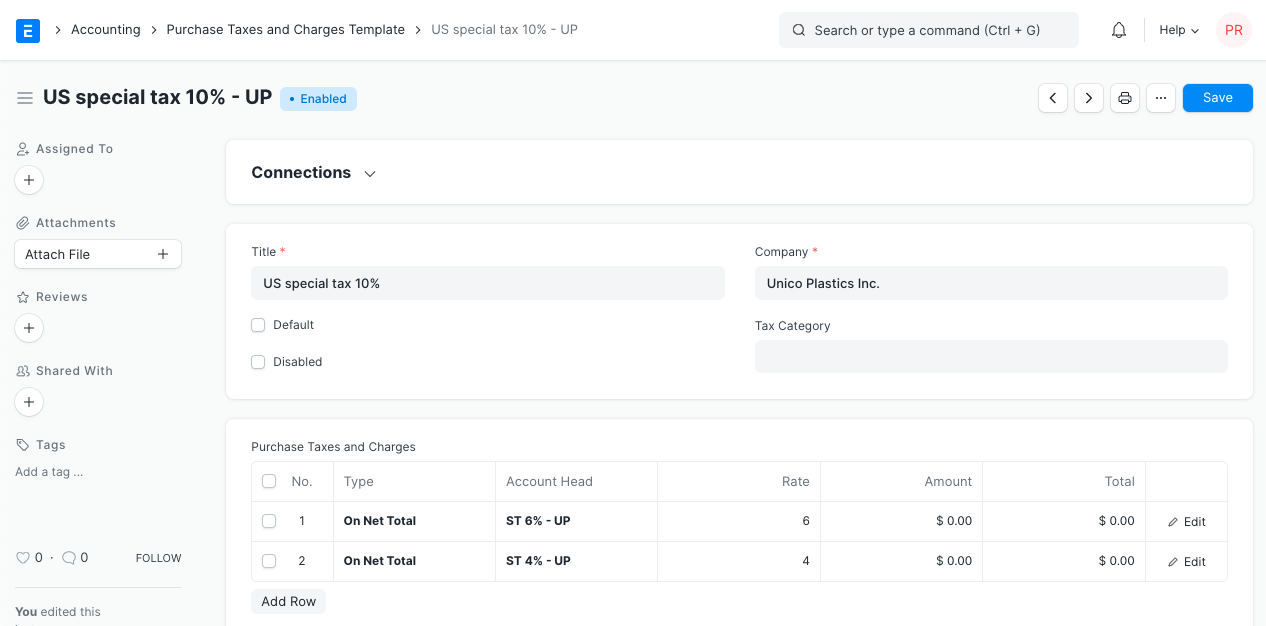
The Purchase Taxes and Charges Template is similar to the Sales Taxes and Charges Template. The templates created from this form can be used in Purchase Orders and Purchase Invoices for internal records.
For Tax Accounts that you want to use in the tax templates, you must set the Account Type field as ‘Tax’ for that particular account.
To access Purchase Taxes and Charges Template, go to:
Home > Buying > Settings > Purchase Taxes and Charges Template
1. How to add Purchase Taxes/Charges via a template #
Before creating a new template, note that templates are already created for many of the commonly used taxes.
- Click on New.
- Enter a title name for the Tax.
- Under type, set on what the tax will be calculated and the tax rate. There are five options under type for which tax will be calculated.
- Actual: On the actual amount of each item.
- On Net Total: On the grand total of all the items.
- On Previous Row Amount: This is for compounding the charges. For example, cess charges over the amount to which tax was already applied in the previous row.
- On Previous Row Total: Same as above but applied on the total bill and not just the amount of an item.
- Select an account head which has pre set tax rates or create your own.
- Selecting default will apply this template by default for new Purchase transactions.
- Save.
Is Inter State: For India. On selection of a customer in Sales Invoice or Delivery Note, if the GST codes of place of supply and customer shipping address don’t match, the template with ‘Is Inter State’ ticked will be set as the taxes template. If the place of supply and shipping address are the same, the default taxes template will be applied. This also applies to Purchase Invoice, on selection of Supplier, the templates are set depending on the addresses. For example, IGST.
2. Features #
2.1 Purchase Taxes and Charges table #
- Consider Tax or Charge for: Total – for the total of all items. Valuation – for each item. Valuation and total – apply tax/charge to both. Check out this article to know the difference.
- Add or Deduct: Whether you want to add or deduct the tax from the item.
- Reference Row #: If tax is based on “Previous Row Total” you can select the row number which will be taken as a base for this calculation (default is the previous row).
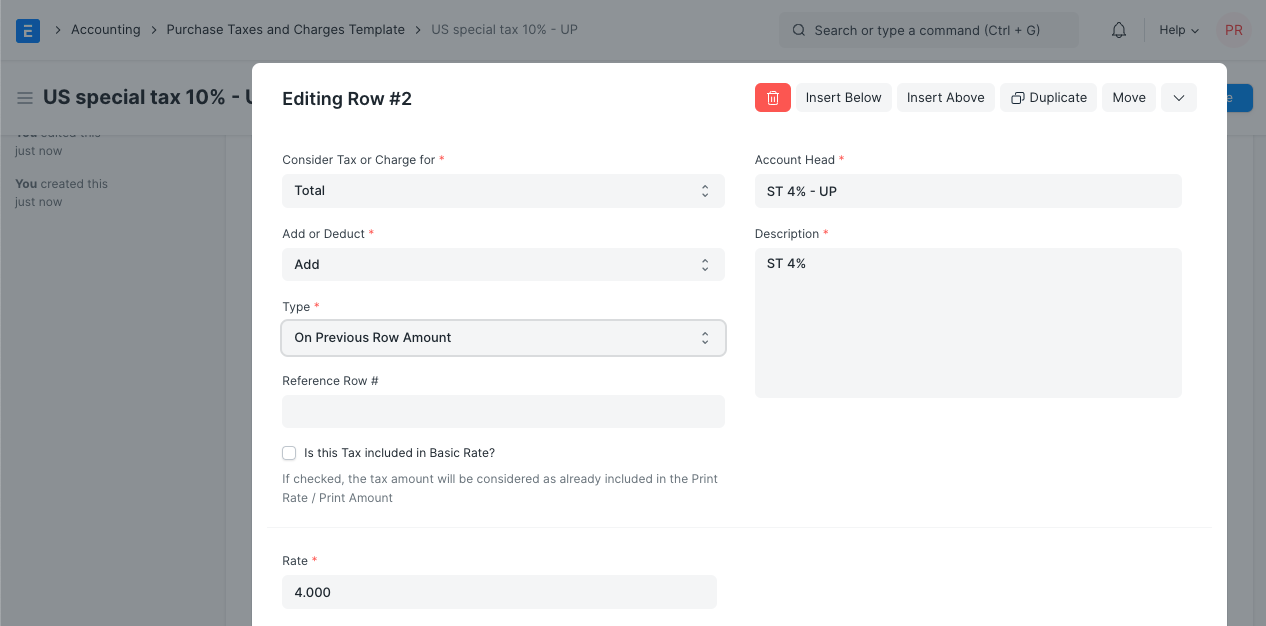
- Is this Tax included in Basic Rate?: If checked, the tax amount will be considered as already included in the Print Rate / Print Amount.
- Account Head: The Account ledger under which this tax will be booked. If you select VAT or any other preset heads, the rate will be automatically filled.
- Cost Center: If the tax/charge is an income (like shipping) or expense it needs to be booked against a Cost Center.
- Description: Description of the tax (that will be printed in invoices/quotes).
- Rate: The Tax rate, eg: 14 = 14% tax.
- Amount: The Tax amount to be applied, eg: 100.00 = ₹100 tax.
Sales Taxes and Charges Template #
Sales Taxes and Charges may be applied to any item you sell.
The templates created from this form can be used in Sales Orders and Sales Invoices.
For Tax Accounts that you want to use in the tax templates, you must set the Account Type field as ‘Tax’ for that particular account. The way Emeron ERP sets up taxes is via templates. Other types of charges that may apply to your invoices (like shipping, insurance etc.) can also be configured as taxes.
To know about setting up taxes visit this page.
To access Sales Taxes and Charges Template, go to:
Home > Selling > Settings > Sales Taxes and Charges Template
To know about setting up taxes visit this page
1. How to add Sales Taxes/Charges via a template #
Before creating a new template, note that templates are already created for many of the commonly used taxes.
- Go to the Sales Taxes and Charges Template list, click on New.
- Enter a title name for the Tax.
- Under type, set on what the tax will be calculated and the tax rate. There are five options under type for which tax will be calculated.
- Actual: You can directly enter the amount for the expense.
- On Net Total: On the net total of all the items.
- On Previous Row Amount: This is for compounding the charges. For example, cess charges over the amount to which tax was already applied in the previous row.
- On Previous Row Total: Same as above but applied on the total bill and not just the amount of an item.
- On Item Quantity: Tax will be calculated as Tax Rate * Item Quantity. For example, if Tax Rate is 2% and number of Items is 1, then Tax Rate will be 4, if number of Items are 5, Tax Rate will be 10, and so on.
- Select an account head which has pre set tax rates or create your own.
- Selecting default will apply this template by default for new Sales transactions.
- Save.
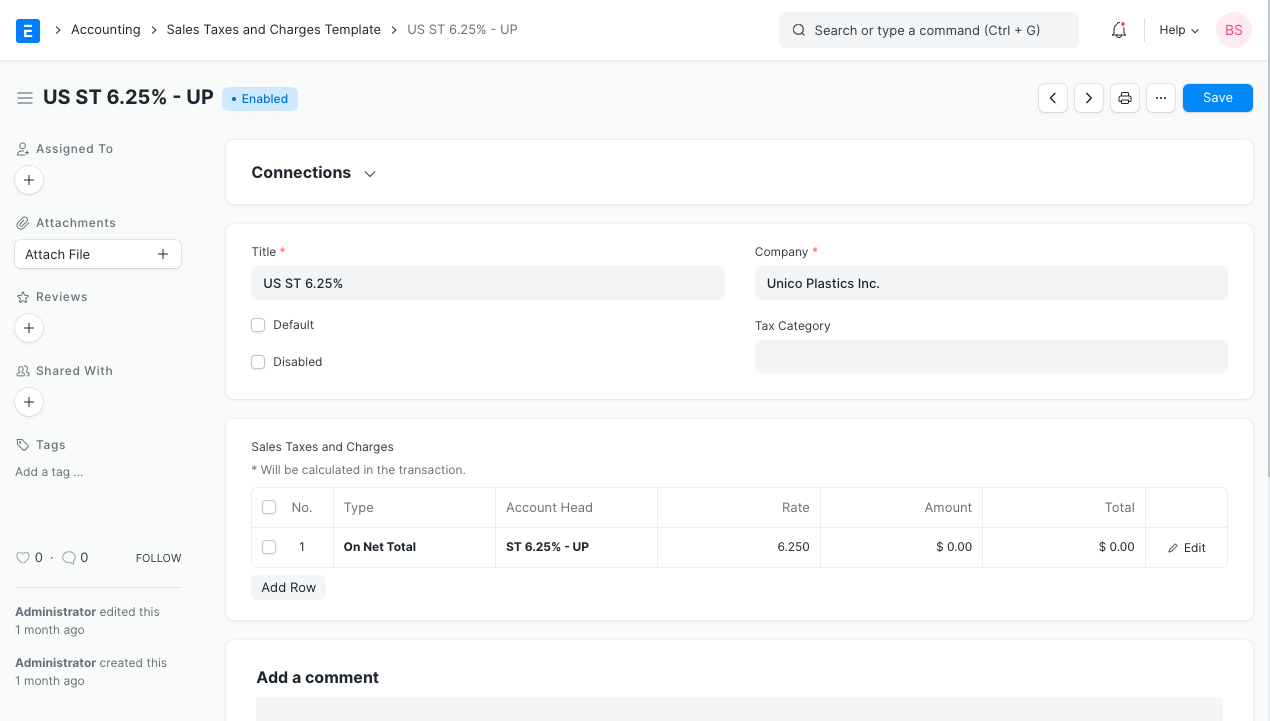
Is Inter State: For India. On selection of a customer in Sales Invoice or Delivery Note, if the GST codes of place of supply and customer shipping address don’t match, the template with ‘Is Inter State’ ticked will be set as the taxes template. If the place of supply and shipping address are the same, the default taxes template will be applied. This also applies to Purchase Invoice, on selection of Supplier, the templates are set depending on the addresses. For example, IGST.
2. Features #
2.1 Sales Taxes and Charges table #
- Consider Tax or Charge for: Total – for the total of all items. Valuation – for each item. Valuation and total – apply tax/charge to both. Check out this article to know the difference.
- Reference Row #: If tax is based on “Previous Row Total” you can select the row number which will be taken as a base for this calculation (default is the previous row).
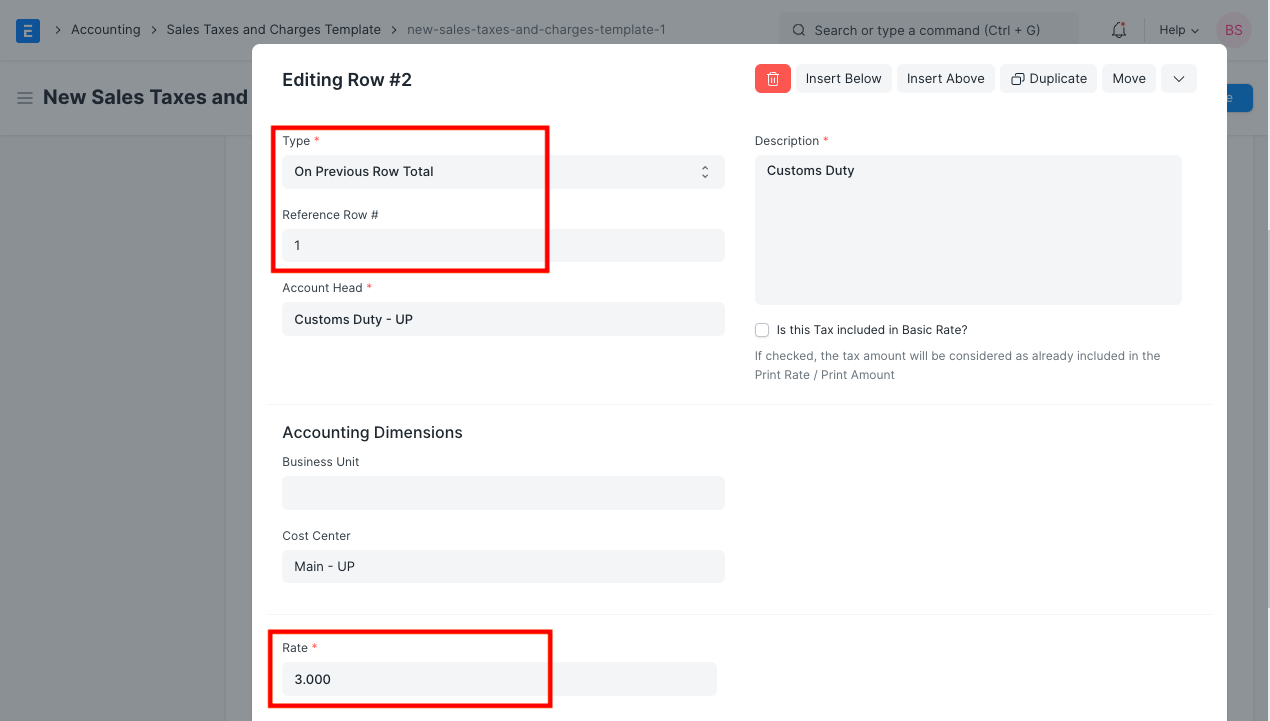
- Is this Tax included in Basic Rate?: If checked, the tax amount will be considered as already included in the Print Rate / Print Amount in the Item table of a transaction. This is useful when you want to give tax inclusive price to your customers. To account for tax inclusive rates, the system calculates the Net Amount by deducting the amount of tax to be applied then calculates the tax on it.
- Account Head: The Account ledger under which this tax will be booked. If you select VAT or any other preset heads, the rate will be automatically filled.
- Cost Center: If the tax/charge is an income (like shipping) or expense it needs to be booked against a Cost Center.
- Description: Description of the tax (that will be printed in invoices/quotes).
- Rate: The Tax rate, eg: 14 = 14% tax.
- Amount: The Tax amount to be applied, eg: 100.00 = ₹100 tax.
The tax rates you define in the template be the standard tax rate for all Items. If there are Items that are supposed have different rates, you can override the standard tax rate by setting an Item Tax Template to the Item or Item Group.