

Twilio #
Twilio is a cloud communications platform that allows businesses to integrate voice, video, messaging, and authentication functionalities into their applications. This integration enables you to make calls directly from various pages within the CRM.
Make call #
- Lead page: A call button is available in the right section above lead details. Use this button to initiate a call, but ensure the Mobile No field in the Person section includes the country code.

- Deal page: In the Contacts section on the right side. You can add multiple contacts and designate a primary contact. The call button will utilize the primary contact’s number.

- Contact page: Directly initiate a call by clicking the Mobile No displayed below the contact’s name.

Call pop-up #
Upon making or receiving a call, a pop-up window appears displaying:
- Caller name
- Mobile number
- Call status
- Call duration
- Mute button
- Note button
- Action buttons (Accept, Reject, Cancel Call)

This window can be minimized, allowing navigation to other screens, while remaining accessible in the far-right corner of the navbar.
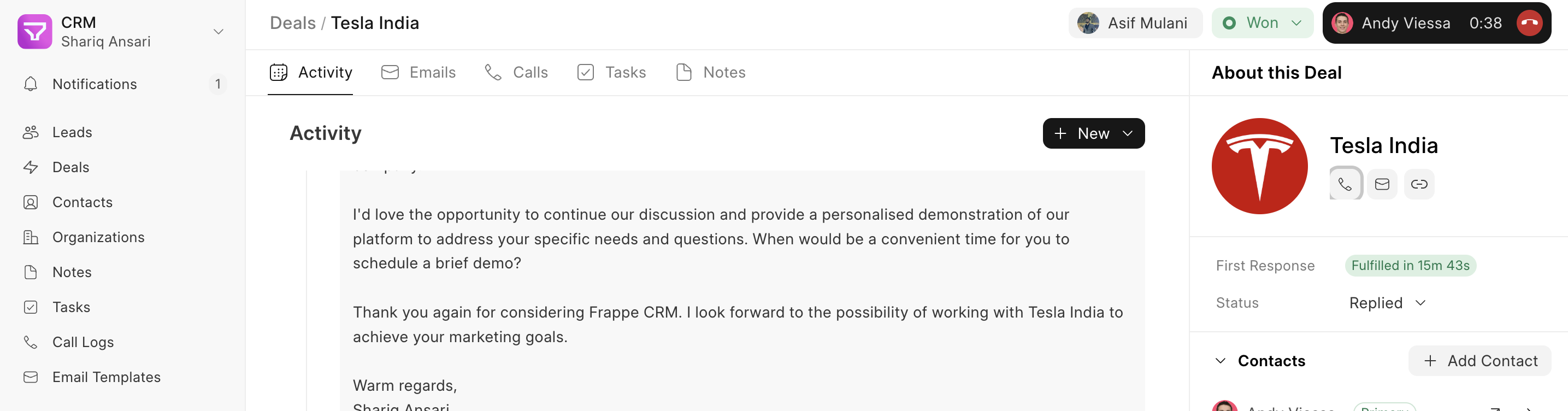
Take notes during a call #
While on a call, you can take notes using the note button. These notes are saved in the Call Log for later viewing and editing.

Twilio setup #
To configure Twilio for use within the CRM, follow these steps:
- Twilio Subscription: Obtain an active Twilio subscription (refer to Twilio’s documentation for details).
- Twilio Credentials: From your Twilio account, retrieve your Account SID, Auth Token, and Twilio Mobile Number.
- Settings: Click the dropdown menu on the top left logo and select “Settings.”
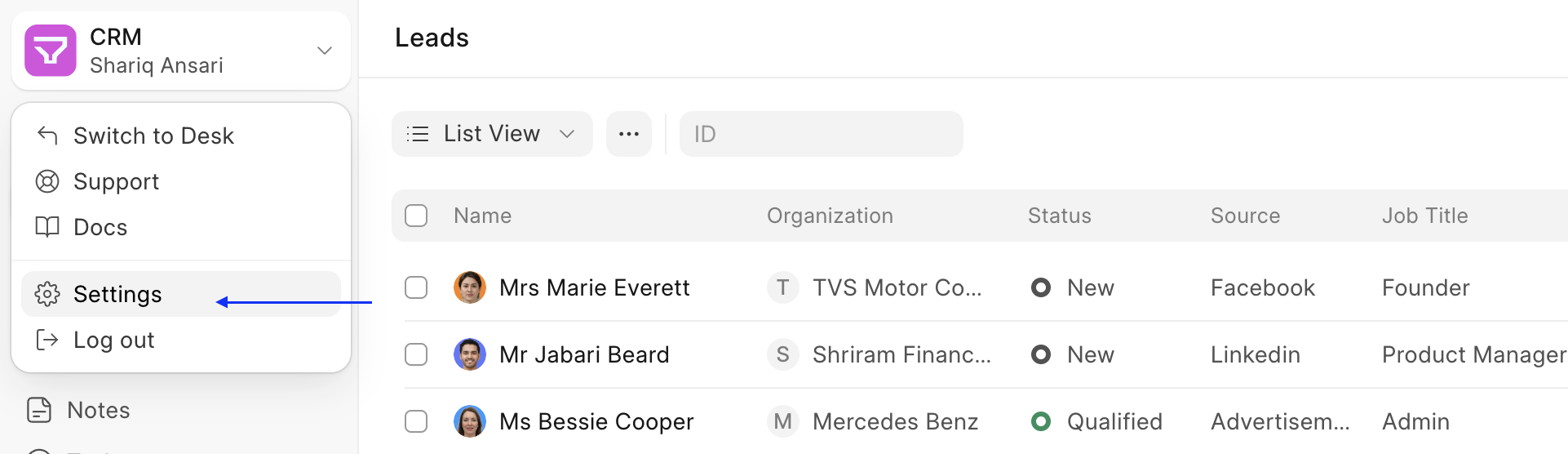
- Telephony Settings: Navigate to Telephony Settings, enable Twilio and add your Account SID and Auth Token. You can also enable call recording at this point.

- Telephony Agent: Go to Telephony Agent (In Desk) and add users (agents) with Twilio mobile numbers designated for making calls. Make sure the Twilio number added does not contain spaces and special characters (it can still have + at the start)

Twilio API configuration #
For your CRM’s API to connect with Twilio, perform the following configurations within Twilio:
- Incoming Call API URL: Under Phone Numbers > Manage > Active Numbers, select your mobile number. Locate the Voice Configuration form and within the “A call comes in” section, add the following URL to the URL field:
"https://<yoursitename>/api/method/crm.integrations.twilio.api.twilio_incoming_call_handler"
 This URL is responsible for handling incoming calls. 2. Outgoing Call API URL: Navigate to Phone Numbers > Manage > TwiML apps and select your app. In the Voice Configuration > Request URL field, enter the following URL:
"https://<yoursitename>/api/method/crm.integrations.twilio.api.voice"
 This URL is used for making outbound calls.
Note
Please refer to Twilio’s official guide for any additional Twilio configuration requirements.
Exotel #
Exotel is a cloud telephony platform that enables businesses to manage voice calls, SMS, and communication workflows without traditional phone hardware. The integration with Frappe CRM combines these communication capabilities with customer relationship management to provide a unified system for handling customer interactions.
Make call #
- Lead page: A call button is available in the right section above lead details. Use this button to initiate a call, but ensure the Mobile No field in the Person section includes the country code.
- Deal page: In the Contacts section on the right side. You can add multiple contacts and designate a primary contact. The call button will utilize the primary contact’s number.
- Contact page: Directly initiate a call by clicking the Mobile No displayed below the contact’s name.
> Make sure to complete your KYC on Exotel before making calls docs
Call pop-up #
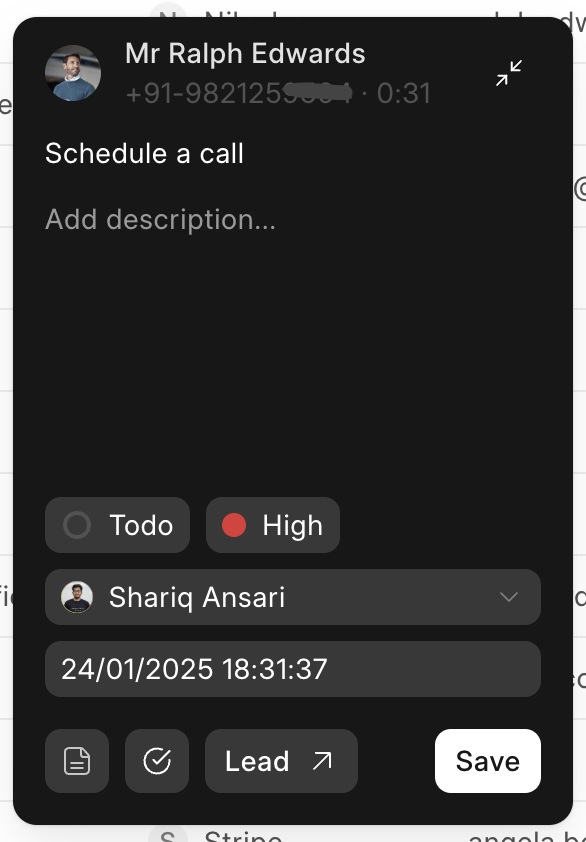
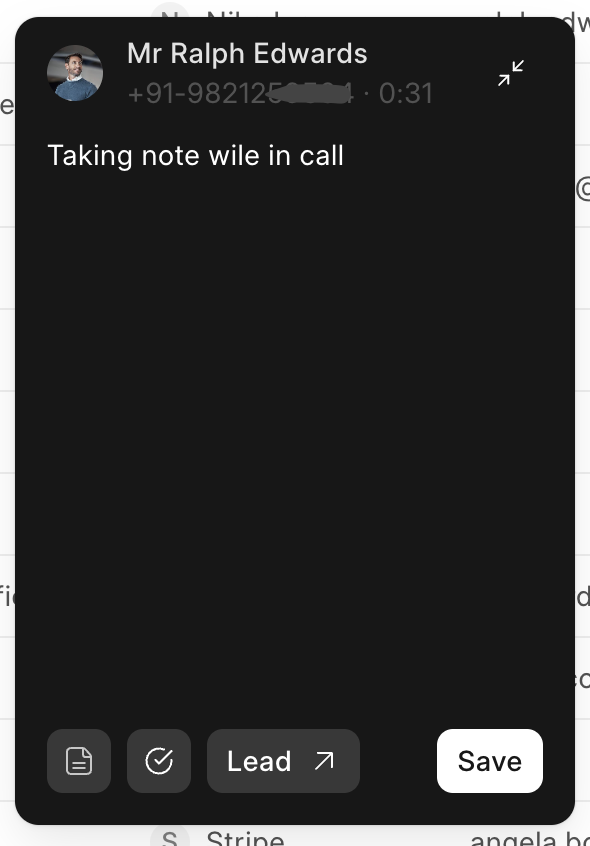
Upon making or receiving a call, a pop-up window appears displaying:
- Caller name
- Mobile number
- Call status
- Call duration
- Note button
- Task button
- Lead/Deal button
- Action buttons (Close or Minimize)

This window can be minimized, allowing navigation to other screens, while remaining accessible in the far-right corner of the navbar.

Take notes & task during a call #
While on a call, you can take notes/task using the note/task button. These notes/task are saved in the Call Log for later viewing and editing.
Exotel setup #
To configure Exotel for use within the CRM, follow these steps:
- Exotel Subscription: Obtain an active Exotel subscription (refer to Exotel’s documentation for details).
- Exotel Credentials: From your Exotel account, retrieve your Account SID, Subdomain, API Key, API Token and Exotel Mobile Number (Exophones).


- Settings: Click the dropdown menu on the top left logo and select “Settings.”
- Telephony Settings: Navigate to Telephony Settings and enable Exotel. Add your Account SID, Subdomain, API Key, API Token and set Webhook verify token (it can be anything it will be used later in Exotel incoming call flow configuration). You can also enable call recording at this point.

- Telephony Agent: Go to Telephony Agent (In Desk) and add users (agents) with Exotel mobile number designated for making calls and also personal number(do not forget to mark one number as primary).> Make sure the email is same in both Telephony Agent and Exotel.

Exotel incoming call flow configuration #
For your CRM’s API to connect with Exotel, perform the following configurations within Exotel:
- Login to your Exotel account and go to App Bazar.
- Create a new “App” for a new flow.

- Setup the flow as you wish it to be.
- Set “Dial Whom” as user group. In user group there can be multiple agents. Incoming call will be redirected to agents in this group in the order they are added.


- You can also set how you want to distribute calls.

- In your connect API under “Create popup…”, copy and paste URL (Callback API) mentioned below. Here use webhook verify token which was mentioned in Exotel Setup (point 4).
https://<yoursitename>/api/method/crm.integrations.exotel.handler.handle_request?key=<webhook-verify-token>
- After that add a “Passthru applet” under “After Call Conversation ends” and paste the same URL.

 > Note: Make sure to check “Make Passthru Async”.
 - Similary, add another “Passthru applet” under “If nobody answers…” section and paste the same URL.

 > Note: Make sure to check “Make Passthru Async”.
 - Save the flow.
- Now assign this newly created “App” to your ExoPhone from which you receive your business calls.

Once this is done, you should see all new incoming calls on your exotel phone number in the “Call Log” list in your CRM instance.

WhatsApp #
WhatsApp integration allows you to send and receive WhatsApp messages from within the lead and deal pages in Frappe CRM. This streamlines communication and keeps all interaction history centralised for better customer relationship management.

A dedicated WhatsApp tab is available on both Lead and Deal pages, providing a real-time chat window for efficient communication.
- Lead: The mobile number field of a Lead is used to initiate and receive WhatsApp messages.
- Deal: The primary contact number associated with a Deal is used for WhatsApp communication.
Installation #
WhatsApp integration requires a separate app called “Frappe WhatsApp” developed by Shridhar.
- Frappe Cloud Marketplace: The app is available on the Frappe Cloud marketplace for easy installation.
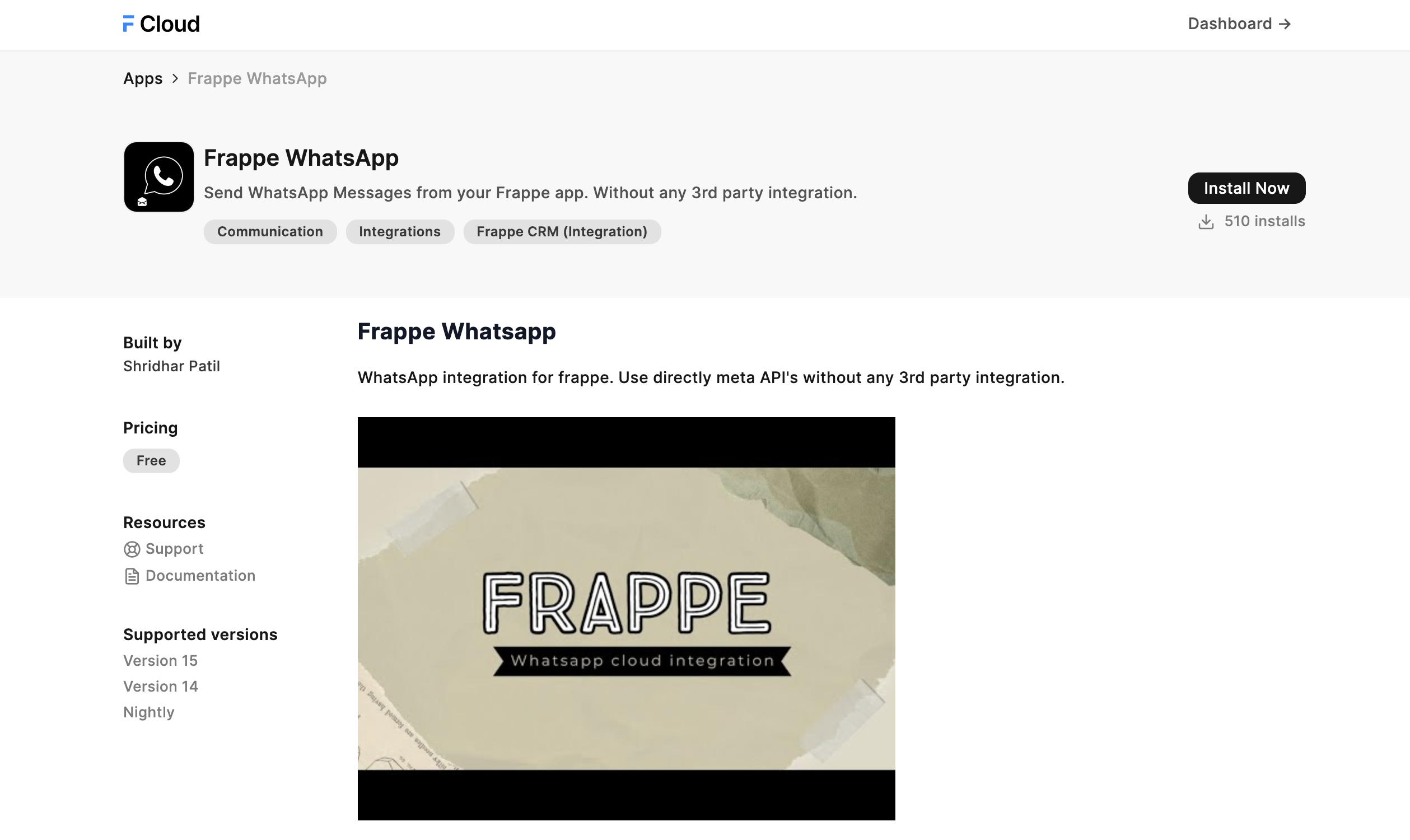
- Manual Installation: Clone the app’s repository from Github: <https://github.com/shridarpatil/frappe_whatsapp>
Configuration Steps #
To enable WhatsApp integration in Frappe CRM, follow these steps:
- Obtain WhatsApp Business Credentials: Refer to the official WhatsApp guide for creating a WhatsApp Business account and acquiring the necessary credentials WhatsApp Business Account Creation Guide.
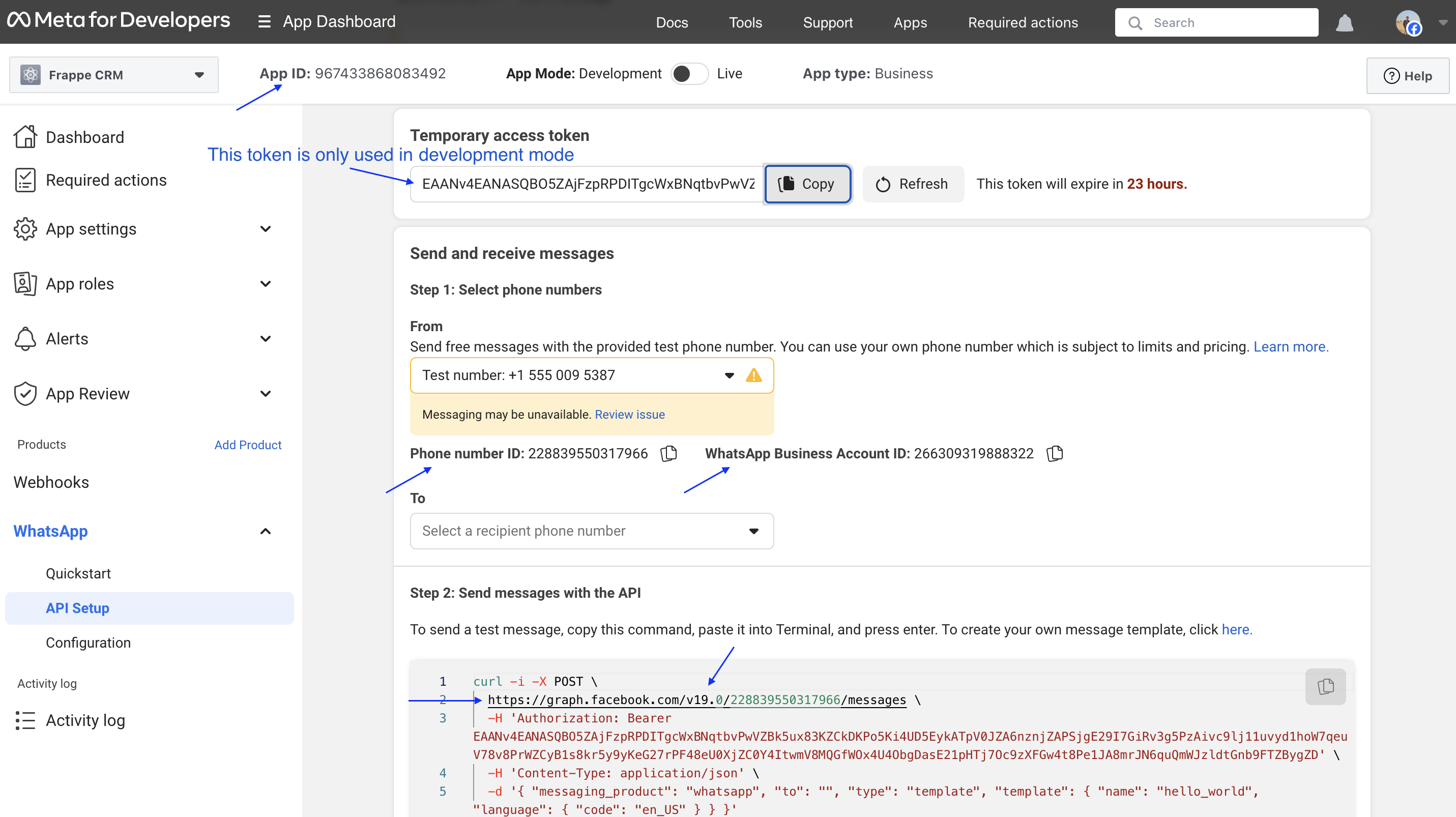
- Configure WhatsApp Settings:
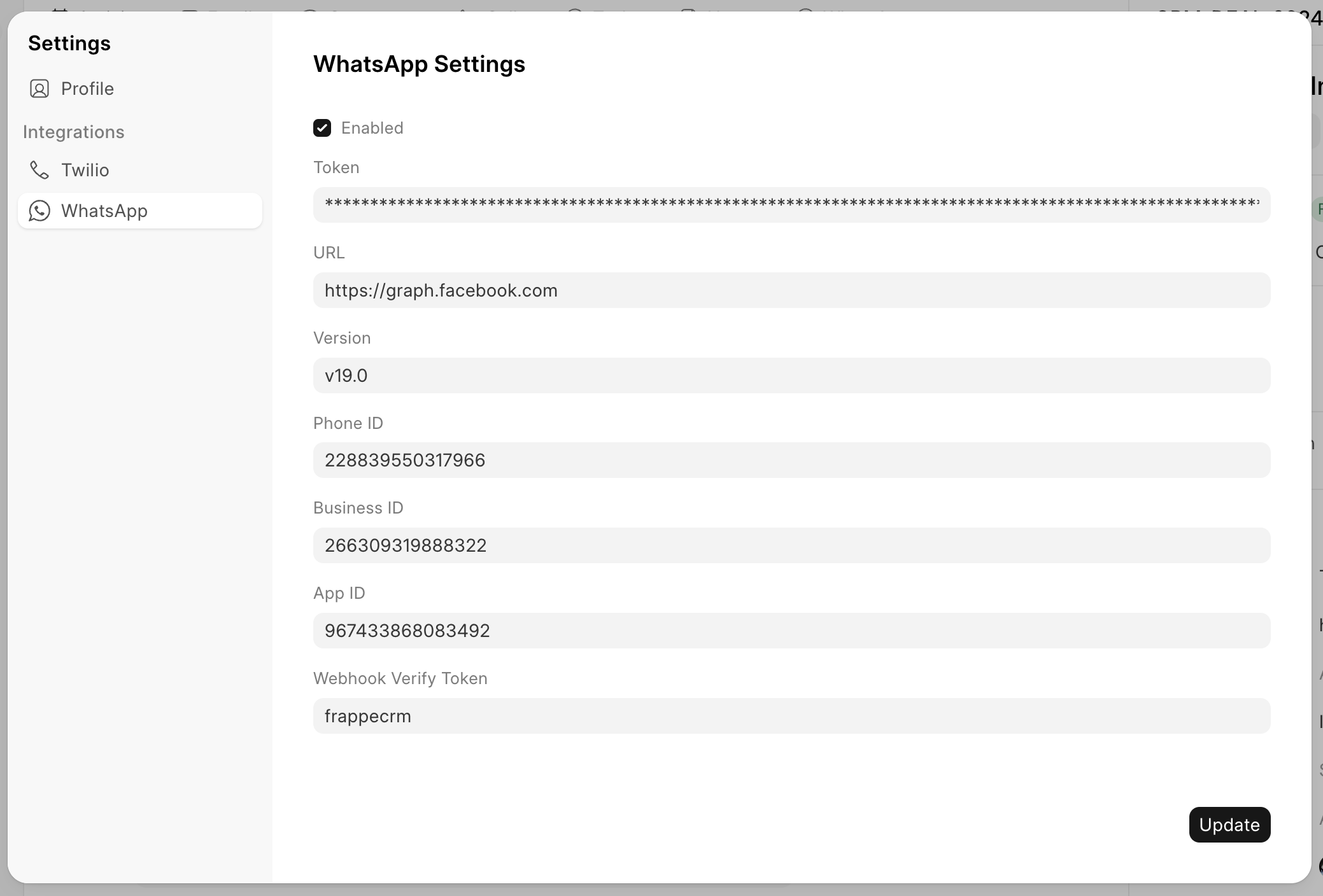
- Click the dropdown menu on the top left logo and select “Settings.”
- Locate the WhatsApp Settings.
- Enter the credentials obtained in step 1.
- Enable the WhatsApp integration.
- Set up the Webhook:
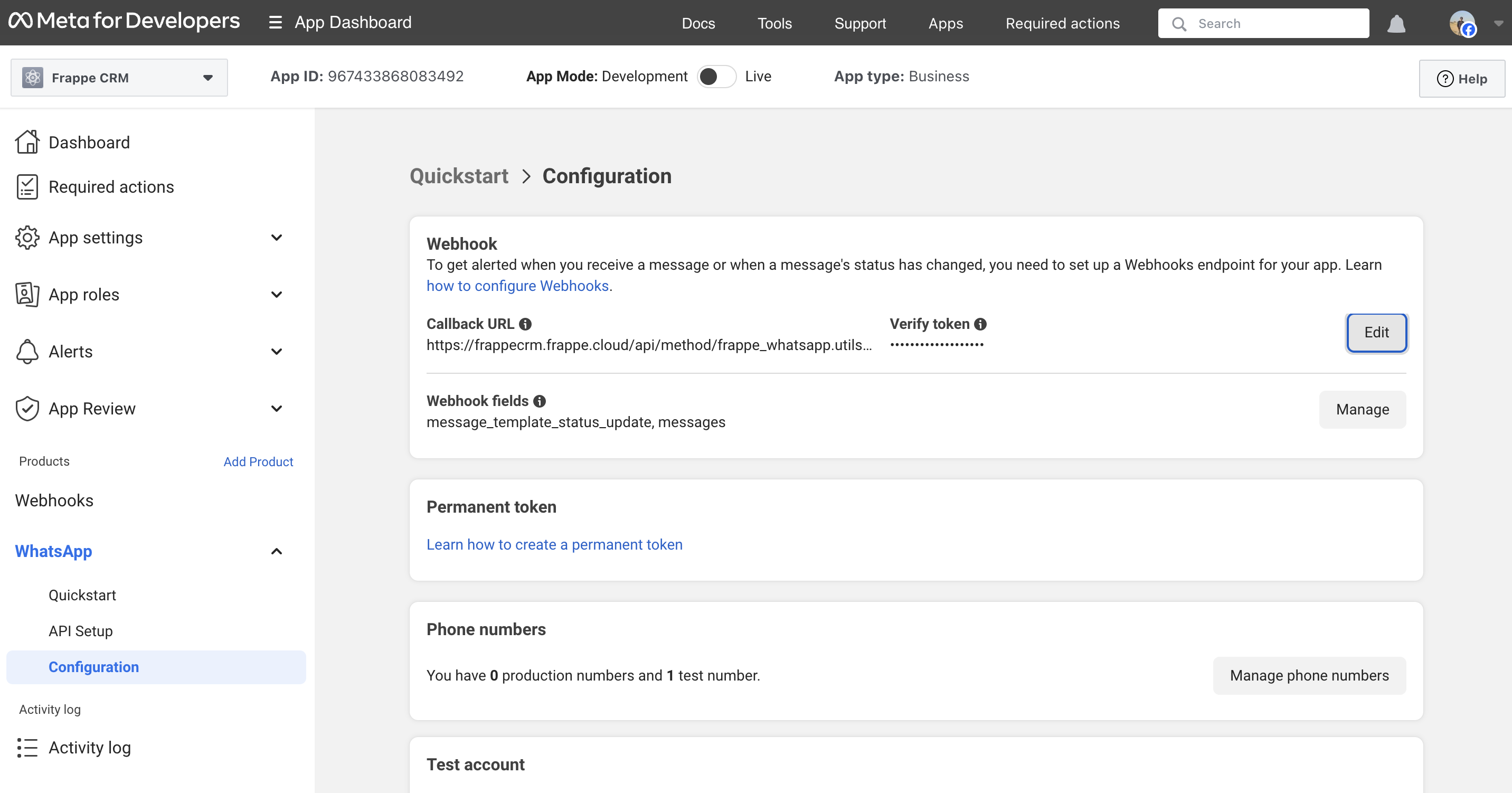 A webhook URL is required to establish communication between Frappe CRM and WhatsApp Business. Use the following URL format, replacing
 <yoursitename>with your actual Frappe CRM site name and including the Webhook Verify Token you created in the WhatsApp Settings in Verify token fieldhttps://<yoursitename>/api/method/frappe_whatsapp.utils.webhook.webhook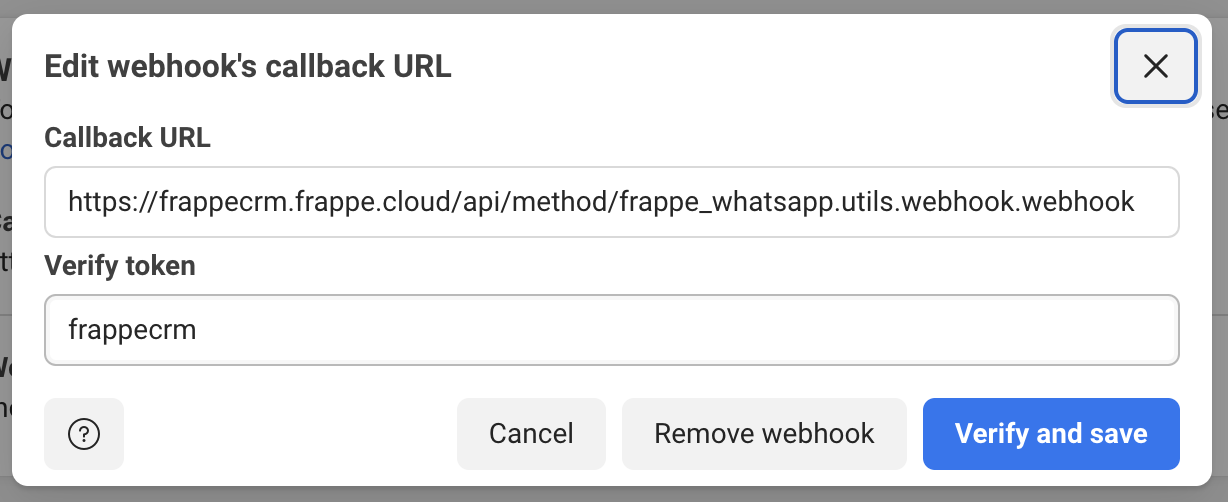
- Subscribe to webhook fields: Subscribe all webhook fields (recommended – whatsapp docs) but atleast subscribe to
messages&message_template_status_update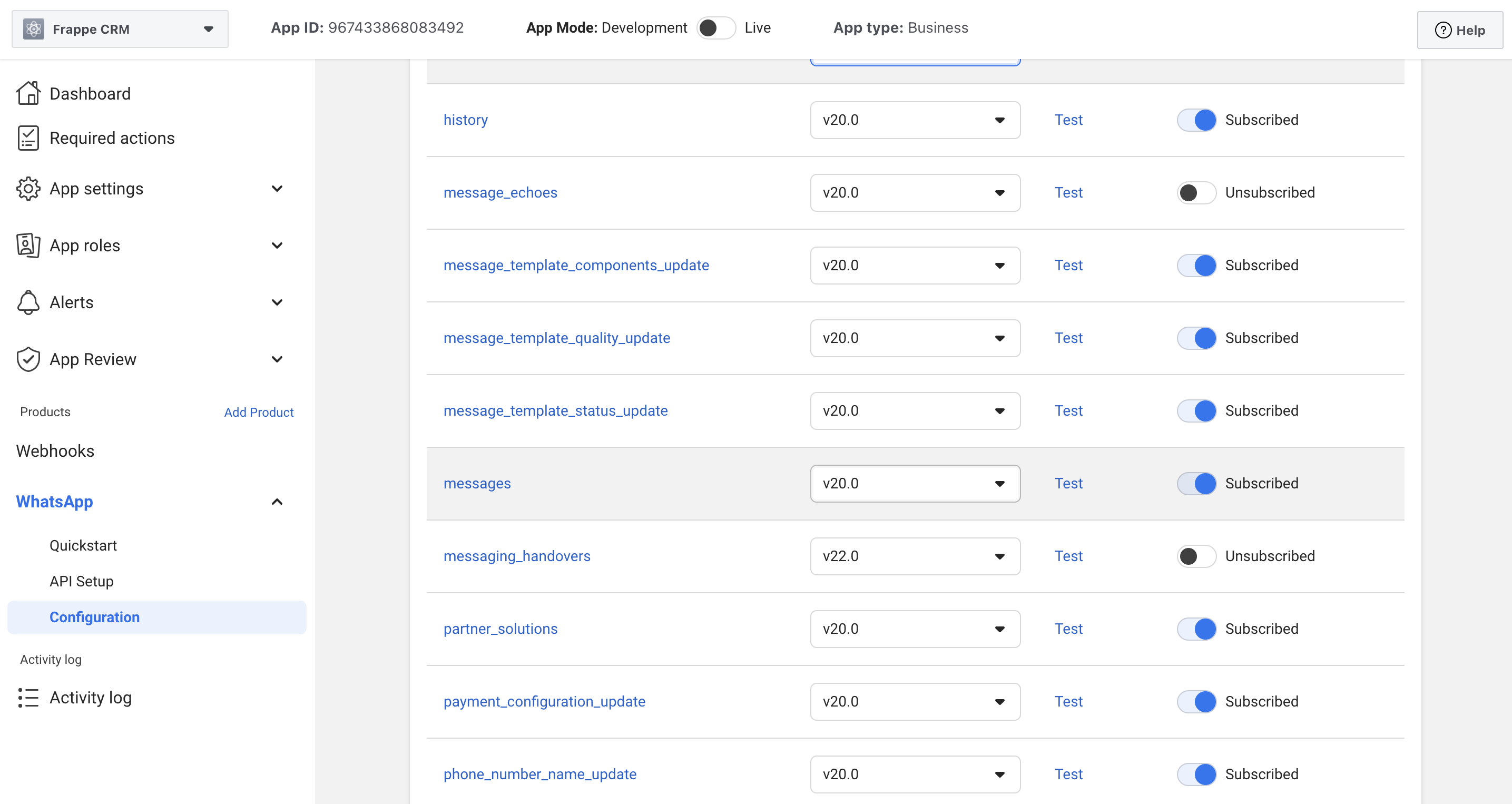
Creating WhatsApp Templates #
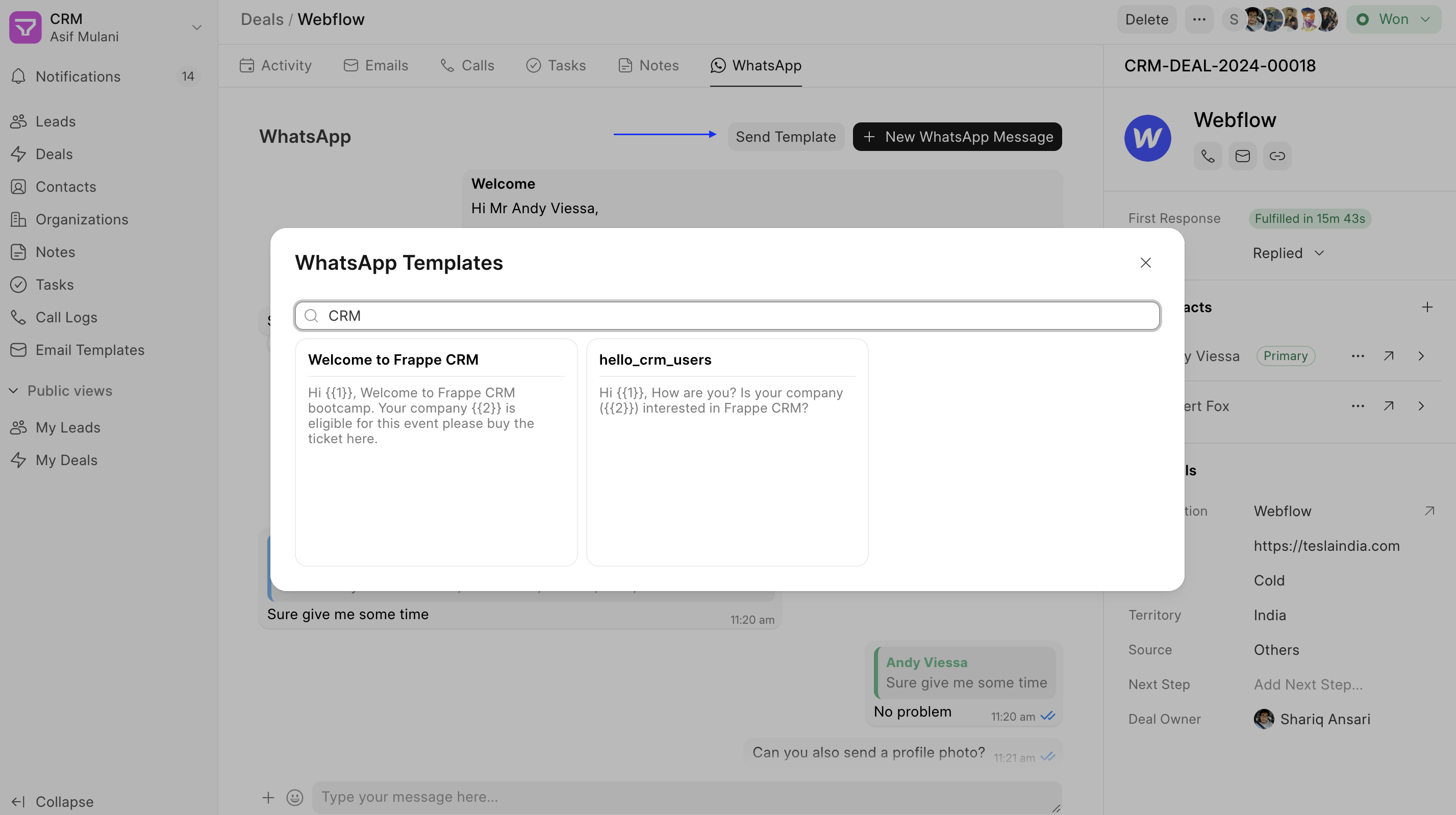
To ensure compliance and streamline communication, Frappe CRM utilizes WhatsApp templates. These pre-approved messages can be created and managed within the system.
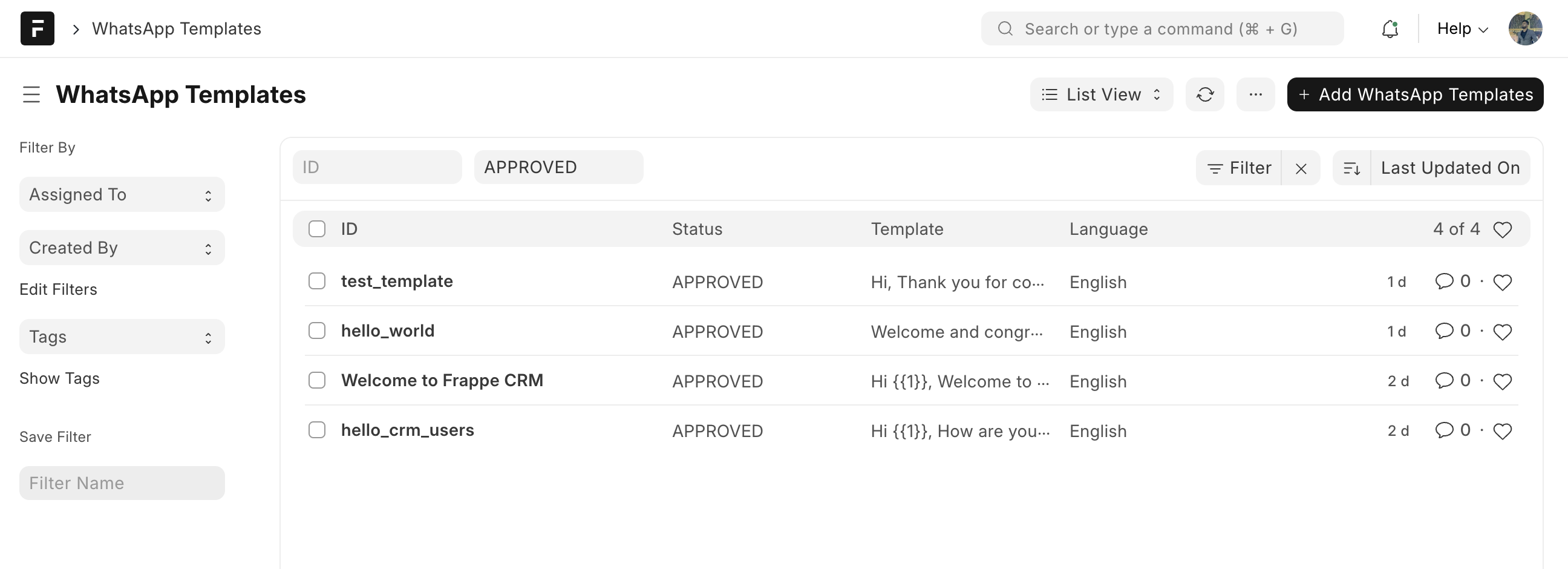
- Navigate to the WhatsApp Templates DocType.
- Click on Add WhatsApp Template.
- Fill in the required details for your template message.
- Save the template.
With these configurations in place, you’re ready to leverage WhatsApp Business for efficient communication with your leads and deal contacts directly within Frappe CRM.
> Important Note: Due to WhatsApp Business limitations, you can only initiate communication by sending a pre-approved WhatsApp template. You can only send regular messages after receiving a reply from the customer.