Calculating Tax deductions for employees every month is a time-consuming activity for most businesses, especially for large enterprises. If set up properly, Emeron HR simplifies most of the tax-related calculations by automatically calculating tax deductions while generating Salary Slips. Here’s how you can configure Emeron HR to ease your payroll processing –
In many countries, especially in India, regulations allow exempting a part (or all) of some type of spendings by individuals from being added to their annual taxable income. Examples of such spendings could be contributions to charitable institutions, the amount spent on the education of children, specific investments, etc. To avail the exemption from their taxable income, individuals are required to submit proof of such spendings.
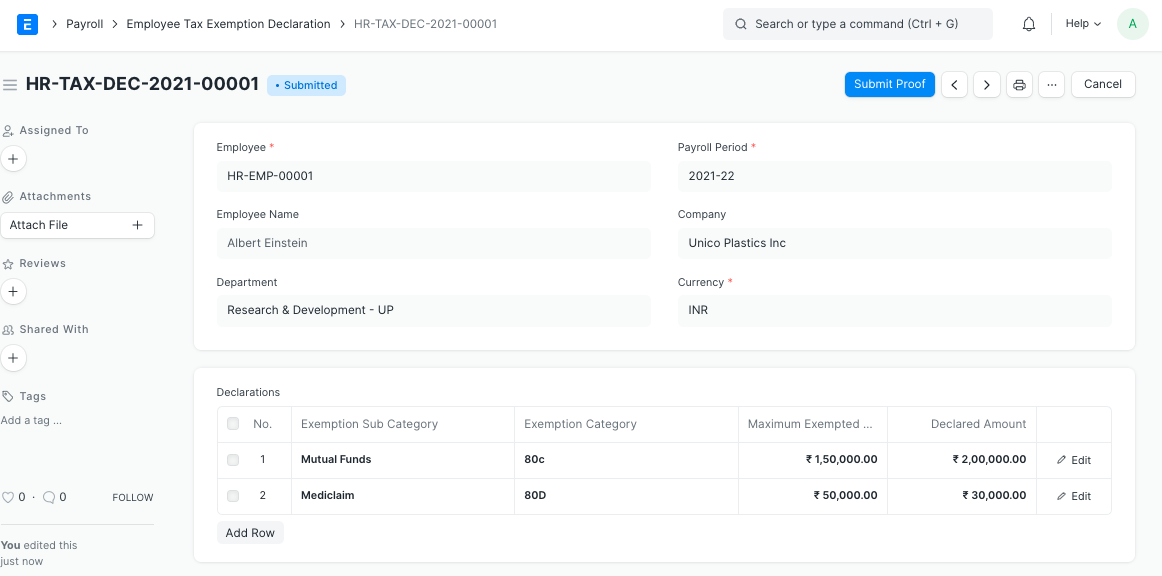
Emeron HR allows you to configure Income Tax Slabs and the tax is calculated based on the projected annual earnings of the employee. For this, employees are required to declare the exemption amount they plan to claim at the start of the financial year so that the payroll deductions for tax will be calculated based on the projected annual earnings minus the exemption. Employees can declare this through Employee Tax Exemption Declaration.
If no declaration is submitted by the employee, the monthly deductions will be calculated without any exemption from the employee’s annual earnings. However, if the employee submits a declaration in between the payroll period, the tax exemption will be applied from the next payroll onwards. Any additional tax collected in earlier payrolls will be adjusted in the last payroll or when using Deduct Tax For Unsubmitted Tax Exemption Proof in Payroll Entry or Salary Slip.
Also, at the end of the year employees submit the actual proof of the spendings for filing via Employee Tax Exemption Proof Submission. In the last payroll of the Payroll Period, Emeron HR checks for proof submissions of employees, and if not found, tax for the exempted income will be added to the standard deduction component.
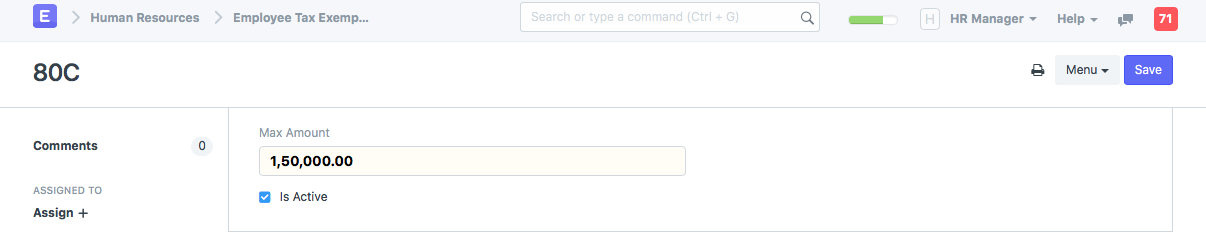
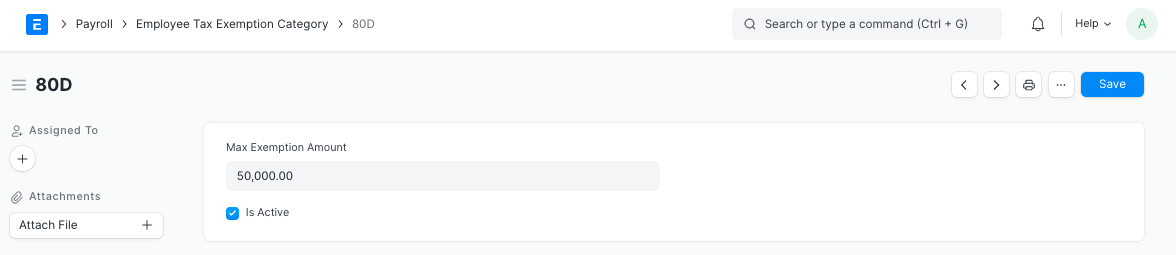
Exemptions from taxable salary are usually restricted to spendings on particular categories decided by government or regulatory agencies. Emeron HR allows you to configure various categories which are allowed to be exempted. Examples of this could be, for India, 80G, 80C, B0CC, etc.
You can configure Employee Tax Exemption Category by going to, > Human resources > Payroll Setup > Employee Tax Exemption Category > New Employee Tax Exemption Category
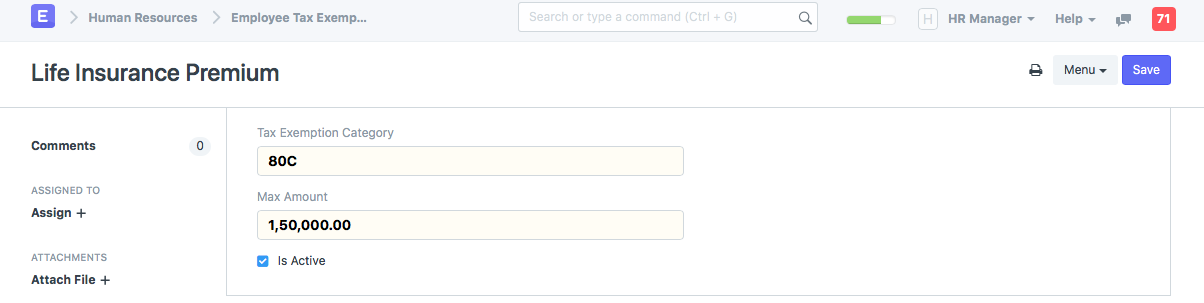
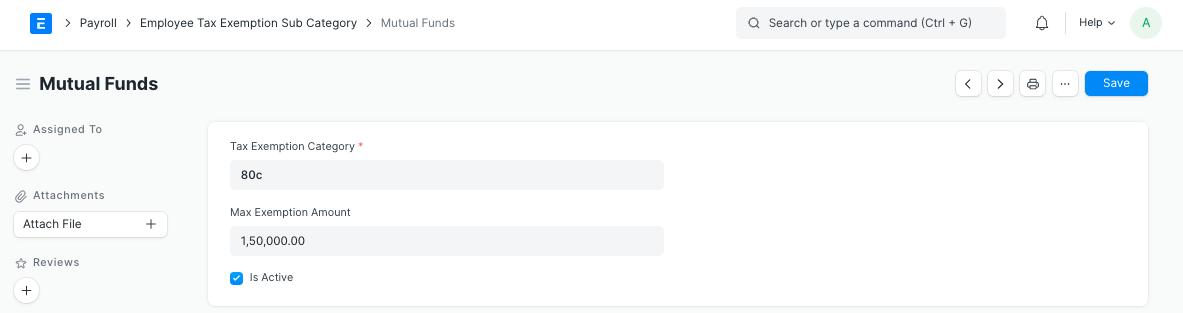
Under each category, there could be many heads for which the exemptions are allowed. For example, in India, subcategories under 80C could be Life Insurance Premium
You can configure Employee Tax Exemption Sub Category by going to, > Human resources > Payroll Setup > Employee Tax Exemption Sub Category > New Employee Tax Sub Exemption Category
For the fiscal year 2018-19, in India, House Rent Allowance (HRA) exemption from taxable earnings is the minimum of: The actual amount allotted by the employer as the HRA. Actual rent paid less 10% of the basic salary. * 50% of the basic salary, if the employee is staying in a metro city (40% for a non-metro city).
As part of the Employee Tax Exemption Declaration, employees shall also fill out the HRA Exemption. Emeron HR will calculate the exemption eligible for HRA and exempt it while calculating the taxable earnings.
Note: Basic and HRA salary component shall be configured in Company for HRA exemption to work
Emeron HR simplifies payroll processing by automatically processing payroll in bulk via Payroll Entry.
Deduct Tax For Unclaimed Employee Benefits: Flexible benefits (Salary Components which are Is Flexible Benefit) are not included in the taxable income of the employee. However, the amount received for these components will be included in the taxable earnings of the employee if she fails to submit Employee Benefit Claim while calculating tax in the last payroll of the Payroll Period.
If you wish to collect tax for benefits before the last payroll, check this option and Emeron HR will recalculate the tax and add the tax for all untaxed benefits while generating the Salary Slip.
Deduct Tax For Unsubmitted Tax Exemption Proof: This option allows you to deduct taxes for the earnings which were exempted in previous payrolls as declared in Employee Tax Exemption Declaration but the Employee has not submitted sufficient proof via Employee Tax Exemption Proof Submission. It is to be noted that if this option is checked Emeron HR does not consider the Employee Tax Exemption Declaration by employees and will only take into account Employee Tax Exemption Proof Submission instead while calculating exemption from employees’ annual earnings.
Note: If required, you can still process payroll for employees individually, by manually creating a new Salary Slip and both these options are made available in the Salary Slip
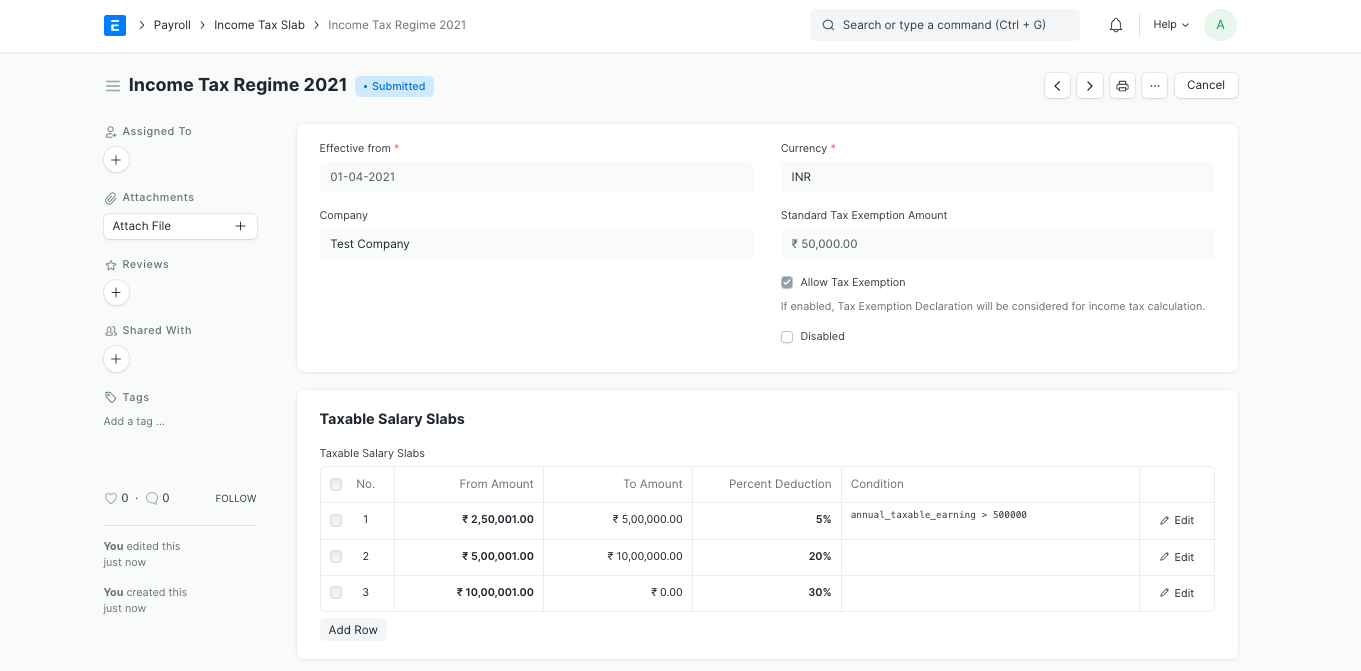
Income Tax Slab helps you define Tax slabs applicable for the period, making it easier to manage changing laws. You can add multiple tax slabs for the payroll period depending on the tax regulations. Note that you can use fields in Employee document in the Condition field to apply tax slabs based on attributes of employees.
To enable automatic tax deduction based on Tax slabs configured in Income Tax Slab, you have to configure a Salary Component of type Deduction with Variable Based On Taxable Salary option enabled. This checkbox enables auto calculation of Income Tax considering the tax slabs and declaration submitted by an employee. The tax will be calculated annually on the remaining taxable salary and equally divide it in 12 months.
Important Note: If you configure condition and formula for this Deduction component, the condition and formula will be considered for calculating the Salary Component and the Tax Slabs configured in Income Tax Slab will be ignored. However, you can still use Deduct Tax For Unsubmitted Tax Exemption Proof option in Payroll Entry / Salary Slip to deduct taxes based on the Tax Slabs configured in Income Tax Slab, exempting Employee Tax Exemption Proof Submission which will give precedence to the Tax Slab based tax deduction. This is particularly helpful if you need to deduct a fixed amount as a deduction in each payroll rather than Emeron HR automatically calculating the deductions based on the projected annual salary of the employee after exemption as declared by the employee via Employee Tax Exemption Declaration. At the end of the fiscal year, you can still use Deduct Tax For Unsubmitted Tax Exemption Proof to deduct the remaining tax liability of the employee for the whole period.
Payroll processing is an important function of every enterprise HR. Emeron HR greatly simplifies this process by offering an array of features that you can utilize from Salary Structure management to bulk processing Payroll of employees. Read the following documentation to understand how to configure and use Emeron HR Human Resources to super power your Payroll processing.
Income Tax Slab is a document to define income tax rates based on different taxable income slab.
In many countries, income tax is levied on individual taxpayers based on a slab system where different tax rates have been prescribed for different slabs and such tax rates keep increasing with an increase in the income slab. In Emeron HR, you can define multiple Income Tax Slabs and link them to individual employee’s salary structure via Salary Structure Assignment.
To access Income Tax Slab, go to: > Home > Human Resources > Payroll > Income Tax Slab
In the Tax Slab table, you can define the rate for different income slabs. To define slab, From Amount and To Amount should be entered. For the first slab, From Amount is optional and for the last slab, To Amount is optional. Both the amount is inclusive while evaluating tax based on taxable income.
The tax slab can be applicable based on specific conditions. Conditions can be written using all field names of Employee, Salary Structure, Salary Structure Assignment, and Salary Slip documents.
Examples:
// Apply tax if employee born between 31-12-1937 and 01-01-1958 (Employees aged 60 to 80)
date_of_birth > date(1937, 12, 31) and date_of_birth < date(1958, 01, 01)

// Apply tax by employee gender
gender == "Male"

// Apply tax by Salary Component
base > 10000

// Annual Taxable income is greater than 5 lakhs
annual_taxable_earning > 500000
If other taxes are applicable on calculated income tax, you can enter those using this table. You can also define the min and max taxable amount for which this tax will be applicable. For example, Health and Education Cess is applied additionally on income tax to everyone in India.
Allow Tax Exemptions: Tax exemptions can be allowed for a specific Income Tax Slab. If enabled, while calculating taxes based on this tax slab, Employee Tax Exemption Declaration and Proof Submission are considered for calculating taxable income.
Standard Tax Exemption Amount: If exemption is allowed, the Standard Tax Exemption Amount defined by the government can be added here. This exemption generally does not need any kind of document proof and applicable to all employees linked to this income tax slab.
Tax exemption is the monetary exemption of income, property or transactions from taxes that would otherwise be levied on an Employee.
At the beginning of a Payroll Period, employees can declare the amount of exemption they will be claiming from their taxable salary. Emeron HR allows you to specify tax exemption category/sub-category, tax exemption amount and other related information in the Employee Tax Exemption Declaration form.
To access Employee Tax Exemption Declaration, go to:
Home > Human resources > Employee Tax and Benefits > Employee Tax Exemption Declaration
Exemptions from taxable salary are usually restricted to spendings on particular categories decided by the Government or regulatory agencies. Emeron HR allows you to configure various categories which are allowed to be exempted. Examples of these (for India) could be, 80G, 80C, B0CC etc.
You can configure Employee Tax Exemption Category by going to, Employee Tax and Benefits > Employee Tax Exemption Category
Under each category, there could be many heads for which the exemptions are allowed. For example, in India, sub categories under 80C could be Life Insurance Premium
You can configure Employee Tax Exemption Category by going to, Employee Tax and Benefits > Employee Tax Exemption Sub-Category
For the current fiscal year, in India, House Rent Allowance (HRA) exemption from taxable earnings is the minimum of:
The actual amount allotted by the employer as the HRA.
Actual rent paid less 10% of the basic salary.
50% of the basic salary, if the employee is staying in a metro city (40% for a non-metro city).
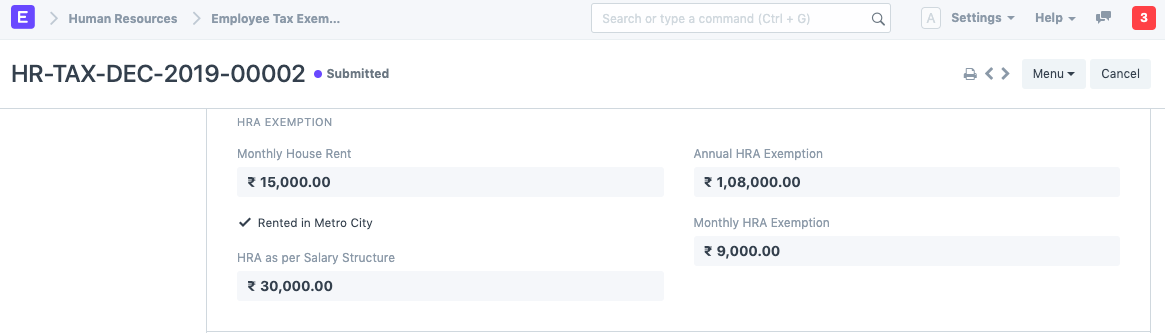
As part of the Employee Tax Exemption Declaration, employees can also fill out the HRA Exemption. Emeron HR calculates the exemption eligible for HRA and exempts it while calculating the taxable earnings.
Enter the Monthly House Rent and check the ‘Rented in Metro City’ checkbox if applicable and submit the form. The Annual and Monthly HRA Exemption will be automatically calculated.
Once the declaration is submitted, you can submit the proof of your tax exemption by clicking on the Submit Proof button.
Note: HRA component needs to be configured in Company master under HRA Settings sections for the HRA exemption to work.
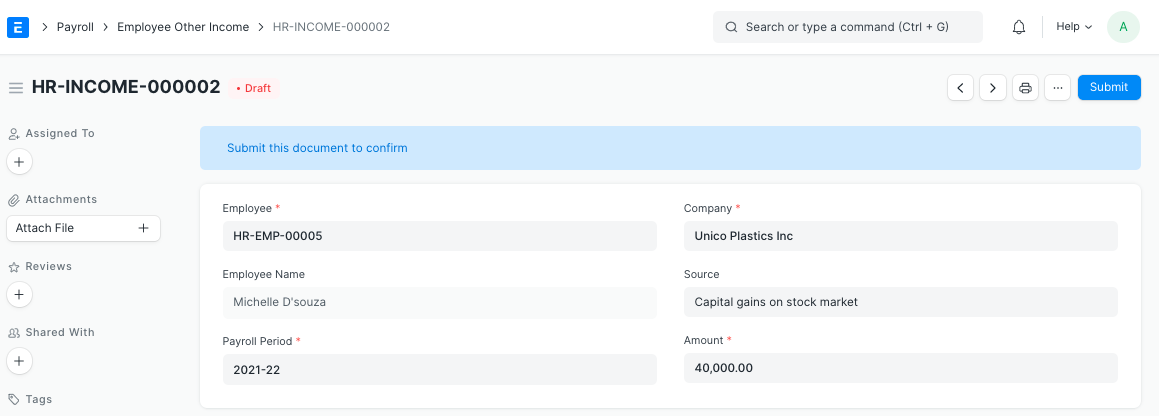
Employee Other Income is a document to declare other income of an employee from different sources.
Other income of an employee is also important to calculate the income tax liability of an employee. In Emeron HR, an employee can declare their other income using this document.
To access Employee Other Income, go to: > Home > Human Resources > Employee Tax and Benefits > Employee Other Income
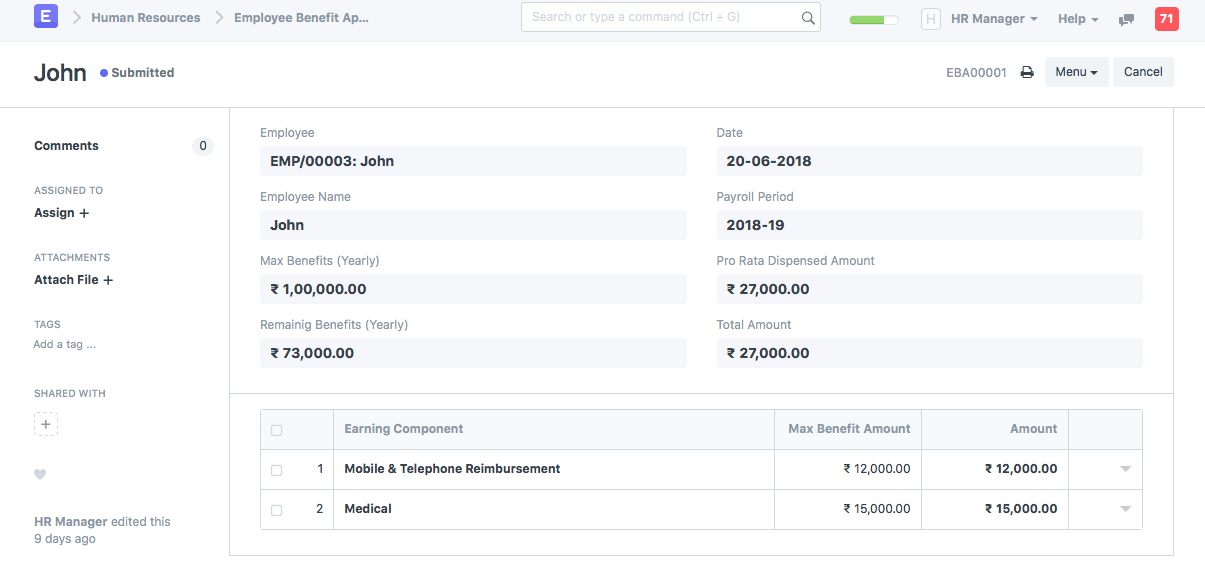
Employees are entitled to flexible benefits which they can either receive pro-rata (as part of their Salary) or as a lump-sum amount when they claim the benefit. In order to choose from various flexible benefits which an Employee shall receive on a pro-rata basis, the employee should create a new Employee Benefit Application.
To create a new Employee Benefit Application,
Human Resources > Payroll > Employee Benefit Application > New Employee Benefit Application
Here, Employee can view the Max Benefits as per the Salary Structure Assignment and then chose from the Earning Components which are part of the employee’s assigned Salary Structure. They can also enter the amount which they wish to receive as part of their Salary Slip.
It is based on the Employee Benefit Application that the Max Benefit Amount will be distributed among the flexible earning components while generating the Salary Slip. If an Employee fails to submit the Employee Benefit Application before processing the payroll, the Max Benefit Amount eligible to the employee will be distributed proportionately to each of the flexible component present in the Employee’s salary structure.
Note: Employees can only submit one Employee Benefit Application for a Payroll Period.
Employee Benefit Application should cover the full amount which the employee has to receive as per the Max Benefit amount on a pro-rata basis. However, if the Salary Structure of the employee consists of Salary Components which are to be paid on Employee Benefit Claim (Salary Component with Pay Against Benefit Claim), they are allowed to submit Employee Benefit Application excluding the amount allocated for such components.
Also, note that those components which are to be received based on Employee Benefit Claims can also be part of the application, but will only be disbursed lump-sum, as part of their salary when the Employee submits a claim for it.
Note: Normal Tax calculation does not include Flexible Benefits as in most cases these are exempted from Tax. To tax these components anytime before the last payroll, use Deduct Tax For Unclaimed Employee Benefits in Payroll Entry / Salary Slip while processing the Salary.
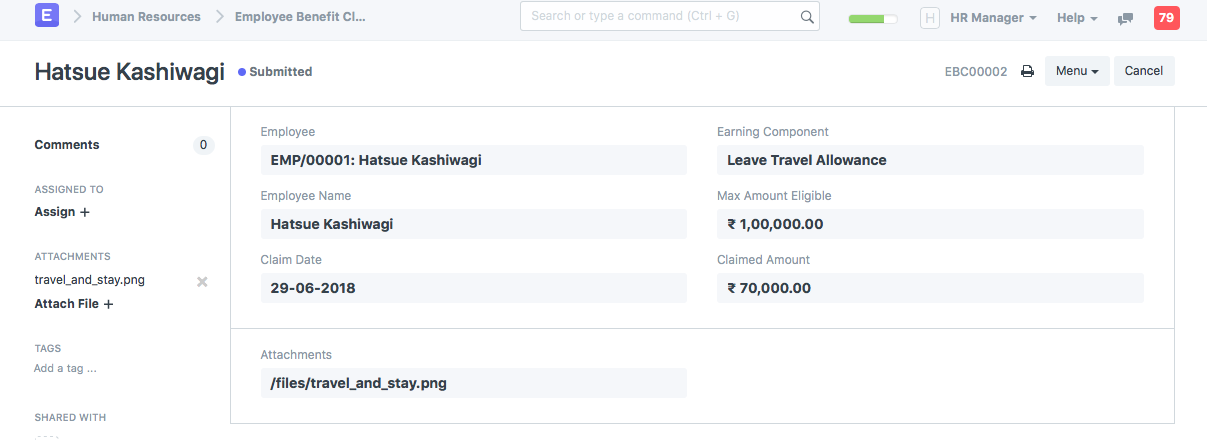
Employee Benefit Claim allows Employees to – 1. Claim flexible benefits which are to be received lump-sum (if Salary Component is Pay Against Benefit Claim) 2. Claim tax exemption for flexible benefits received pro-rata, as part of salary when Deduct Tax For Unclaimed Employee Benefits is checked in Payroll Entry / Salary Slip
You can create a new Employee Benefit Claim by going to, > Human Resources > Payroll > Employee Benefit Claim > New Employee Benefit Claim
Here, Employee can view the eligible amount as per their Salary Structure Assignment and claim for the amount which they wish to receive as part of their next Salary. Any remaining amount which the employee did not claim for, in a Payroll Period, will be disbursed as part of the last payroll Salary.
Note: Normal Tax calculation does not include Flexible Benefits as in most cases these are exempted from Tax. To tax these components anytime before the last payroll, use Deduct Tax For Unclaimed Employee Benefits in Payroll Entry / Salary Slip while processing the Salary.