Overview #
An asset is something a business owns and uses to run its operations over a long period of time. These are not items meant for resale, but resources that help the business carry out its activities.
- Tangible assets – such as equipment, machinery, vehicles, furniture, and property.
- Intangible assets – such as patents, trademarks, licenses, or software.
In Emeron ERP, The Asset Management module enables businesses to efficiently track, manage, and maintain these assets throughout their lifecycle. This includes recording asset details such as purchase information, depreciation methods, maintenance schedules, and disposal activities.
By leveraging Emeron ERP’s asset management capabilities, organisations can ensure optimal utilisation of resources, accurate financial reporting, and compliance with accounting standards, ultimately contributing to improved operational efficiency.
- Asset Category
- Location
- Asset Creation
- Purchasing
- Depreciation
- Maintenance
- Asset Capitalization
- Selling
- Scrapping
Asset Category #
Asset Category classifies different assets of a company and sets default accounting and depreciation rules for them.
The Asset Category DocType helps organize similar assets under a single classification and simplifies asset management. For example, all desktops and laptops can belong to an Asset Category called “Electronic Equipment”. Each category can have default depreciation methods, accounting settings, and cost centers, which are automatically applied to all assets in that category.
To access the Asset Category list, go to:
Home > Asset > Assets > Asset Category
1. Prerequisites #
Before creating an Asset Category, it is advised to:
- Create a Company
2. How to create an Asset Category #
- Go to the Asset Category list and click New.
- Enter a Name for the category.
- Configure optional depreciation and accounting details as needed.
- Click Save.
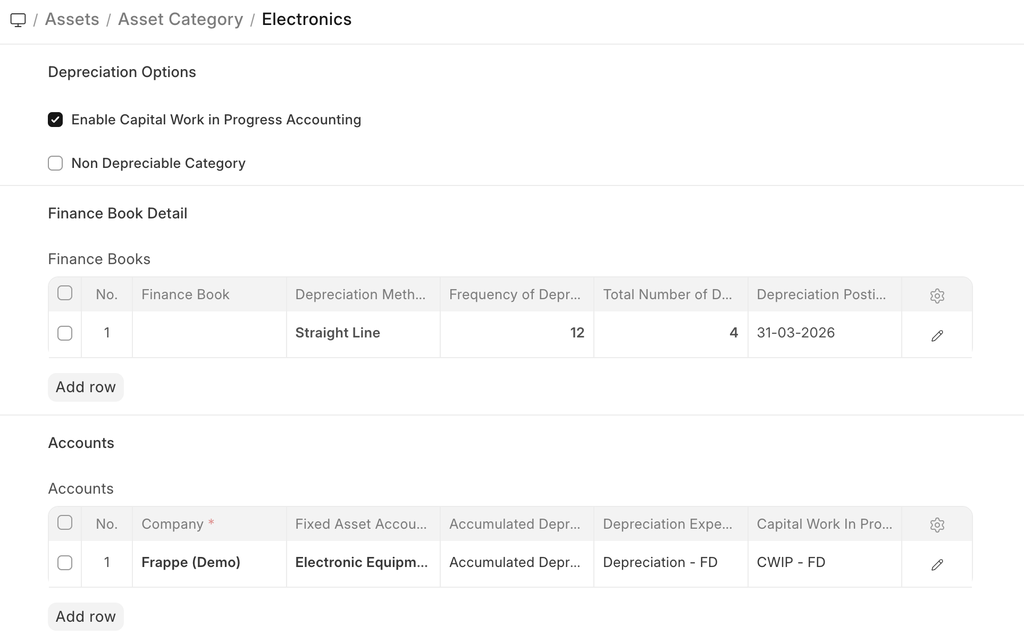 Asset Category
2.1 Additional options when creating an Asset Category #
- Enable Capital Work in Progress Accounting: On enabling this, accounting entry for assets under this category which are not in use are posted in the Capital Work in Progress accounts. This happens when you own the Asset but it isn’t being used yet, i.e. ‘Available for Use Date’ is set at a later date. If you use all your assets immediately, disable this feature. On disabling this, CWIP accounting will be skipped.
- Non Depreciable Category: On enabling this, depreciation is skipped for assets under this category. Depreciation-related account fields are not required, and no depreciation schedule is generated. Use this for assets like land or other non-depreciable items. Disable if depreciation should apply.Features
3 Features #
3.1 Finance Book details #
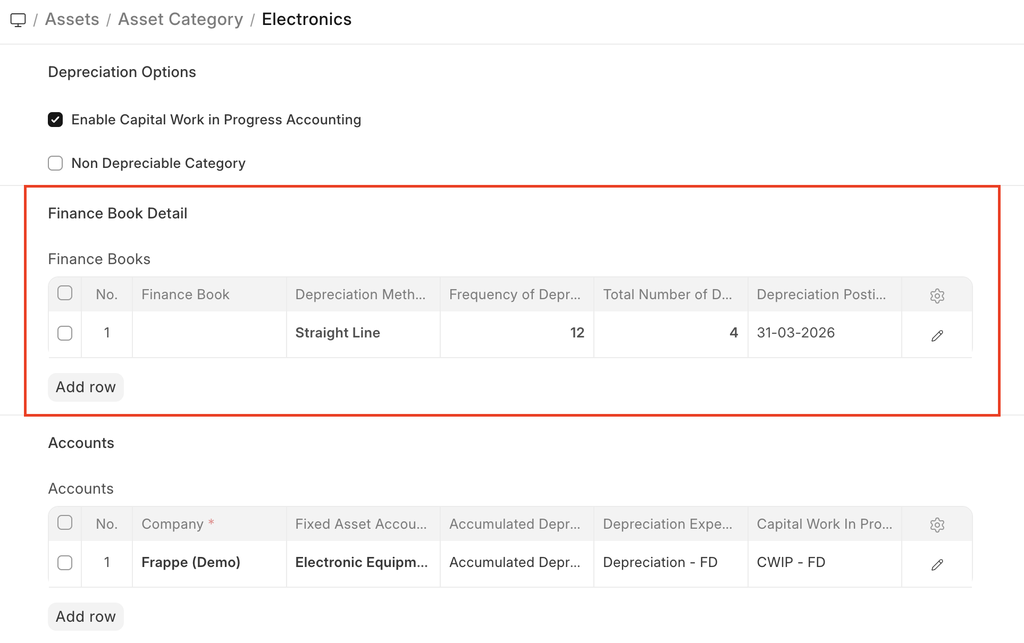
You can link a Finance Book if you report depreciation in different ways. You can enter the following fields:
- Depreciation Method: Choose a depreciated method on which you’ll record the depreciation of assets in this category. To know more, visit this page.
- Frequency of Depreciation (Months): The number of months within which the depreciation will be booked. The asset may be scrapped after this period.
- Total Number of Depreciations: The number of deprecations to be booked in the selected time frame.
- Rate of Depreciation: The rate of deprecation applied over the selected period. This will be calculated based on the Depreciation Method selected.
3.2 Accounting Details #
The following account details can be set to record asset values in the ledger:
- Company
- Fixed Asset Account
- Accumulated Depreciation Account
- Depreciation Expense Account
- Capital Work In Progress Account
4. After Creating an Asset Category #
Once created, you can:
- Create new Assets under this category.
- Track depreciation, maintenance, transfers, or disposal using the Asset module.
Asset Location #
Asset Location shows where an Asset is located.
The assets that your organization owns can be located at various facilities like administrative offices, manufacturing plants, warehouses, etc. In Emeron ERP you can create a ‘Location’ for each of your facilities and track the assets which are present in these locations.
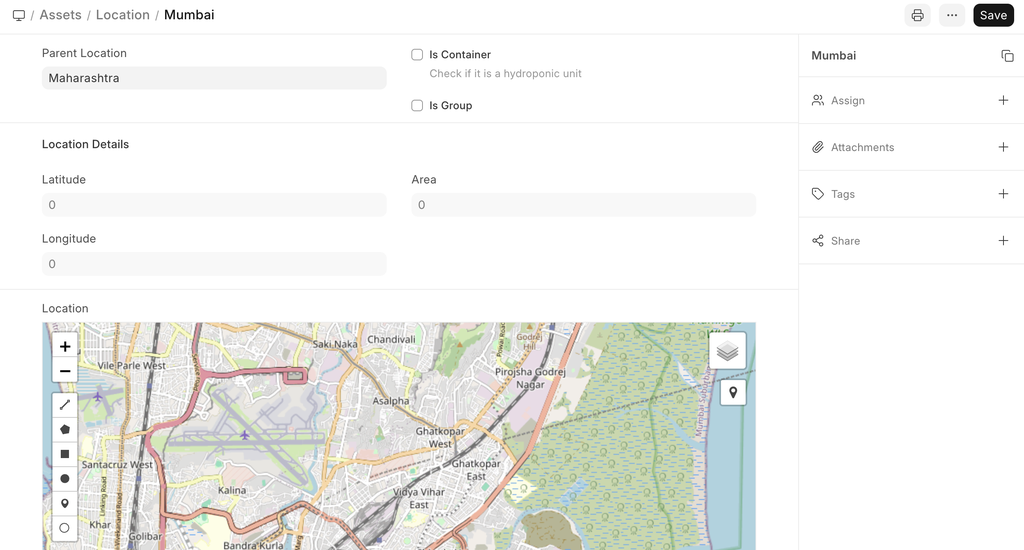
You can also add Latitude and Longitude of the location. When an asset is moved from one location to another, you need to create an Asset Movement record.
Map of the location is also shown:
Purchasing an Asset #
Purchasing an asset in Emeron ERP involves creating the asset record, optionally automating asset creation from a purchase, and following the purchase and accounting cycle.
Assets can be purchased manually or automatically created when receiving an item in a Purchase Receipt or Purchase Invoice. This ensures accurate asset tracking and proper accounting entries.
1. Prerequisites #
Before purchasing a new asset, ensure the following are configured:
- Asset Category is created
- Item is created with ‘Is Fixed Asset’ enabled
- Optional: Enable ‘Auto Create Assets on Purchase’ in the item master if you want assets to be created automatically upon receipt
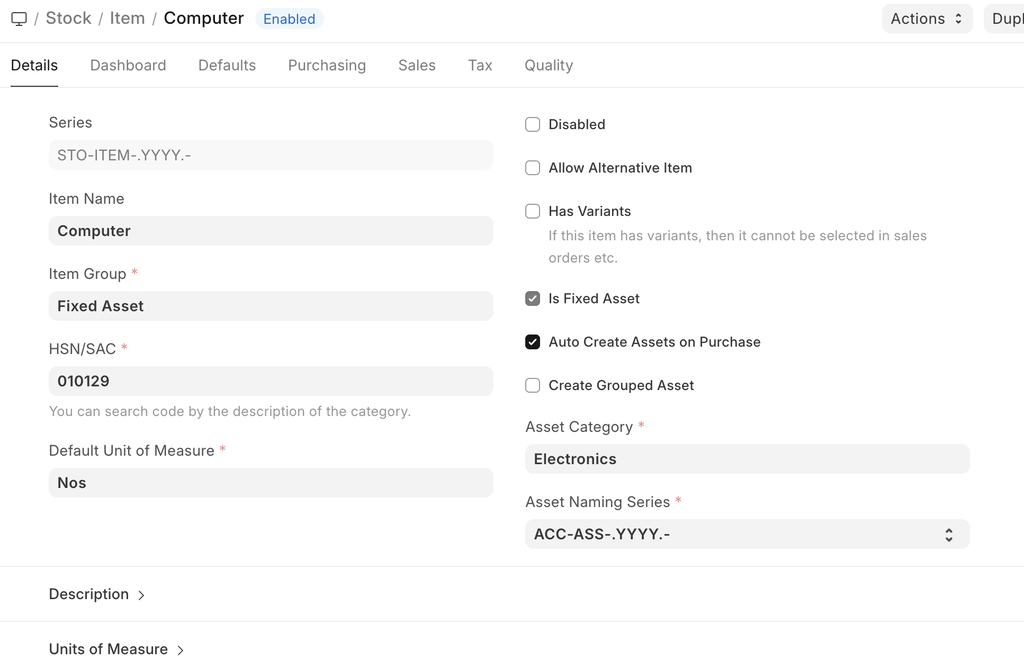 Item Master
2. How to Purchase an Asset #
- Follow the standard purchase cycle for the asset:
- Create a Purchase Order (if required)
- Receive the item via Purchase Receipt
- Submit a Purchase Invoice
- Enter the asset location in the Items table of the Purchase Receipt or Purchase Invoice.
- On submission of the Purchase Receipt:
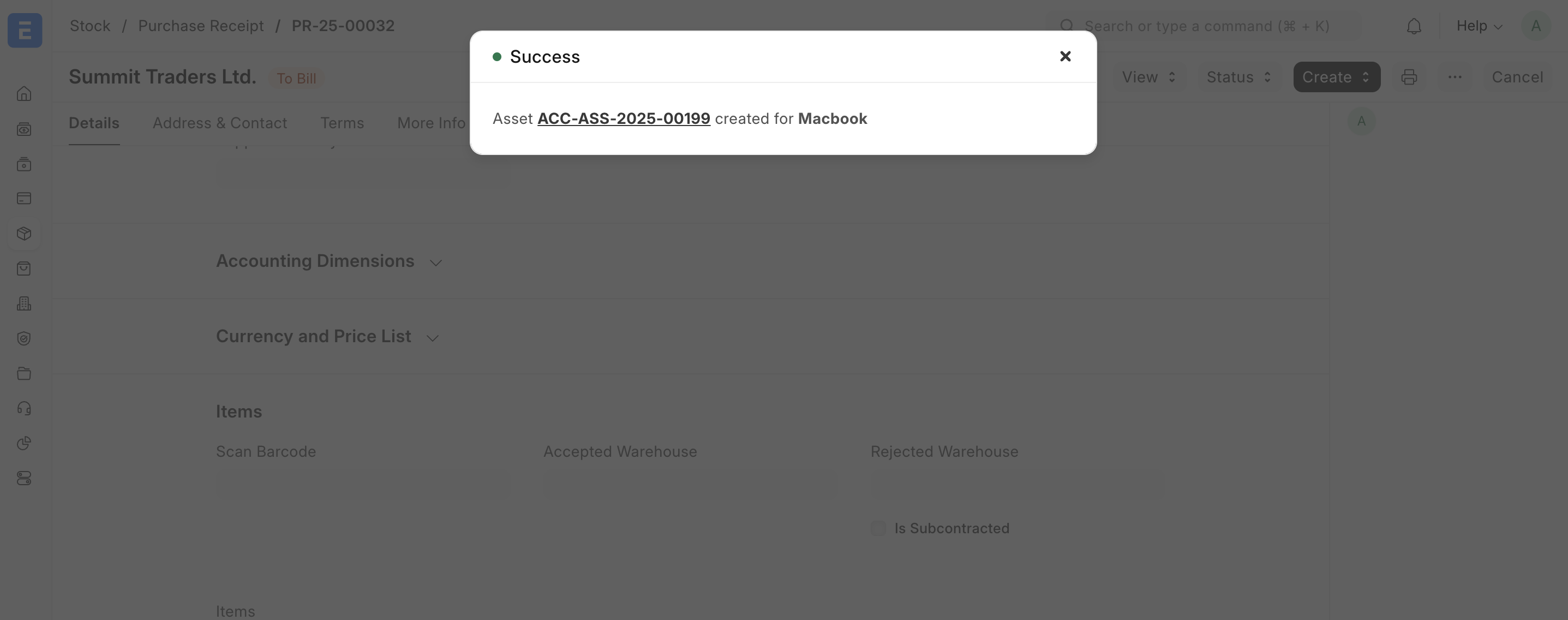
- If Auto Create Assets is enabled, Emeron ERP will automatically create the Asset record.
- You can then update other details manually in the Asset form.
2.1 Accounting Entries #
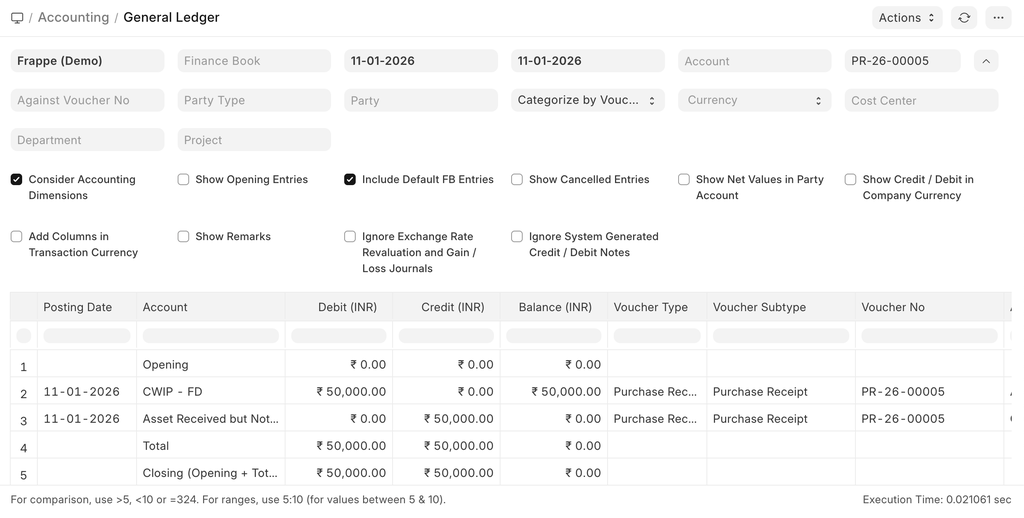
- With Capital Work in Progress (CWIP) Enabled
- On submitting the Purchase Receipt, the CWIP account is debited instead of the asset account.
- This represents that the asset is purchased but not yet available for use.
- When the asset becomes available for use, CWIP is credited, and the corresponding asset account is debited.
- With CWIP Disabled
- The receipt entry is posted directly to the asset accounts defined in the Asset Category.
- Temporary Liability Account
- Emeron ERP uses “Asset Received But Not Billed” (a liability account) when submitting a Purchase Receipt.
- On submitting the Purchase Invoice, this account is debited/reversed.
Assets #
An Asset is any valuable item owned by a company that is used in operations and has a useful life spanning multiple years.
Examples include furniture, computers, mobile phones, printers, cars, and manufacturing equipment. Assets can be tangible (physical items located at company premises or with employees) or intangible.
An asset’s useful life spans across multiple years and hence its economic value is spread over corresponding years from the accounting perspective. If you buy a printer for $300 and it is expected to be useful for three years, from the accounting perspective $100 is recorded as the expense for three years each instead of all the $300 in the first year. Most countries have rules for such calculations.
In Emeron ERP, the Asset record is the core of the Asset Management module. All transactions related to an asset — purchasing, depreciation, maintenance, movement, scrapping, and sales — are recorded against this record.
To access the Asset list, go to:
Home > Assets > Assets > Asset
1. Prerequisites #
Before creating and using Asset, it is advised to create the following first:
- Item with ‘Is Fixed Asset’ enabled.
- Location
- Asset Category
- Purchase Receipt / Purchase Invoice
2. How to create an Asset#2.1 Prepare the Item #
- Create an Item representing the asset.
- ‘Maintain Stock’ should be unchecked.
- ‘Is Fixed Asset’ must be checked.
2.2 Auto Creation of Assets (Optional) #
- Enable ‘Auto Create Assets on Purchase’ in the Item if you want assets to be created automatically upon submission of a Purchase Receipt.
- Provide Asset Location in the Purchase Receipt item table.
- On submission, Emeron ERP displays a message confirming that assets have been created.
2.3 Manual Creation of Assets #
If auto asset creation is not enabled:
- Go to the Asset list and click New.
- Enter a Name for the Asset.
- Select the Item Code.
- Link the Purchase Receipt/Purchase Invoice (Purchase Date and Gross Purchase Amount auto-filled).
- Select a Location (e.g., Mumbai).
- Set Available-for-Use Date — depreciation will start from this date.
- Click Save and Submit.
Note: One asset record is needed for each individual asset. For example, if you purchased 5 computers in one Purchase Receipt, create 5 separate asset records.
2.4 Creating Composite Assets #
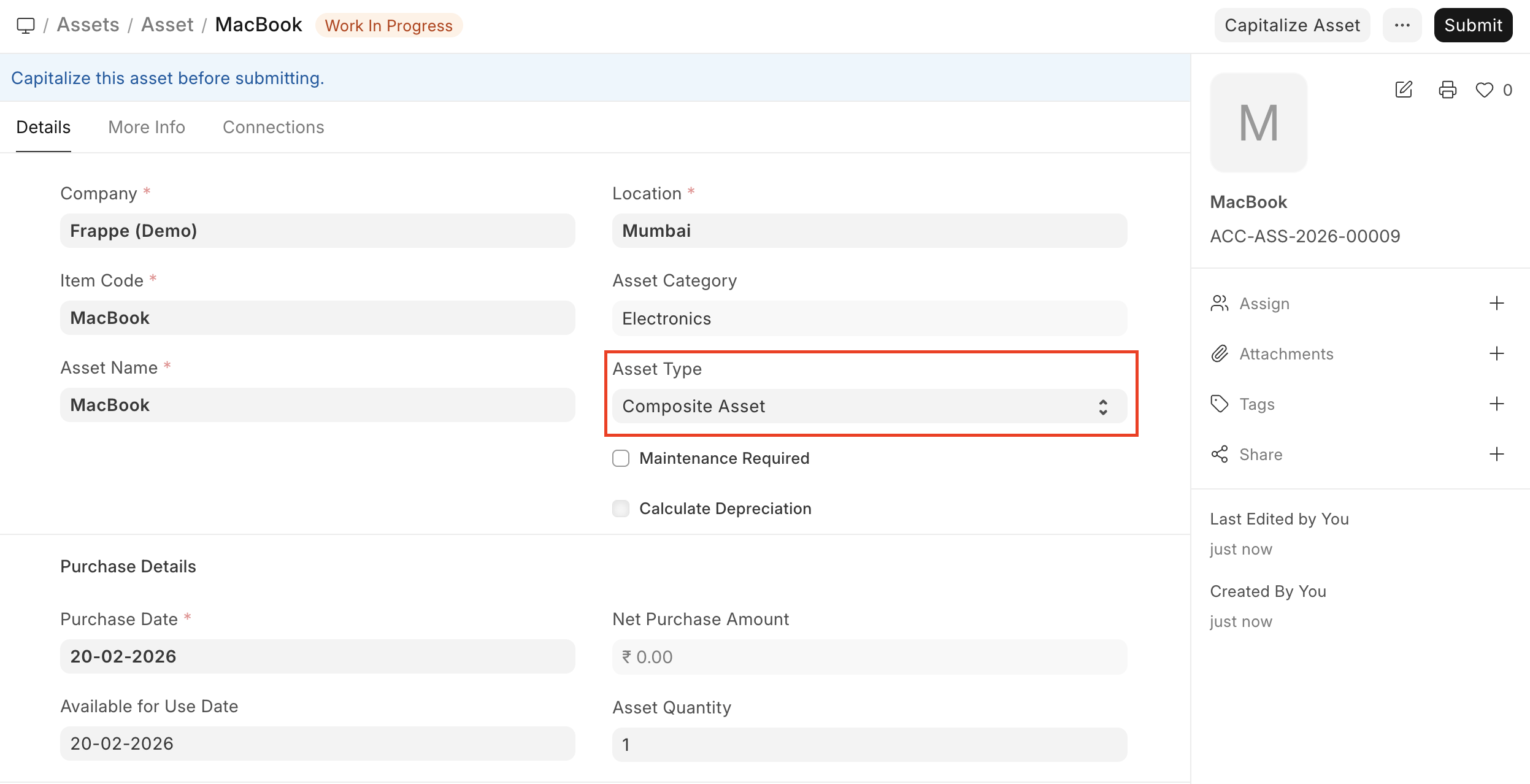
- A Composite Asset can be created from multiple items (e.g., Computer made of Monitor, Keyboard, etc.).
- Select asset type as ‘Composite Asset’ in the Asset form.
- Tag this asset in the WIP Composite Asset field of items in Purchase Receipts/Invoices.
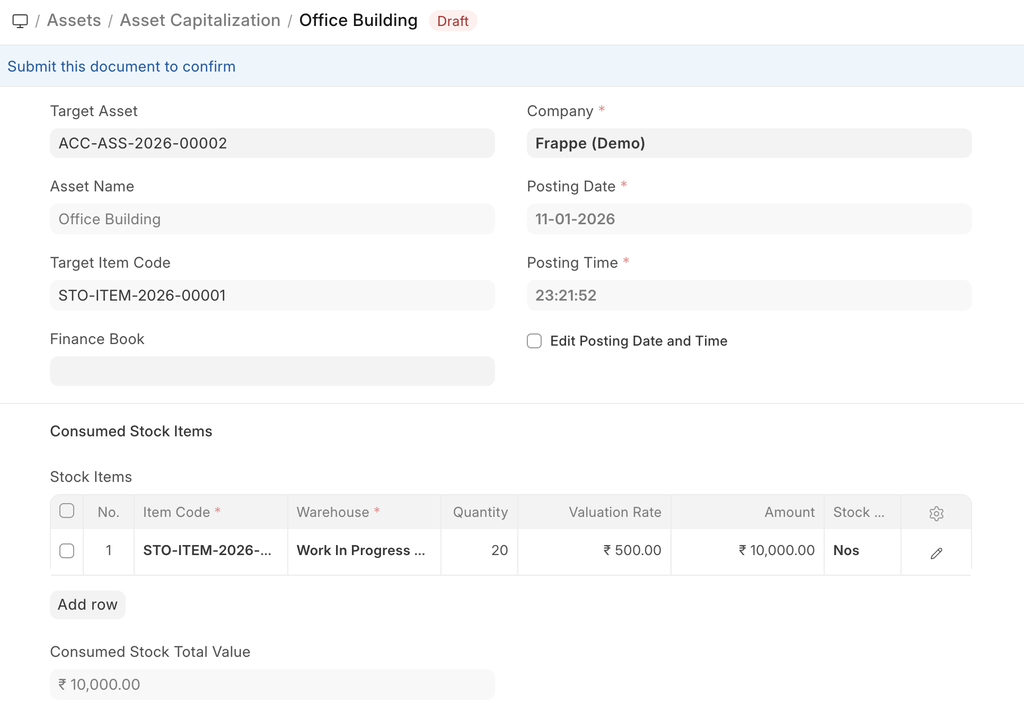
- Once all items are received, use Asset Capitalization to capitalize the composite asset.
2.5 Importing Existing Assets #
When migrating from a legacy system:
- Select asset type as ‘Existing Asset’.
- Provide:
- Gross Purchase Amount
- Purchase Date
- Available-for-Use Date
- Opening Accumulated Depreciation
- Number of Depreciations Booked
- Is Fully Depreciated (if applicable)
Emeron ERP will calculate the remaining depreciation schedule automatically.
3. Additional Options #
- Custodian: Employee responsible for the asset
- Department: Department of the custodian
- Calculate Depreciation: Enable to calculate depreciation automatically
4. Features #
4.1 Depreciation #
- Frequency of Depreciation (Months): Time between depreciation entries
- Total Number of Depreciations: Total entries over useful life (pending depreciations for existing assets)
- Depreciation Method: Straight Line, Written Down Value, Double Declining Balance, Manual
- Depreciation Posting Date: Start date for depreciation
- Expected Value After Useful Life: Salvage or residual value
- Salvage Value Percentage: Auto-calculate based on gross purchase amount
- Rate of Depreciation: Calculated based on expected value
- Finance Book: Book against which depreciation entries are recorded
- Daily Pro-Rata / Shift-Based Depreciation: Options to adjust depreciation based on actual usage
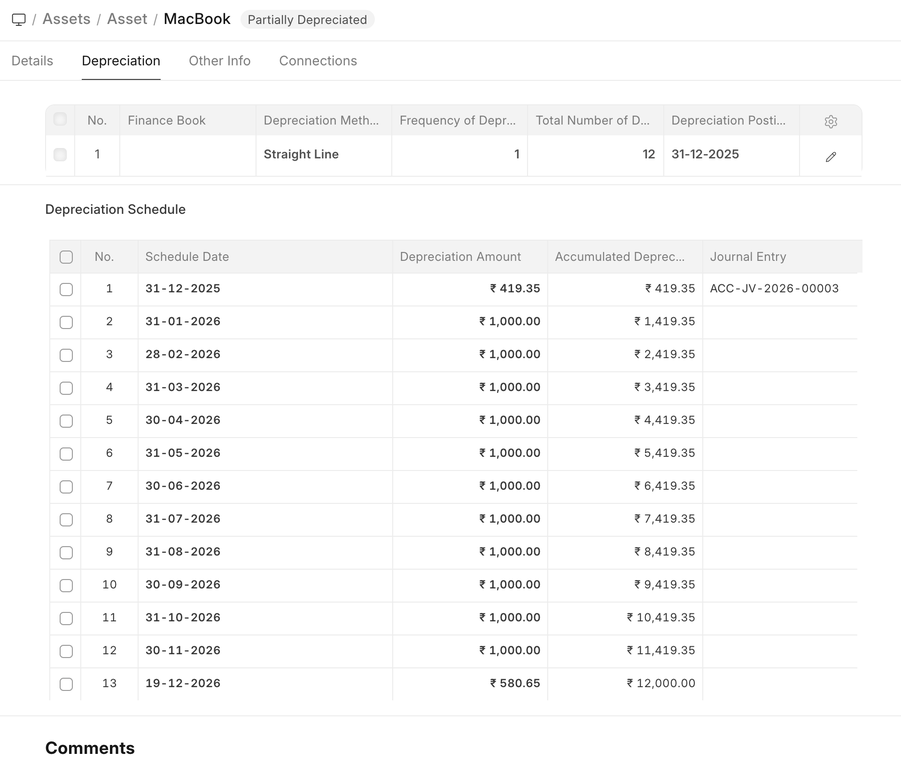
4.2 Depreciation Schedule #
- View schedule in the Depreciation tab
- Columns: Schedule Date, Depreciation Amount, Amount Depreciated, Journal Entry
4.3 Insurance Details #
- Policy Number
- Insurer
- Insured Value
- Insurance Start/End Dates
- Comprehensive Insurance (if applicable)
4.4 Accounting Entries #
- On submission: CWIP account credited, asset account debited
- Submission requires Available-for-Use Date
- If future date, accounting entry is posted automatically via scheduler
4.5 Maintenance #
- Enable Maintenance Required to record Asset Maintenance entries
- Refer to Asset Maintenance page for details
5. After Submitting #
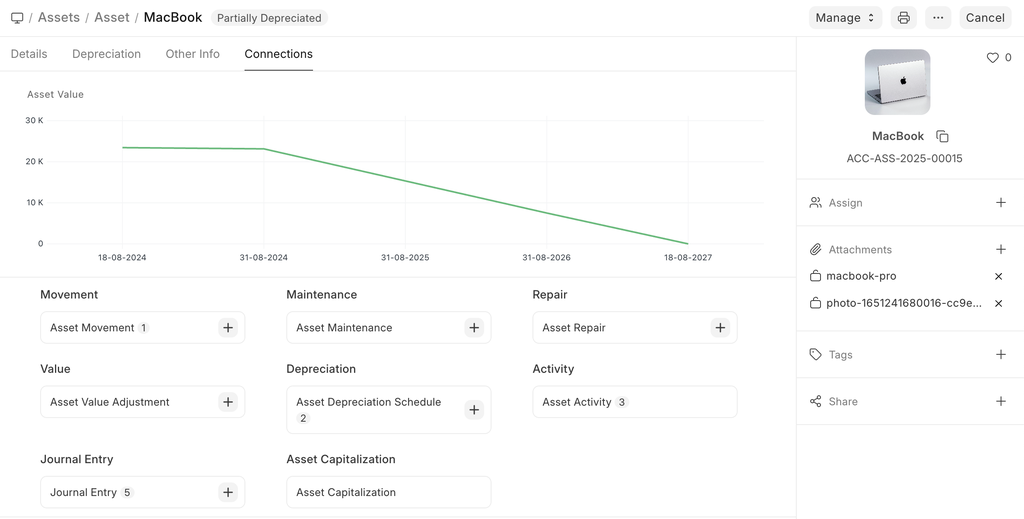
Once an asset is created and submitted, you can:
- Transfer the asset
- Scrap the asset
- Sell the asset
- Adjust value or record depreciation entries using the action buttons
Asset Report #
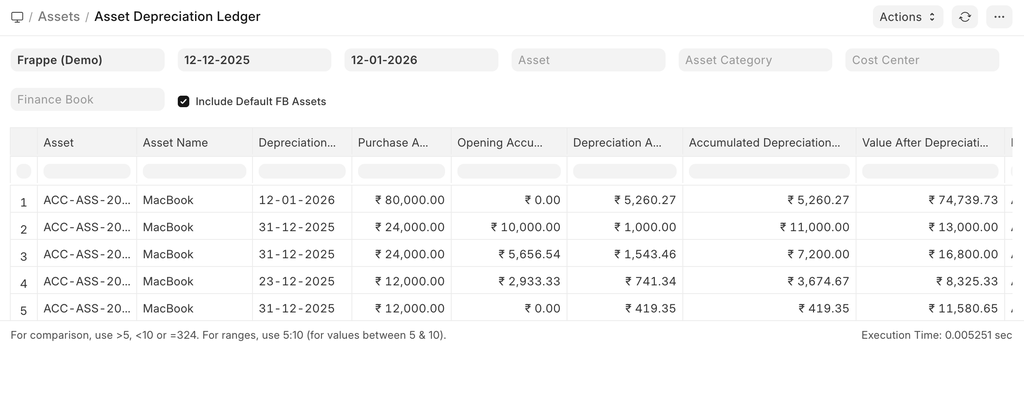
1. Asset Depreciation Ledger #
This report shows the Purchase Amount, Depreciated Amount and accumulated total depreciation for all the assets under the selected date range. It also shows the current value and current depreciation status of the Asset.
2. Asset Depreciations and Balances #
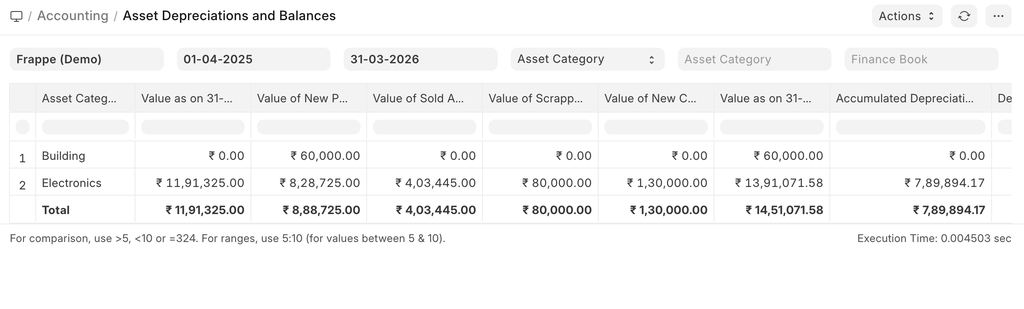
The Asset Depreciation and Balances Report in Emeron ERP provides a detailed overview of asset values, costs, and depreciation over a specified period. It allows users to track asset financials, assess depreciation, and calculate net asset value. With features like grouping by asset or Asset Category, flexible filtering, and real-time data retrieval.
2.1 Group By Asset Category #
2.2 Group By Asset #
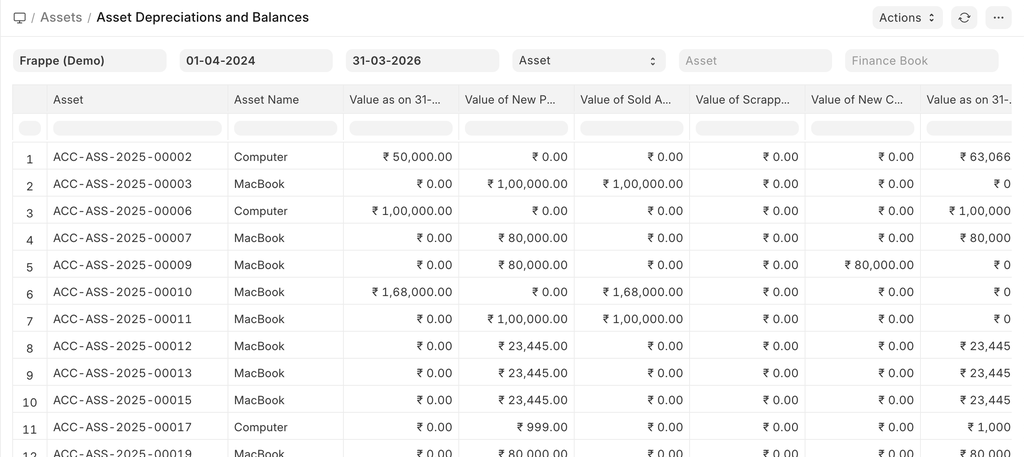
3. Fixed Asset Register #
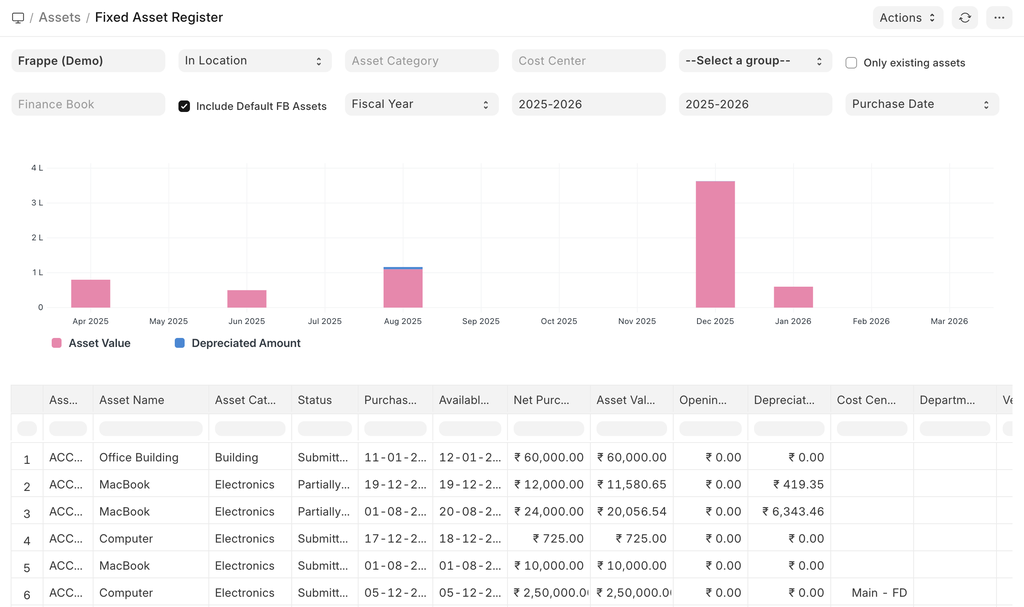
Fixed asset register provides a unified view of all the details regarding current status of an asset. A Fixed asset register tracks all the fixed assets that the you have created. This not only includes assets that are currently in your possession, but also tracks those assets that are disposed.
Types of records based on depreciation:
- ** In Location: All the assets that are currently in your possession are under this category.
- ** Disposed: All the assets that are currently sold or scrapped come under this category.
4. Asset Activity #
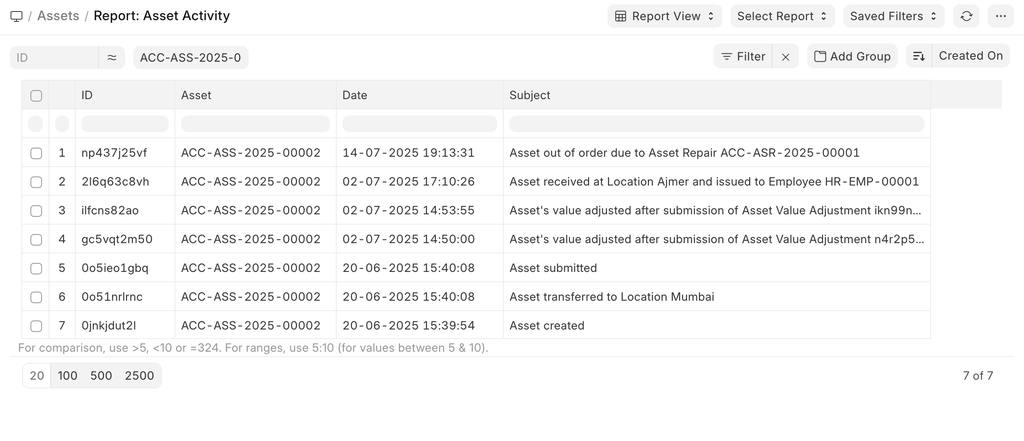
The Asset Activity report lets you see all the activities an asset went through at a single place.