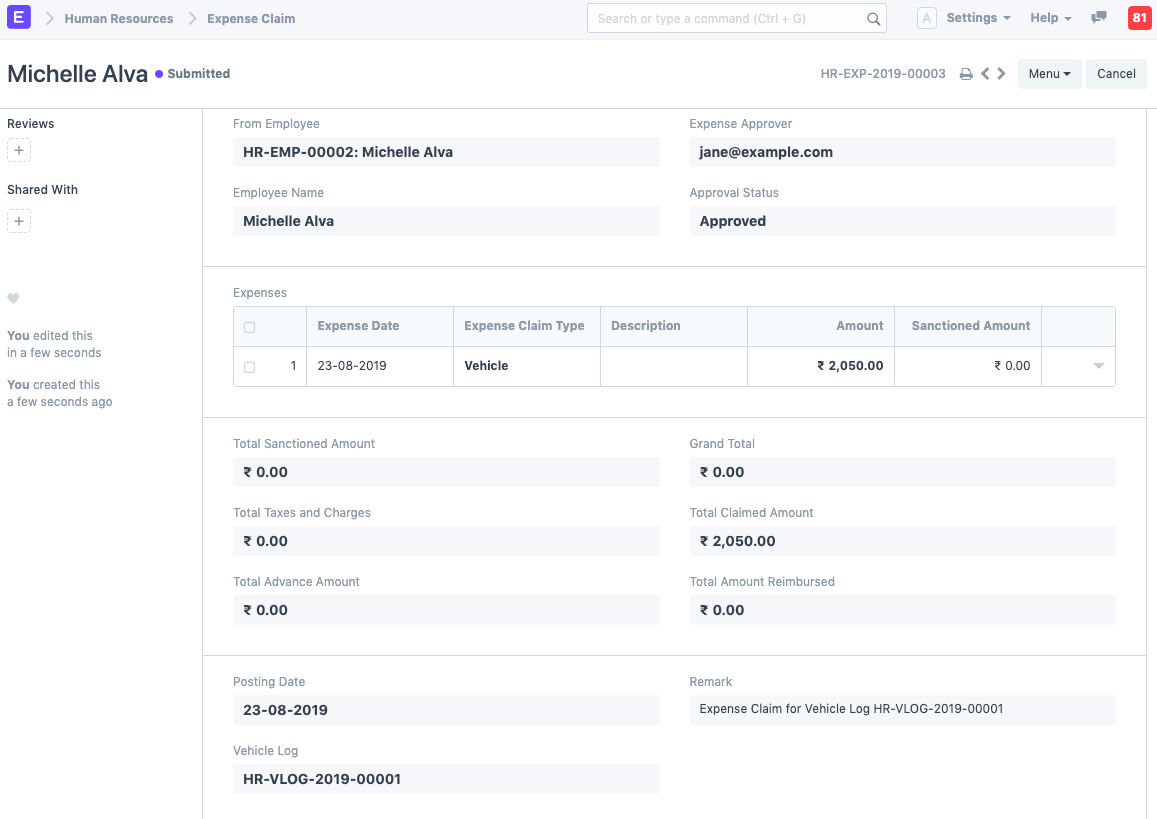
Fleet Management section of Human Resources helps your Organization manage their fleet of vehicles and track their expenses.
To use Fleet Management in Emeron HR, you can do the following:
- Set Up a Vehicle.
- Enter Vehicle Logs regularly.
- Make Expense Claims for Vehicle Expenses.
- View Reports for Vehicle Expenses.
Vehicle #
The Vehicle document allows you to define the different types of Vehicles in your Organization. It acts as the Vehicle Master for Fleet Management.
To access the Vehicle master, go to:
Human Resources > Fleet Management > Vehicle
1. How to create a Vehicle document #
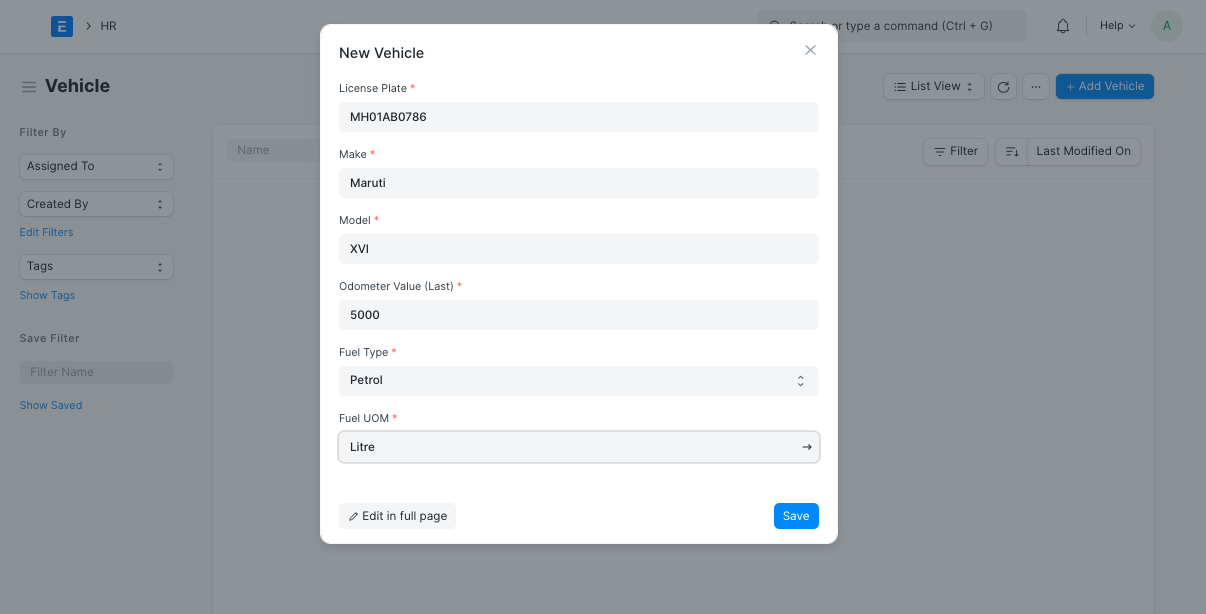
- Go to Vehicle list, click on New.
- Enter information such as License Plate, Make (Brand) and Model.
- Enter Odometer value (Last).
- Enter other additional details such as Fuel Type ad Fuel UOM.
- Save.
2. Features #
Apart from the aforementioned mandatory features, some additional features that can be captured in the Vehicle master are as follows:
2.1 Additional Vehicle Details #
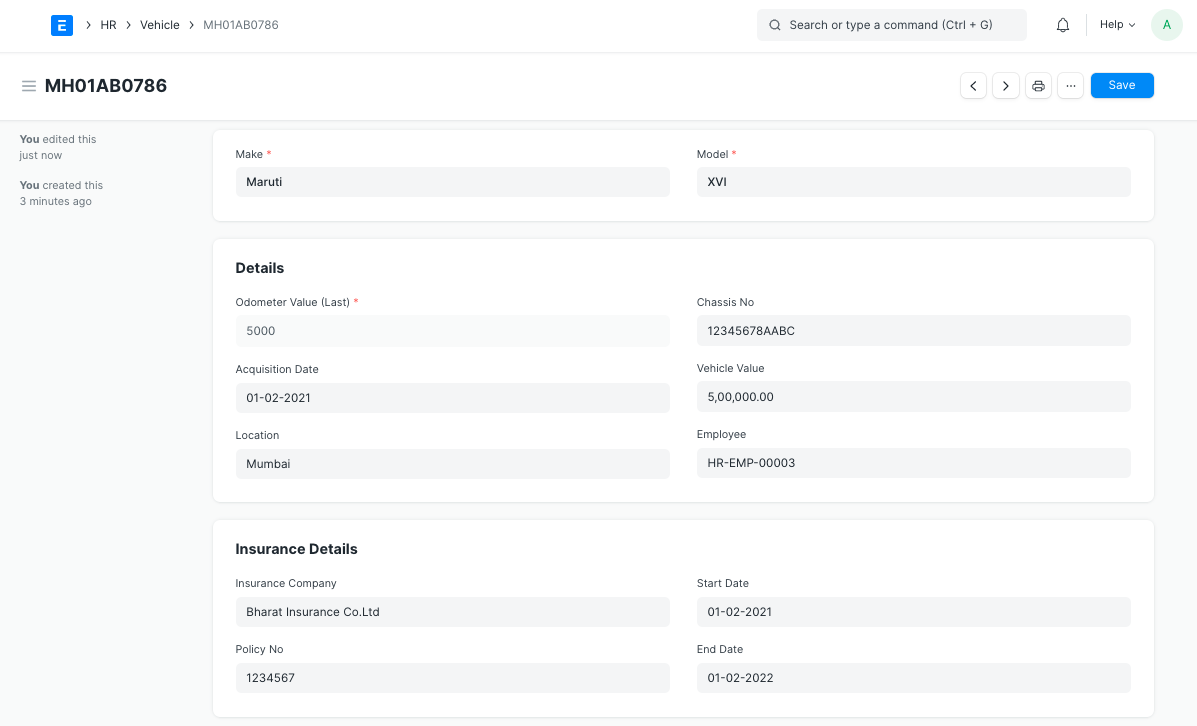
Additional Vehicle details such as Chassis No., Acquisition Date, Vehicle Value (Amount), Location, Employee managing the Vehicle and Insurance details can be captured in the Vehicle master.
2.2 Vehicle Attributes #
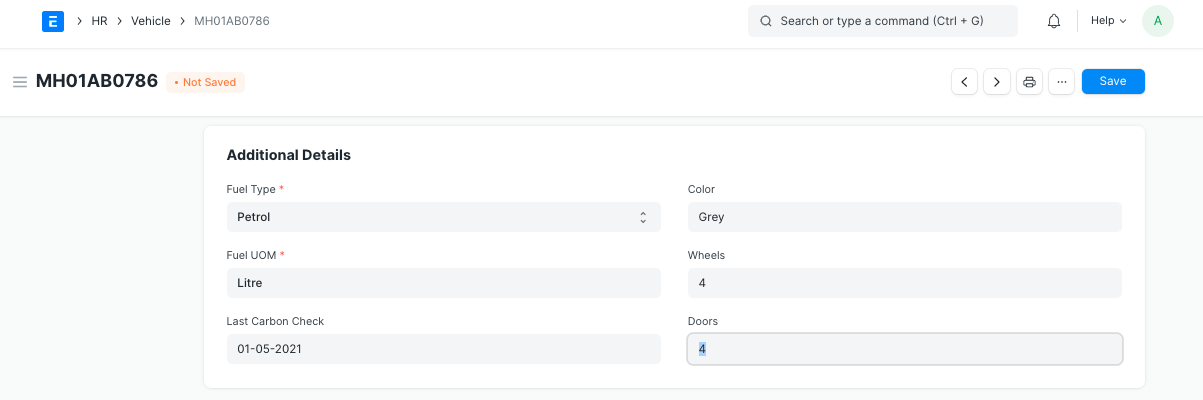
Additionally, Vehicle attributes like Color, Wheels, Door, Last Carbon Check, Fuel Type and UOM can be saved in the Vehicle master.
Vehicle Log #
Vehicle Log is used to enter Odometer readings, Fuel Expenses and Service Expense details.
To access Vehicle Log, go to:
Human Resources > Fleet Management > Vehicle Log
1. Prerequisites #
Before creating a Vehicle Log, it is necessary that you create the following documents:
- Vehicle
2. How to create a Vehicle Log #
- Go to Vehicle Log list, click on New.
- Select License Plate and Employee.
- Enter Odometer Reading information such as Date and Odometer (reading).
- Enter Refueling Details [optional] such as Fuel Qty, Fuel Price, Supplier and Invoice Ref.
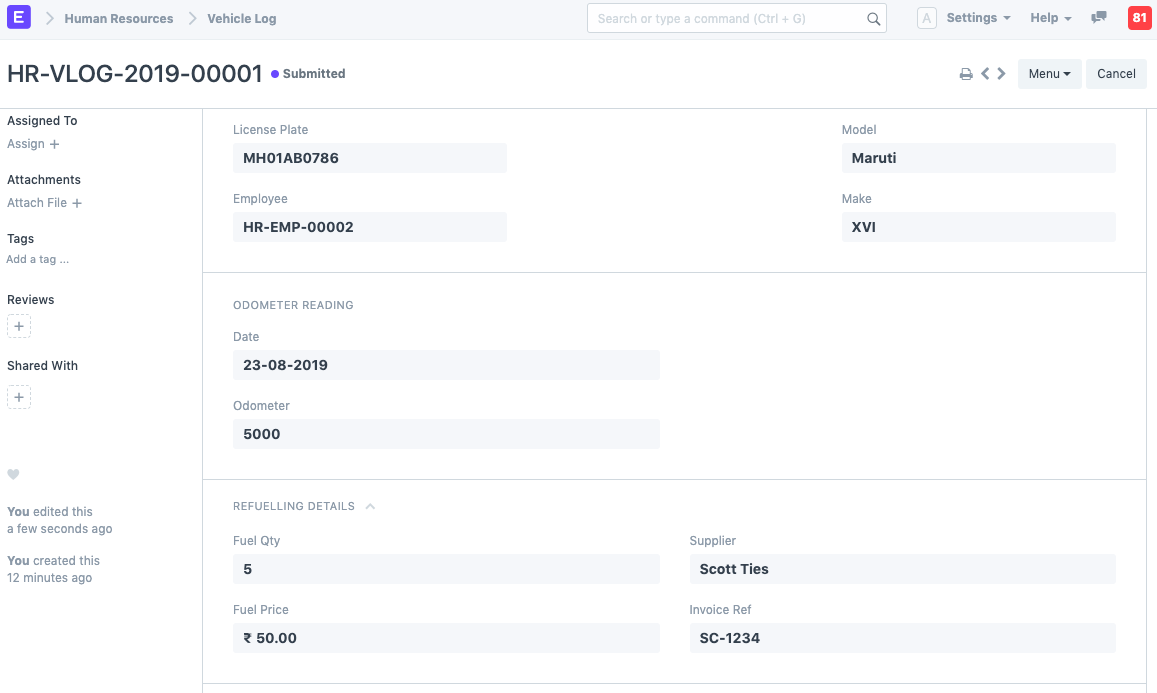 5. Additionally, Vehicle Service Details can also be added as shown (optional).
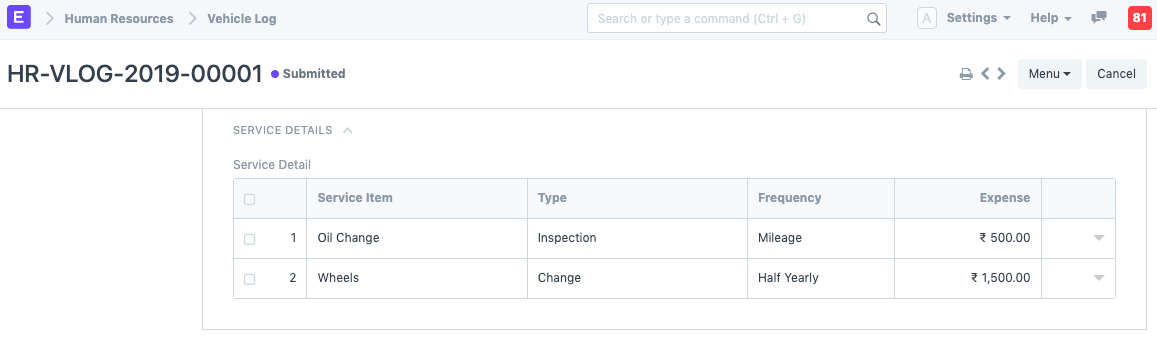 6. Save. Once the information is saved, the Model and Make values will be automatically fetched.
3. Features #
Fleet Management in Emeron HR allows you to automatically create an Expense Claim against your Vehicle Expenses.
3.1 Make Expense Claim against Vehicle Expenses #
Click on Make Expense Claim button. This button appears only in case of Submitted Vehicle Logs.
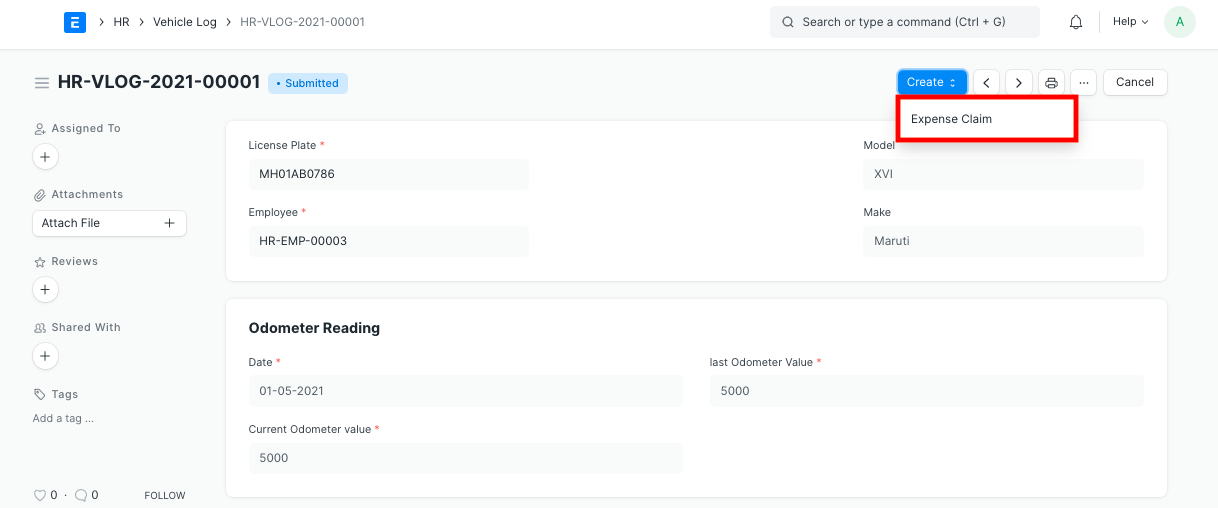
When you click on ‘Make Expense Claim’,
- The Date, Employee, Expense total are fetched over to the created Expense Claim.
- The sum of Fuel Expenses and Service Expenses is calculated and fetched over to Expense Claim Amount.
- Employee can submit the Expense Claim for further processing.