Payroll Setup #
Salary is a fixed amount of money or compensation paid to an employee by an employer in return for the work performed.
Payroll is the administration of financial records of employees’ salaries, wages, bonuses, net pay, and deductions.
To process Payroll in Emeron HR,
- Define Payroll Period (optional)
- Define Income Tax Slab (optional)
- Create Salary Structure with Salary Components (Earnings and Deductions)
- Assign Salary Structures to each Employee via Salary Structure Assignment
- Generate Salary Slips via Payroll Entry.
- Book the Salary in your Accounts.
Payroll Period #
Payroll Period, in Emeron HR, is a period for which Employees get paid for their occupation with the Company. Payroll period helps you define Tax slabs applicable for the period, making it easier to manage changing laws.
Note: Configuring Payroll Period is optional if you do not intend to use Flexible Benefits or Tax Slabs
Salary Component #
This document allows you to define each Earning and Deduction component which can be used to create a Salary Structure and subsequently create Salary Slip or Additional Salary. You can also configure the type, condition and formula as well as other settings which are discussed below. You should be able to enable various combinations of the following options to configure each component as it fits your Company / Regional policies.
- Depends on Leave Without Pay: Leave Without Pay (LWP) happens when an Employee runs out of allocated leaves or takes a leave without an approval (via Leave Application). If enabled, Emeron HR will automatically deduct the pay in proportion of LWP days divided by the total working days for the month (based on the Holiday List).
- Do not include in total: If this option is enabled, the component wont be added to the total of the Earnings or Deductions of the Salary Slip
Note: If you don’t want Emeron HR to manage LWP, don’t turn on this flag in any of the Salary Components
Earning #
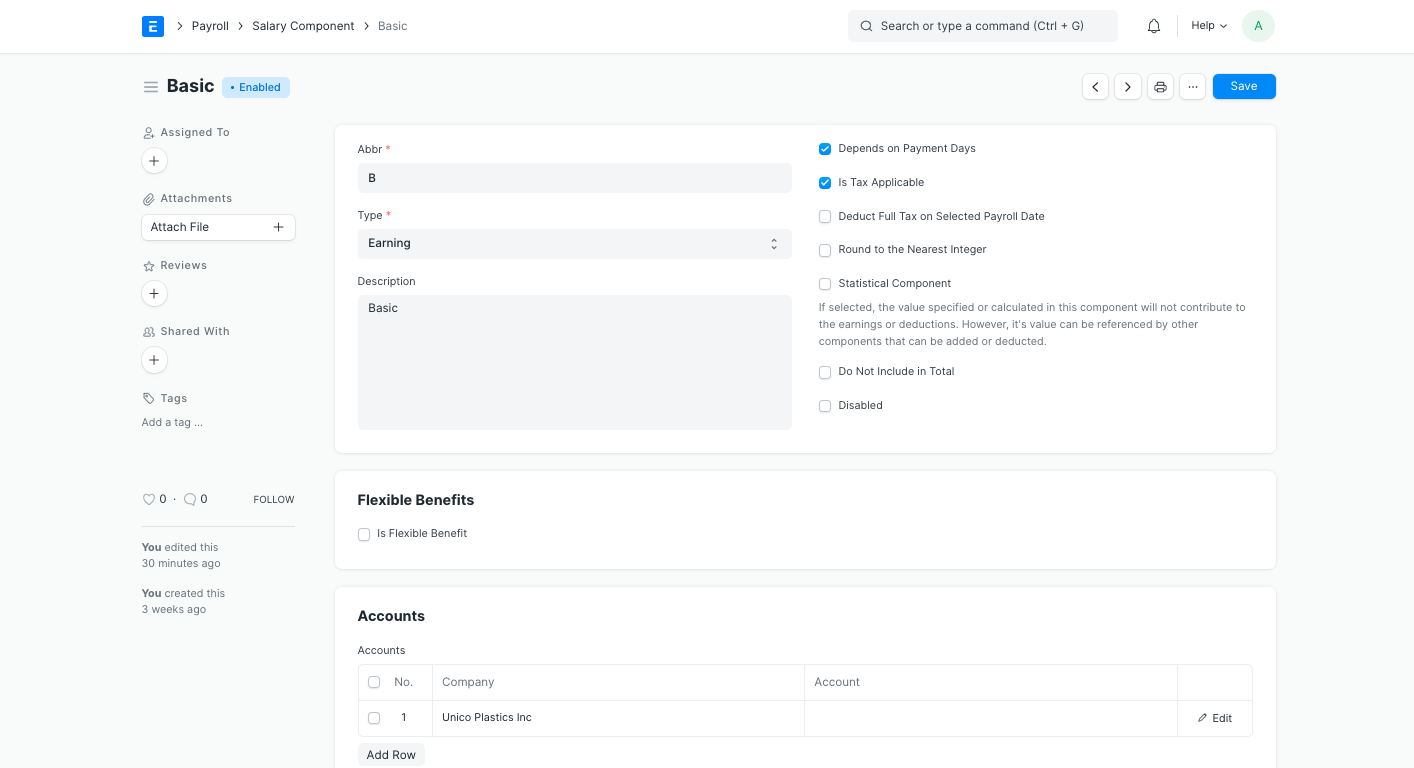
- Is Additional Component: This option specify that the component can only be paid as Additional Salary. Examples of this component could be Performance Bonus or pay received for on-site deputation etc. Such components are not considered to be part of normal Salary Structure. Instead, Additional Salary with these components can be submitted as required which will be added to the Salary Slip automatically.
- Is Tax Applicable: If a component needs to be considered for Tax calculations specified as per the Payroll Period you may want to enable this option. It would be required that you have a Payroll Period and Income Tax Slab configured with valid Tax Slabs for payroll processing.
- Is Payable: Such components can be booked against separate payable accounts and the Accounts shall be configured in the Accounts table
- Flexible Benefits: Flexible Benefits are earning components which Employees can choose to receive on a pro-rata basis or annually when they claim for. These are mostly tax exempted, unless the Employee fail to file the claim with adequate bills / documents. If turned on, you can specify the maximum benefit allowed for an employee in a year. Employees can create Employee Benefit Application with the ones they opt for.
Note: Employee Benefit Application will only allow Employees to only choose from the flexible components which are present in the Salary Structure assigned to the Employee
+ Pay Against Benefit Claim: Employees can opt to receive flexible benefits annually via Employee Benefit Claim or along with their salary every month. If you enable this, the amount allocated for the component will be paid as the Employee submits an [Employee Benefit Claim](https://docs.frappe.io/hr/employee-benefit-claim.html). Else the amount will be dispersed as part of the Employee's salary on a pro-rata basis.
- Only Tax Impact (Cannot Claim But Part of Taxable Income): Such components are those which the company has already paid to the Employee in cash or by some other means, for example a car purchased for the Employee's use. The Employee cannot claim but is liable to pay tax. The amount allocated for this component will be considered while calculating the taxable income of the Employee.
- Create Separate Payment Entry Against Benefit Claim: Some of the flexible benefits may be legally required to be paid via separate vouchers. If you enable this, while posting the bank entry the amount paid for such components will be posted as a separate entry for each Employee.
> Note: Normal Tax calculation does not include Flexible Benefits as in most cases these are exempted from Tax. To tax these components anytime before that last payroll, use "Deduct Tax For Unclaimed Employee Benefits" in Payroll Entry / Salary Slip while processing the Salary.Deduction #
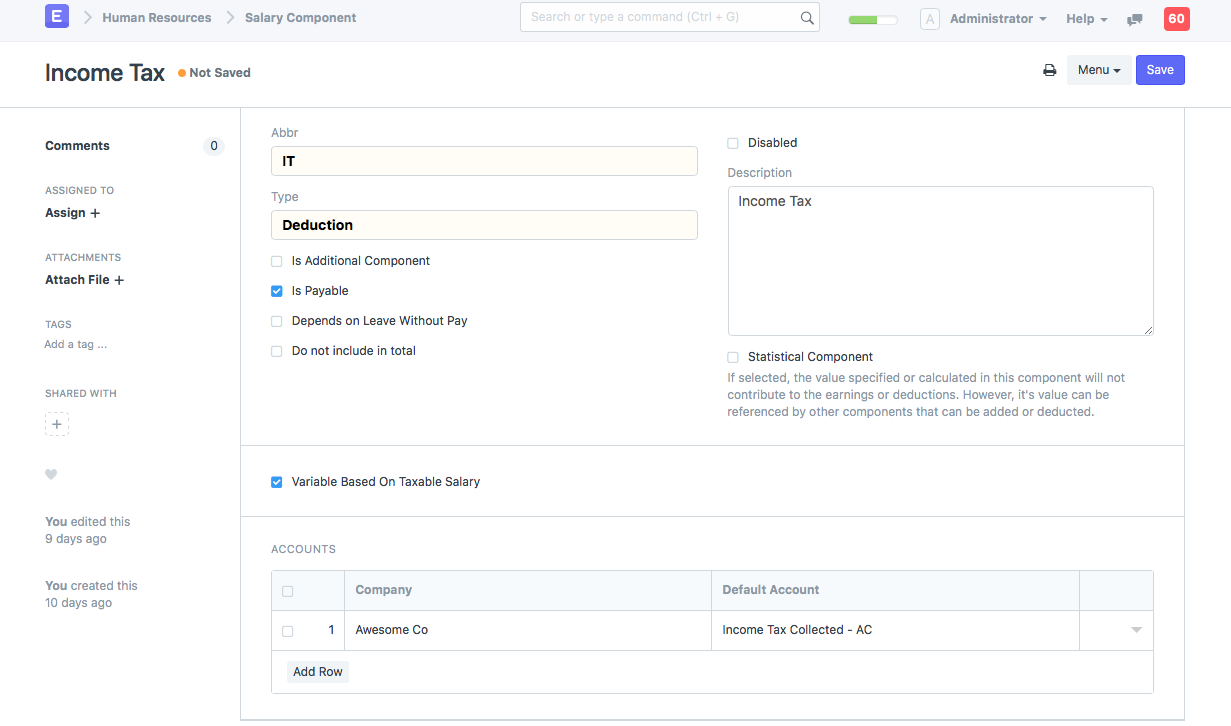
- Variable Based On Taxable Salary: If you enable this, the component will be considered as the standard Tax deduction component. Tax will be calculated based on the Income Tax Slab linked to the employee.
Salary Structure #
Salary Structure represents how Salaries are structured and calculated based on Earnings and Deductions. Salary structures are used to help organizations:
- Maintain pay levels that are competitive with the external labor market,
- Maintain internal pay relationships among jobs,
- Recognize and reward differences in the level of responsibility, skill, and performance, and manage pay expenditures.
Usual components of a salary structure (in India) include:
- Basic Salary: It is the taxable base income and generally not more than 40% of CTC.
- House Rent Allowance: The HRA constitutes 40 to 50% of the basic salary.
- Special Allowances: Makes up for the remainder part of the salary, mostly smaller than the basic salary which is completely taxable.
- Leave Travel Allowance: The non-taxable amount paid by the employer to the employee for vacation/trips with family within India.
- Gratuity: It is basically a lump sum amount paid by the employer when the employee resigns from the organization or retires.
- PF: Fund collected during emergency or old age. 12% of the basic salary is automatically deducted and goes to the employee provident fund.
- Medical Allowance: The employer pays the employee for the medical expenditures incurred. It is tax-free up to Rs.15,000.
- Bonus: Taxable part of the CTC, usually a once a year lump sum amount, given to the employee based on the individual’s as well as the organizational performance for the year.
- Employee Stock Options: ESOPS are Free/discounted shares given by the company to the employees. This is done to primarily increase employee retention.
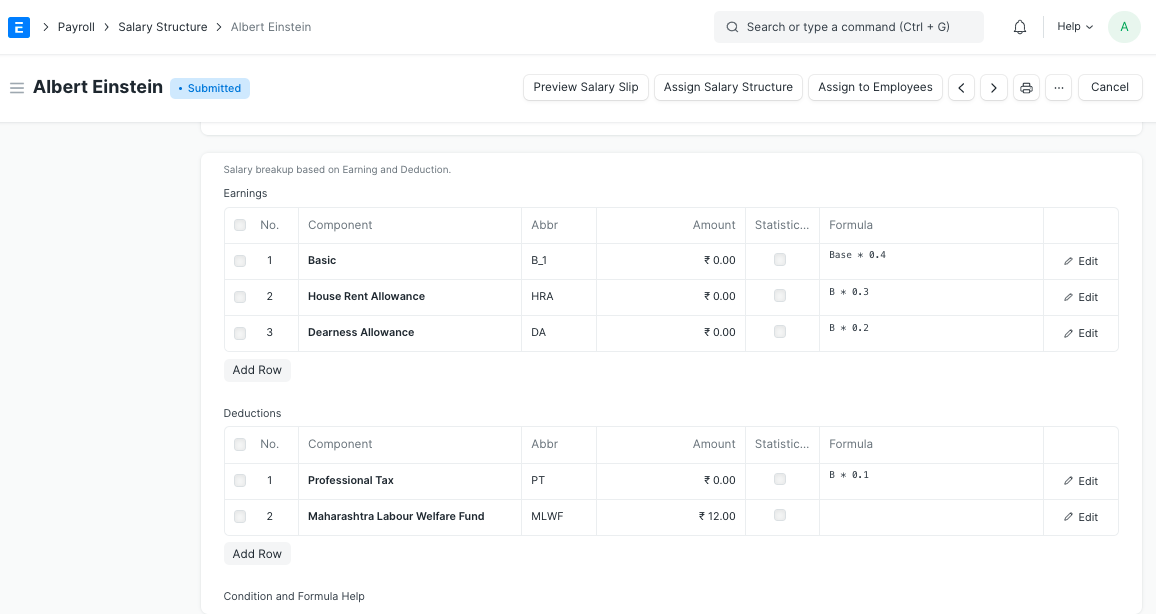 A submitted Salary Structure
Creating a New Salary Structure #
To create a new Salary Structure go to:
Human Resources > Payroll Setup > Salary Structure > New Salary Structure
In the new Salary Structure,
- Name the salary Structure and set the company, letterhead for Salary Slip printing and frequency of payroll etc.
- Set the starting date from which this is valid (Note: There can only be one Salary Structure that can be “Active” for an Employee during any period).
- Configure Leave Encashment Amount per Day which will be the amount payable to Employees on Leave Encashment requests.
- Max Benefits amount is the maximum amount eligible as Flexible Components to employees.
Salary Slip Based on Timesheet #
Salary Slip based on Timesheet is applicable if you have timesheet based payroll system
- Check “Salary Slip Based on Timesheet”
- Select the salary component and enter Hour Rate (Note: This salary component gets added to earnings in Salary Slip)

Earnings and Deductions in Salary Structure #
In the “Earnings” and “Deductions” tables, you can select the earnings and deductions components The condition and formula configured in Salary Component will be copied by default, but you may change this if required. You may also want to select the Base component in the Earnings table. Note that the amount eligible for each employee should be configured in Salary Structure Assignment.
If the condition and formula for any of the earnings or deductions are not configured in Salary Component, you can calculate the values of Salary Components based on,
Condition and Formula #
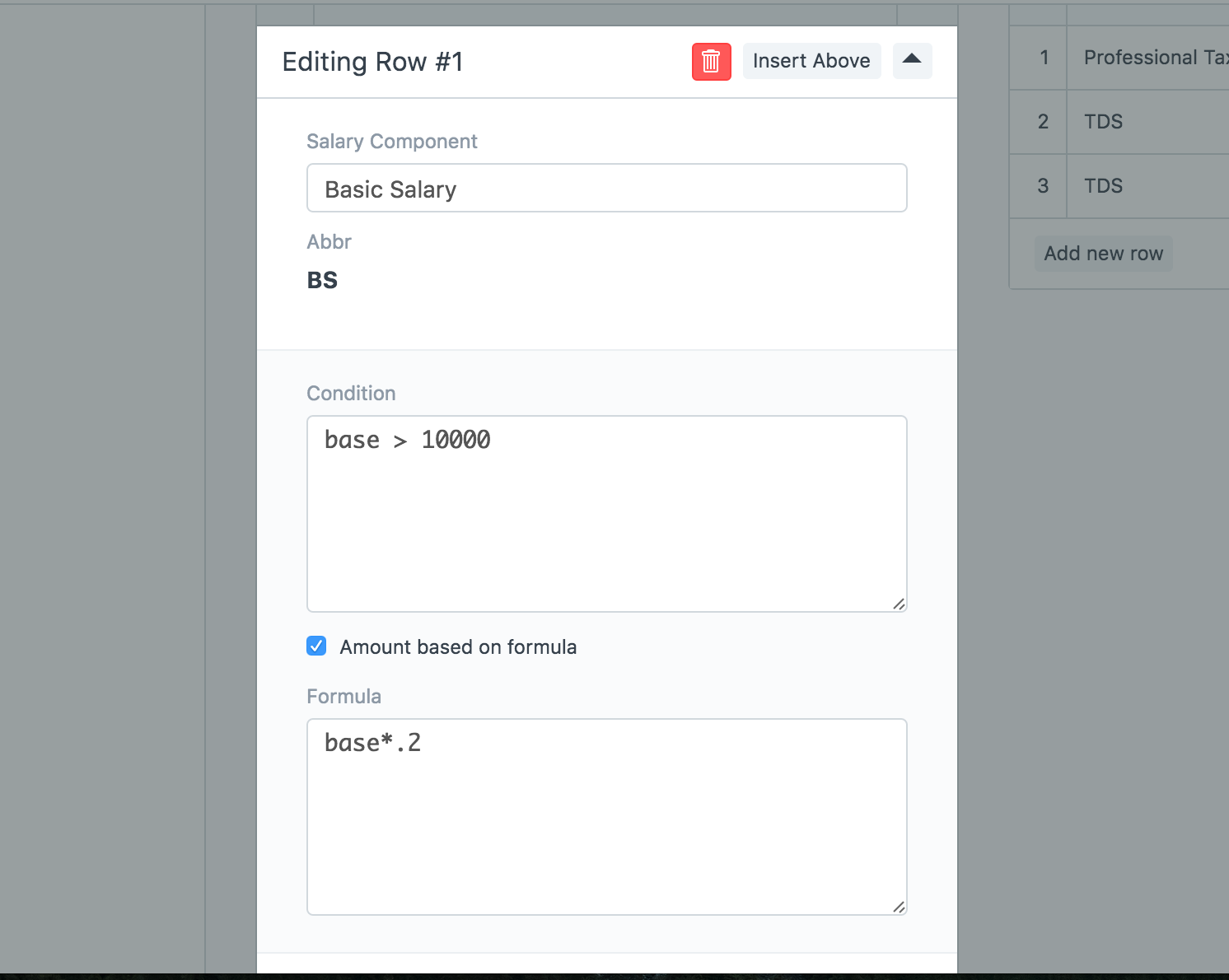
Condition and Amount #
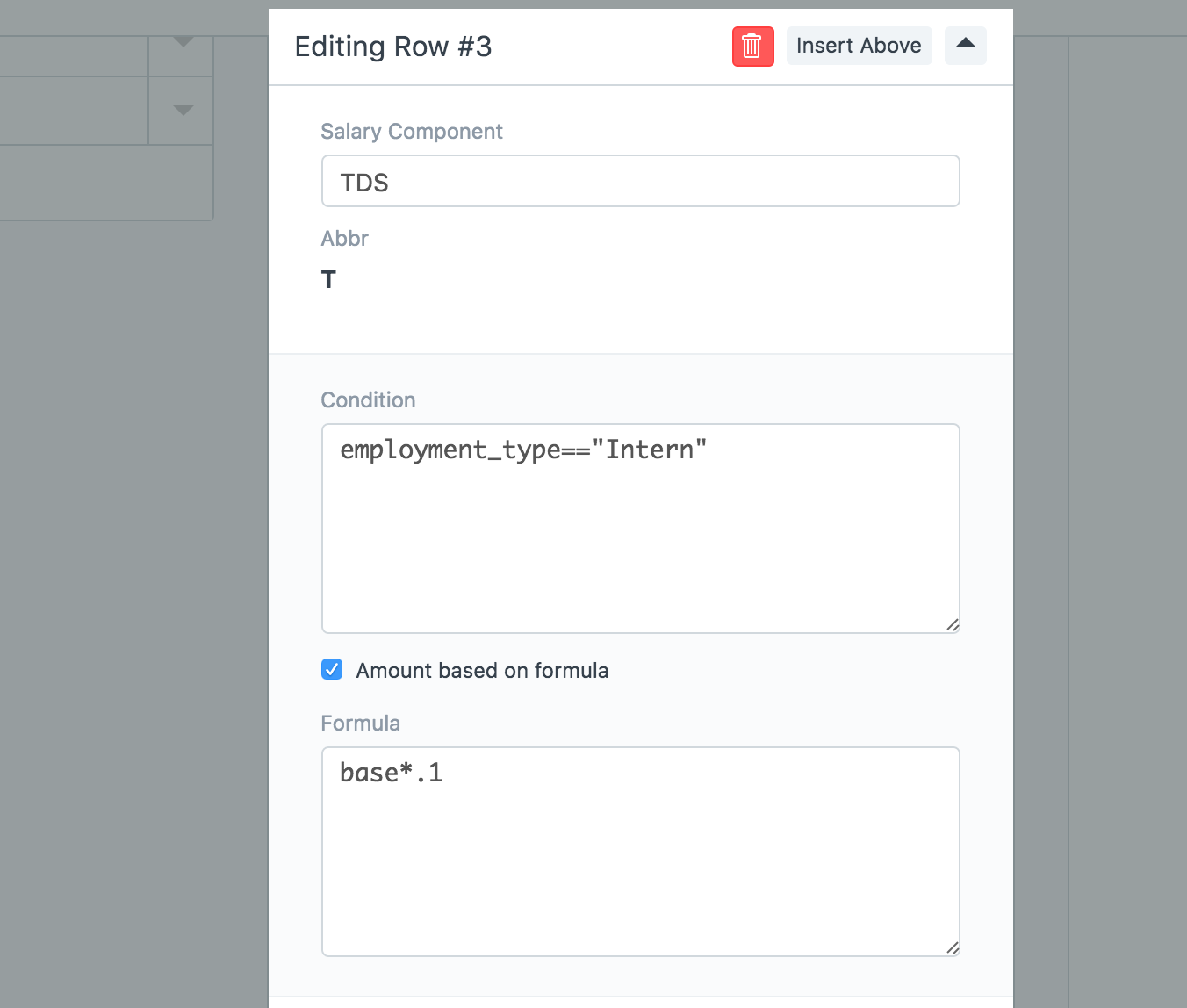
In conditions and formulas,
- Use field “base” for using base salary of the Employee
- Use Salary Component abbreviations. For example: BS for Basic Salary
- Use field name for employee details. For example: Employment Type for employment_type
Account Details #

- Select Mode of Payment and Payment Account for the Salary Slips which will be generated using this Salary Structure
Finally, Save the Salary Structure.
Leave Without Pay (LWP) #
Leave Without Pay (LWP) happens when an Employee runs out of allocated leaves or takes a leave without an approval (via Leave Application). If you want Emeron HR to automatically deduct salary in case of LWP, then you must check on the “Apply LWP” column in the Earning Type and Deduction Type masters. The amount of pay cut is the proportion of LWP days divided by the total working days for the month (based on the Holiday List).
If you don’t want Emeron HR to manage LWP, leave the LWP unchecked in all of the Earning Types and Deduction Types.
Salary Structure Assignment #
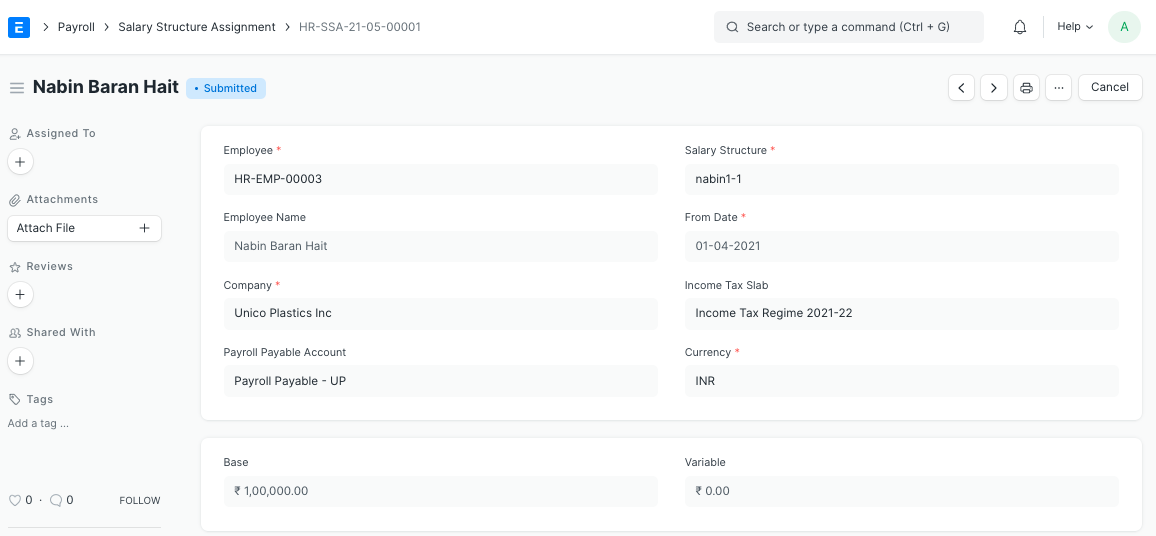
Salary Structure Assignment allows you to assign salary structure and specify the base pay eligible for each employee. It is important that you set the base salary for each assignment as this will be the base salary used for calculations as per the Salary Structure.
To create a new Salary Structure Assignment go to:
Human Resources > Payroll > Salary Structure Assignment > New Salary Structure Assignment
Processing Payroll #
You can either bulk process payroll for Employees under a department, branch or designation or process payroll individually by creating Salary Slips for each employee.
Payroll Processing Using Payroll Entry #
You can also create salary slip for multiple employees using Payroll Entry:
Human Resources > Payroll > Payroll Entry > New Payroll Entry
Payroll Entry #
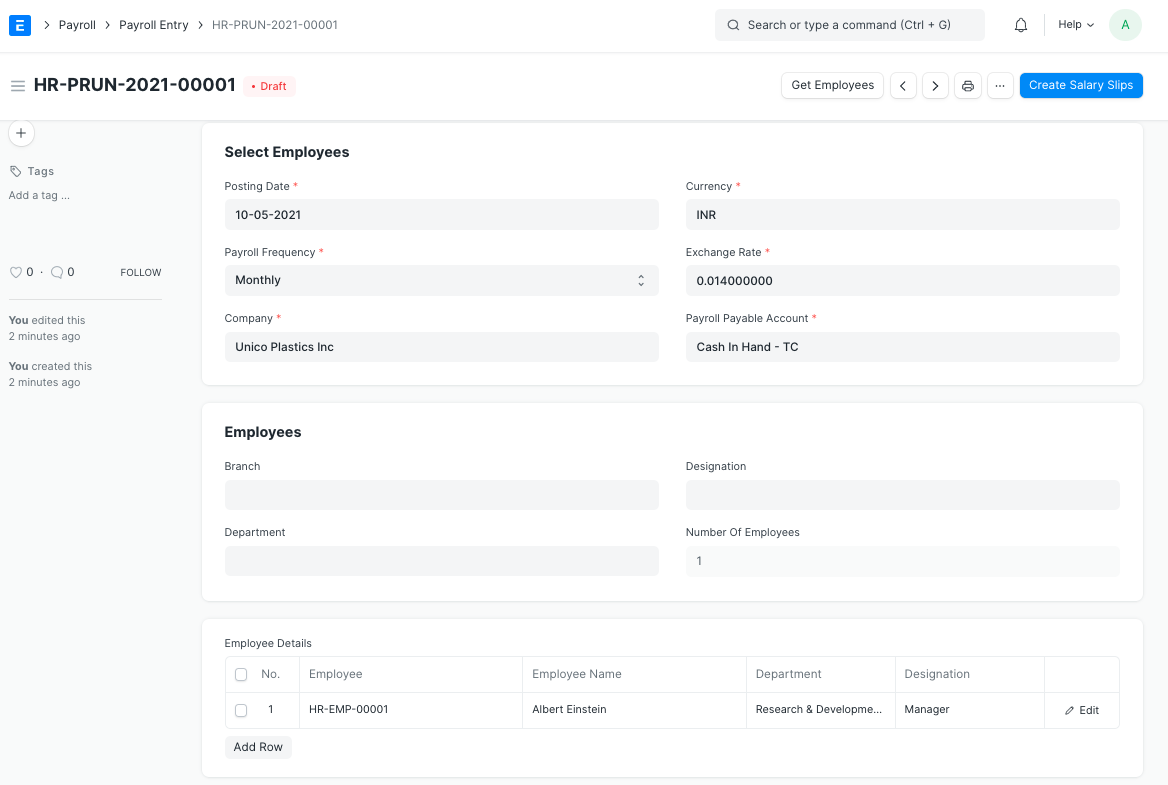
In Payroll Entry,
- Select the Company for which you want to create the Salary Slips. You can also select the other fields like Branch, Department, Designation or Project to be more specific.
- Check Salary Slip based on Timesheet if you want to process timesheet based Salary Slips.
- Select the Posting Date and the frequency of payroll which you want to create the Salary Slips.
- Click on “Get Employee Details” to get a list of Employees for which the Salary Slips will be created based on the selected criteria.
- Enter the Start and End dates for the payroll period.
- You can check Deduct Tax For Unclaimed Employee Benefits if you want to deduct taxes for all benefits (Salary Components which are Is Flexible Benefit) paid to employees till the current payroll
- Similarly, Deduct Tax For Unsubmitted Tax Exemption Proof allows you to deduct taxes for the earnings which were exempted in the previous payrolls as declared in Employee Tax Exemption Declaration but the Employee has not submitted sufficient proof Employee Tax Exemption Proof Submission
- Select the Cost Center and Payment Account.
- Save the form and Submit it to create Salary Slip records for each active Employee for the time period selected. If the Salary Slips are already created, the system will not create any more Salary Slips. You can also just save the form as Draft and create the Salary Slips later.
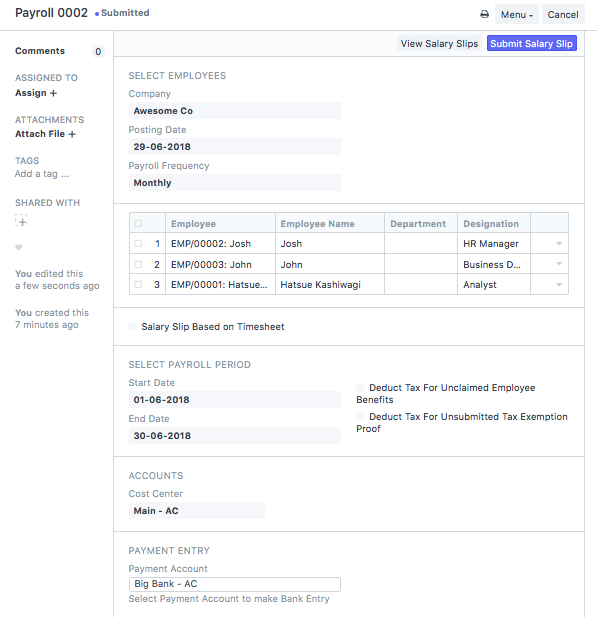
Once all Salary Slips are created, you can use View Salary Slips to verify if they are created correctly or edit it if you want to deduct Leave Without Pay (LWP).
After checking, you can “Submit” them all together by clicking on “Submit Salary Slip”.
Note: Submitting Salary Slips will also book the default Payroll Payable account to record the accrual of salary.
Booking Salaries in Accounts #
The final step is to book the Salaries in your Accounts.
Salaries in businesses are usually dealt with extreme privacy. In most cases, the companies issues a single payment to the bank combining all salaries and the bank distributes the salaries to each employee’s salary account. This way there is only one payment entry in the company’s books of accounts and anyone with access to the company’s accounts will not have access to the individual salaries.
The salary payment entry is a Journal Entry that debits the total of the earning type salary component and credits the total of deduction type salary component of all Employees to the default account set at Salary Component level for each component.
To generate your salary payment voucher from Payroll Entry, click on – > Make > Bank Entry
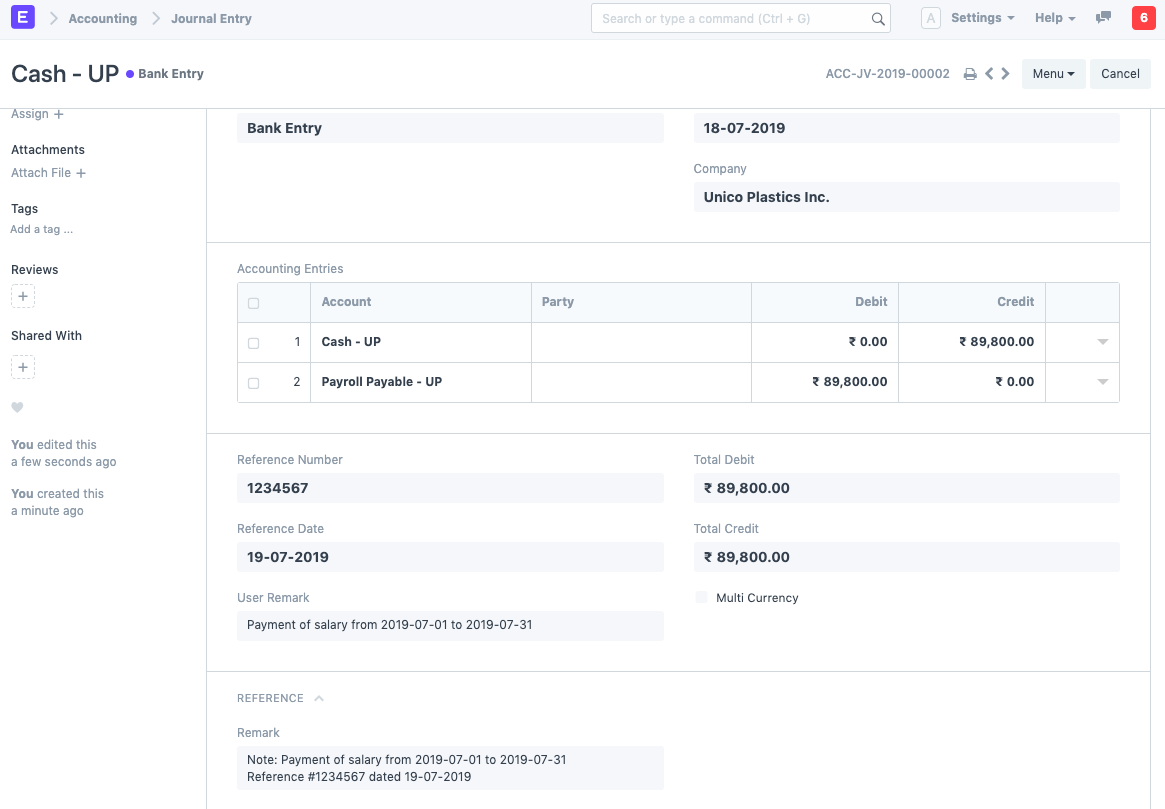
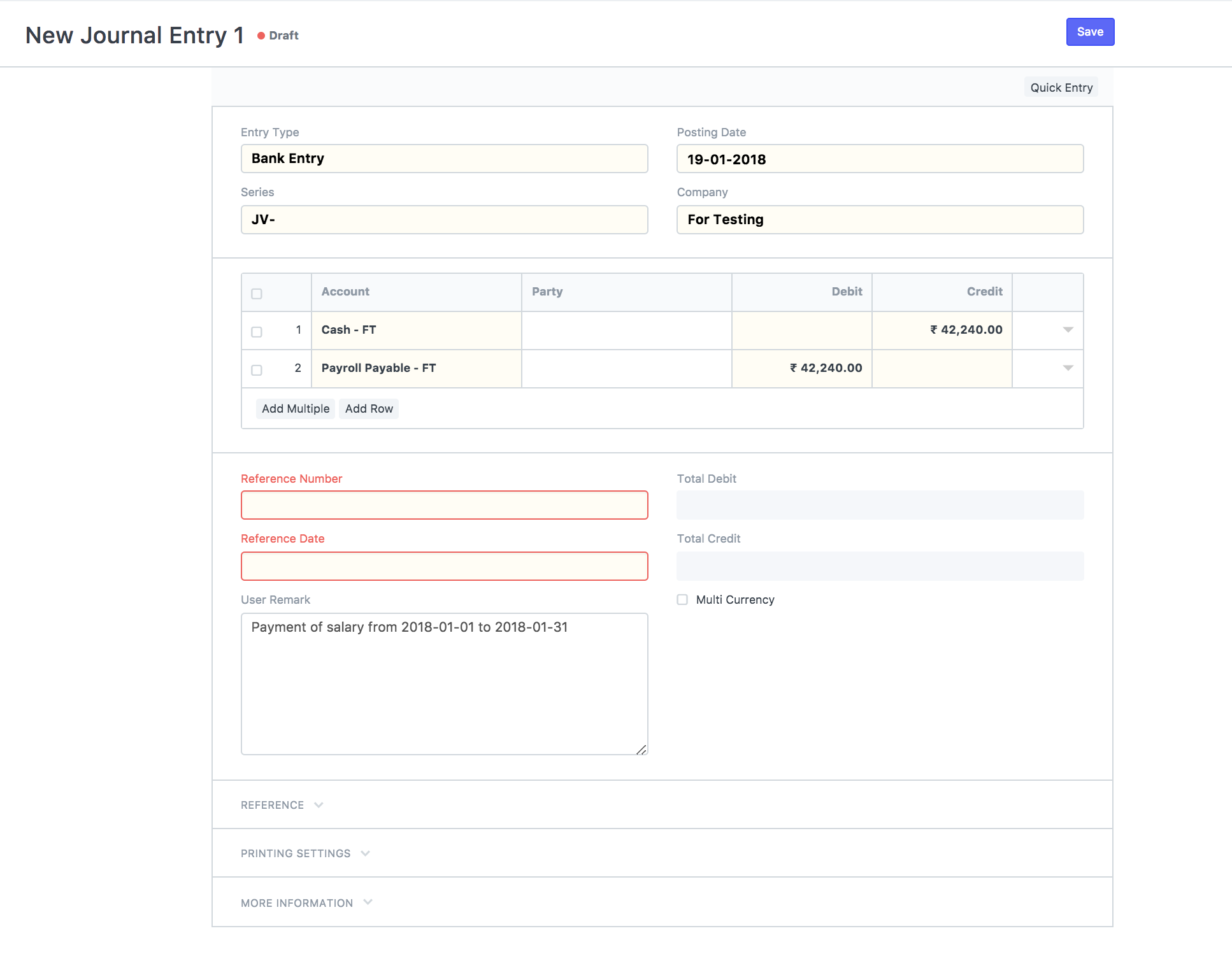
Payroll Entry will route you to Journal Entry with relevant filters to view the draft Journal Vouchers created. You shall set reference number and date for the transactions and Submit the Journal Entries.
Note: For Salary Components which are Flexible Benefits and has Create Separate Payment Entry Against Benefit Claim checked, Emeron HR will book separate draft Journal Entries.
Creating Salary Slips Manually #
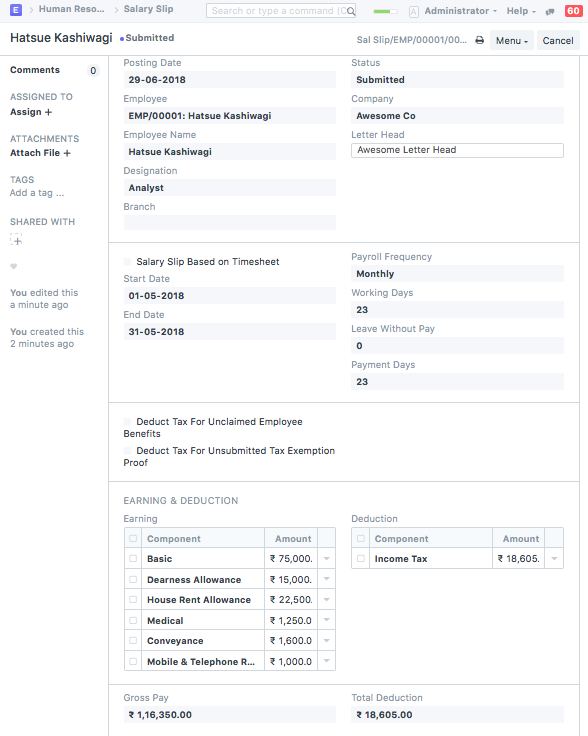
Once the Salary Structure is created and assigned to employees via Salary Structure Assignment, you can make a Salary Slip individually. Go to:
Human Resources > Payroll > Salary Slip > New Salary Slip
Salary Slip #
Payroll Management #
Payroll processing is an important function of every enterprise HR. Emeron HR greatly simplifies this process by offering an array of features that you can utilize from Salary Structure management to bulk processing Payroll of employees. Read the following documentation to understand how to configure and use Emeron HR Human Resources to super power your Payroll processing.
Payroll Period #
A Payroll Period is a period for which Employees get paid for their occupation with the Company.
Payroll Period helps you define Salary Structures and to calculate tax for a specific period based on applicable Income Tax Slab.
To access Payroll Period, go to:
Home > Human Resources > Payroll > Payroll Period
1. How to create a Payroll Period #
- Go to Payroll Period list, click on New.
- Enter Name.
- Select Start Date and End Date of Payroll Period.
- Save.
2. Related Topics #
- Salary Component
- Salary Structure
- Income Tax Slab
- Payroll Entry
- Employee Tax Exemption Proof Submission
- Employee Tax Exemption Declaration
Income Tax Slab #
Income Tax Slab is a document to define income tax rates based on different taxable income slab.
In many countries, income tax is levied on individual taxpayers based on a slab system where different tax rates have been prescribed for different slabs and such tax rates keep increasing with an increase in the income slab. In Emeron HR, you can define multiple Income Tax Slabs and link them to individual employee’s salary structure via Salary Structure Assignment.
To access Income Tax Slab, go to: > Home > Human Resources > Payroll > Income Tax Slab
1. How to create an Income Tax Slab #
To create a new Income Tax Slab:
- Enter a Name for the IT Slab, Company and the date from which it will be Effective From.
- Enable the checkbox ‘Allow Tax Exemption’ if applicable.
- Save and Submit.
2. Features #
2.1 Tax Slabs #
In the Tax Slab table, you can define the rate for different income slabs. To define slab, From Amount and To Amount should be entered. For the first slab, From Amount is optional and for the last slab, To Amount is optional. Both the amount is inclusive while evaluating tax based on taxable income.
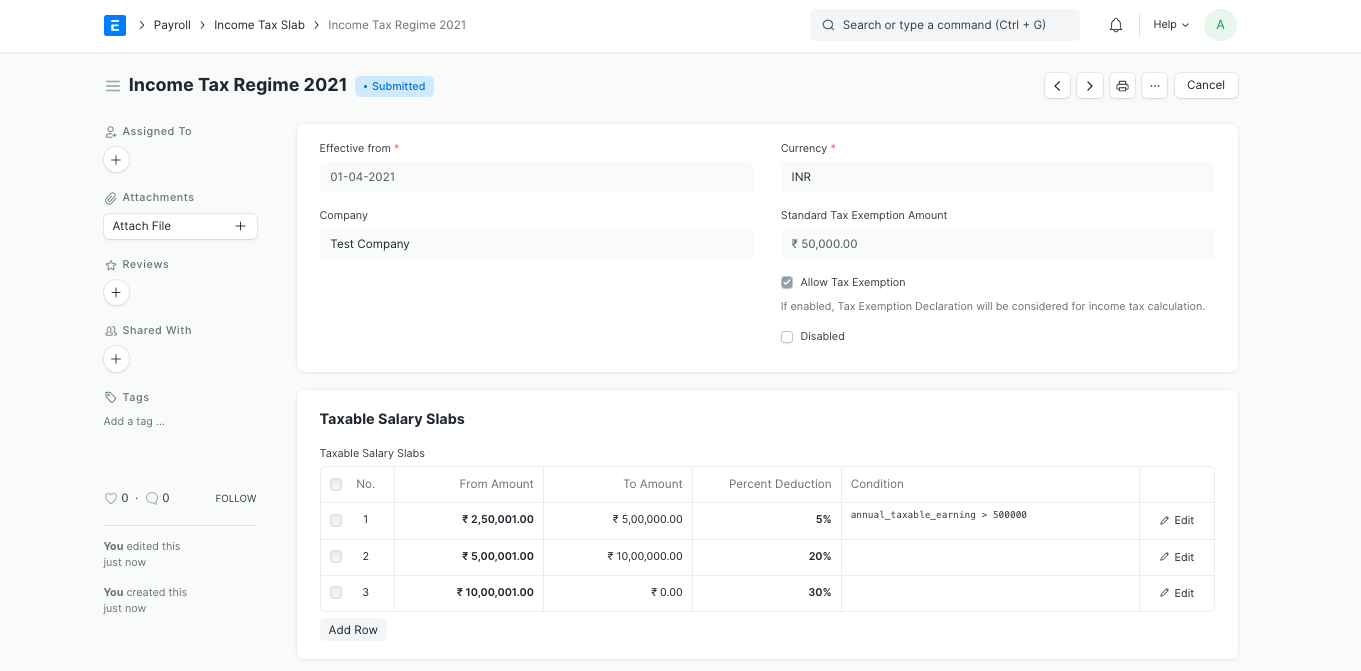
The tax slab can be applicable based on specific conditions. Conditions can be written using all field names of Employee, Salary Structure, Salary Structure Assignment, and Salary Slip documents.
Examples:
// Apply tax if employee born between 31-12-1937 and 01-01-1958 (Employees aged 60 to 80)
date_of_birth > date(1937, 12, 31) and date_of_birth < date(1958, 01, 01)

// Apply tax by employee gender
gender == "Male"

// Apply tax by Salary Component
base > 10000

// Annual Taxable income is greater than 5 lakhs
annual_taxable_earning > 500000
2.2 Other Taxes and Charges on Income Tax #
If other taxes are applicable on calculated income tax, you can enter those using this table. You can also define the min and max taxable amount for which this tax will be applicable. For example, Health and Education Cess is applied additionally on income tax to everyone in India.

2.3 Other Properties #
- Allow Tax Exemptions: Tax exemptions can be allowed for a specific Income Tax Slab. If enabled, while calculating taxes based on this tax slab, Employee Tax Exemption Declaration and Proof Submission are considered for calculating taxable income.
- Standard Tax Exemption Amount: If exemption is allowed, the Standard Tax Exemption Amount defined by the government can be added here. This exemption generally does not need any kind of document proof and applicable to all employees linked to this income tax slab.
3. Related Topics #
- Salary Component
- Salary Structure
- Salary Structure Assignment
- Payroll Entry
- Employee Tax Exemption Declaration
- Employee Tax Exemption Proof Submission
Salary Structure #
Salary Structure is the details of the salary being offered to an Employee, in terms of the breakup of the different components constituting the compensation.
Any changes to the Salary Structure i.e. among the components can have a major impact on what the Employee does, such as the kind of tax exemptions claimed.
Emeron HR allows you to define the Earnings and Deductions of a Salary Structure, Payroll frequency, and Payment Mode among other features.
To access Salary Structure, go to:
Home > Human Resources > Payroll > Salary Structure
1. Prerequisites #
Before you create a Salary Structure, it is advisable you have the following:
- Salary Component
2. How to create a Salary Structure #
- Go to the Salary Structure list, click on New.
- Enter the Salary Structure Name.
- Select the Company Name and Payroll Frequency.
- Save and Submit.
2. Features #
2.1 Earnings and Deductions #
Earnings specify the Salary Components that are earned by an Employee. These components typically include basic, allowances, bonuses, and incentives that are added to the employee’s Total Salary. On the other hand, Deductions specify the Salary Components that are deducted from the employee’s Total Salary. These typically include the taxes.
Note: Only Salary Components set as ‘Earnings’ will be shown in the Earnings table and components set as ‘Deductions’ will be shown in the Deductions table.
To create Earnings and Deductions, select the Salary Component in the Component column. Enter the Formula/Condition if not previously specified while creating the Salary Component. Additionally, you can also enter a pre-defined amount in the Amount column.
Note: Make sure to click on the downward arrow and enable the ‘Amount based on formula’ checkbox in case the Salary Component is calculated using a formula.
2.2 Account #
In this section, the Mode of Payment and the Payment Account that is used to pay the salary can be specified.
2.3 Salary Structure for Salary based on Timesheets #
In Emeron HR you can also define the Salary Structure for Salary Slip based on Timesheet, which allows the Company to pay there Employee as per working hours.
Steps for creating Salary Structure based on Timesheets:
- Go to Salary Structure List, click on New.
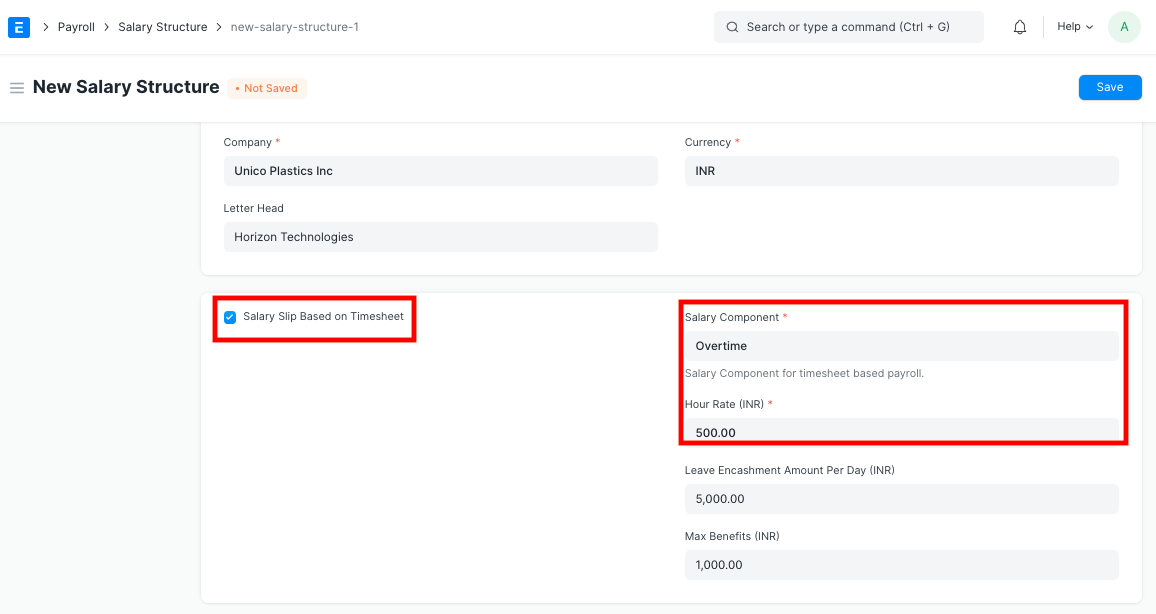
- Select checkbox Salary Slip Based on Timesheet.
- Select the Salary Component.
- Enter the Hour Rate. Based on the Rate entered, the amount for Working hours for the selected Salary Component will be calculated accordingly.
- Save and Submit.
2.4 Leave Encashment Amount Per Day #
In case there are encashable leaves for an Employee, you can define the leave encashment amount per day in this field for this particular Salary Structure. Based on the ‘Earning Component’ set in the encashed Leave Type and the amount per day, the value for the Salary component will be calculated accordingly in the Salary Slip.
2.5 Max Benefits (Amount) #
In this field, the Max Benefits Amount for the Salary Structure can be specified. If this field is filled, make sure the Salary Structure has a Salary Component with the “Is Flexible Benefits” checked, against which this amount will be paid.
Once all the information is saved and submitted, you can assign the Salary Structure by clicking on the Create button and selecting ‘Single Assignment’ to assign a single employee or ‘Bulk Assignments’ to assign multiple employees via the Salary Structure Assignmnt Tool.
You can also preview the associated Salary Slip by clicking on the Actions button and selecting ‘Preview Salary Slip’.
Salary Slip #
A salary slip is a document issued to an employee. It contains a detailed description of the employee’s salary components and amounts.
To access Salary Slip, go to: > Home > Human Resources > Payroll > Salary Slip
1. Prerequisites #
Before creating Salary Slip, it is advised that you create the following first:
- Employee
- Salary Structure
- Salary Structure Assignment
2. How to create a Salary Slip #
- Go to Salary Slip, Click on New.
- Select Employee. On selecting Employee all details of the Employee will be fetched from Salary Structure which is assigned to that Employee. This includes details such as Payroll Frequency, Earnings, Deductions, etc.
- Select Start Date and End Date.
- Save.
3. Feature #
3.1. Salary Slip based on Attendance/Leave #
HR users can create Salary Slip based on Attendance or leave. The Working days will calculated on basis of leave/Attendance, depending on the field Calculate Payroll Working Days Based On in HR Settings. If Payroll is based on Attendance then, the Leave without pay will be considered as absent and half-day will be considered as half-day absent.
3.2. Salary Slip based on Timesheet #
For creating Salary Slip based on timesheet you need to create Salary Structure for Timesheets.
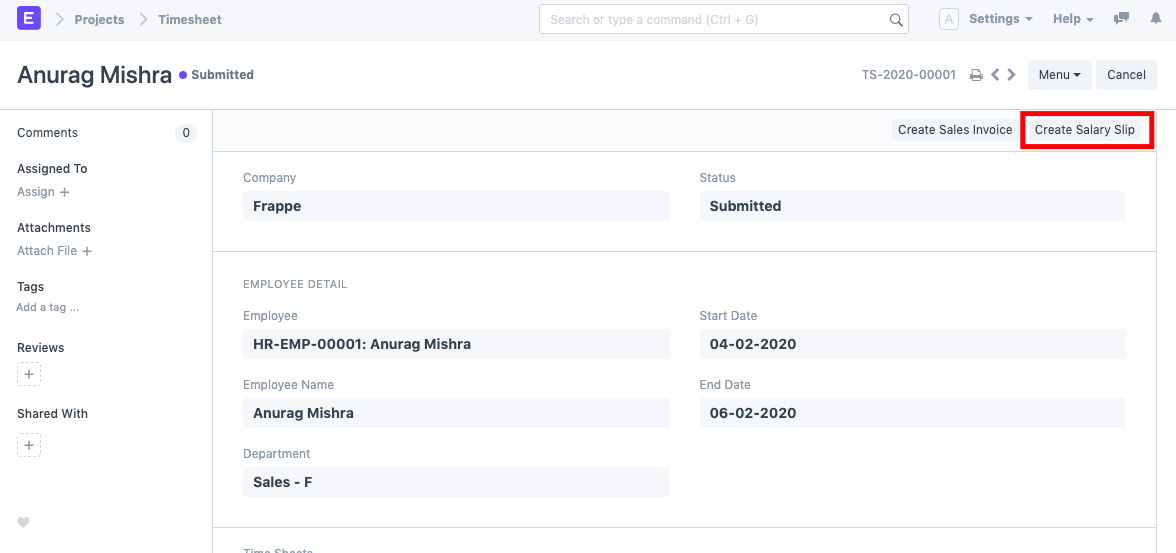
Emeron HR also provides an option to create Salary slip based on working hours based on Timesheet. You can create Salary Slip after submitting the Timesheet by clicking directly on Create Salary Slip button on the top right.
The Payment Amount is calculated based on Hour Rate defined in Salary Structure and is reflected in the Earnings table.
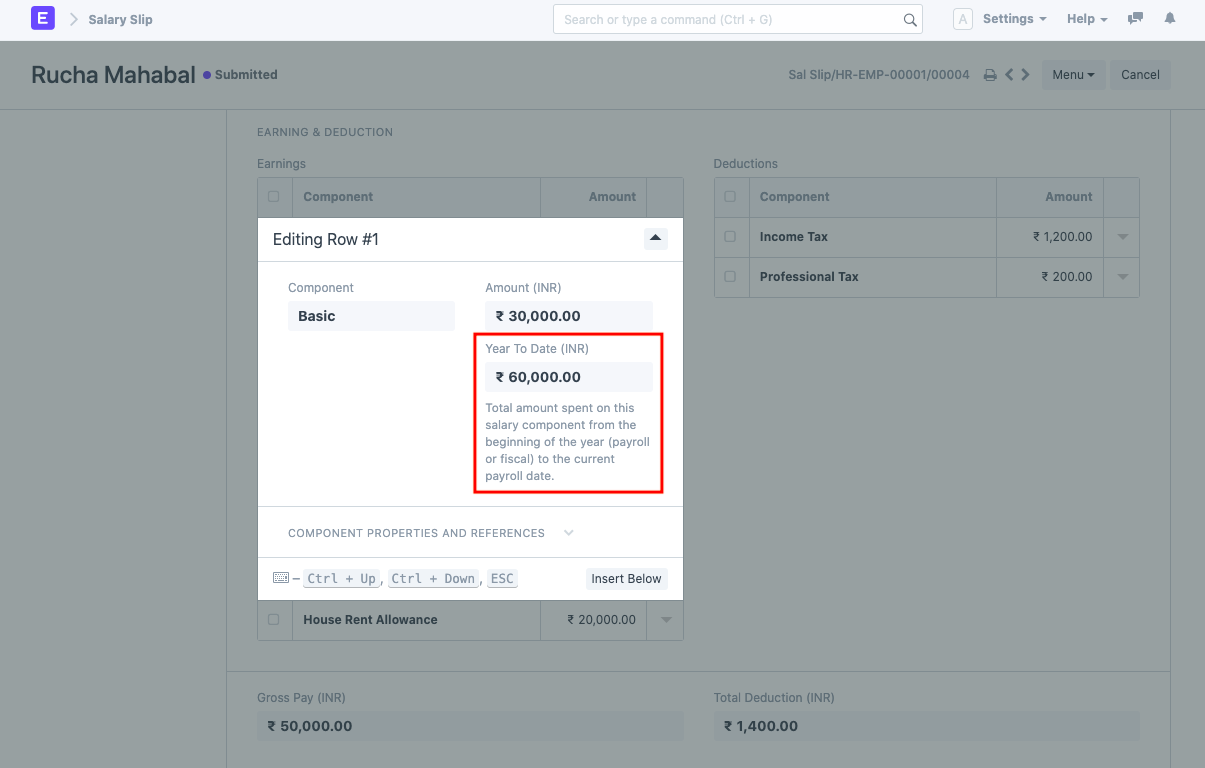
3.3 Year to Date and Month to Date #
For every salary slip, ‘Year to Date’ and ‘Month to Date’ are computed.
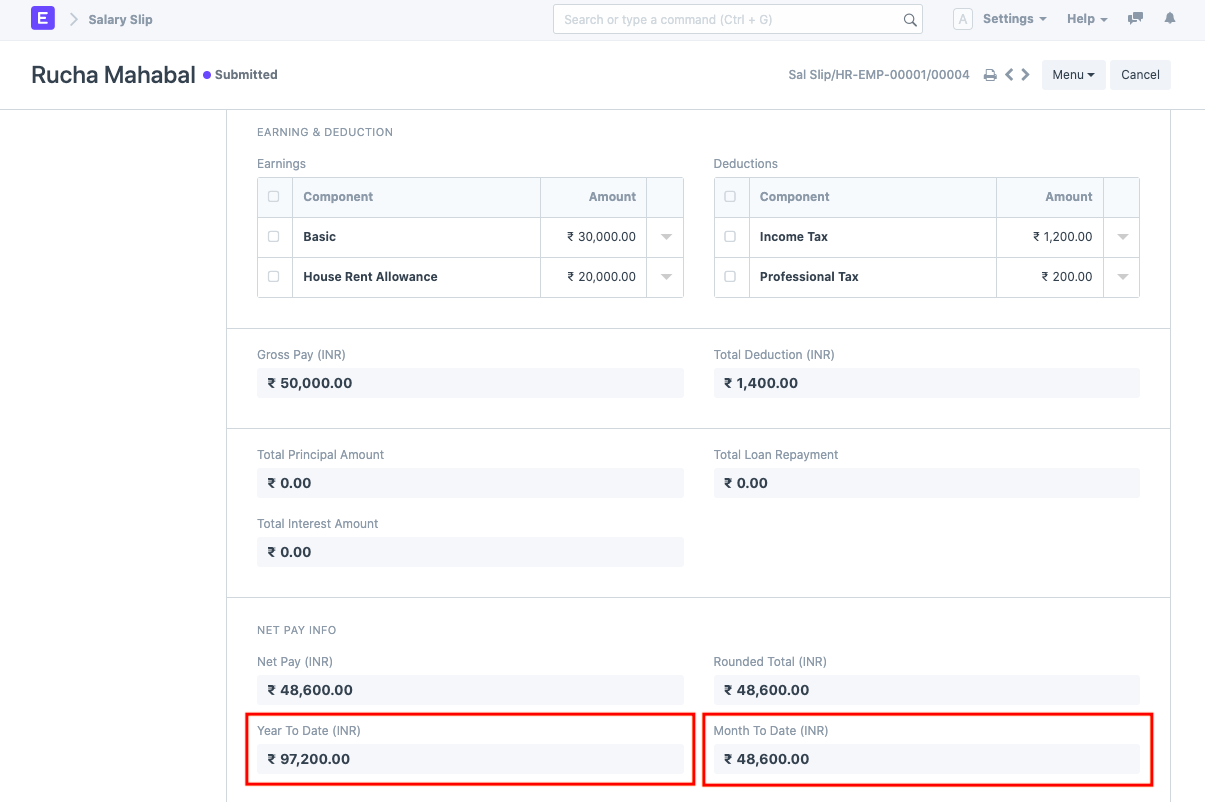
- Year to Date: Total salary booked for that particular employee from the beginning of the year (payroll period or fiscal year) up to the current salary slip’s end date.
- Month to Date: Total salary booked for a particular employee from the beginning of the month (for which the payroll entry is created) up to the current salary slip’s end date.
Year to Date is also computed for every component in the earnings and deduction tables. The “Salary Slip with Year to Date” print format is available with Year to Date and Month to Date computations.
3.4 Bulk Email Salary Slips #
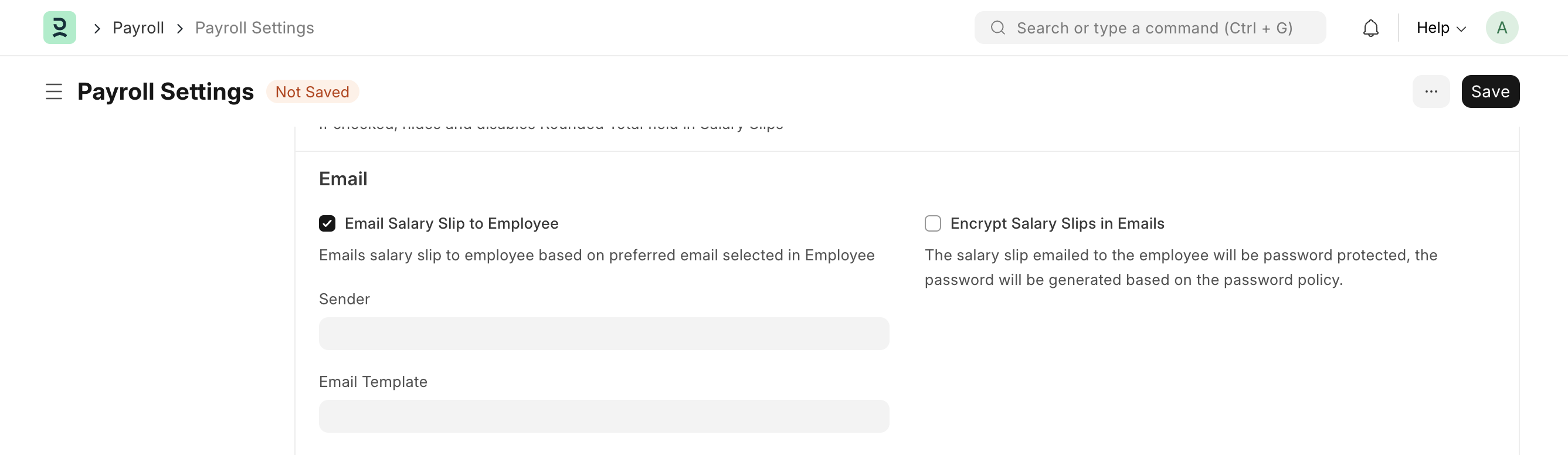
By default, the Payroll Entry sends salary slip emails to all the employees on salary slip submission if Email Salary Slip to Employee is enabled in Payroll Settings. Optionally, you can also set up the sender email account and email template for this.
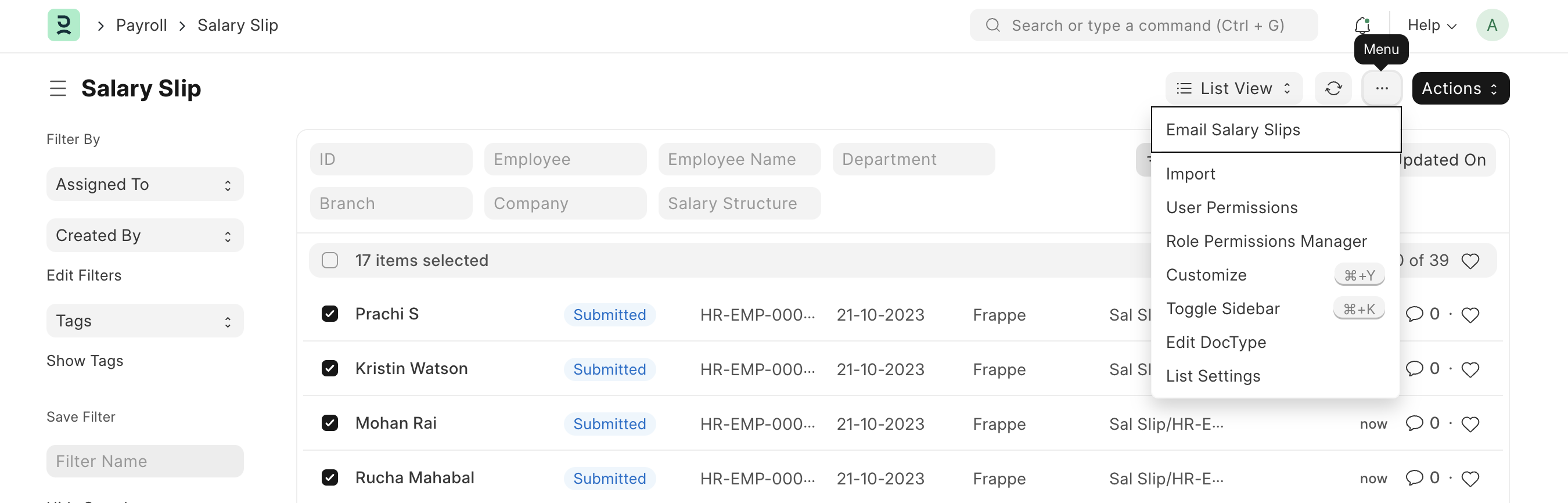
But if there are a few employees who don’t have an email ID set or the setup is incorrect during this action, you can use the bulk action in the Salary Slip list view to trigger sending emails to selected employees later.
Payroll Entry #
Payroll is the sum total of all compensation a business must pay to its employees for a set period of time or on a given date.
In Emeron HR, Payroll Entry enables bulk processing of payroll for employees. In other words, processing salary slips of all employees in one go. The bulk processing can be Company-wide or based on these categories: Branch, Department, or Designation.
To access Payroll Entry, go to:
Home > Human Resources > Payroll > Payroll Entry
1. How to create a Payroll Entry #
- Go to to Payroll Entry list, click on New.
- Select the Payroll Frequency.
- Select Branch, Designation and Department to filter out employees (optional).
- Select Project (optional) if you want to run the payroll against a project.
- Select ‘Validate Attendance’ and ‘Salary Slip Based on Timesheet’ checkboxes in case you want to deduct the salary based on attendance and if you want to also consider the timesheets of the employees respectively.
- Select the Payment Account to make the Bank Entry.
- Save.
Once the information is saved, click on the Get Employees button to get a list of Employees for which the Salary Slips will be created based on the selected criteria.
Once the list of Employees is fetched, click on the Create Salary Slips button to generate Salary Slips.
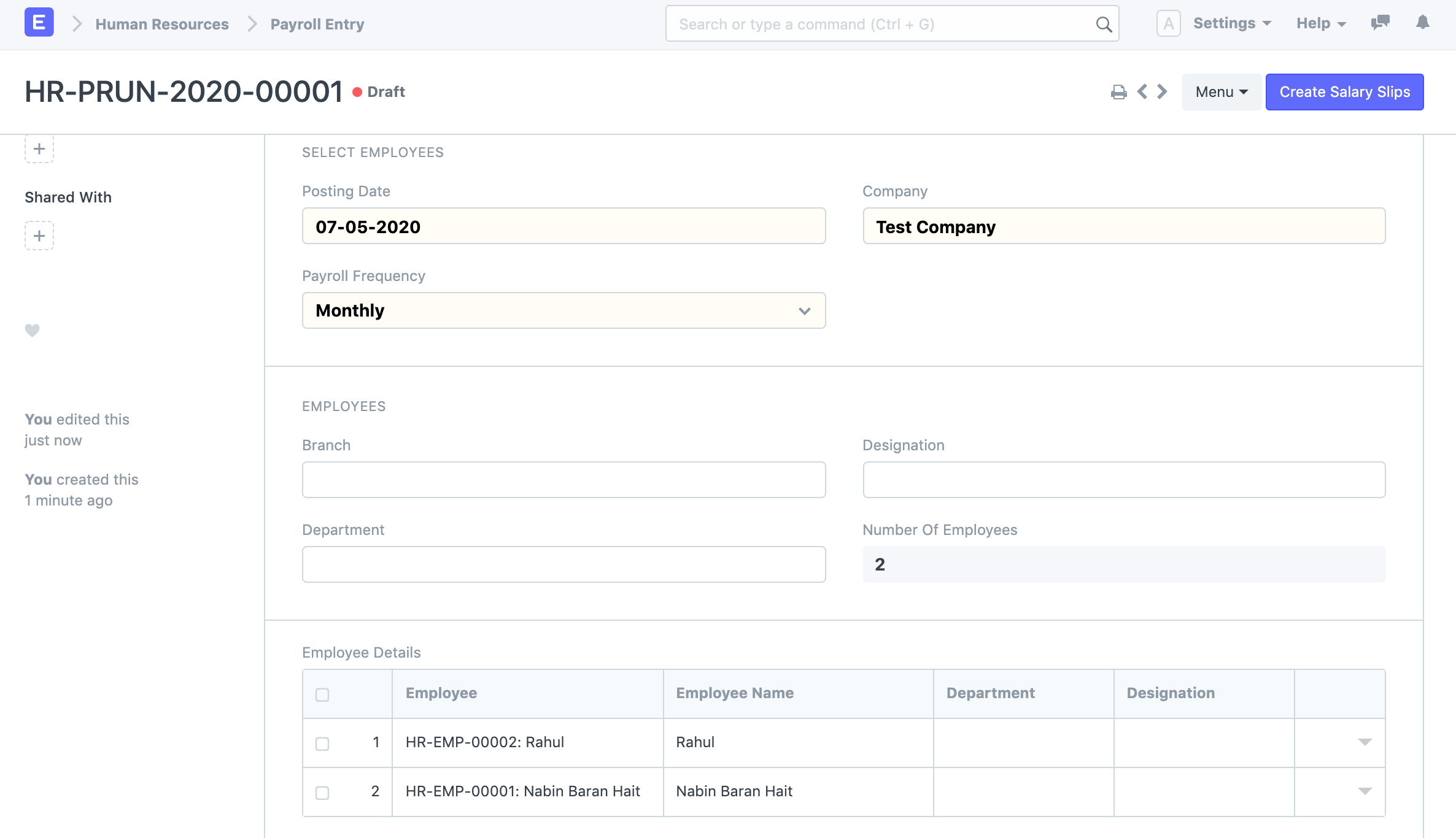
Note: If the Salary Slips are already created, the system will not create any more Salary Slips. You can also just save the form as Draft and create the Salary Slips later.
2. Features #
2.1 Salary Accrual #
After verifying the Salary Slips, you can Submit them all together by clicking on the Submit Salary Slip button.
This will also book the default Payroll Payable account against respective Expense Heads (as configured in Salary Components) to record the accrual of salary to employees.
Cost Center:
You can select Cost Center in the Payroll Entry against which the expenses will be posted.
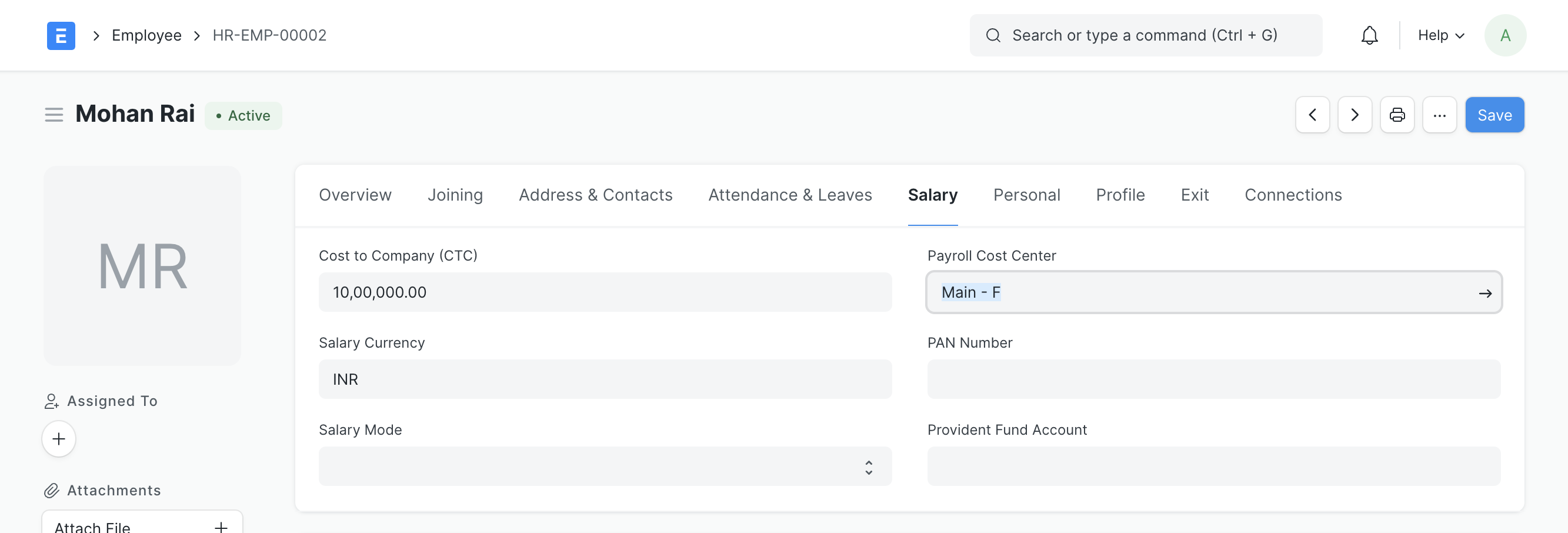
If you want to book expenses against multiple cost centers based on Employee/Department, you can do so by setting Payroll Cost Center in the Employee/Department master.
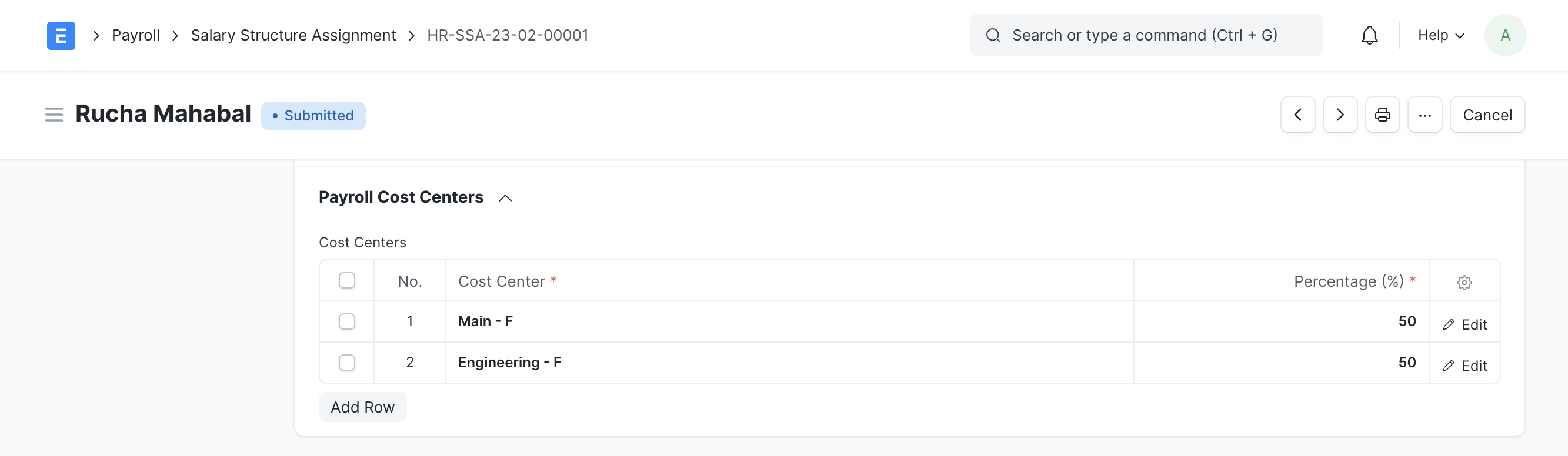
Even multiple cost centers can be assigned against a single Employee. You can do so via the Salary Structure Assignment document.
Cost Center assigned in Salary Structure Assignment gets the highest priority and then Employee and Department master respectively. The least priority is given to the Cost Center selected in Payroll Entry.
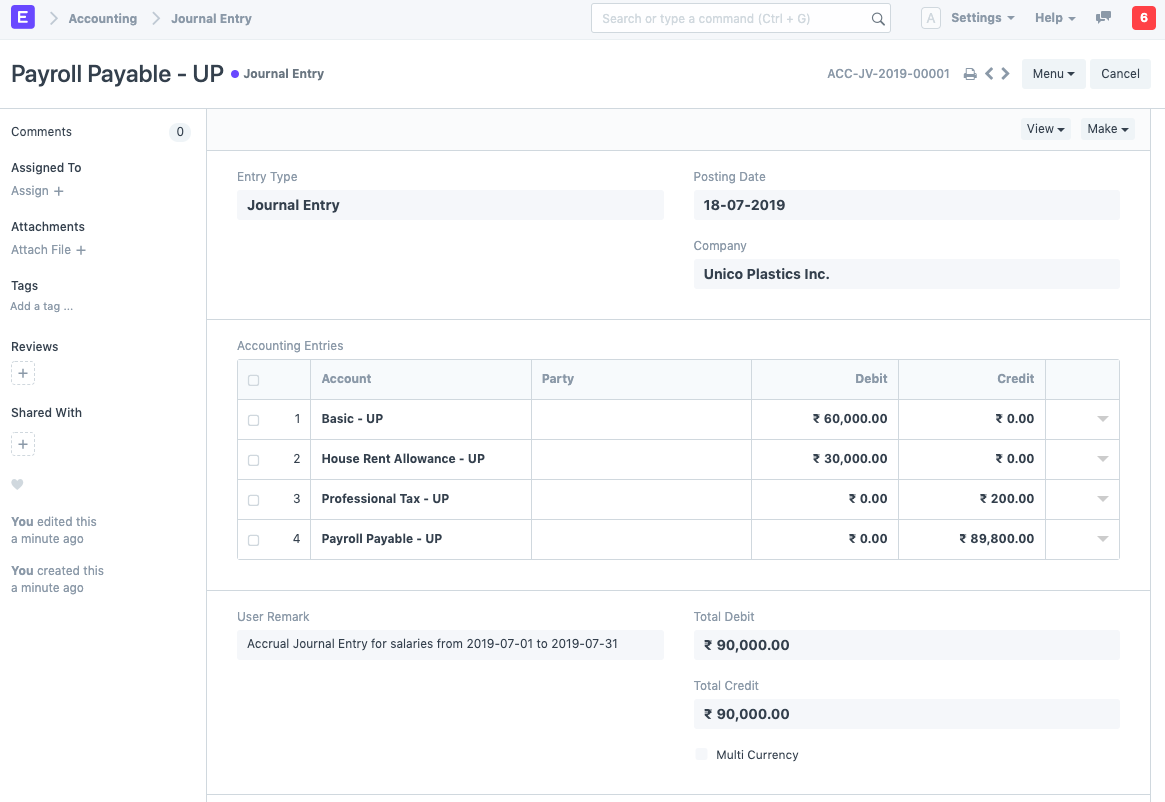
Note: Submitting Salary Slips one by one manually will not create the Journal Entry to record salary accrual.
2.2 Salary Payment #
The final step is to book the Salary Payment.
Salaries in businesses are usually dealt with extreme privacy. In most cases, companies issue a single payment to the bank combining all salaries and the bank distributes the salaries to each employee’s salary account.
This way there is only one payment entry in the company’s books of accounts and anyone with access to the company’s accounts will not have access to the individual salaries.
The salary payment entry is a Journal Entry that debits the total of the Earnings type salary component and credits the total of Deductions type salary component of all Employees to the default account set at the Salary Component level for each component.
To generate your salary payment voucher from Payroll Entry, click on the Make Bank Entry button.
Payroll Entry will route you to Journal Entry with relevant filters to view the draft Journal Vouchers created. You will have to set the reference number and date for the transactions and Submit the Journal Entry.
Note: For Salary Components which are Flexible Benefits and has Create Separate Payment Entry Against Benefit Claim checked, Emeron HR will book separate draft Journal Entries.
Additional Salary #
Additional Salary is something that an Employee receives from the company they work for, other than their usual pay.
Emeron HR offers you a feature called Additional Salary to add or deduct ad hoc salary for a particular Employee while processing the Payroll. Some examples of Additional Salary could be Performance Bonus, Deputation Allowance, Arrears, Incentives, or other adjustments.
To access Additional Salary, go to:
Home > Human Resources > Payroll > Additional Salary
1. Prerequisites #
Before creating an Additional Salary, it is advisable to create the following:
- Employee
- Salary Component
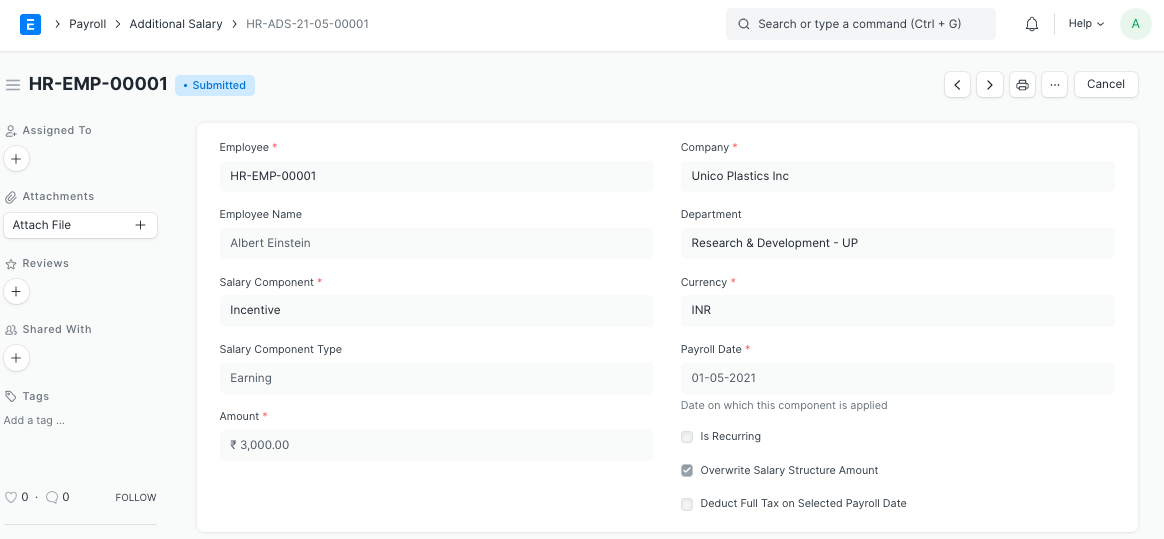
2. How to create an Additional Salary #
- Go to the Additional Salary list, click on New.
- Select Employee.
- Select Salary Component.
- Enter the Amount.
- Enter the Payroll Date. If Payroll Date for Additional Salary is in the interval when the salary is processed, it will be added to the earnings/deduction.
- Save and Submit.
Select the ‘Overwrite Salary Structure Amount’ checkbox to overwrite the Additional Salary component on the Salary Structure amount. Additionally, the ‘Deduct Full Tax on Selected Payroll Date’ checkbox can be selected if full tax needs to be deducted on the Additional Salary component for that particular payroll date.
3.Features #
3.1 Recurring Additional Salary #
This feature allows users to create an Additional Salary for a fixed interval. When ‘Is Recurring’ is checked you need to fill ‘To Date’ and ‘From Date’. This will add or deduct the additional salary amount for this employee within the selected date range and it will be reflected in the Salary Slip for the employee. The Additional Salary will be repeated every month between ‘From Date’ and ‘To Date’ interval.
Retention Bonus #
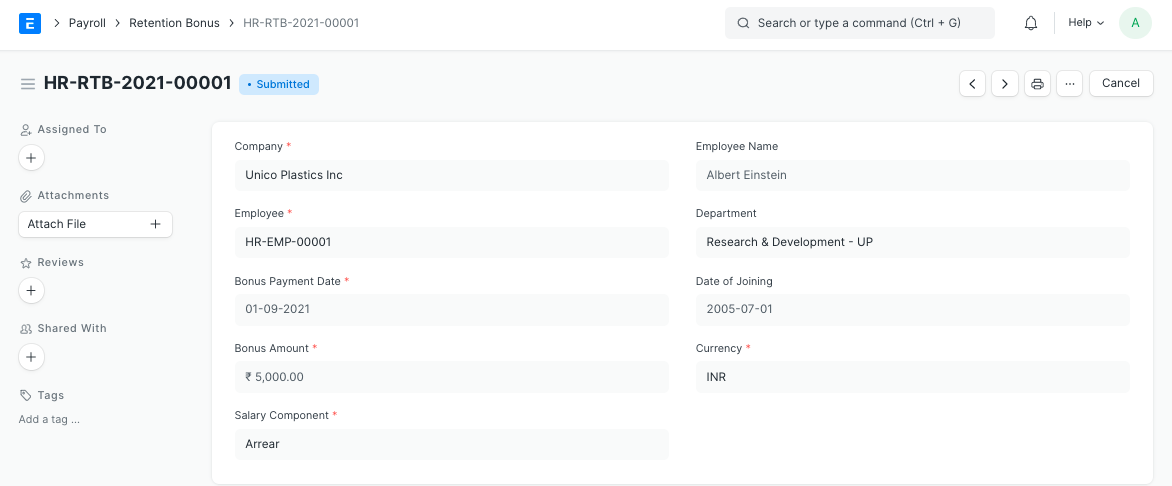
Retention bonus is a payment or reward outside of an employee’s regular salary that is offered as an incentive to keep a key employee on the job.
Emeron HR allows you to configure Retention Bonus for an Employee for a particular period.
To access Retention Bonus, go to: > Home > Human Resources > Payroll > Retention Bonus
1. Prerequisites #
Before creating a Retention Bonus, it is advisable to create the following:
- Employee
- Salary Component
2. How to create a Retention Bonus #
- Go to Retention Bonus list, click on New.
- Select Employee and Bonus Payment Date.
- Enter the Bonus Amount.
- Select the Salary Component under which you want to give the bonus.
- Save and Submit.
- On submit, ‘Additional Salary’ document of the specified ‘Salary Component’ is created. This will be fetched while running Payroll Entry.
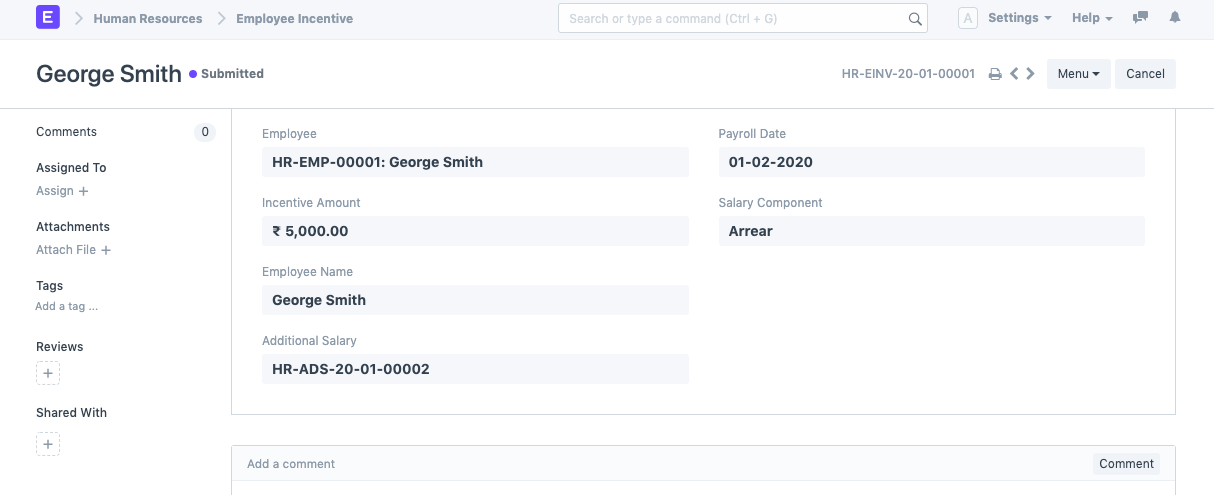
Employee Incentive #
Employee Incentives are a way of compensating and motivating employee performance apart from the usual salary.
When an organization wants to encourage productivity among its employees, one of the options available is rewarding the Employee with an incentive. Emeron HR allows you to create Employee Incentives as and when required for a particular payroll entry.
To access Employee Incentive, go to: > Home > Human Resources > Payroll > Employee Incentive
1. Prerequisites #
Before creating an Employee Incentive, it is advisable to create the following:
- Employee
- Salary Component
1. How to create an Employee Incentive #
- Go to Employee Incentive list, click on New.
- Select the Employee.
- Enter the Incentive Amount.
- Select the Payroll Date.
- Select the Salary Component under which you want to give the incentive.
- Save and Submit.
- On submit, the ‘Additional Salary’ document of the specified ‘Salary Component’ is created. This will be fetched while running the Payroll Entry.