

Profile #
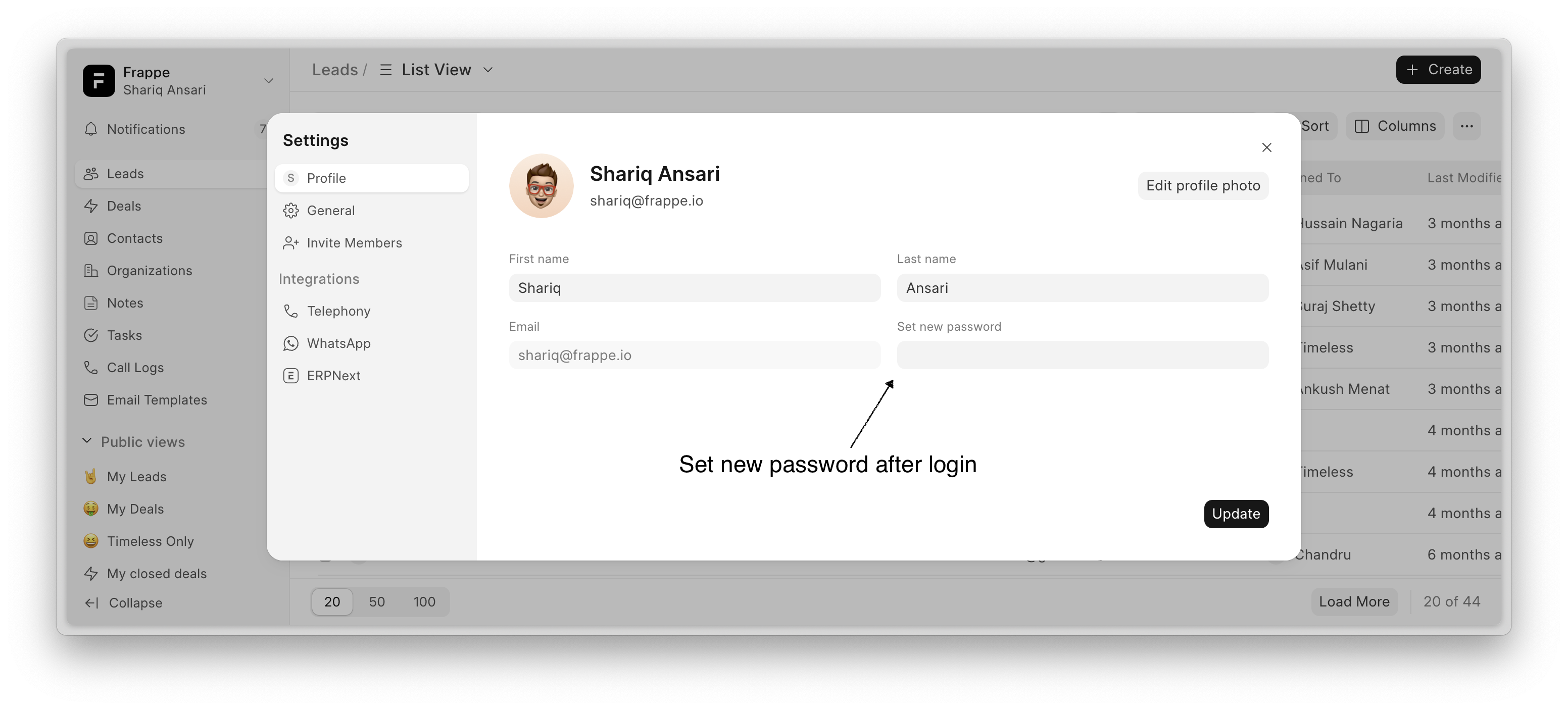
You can update your name, profile image, and password from the Profile Settings page.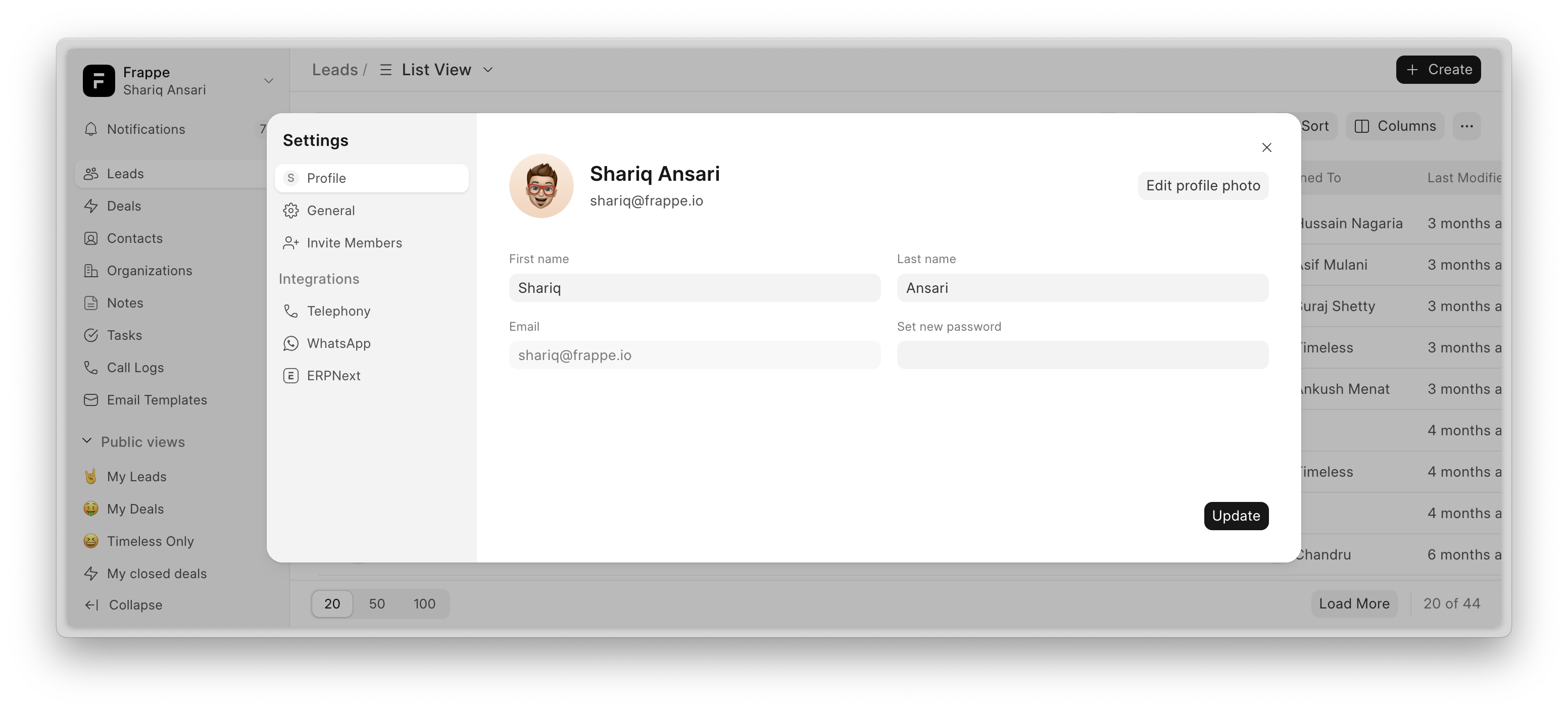
How to Update Your Profile #
- Navigate to Settings → Profile.
- Update your First or Last name if needed.
- Click on Edit profile photo to update the avatar image.
- Add new password to change your password.
- Click Update to apply the changes.
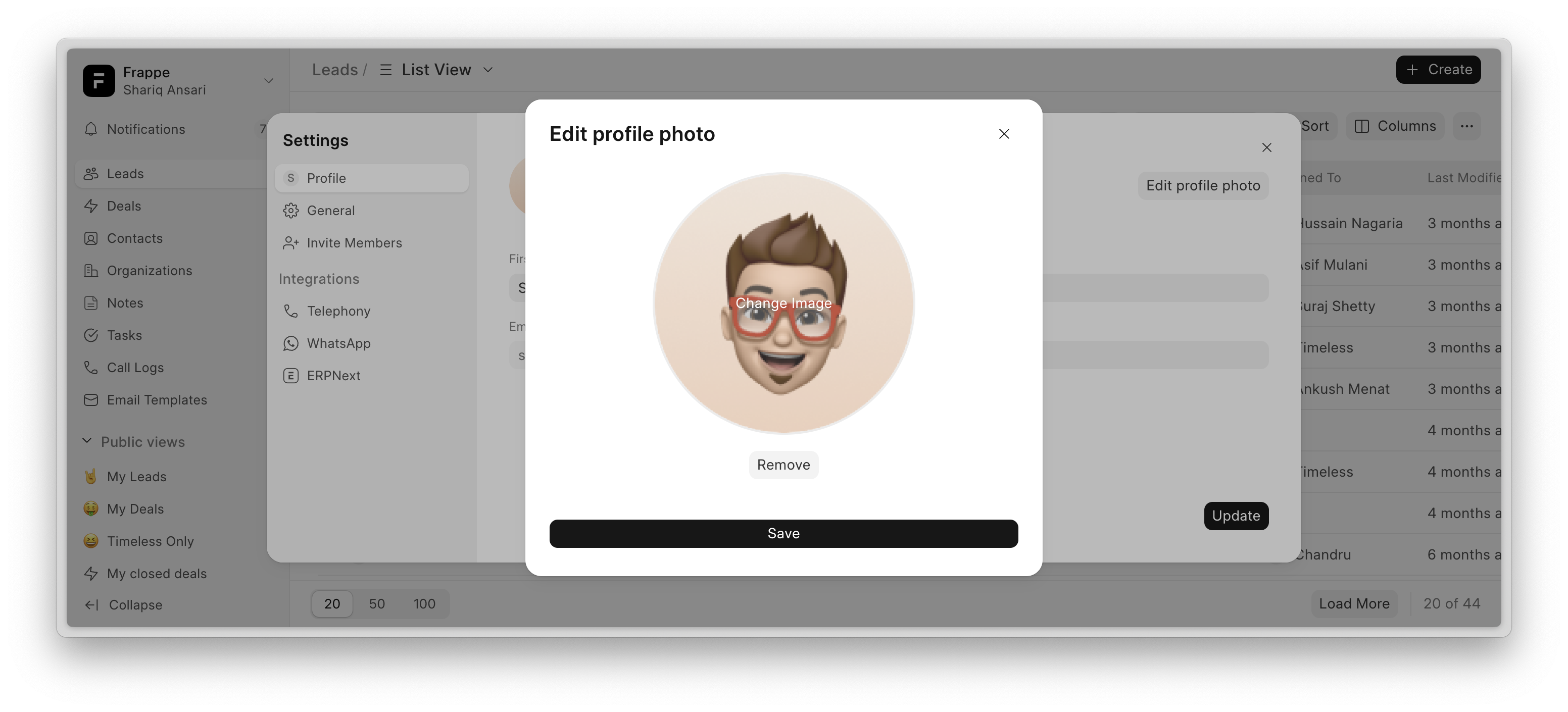
Ensure your profile details are up to date for a personalized experience.
Custom Branding #
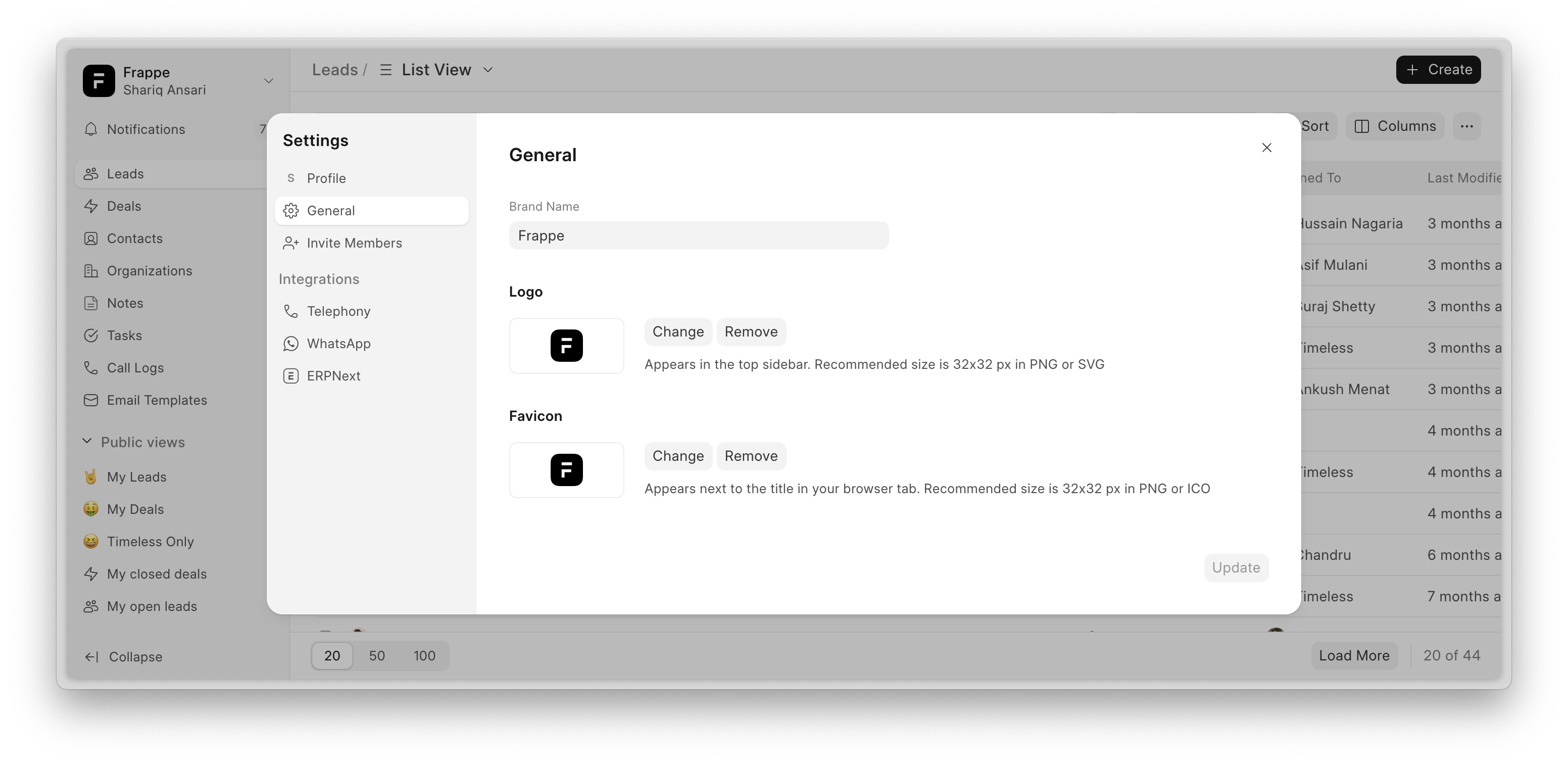
You can now customize your Frappe CRM with a custom Logo, Name, and Favicon based on your business requirements. This feature is accessible under Settings → General.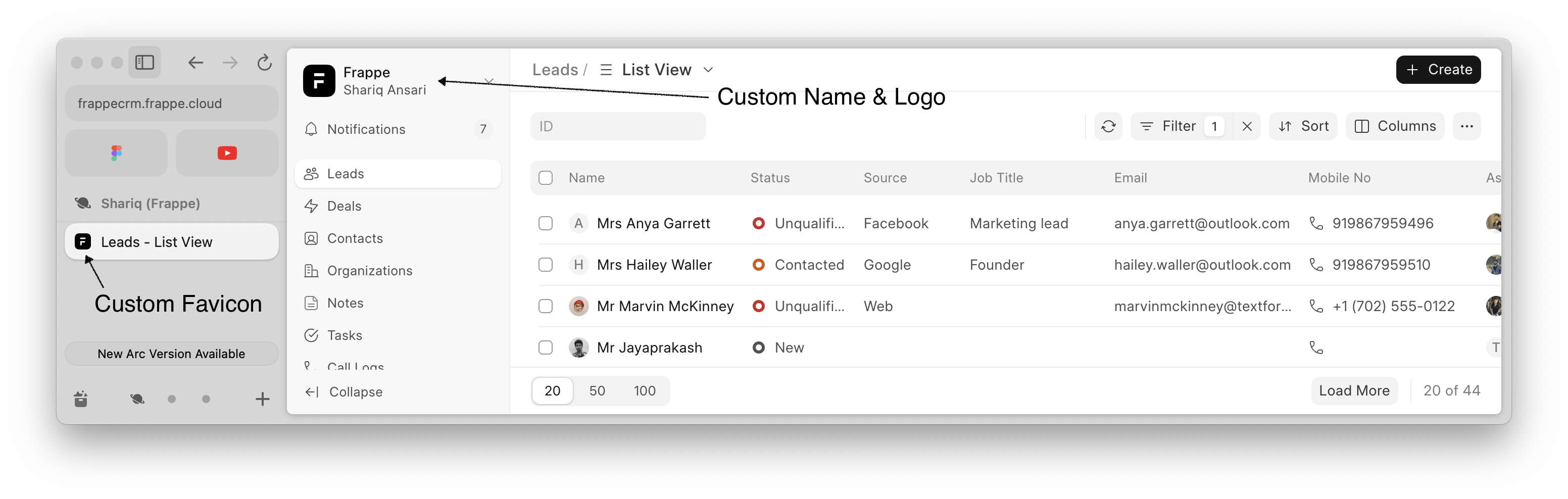
Home Actions #
You can now add, edit, or hide custom links with icons in the dropdown menu. This feature is accessible under Settings → General.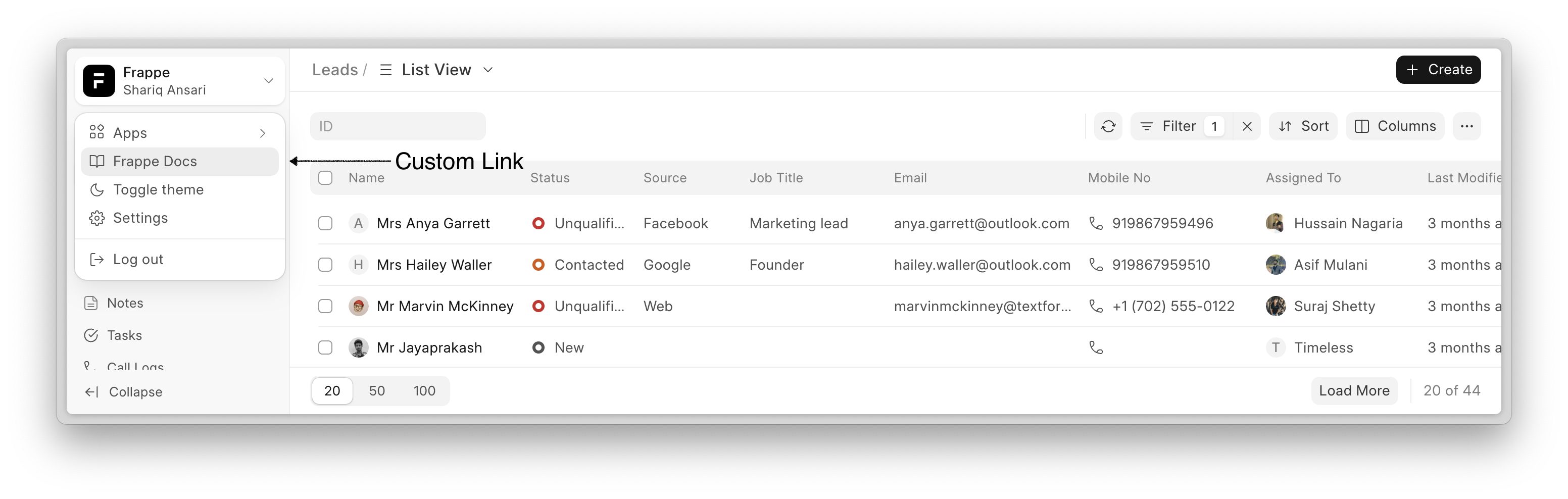
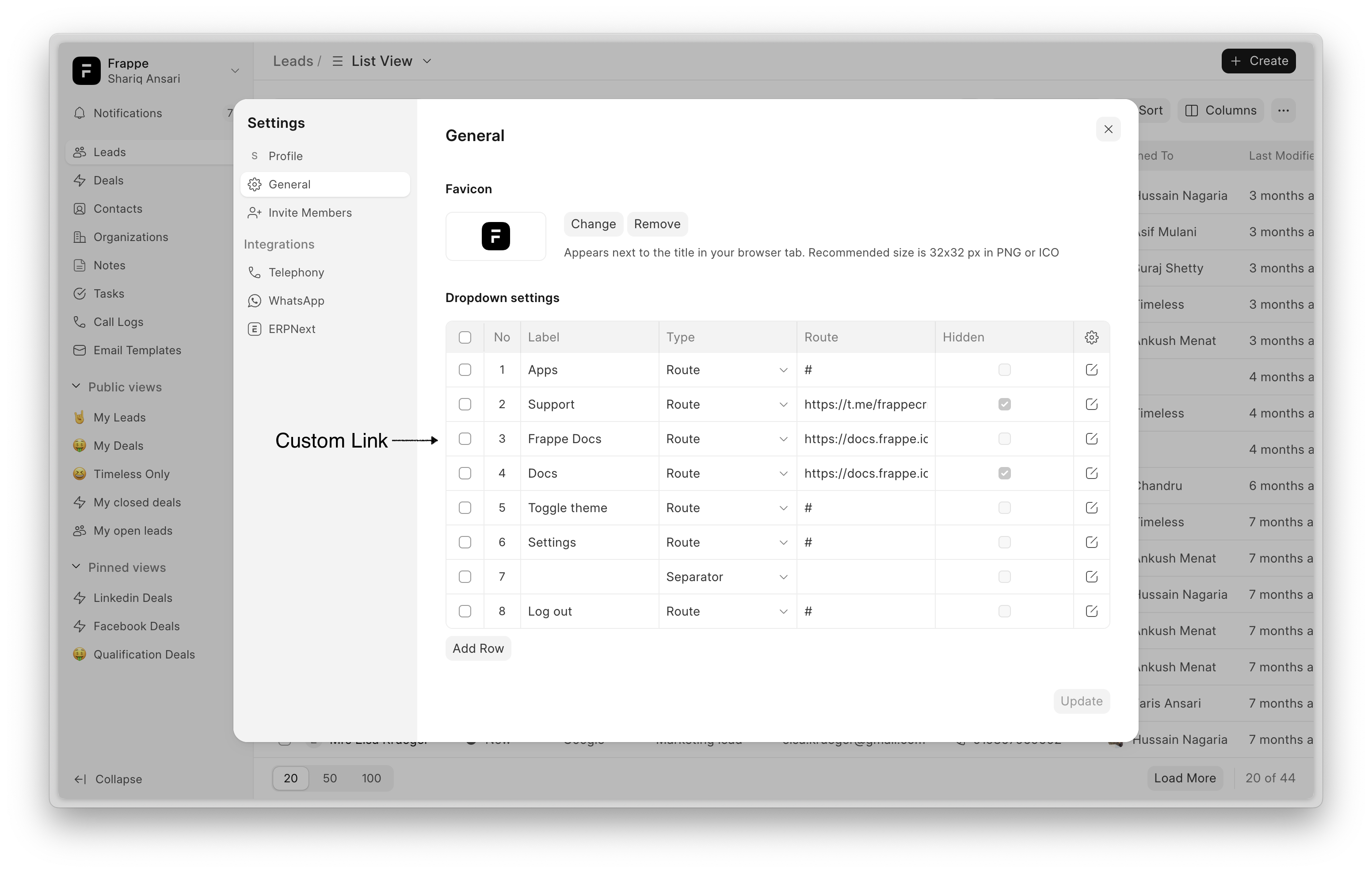
For custom icons, you can use Feather Icons or add an SVG in the icon field.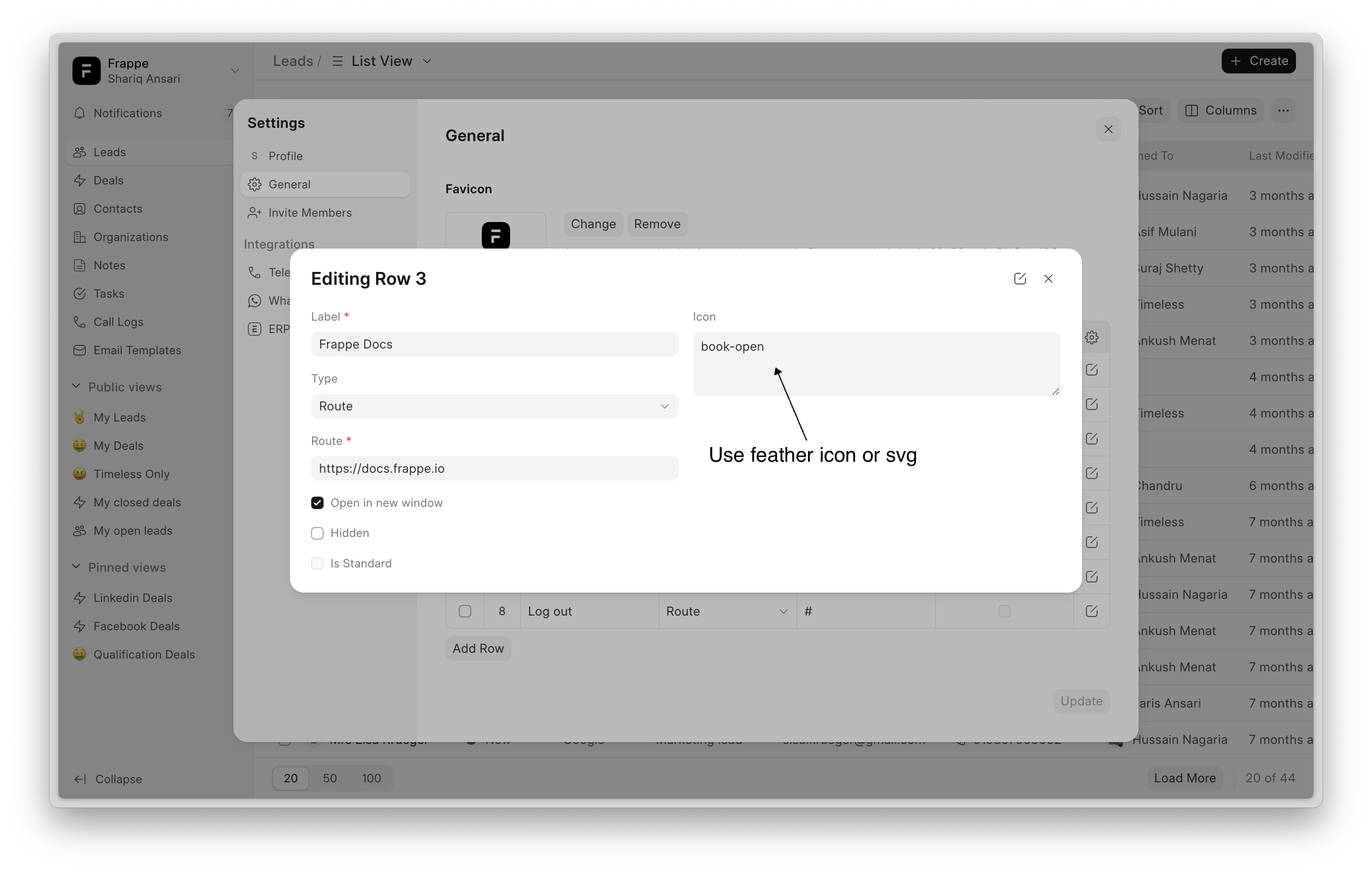
Invite Users #
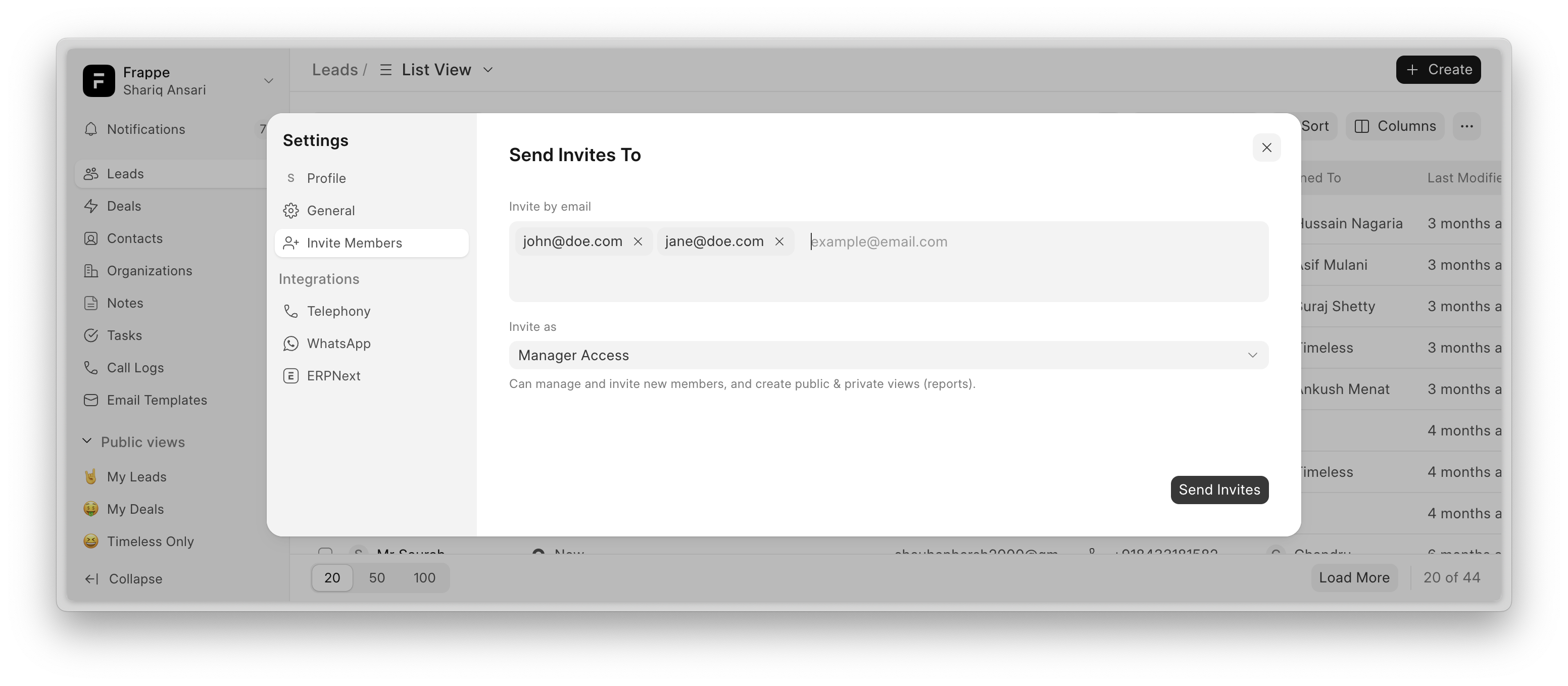
The Invite Members feature allows you to invite agents via email and assign them either Manager Access or Regular Access based on their role.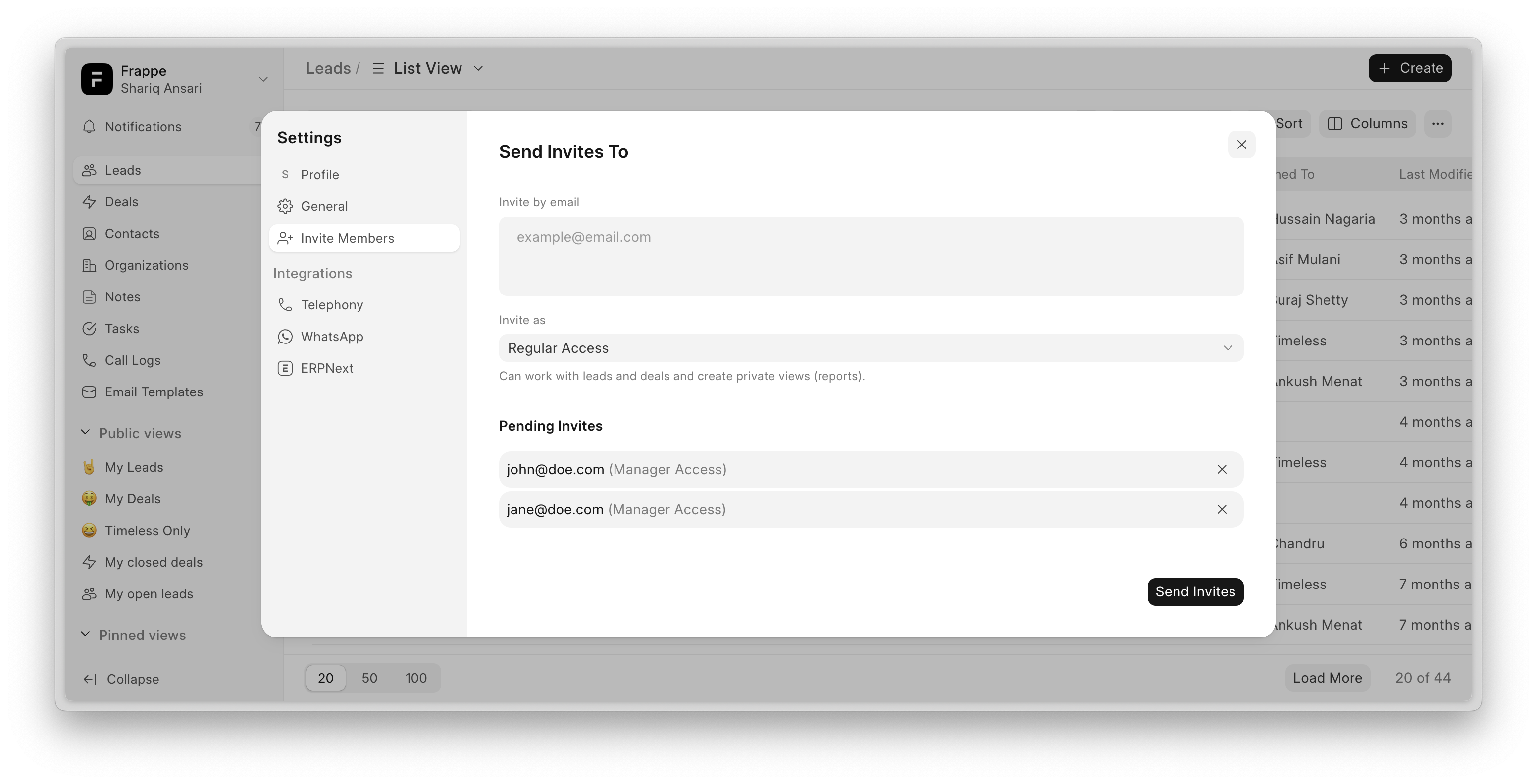
Access Levels #
- Manager Access: Full access to all features, including editing layouts, integration settings, and other manager-level controls.
- Regular Access: Restricted access, with limitations on editing layouts, managing integrations, and other advanced settings.
How to Invite Members #
- Go to Settings → Invite Members.
- Enter the agent’s email address.
- Select the access level: Manager or Regular Agent.
- Click Send Invite.
Invitation & Login Process #
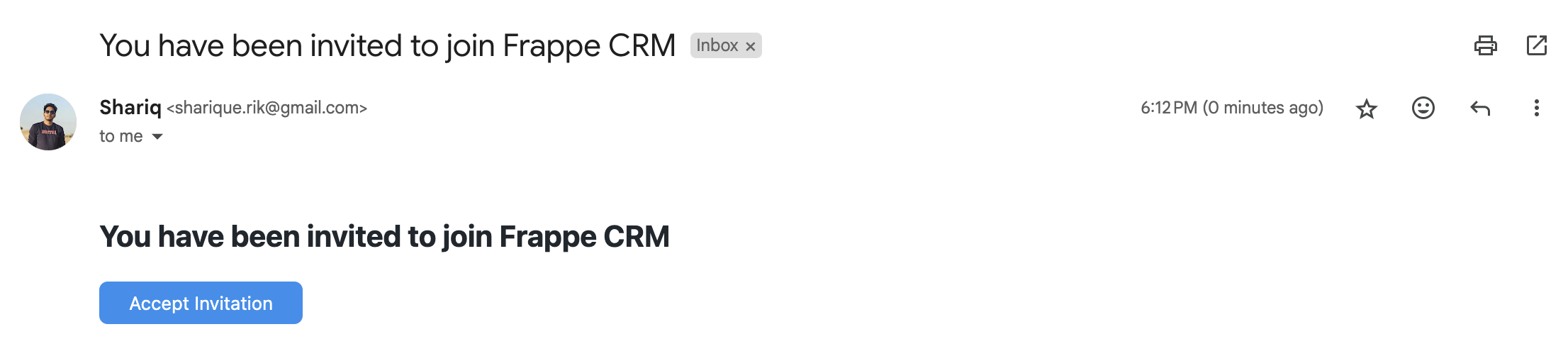
- The invited agent will receive an email with a login link.
- They can log in using the provided link.
- After logging in, they can change their password from Profile Settings.
This feature ensures secure onboarding while maintaining role-based access control.