

Introduction to Buying Module #
The Buying module in Emeron ERP is designed to manage procurement processes and optimise supplier relationships.
- Requests for Quotation (RFQs): Evaluate quotations from suppliers to make informed purchasing decisions.
- Supplier Management: Maintain detailed records of suppliers, including contact details, terms, and performance metrics.
- Purchase Orders: Create and track purchase orders to ensure timely and accurate order fulfillment.
- Purchase Invoices: Process and manage invoices from suppliers, including payment handling.
- Stock Management: Update inventory levels and manage stock replenishment.
The Buying module helps businesses streamline their procurement activities, control purchasing costs, and strengthen supplier relationships.
Video Tutorials #
1 Purchase #
- Frappe School Course on Procurement
- Purchase Cycle
- Supplier
- Material Request to Purchase Order
2 Pricing #
- Request for Quotation
- Pricing Rule
3 Other #
- Discounts
- Taxes
- Supplier Essentials
- Edit
- In Emeron ERP, supplier doctypes refer to the types of documents or records associated with managing suppliers within the system. By utilizing supplier doctypes effectively, businesses can streamline their supplier management processes, maintain accurate records, and ensure timely and efficient procurement operations.
- Supplier Group
- Supplier
Supplier Essentials #
In Emeron ERP, supplier doctypes refer to the types of documents or records associated with managing suppliers within the system. By utilizing supplier doctypes effectively, businesses can streamline their supplier management processes, maintain accurate records, and ensure timely and efficient procurement operations.
- Supplier Group
- Supplier
Supplier Group #
Supplier Group is an aggregation of suppliers that are similar in some way.
A supplier may be distinguished from a contractor or subcontractor, who commonly adds specialized input to deliverables. A supplier is also known as a vendor. There are different types of suppliers based on the goods and products they supply.
Emeron ERP allows you to create your own categories of suppliers. These categories are known as Supplier Groups. For example, if your suppliers are mainly pharmaceutical companies and FMCG distributors, you can create a new Supplier Groups for them and name the groups accordingly.
To access Supplier Group, go to:
Home Buying > Supplier > Supplier Group
1. Prerequisites #
Before creating and using a Supplier Group, it is advised that you create the following first
2. How to create a Supplier Group #
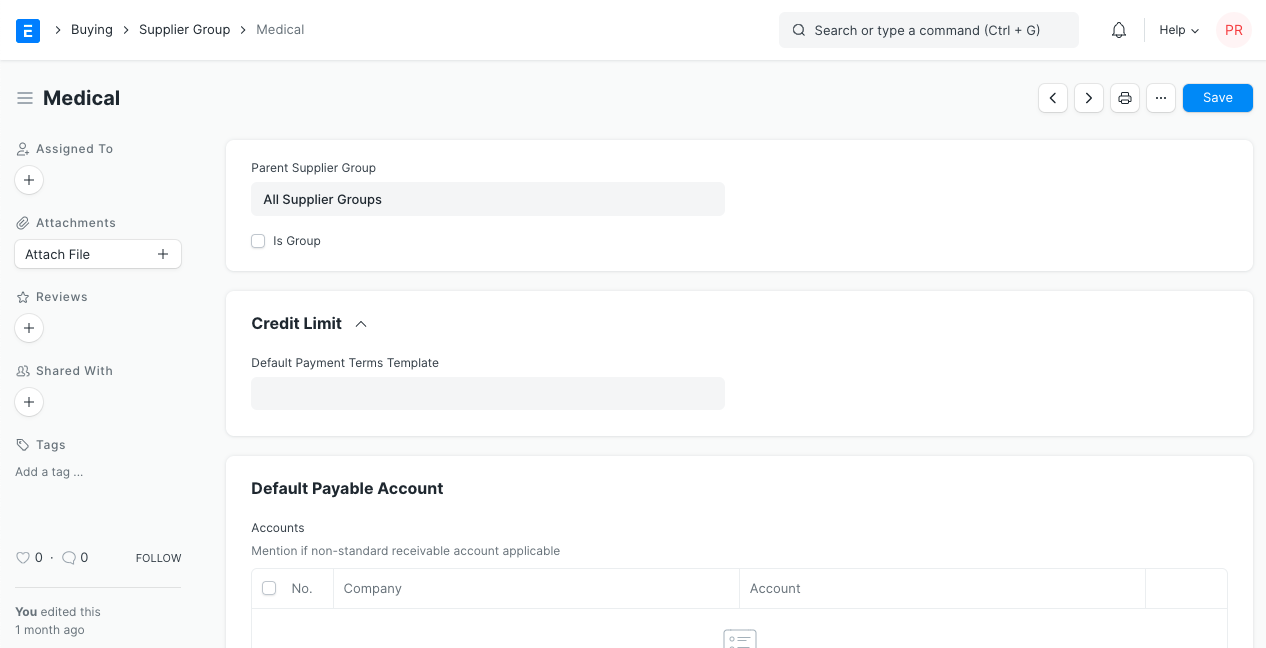
- Go to the Supplier Group list, click on New.
- Type a name for your new Supplier Category.
- You can set a Parent Supplier Group for this Supplier Group.
- Ticking the Is Group checkbox will make it a Parent Supplier Group.
- You can also assign a default Payment Terms Template to the Supplier Group. Useful in a case where all your hardware suppliers take half payment on sales order and half post shipment.
- Save.
 ?
?
You can classify your suppliers from a range of choices available in Emeron ERP. Choose from a set of given options like Distributor, Electrical, Hardware, Local, Pharmaceutical, Raw Material, Services etc. Classifying your supplier into different types facilitates accounting and payments.
3. Supplier Group Tree #
You can also construct Supplier Group in the form of a tree hierarchy, similar to Chart of Accounts.
To view the Tree structure, click on Tree from the sidebar. To go back to the list view, simply select: Menu > View List.
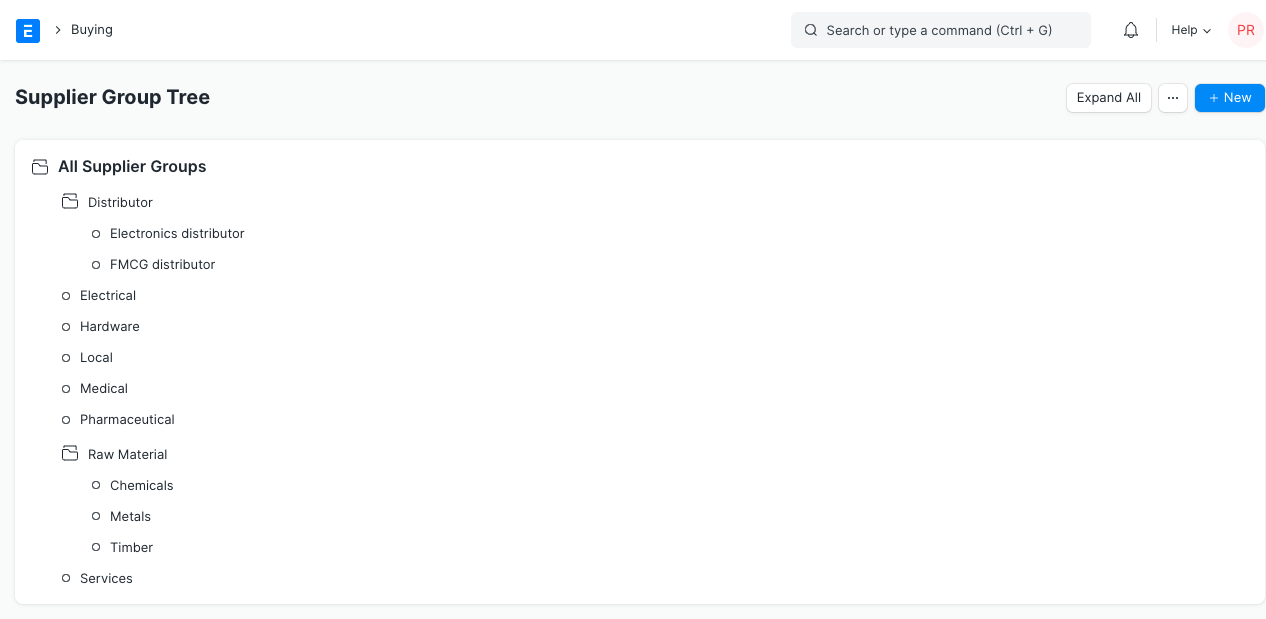
With the new User Permissions in place, you can now apply hierarchy based permissions. That is, if a User is permitted to view parent node of Supplier Group, he/she automatically qualifies to view the child nodes of that parent node.
For example, in the above image, let’s say that user permission is applied for a User to view ‘Distributor’ document. Then the user also gets permitted to view its child nodes ‘Book Distributor’, ‘Electronic Distributor’, etc.
Supplier #
Suppliers are companies or individuals who provide you with products or services.
To access the Supplier list, go to: > Home > Buying > Supplier > Supplier
- How to create a Supplier
- Go to the Supplier list and click on New.
- Enter a name for the supplier.
- Select the supplier group whether Pharmaceutical, Hardware etc.
- Save.
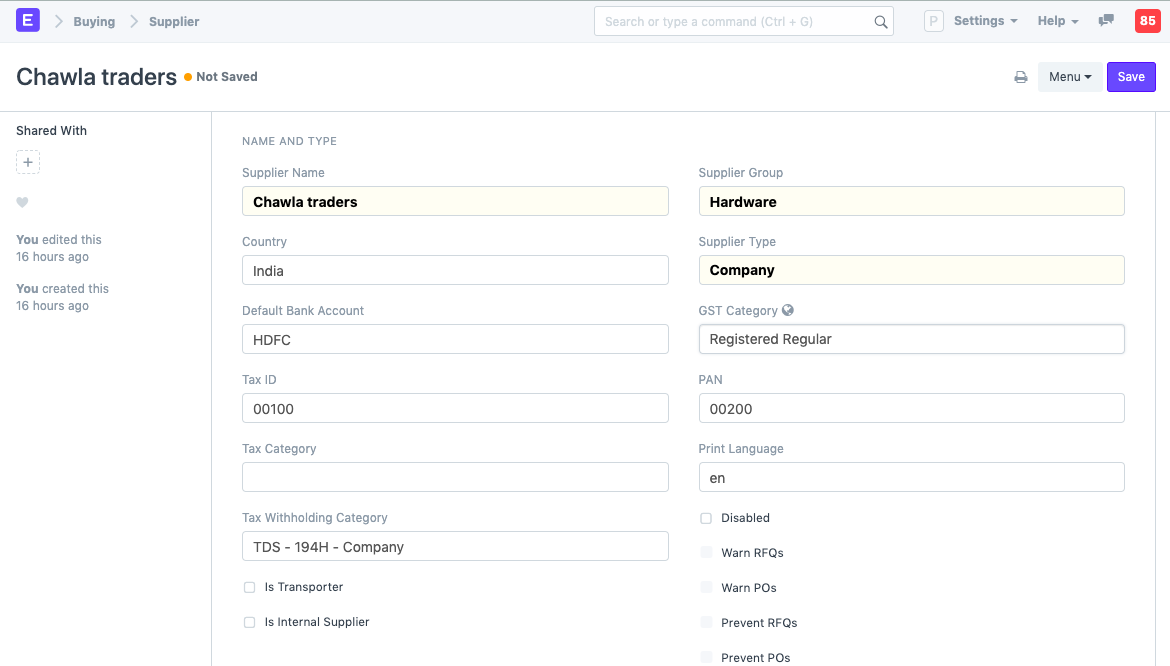
The options to Warn RFQs, POs, Prevent RFQs, POs will be available once you create a Supplier Scorecard and transactions are made.
- Features
Fields in future transactions will be auto-populated if the ‘Default’ fields like Default Bank Account, Default Payment Terms Template etc., are set in Supplier.
2.1 Tax details #
- Country: If the supplier is from another country, you can change it here.
- Tax ID: Tax identification number of the supplier.
- Tax Category: This is linked to Tax Rule. If a Tax Category is set here, when you select this supplier, the respective Purchase Tax and Charges template will be applied. This template is linked to the Tax Rule and the Tax Rule is linked with a Tax Category. Tax Category can be used to group suppliers to whom same tax will be applied. For example: Government, commercial, etc,.
- Print Language: The language in which the document will be printed.
- Tax Withholding Category: For India, TDS category for the Supplier. On setting a category here, it will be fetched into the Purchase Invoice. For more information, visit the Tax Withholding Category page.
- Disabled: Disables the Supplier and they won’t be shown in the Supplier List.
- Is Transporter: If the supplier is selling your transport services, tick this box. ‘GST Transporter ID’ field will be visible if this field is ticked.
- Internal Supplier: If the supplier is from a sister or parent/child company, tick this field and select the company which they represent.
For India:
- GST Category: Select a GST Category of the supplier.
- PAN: For India, PAN (Permanent Account Number) card details of the Supplier.
2.2 Allow creation of Purchase Invoice without Purchase Order and Purchase Receipt #
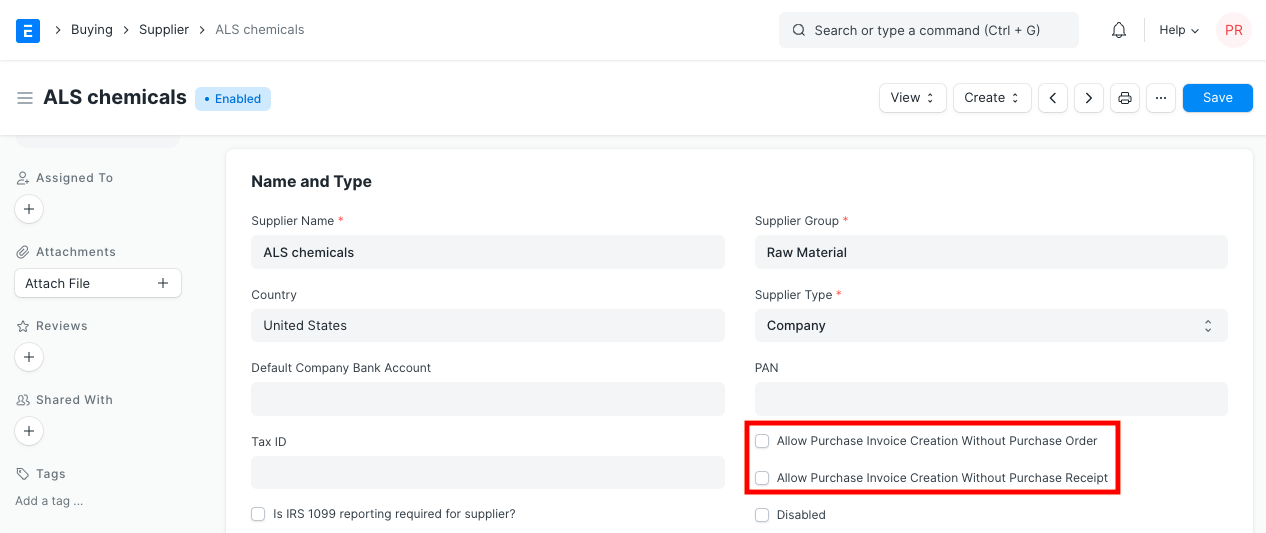
If the “Purchase Order Required” or “Purchase Receipt Required” option is configured as “Yes” in Buying Settings, it can be overridden for a particular supplier by enabling the “Allow Purchase Invoice Creation Without Purchase Order” or “Allow Purchase Invoice Creation Without Purchase Receipt” in the Supplier Master.
2.3 Currency and Price List #
Billing Currency: Your supplier’s currency can be different from your company currency. If you choose JPY for a supplier, then the currency will be filled as JPY and the exchange rate shown for future purchase transactions.
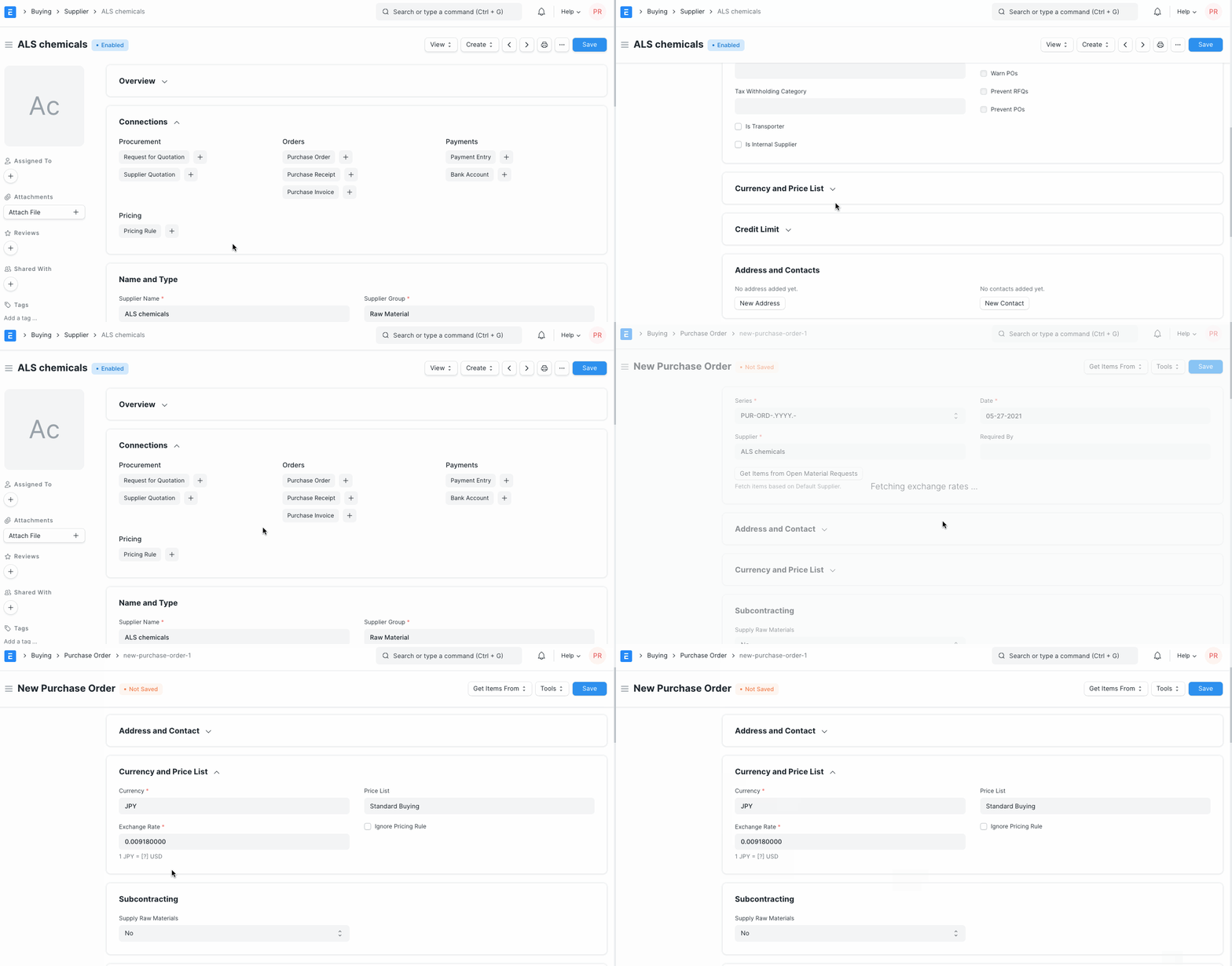
Each Supplier can have a default Price List so that every time you buy a new item from this supplier for different prices, the price list associated with the supplier would be updated as well. Under the price list comes item price, you can see the prices in Buying > Items and Pricing > Item Price.
If you select this particular supplier, then the associated Price List will be fetched in Purchase transactions.
2.4 Payment Terms and Block Supplier #
- Default Payment Terms Template: If a Payment Terms template is set here, it’ll be automatically selected for future purchase transactions.
- Block Supplier: You can block invoices, payments or both from a supplier till specific date. Choose ‘Hold Type’, if you do not select a hold type, Emeron ERP will set it to “All”. When a supplier is blocked, their status will be shown as ‘On Hold’.
The hold types are as follows:
+ Invoices: Emeron ERP will not allow Purchase Invoices or Purchase Orders to be created for the supplier
+ Payments: Emeron ERP will not allow Payment Entries to be created for the Supplier
+ All: Emeron ERP will apply both hold types aboveIf you do not set a release date, Emeron ERP will hold the Supplier **indefinitely**.
2.5 Default Payable Accounts #
Add the default account from which invoices against this supplier will be paid. Add additional rows for more companies, you can select only one account per company.
You can integrate a supplier with an account. For all Suppliers, “Creditor” account is set as the default payable Account. When Purchase Invoice is created, payable towards the supplier is booked against “Creditors” account.
If you want to customize payable account for the Supplier, you should first add a payable Account in the Chart of Account, and then select that Payable Account in the Supplier master.
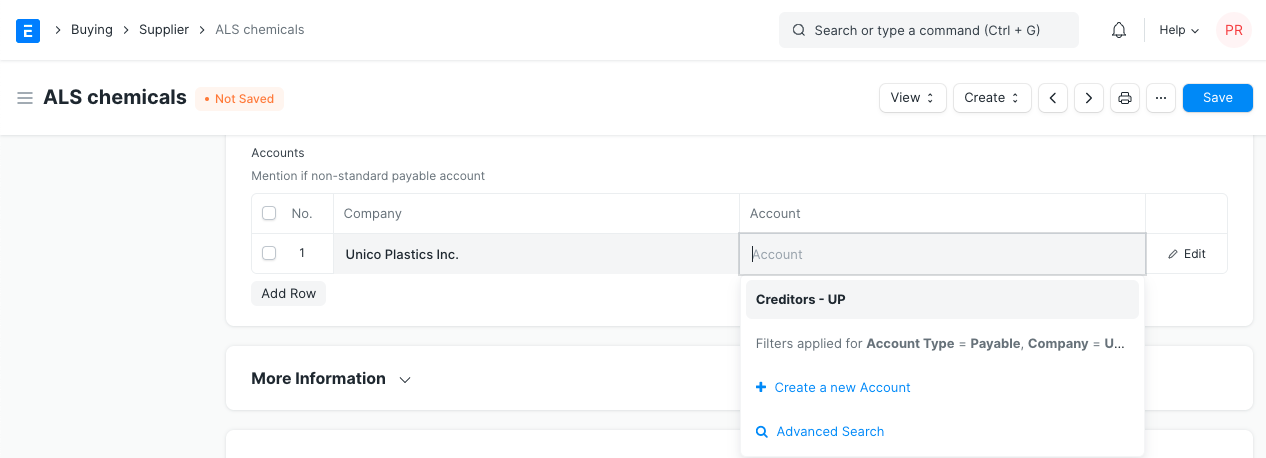
If you don’t want to customize payable account, and proceed with default payable account “Creditor”, then do not update any value in the Default Supplier Account’s table.
Tip: Default Payable Account is set in the Company master. If you want to set another account as Account as default for payable instead of Creditors Account, go to Company master, and set that account as “Default Payable Account”.
Depending on your plan, you can add multiple companies in your Emeron ERP instance. One Supplier can be used across multiple companies. In this case, you should define Company-wise Payable Account for the Supplier in the “Default Payable Accounts” table, i.e, add multiple rows.
2.6 More Information #
You can add the supplier’s website and any additional details about your supplier in this section. If you freeze a supplier with the ‘Is Frozen’ option, accounting entries for the supplier will be frozen. In this case the only user whose entries will surpass the ‘freeze’ is the role assigned in ‘Role Allowed to Set Frozen Accounts & Edit Frozen Entries’ in Accounting > Settings > Accounts Settings. This is useful when the supplier’s name or bank details are being amended.
2.7 Address and Contacts #
Contacts and Addresses in Emeron ERP are stored separately so that you can create multiple Contacts and Addresses for one Supplier. Once Supplier is saved, you will find the option to create Contact and Address for that Supplier.
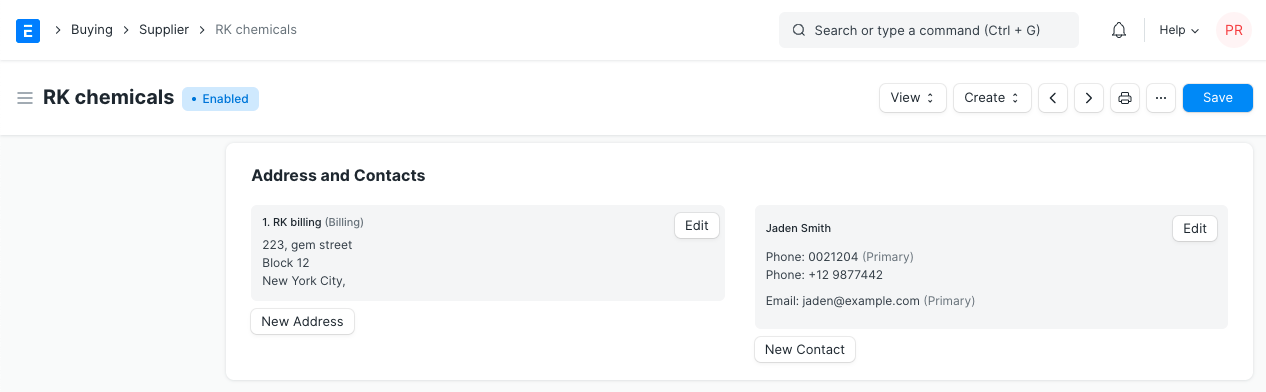
Tip: When you select a Supplier in any transaction, Contact for which “Is Primary” field id checked, it will auto-fetch with the Supplier details.
2.8 After saving #
Once all the necessary details are filled, save the document. On saving, options to create the following will be seen in the Dashboard:
- Request for Quotation: An RFQ against this supplier.
- Supplier Quotation: Any quotations that the supplier has sent you and you have submitted into the system.
- Purchase Order: Purchase Orders you’ve made against this supplier.
- Purchase Receipt: Purchase receipts given by this supplier that you’ve saved in the system.
- Purchase Invoice: Purchase Invoices you’ve made against this supplier.
- Payment Entry: Payment Entries for the Purchase Invoices against this supplier.
- Pricing Rule: Any Pricing Rules linked with this supplier. See section 2.2 Currency and Price List to know how it works.
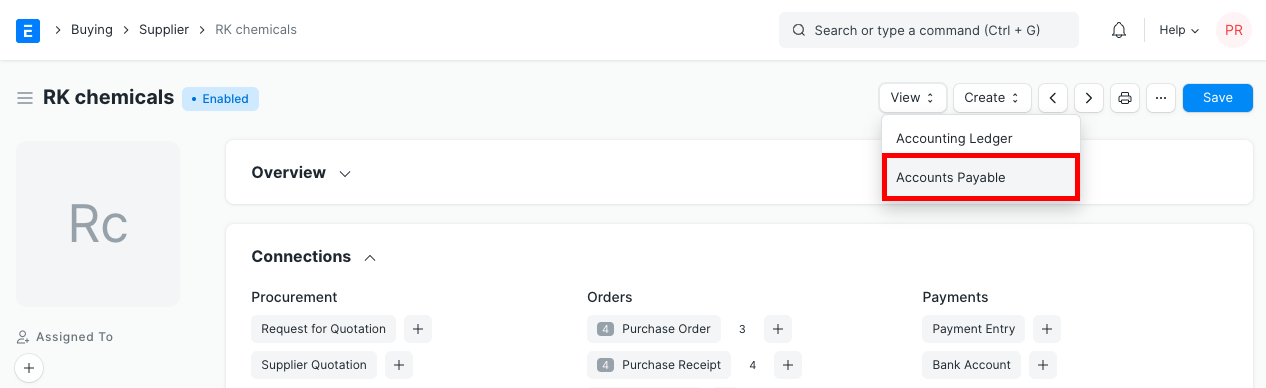
By clicking on the View button, you can view the Accounting Ledger or Accounts Payable directly for this supplier.
There’s a button to ‘Send GST Update Reminder’ to the supplier. You need to have a default email account setup first.
- Video
4. Related Topics #
- Supplier Quotation
- Supplier Scorecard
- Maintaining Supplier’s Item Code In the Item Master
Buying Settings #
Emeron ERP allows you to configure various settings and configurations that help streamline and automate the purchasing workflow.
Naming Series and Price Defaults #
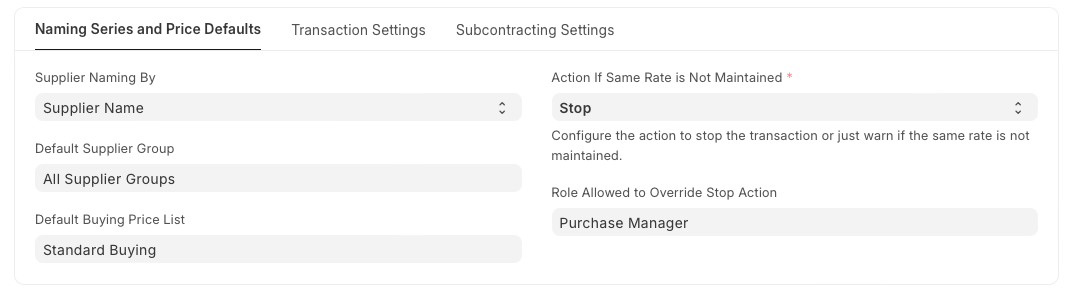
1. Supplier Naming By #
When a Supplier is saved, system generates a unique identity or name for that Supplier which can be used to refer the Supplier in various Buying transactions.
If not configured otherwise, Emeron ERP uses the Supplier’s Name as the unique name. If you want to identify Suppliers using names like SUPP-00001, SUPP-00002, or such other patterned series, select the value of Supplier Naming By as “Naming Series”.
2. Default Supplier Group #
Configure what should be the default value of Supplier Group when creating a new Supplier. For example, if most of your suppliers supply you hardware, you can set the default as ‘Hardware’.
3. Default Buying Price List #
Configure what should be the default Price List when creating a new Buying transaction, the default is set as ‘Standard Buying’. Item prices will be fetched from this Price List. You can modify the ‘Price List’ by using the arrow at the right-end of the field to change the currency and country.
4. Action if Same Rate is Not Mentioned #
It defines the action the should take when it encounters a purchase order, material request, or any other buying transaction where the same rate of an item is not mentioned.
There are two possible actions the user can take.
- Stop: The system will stop the transaction preventing the user from proceeding without specifying a rate. This ensures that all transactions have explicit rates mentioned, avoiding potential discrepancies.
- Warn: The system will allow the transaction happen but will display a warning message to alert the user that the same rate has not been mentioned.
5. Role Allowed to Override Stop Action #
This setting specifies which user roles have the permission to override the “Stop” action in the buying transaction due to discrepancy in the rate.
Transaction Settings #
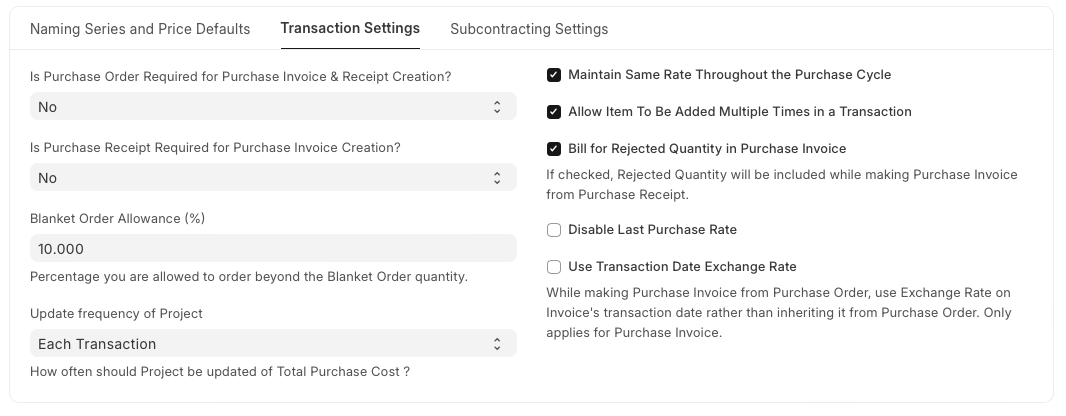
1. Is Purchase Order Required for Purchase Invoice & Receipt Creation? #
If this option is configured “Yes”, Emeron ERP will prevent you from creating a Purchase Invoice or a Purchase Receipt directly without creating a Purchase Order first.
If retail transactions are involved where the order happens offline, then Purchase Orders can be skipped. If you’re accepting sample Items, you can directly create a Purchase Receipt to receive the Items to your Warehouse.
This configuration can be overridden for a particular supplier by enabling the “Allow Purchase Invoice Creation Without Purchase Order” checkbox in supplier master
2. Is Purchase Receipt Required for Purchase Invoice Creation? #
If this option is configured “Yes”, Emeron ERP will prevent you from creating a Purchase Invoice without creating a Purchase Receipt first. In case the Item being transacted is a service, it’ll not require a receipt, you can directly create an Invoice.
This configuration can be overridden for a particular supplier by enabling the “Allow Purchase Invoice Creation Without Purchase Receipt” checkbox in the supplier master
3. Blanket Order Allowance (%) #
You can set the percentage you are allowed to order more against the Blanket Order Quantity. For example: If you have a Blanket Order of Quantity 100 units. and your Allowance is 10% then you are allowed to order 110 units.
4. Update frequency of Project #
It indicates how often should Project be updated of Total Purchase Cost.
5. Maintain Same Rate Throughout Purchase Cycle #
If this is enabled, Emeron ERP will validate whether an Item’s price is changing in a Purchase Invoice or Purchase Receipt created from a Purchase Order, i.e. it will help you maintain the same rate throughout the purchase cycle.
You can configure the action that system should take if the same rate is not maintained in the “Action If Same Rate is Not Maintained” field:
- Stop: Emeron ERP will stop you from changing the price by throwing a validation error.
- Warn: The system will let you save the transaction but warn you with a message if the rate is changed.
Note: This field will only be visible if Maintain Same Rate Throughout Purchase Cycle is enabled.
6. Allow Item to be added multiple times in a transaction #
When this checkbox is unchecked, an item cannot be added multiple times in the same Purchase Order. However, you can still explicitly change the quantity. This is a validation checkbox for preventing accidental purchase of the same item. This can be checked for specific use cases where there are multiple sources for the same material, for example in manufacturing.
7. Bill for Rejected Quantity in Purchase Invoice #
If checked, Rejected Quantity will be included while making Purchase Invoice from Purchase Receipt.
7.1 Set Valuation Rate for Rejected Materials #
For rejected materials, the valuation rate is set to zero, and no accounting ledger entry is created for them in the Purchase Receipt. To apply a valuation rate and generate accounting entries for rejected materials, enable the ‘Set Valuation Rate for Rejected Materials’ option in Buying Settings. This option is only applicable when Bill for Rejected Quantity in Purchase Invoice has enabled in the Buying Settings.
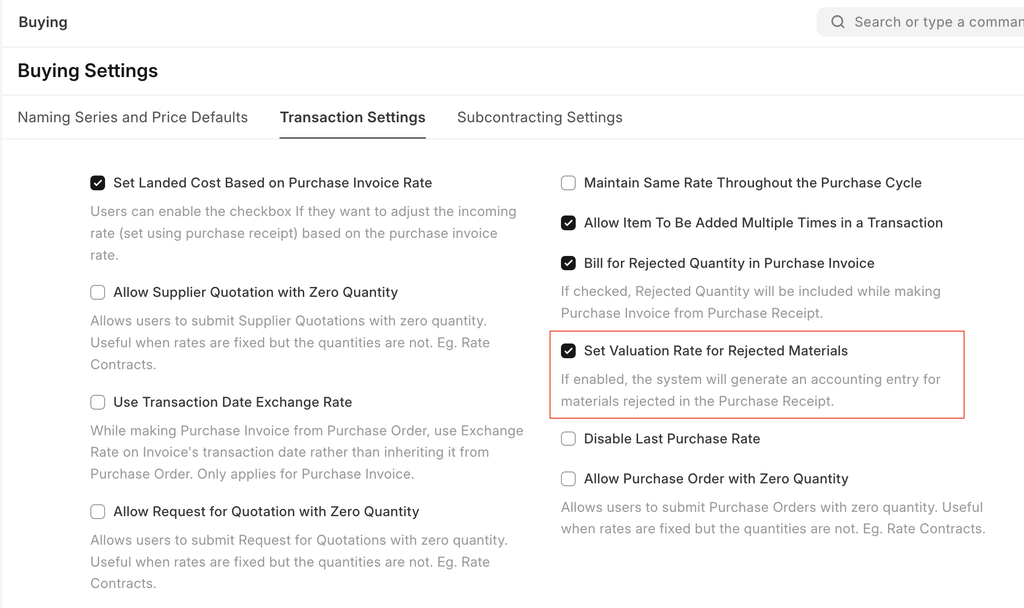
8. Set Landed Cost Based on Purchase Invoice Rate #
If the ‘Maintain Same Rate Throughout the Purchase Cycle’ is disabled then this field shows in the buying settings. If user wants to adjust the product valuation as per the purchase invoice cost then this option needs to be enable.
How It Works
- Created Purchase Receipt for item A with rate as 100
- System has booked Stock In Hand with 100 rate
- After 2 days, user has created purchase invoice against the above purchase receipt
- After 2 days because of change in exchange rate the rate in the invoice changed to 150
- Now purchase receipt has rate 100 where as Purchase invoice has rate 150
- If you want to adjust the Stock In Hand with Purchase invoice Rate (150) then enable “Set Landed Cost Based on Purchase Invoice Rate”.
Note: on submission of the purchase invoice, system creates the repost item valuation record to update the cost of the purchase receipt. User has to wait to complete the repost item valuation to see the impact of the invoice cost on the stock in hand.
9. Disable Last Purchase Rate #
It prevents the system from automatically using the rate from the last purchase transaction when creating new purchase orders or transactions.
10. Use Transaction Date Exchange Rate #
While making Purchase Invoice from Purchase Order, use Exchange Rate on Invoice’s transaction date rather than inheriting it from Purchase Order. Only applies for Purchase Invoice.
Subcontracting Settings #
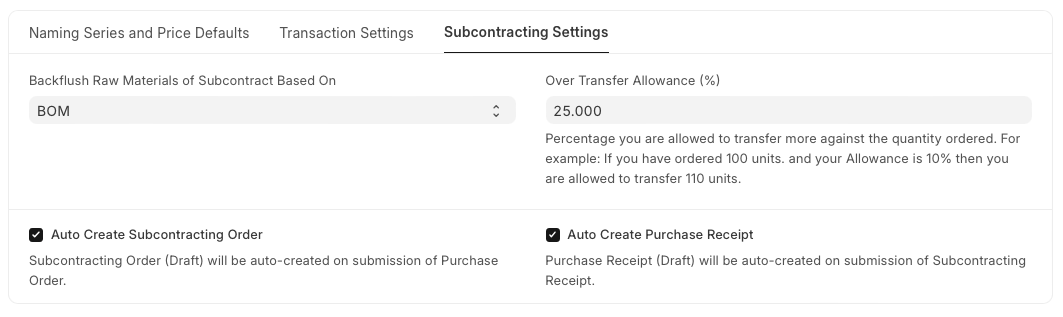
1. Backflush Raw Materials of Subcontract Based On #
- BOM: system will consume raw materials in the subcontracting receipt as per the FG BOM
- Material Transferred for Subcontract: system will consume raw materials based on the materials transferred against the Subcontracting Order. If no stock transferred then no materials will be consume at the time of Subcontracting Receipt.
2. Auto Create Subcontracting Order #
System will auto create the subcontracting order in a Draft state on submission of the purchase order which has “Is Subcontracted” enabled.
3. Auto Create Purchase Receipt #
System will auto create the purchase receipt for the service items in a Draft state on submission of the subcontracting receipt.
4. Over Transfer Allowance (%) #
It is the percentage you are allowed to transfer more against the quantity ordered. For example: If you have ordered 100 units. and your Allowance is 10% then you are allowed to transfer 110 units.
Buying Report #
Data pertaining to purchases made by an organization can be analyzed and visualized through various reports available in the buying modules. Normally, each report has three sections: Filter toolbar, a chart, and data. Changes in the filters and selections are immediately reflected in the chart.
Purchase Analytics #
To access the report, go to:
Home > Buying > Key Reports > Purchase Analytics
Through the Purchase Analytics report, the purchase-related data against the supplier, supplier groups, items and item group can be analyzed over a given period and frequency.
Purchase Order Analysis #
To access the report, go to:
Home > Buying > Key Reports > Purchase Order Analysis
This report is helpful in analyzing the items and their billing status in a purchase order over a given period.
Supplier-Wise Sales Analytics #
To access the report, go to:
Home > Buying > Key Reports > Sales-Wise Sales Analytics
This report provides extensive data on different items purchased from the suppliers.
Items to Order and Receive #
To access the report, go to:
Home > Buying > Key Reports > Items to Order and Receive
This report visualizes and shows data for the purchase requests created.
Purchase Order Trends #
To access the report, go to:
Home > Buying > Key Reports > Purchase Order Trends
Through this report, the trends for purchase orders for a given financial year can be visualized. The trend can be grouped based on Suppliers, Supplier Group, Item, Item Group, and Project.
Procurement Tracker #
To access the report, go to:
Home > Buying > Key Reports > Purchase Order Trends
This report presents extensive purchase-related data including material requests, purchase orders created for the items.
Other Reports #
To access, go to:
Home > Buying > Other Reports
In other reports section, the following reports can be accessed:
- Items To Be Requested
- Item-Wise Purchase History
- Purchase Receipt Trends
- Purchase Invoice Trends
- Subcontracted Item To Be Received
- Supplier Quotation