

Introduction to Selling Module #
The Selling module in Emeron ERP is designed to streamline the sales process and enhance customer relationship management.
- Quotations: Generate and send quotes to potential customers, and convert them into sales orders.
- Sales Orders: Create, manage, and track sales orders from initial inquiry to delivery.
- Invoices: Issue and manage sales invoices, including handling payments and managing accounts receivable.
- Customer Management: Maintain detailed records of customers, including contact information, transaction history, and credit limits.
- Reports and Analytics: Access reports on sales performance, revenue, and customer trends to inform strategic decisions.
The Selling module helps businesses efficiently manage their sales processes, improve customer service, and drive revenue growth.
Video Tutorials #
Sales #
- Frappe School Course on Selling Module
- Customer
- Product Bundle
- Sales Cycle
- Pricing Rule
Other #
- Discounts
- Taxes
Selling Essentials #
In Emeron ERP’s selling module, master doctypes play a pivotal role in managing sales-related data and processes.
By utilising master doctypes effectively, businesses can streamline their sales operations, maintain accurate customer records, track sales transactions, and ensure timely invoicing and payment collection, leading to improved customer satisfaction and overall business performance.
- Customer
- Customer Group
- Sales Person
- Sales Partner
- Territory
- Promotional Scheme
Customer #
A customer, who is sometimes known as a client, buyer, or purchaser is the one who receives goods, services, products, or ideas, from a seller for a monetary consideration.
Every customer needs to be assigned a unique id. Customer name itself can be the id or you can set a naming series for ids to be generated in Selling Settings.
To access the Customer list, go to:
Home > Selling > Customers
1. How to create a Customer #
- Go to the Customer list and click on New.
- Enter Full Name of the customer.
- Select Individual if the customer represents an individual or Company if the customer represents a company in Type field.
- Select a Customer Group. Individual, Commercial, Non Profit and Government are available by default. You can create additional groups if you need.
- Select the Territory.
- If the customer is being created against a lead, you can select the same in From Lead field.
- Save.
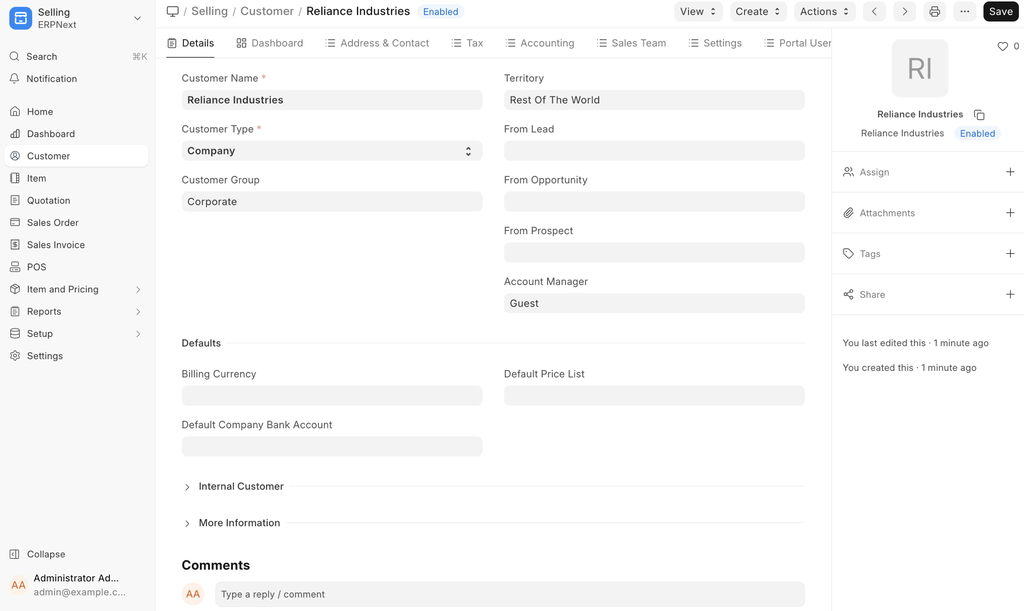
You can disallow sales orders and sales invoices against a customer by clicking on ‘Disabled’.
Advanced Tip: If the customer represents one of your own companies then check ‘Is Internal Customer’. Check Inter Company Invoices for more details.
You can also upload customer details via the Data Import Tool.
2.Features #
General flow of transactions for a customer is as following:
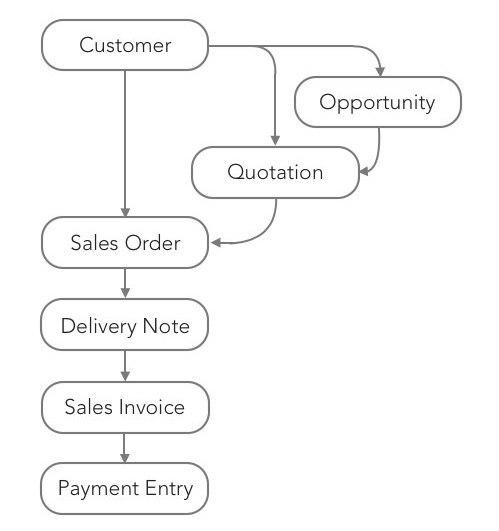
Note: Customers are separate from Contacts and Addresses. A Customer can have multiple Contacts and Addresses.
2.1 Multiple Contacts and Addresses #
Contacts and Addresses are stored separately so that you can attach multiple Contacts or Addresses to the customer.
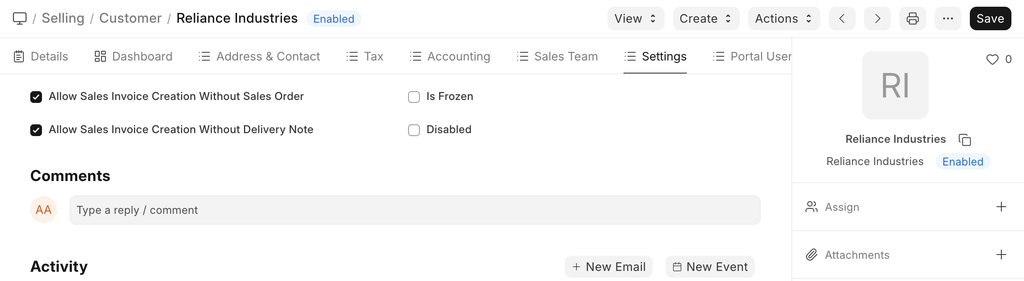
2.2 Allow creation of Sales Invoice without Sales Order and Delivery Note #
If the “Delivery Note Required” or “Sales Order Required” option is configured as “Yes” in Selling Settings, it can be overridden for a particular customer by enabling the “Allow Sales Invoice Creation Without Sales Order” or “Allow Sales Invoice Creation Without Delivery Note” in the Customer Master.
2.3 Set Tax Withholding Category #
You can set the Tax Withholding Category to set up TCS against eligible customers. For more information, visit the Tax Withholding Category page.
2.4 Default Currency and Price List #
Emeron ERP supports Multiple Currencies and Price Lists.
You can set the default currency to be used for this customer in sales orders and sales invoices by selecting the appropriate currency in Billing Currency.
Similarly, you can set the default price list to be used for this customer in sales orders and sales invoices by selecting the appropriate currency in Default Price List.
2.5 Integration with Accounts #
Unlike many accounting software, you need not create a separate accounting ledger for each customer. By default a unified ledger named Debtors is created.
However if you specifically need a separate ledger for a customer, first create the ledger under Accounts Receivable in the Chart of Accounts and then add it in ACCOUNTING section of the customer.
Advanced Tip: Emeron ERP supports Multi-company Accounting. You can use the same customer records in multiple companies. Since an accounting ledger is company specific, you need to select the company and the corresponding ledger in ACCOUNTING section if you decide have separate accounting ledger for a customer.
2.6 Credit Limit and Payment Terms #
You can set the credit limit by entering the amount in ‘Credit Limit’ field. Read Credit Limit for more details.
You can select the default Payment Terms to be applied in sales orders and sales invoices in ‘Default Payment Terms Template’ field.
2.7 Sales Team and Sales Partner #
If you have one or more Sales Person to manage the sales to the customer, you can add them in SALES TEAM section. If multiple sales person are involved you can split the contribution among them. Make sure that the sum of all sales persons contribution equals to 100%.
Check Sales Persons in Sales Transaction for more details.
A Sales Partner is a third party distributor / dealer / commission agent / affiliate / reseller who facilitates your products/services sales, for a commission. If you sell your products/services to the customer through a sales partner you can set it in ‘Sales Partner’ field and mention the ‘Commission Rate’ for calculation of commission.
2.8 Loyalty Program #
If you would like offer a Loyalty Program to the customer, select the same in Loyalty Program field.
2.9 View Accounting Ledger and Accounts Receivable #
Click on Accounting Ledger button to view all accounting transactions with the customer.
Click on Accounts Receivable button to view the details of all outstanding invoices.
2.10 Set Customer Id, Default Customer Group, Territory, and Price List #
You can set how a unique id should be generated each the customer in Selling Settings.
- Naming Series: If you would like a unique id to be generated for each customer based on the naming series select ‘Naming Series’ in Customer Naming By.
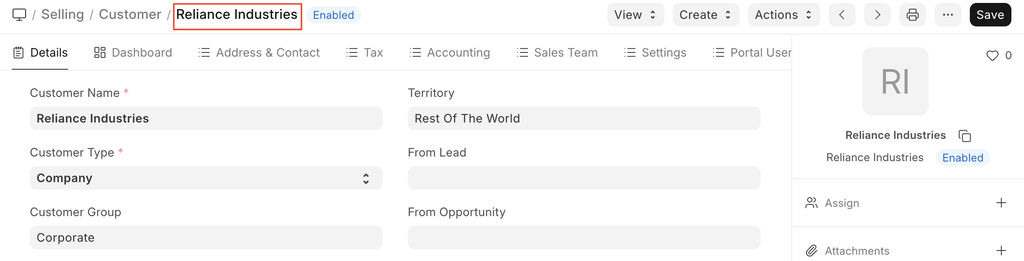
- Customer Name: If customer name itself should be used as an id then select ‘Customer Name’ in Customer Naming By. In this case, if you create two customers with identical names, – 1 will be suffixed to the second customer.
You can set the default customer group, territory and price list in Selling Settings.
You can customize the Customer DocType using Customize Form tool.
3. Related Topics #
- Customer Group
- Quotation
- Price List
- Contact
- Difference between Lead, Contact, and Customer
Sales Reports #
You can view your company’s sales performance, analyze sales data in different views to see the sales performance. With filters, you can dynamically change what is displayed. There are three window areas that make up the Sales Analytics Report-The Filter Toolbar Window, the Graph Window and the Data Window shown as follows:
These analytics can be found under:
Home > Selling > Key Reports
Sales Analytics Report #
Go to Selling > Analytics > Sales Analytics. The Sales Analytics report looks like this:
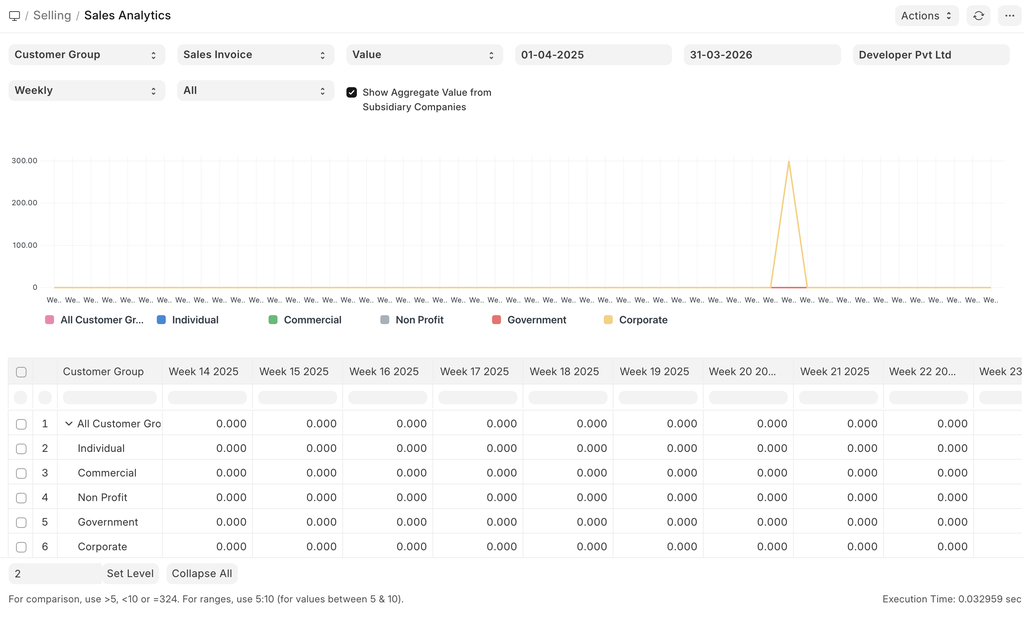
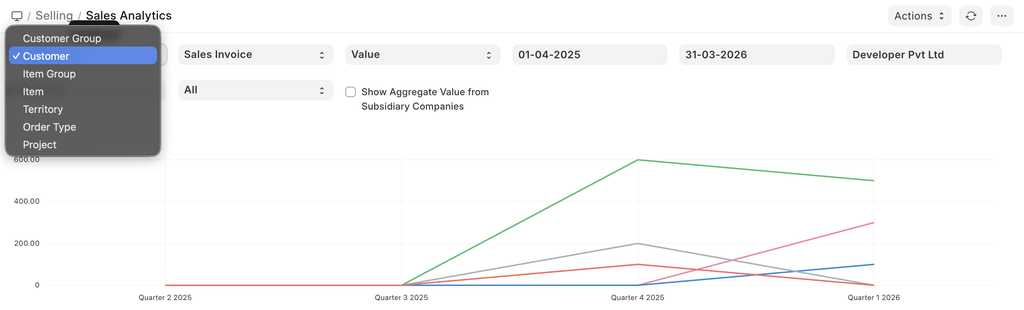
The toolbar provides filters to select what data is to be used. Using the dropdown selections, the data displayed can be refined. As the selections are made, data is reflected in the data window as well as the graph window.
Within the data window, selections can be made to expand or compress the data to be analyzed. Each box can be selected or unselected. There is no restriction for data comparison, so a higher level can be compared to a lower level.
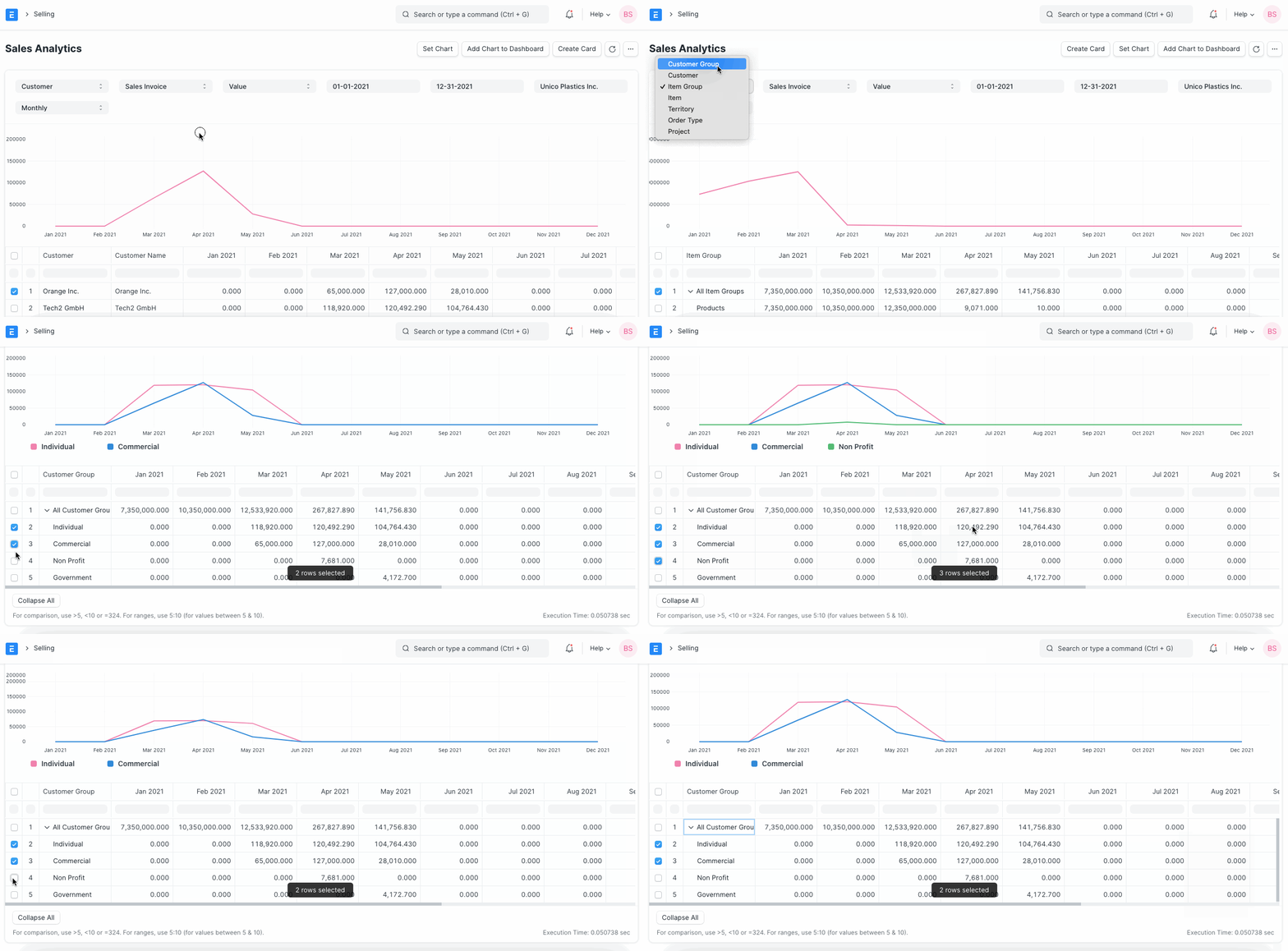
Using the ‘Set Chart’ button, you can set values for the X and Y fields, use different type of charts and select a color.
Sales Funnel Report #
Go to Selling > Analytics. The report “Sales Funnel” provides a sales generation analysis. It displays the progression of stages in the sales process. There are four stages leading up to a Sales Order: Active Leads, Opportunities, Quotations and Converted (has become a Customer).
- Active Leads shows the number of all your Leads, including all the other stages.
- Opportunities shows the number of Leads for which an Opportunity was created.
- Quotation shows the number of leads for which a Quotation was submitted.
- Converted shows the number of leads for which a Quotation and Sales Order was submitted.
The earlier stages usually include the later stages. However, if an earlier stage was skipped, you might see counterintuitive results like two Quotations resulting from one Opportunity (because it is not mandatory to create an Opportunity first).
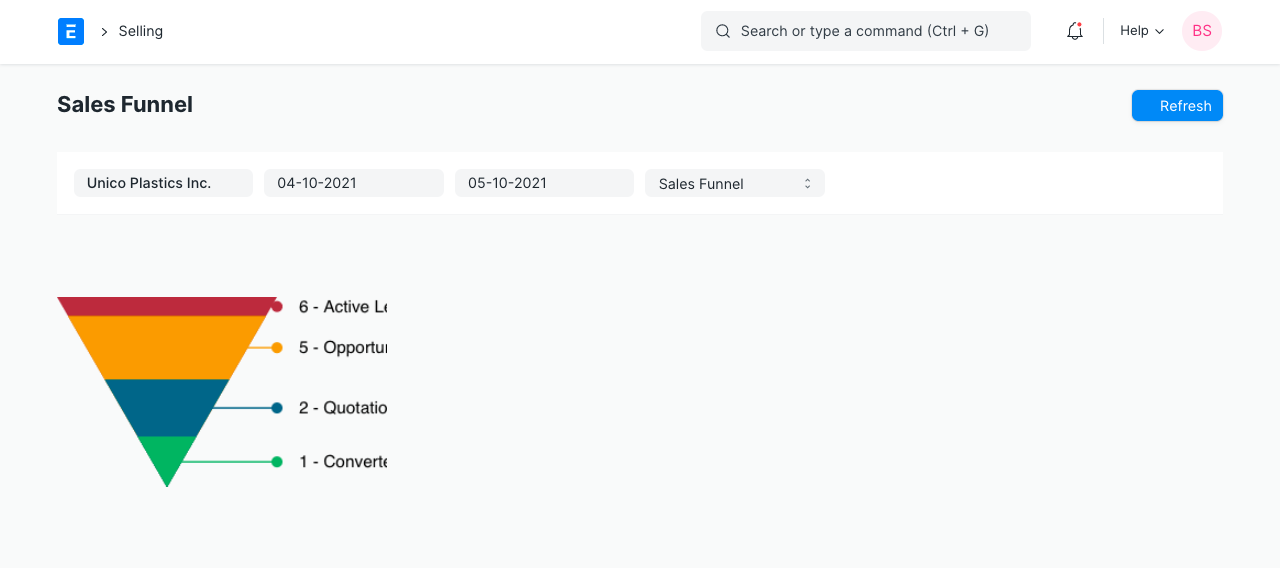
Once a date range has been selected, the graph is updated, the graph reflects the changes and the associated labels.
3. Customer Acquisition and Loyalty Report #
Go to Selling > Analytics. To understand revenue, it’s often helpful to look at the data from a new customer and existing customers standpoint. This report helps visualize customer loyalty. There are two windows within this report: The Filter Window and the Data Window.
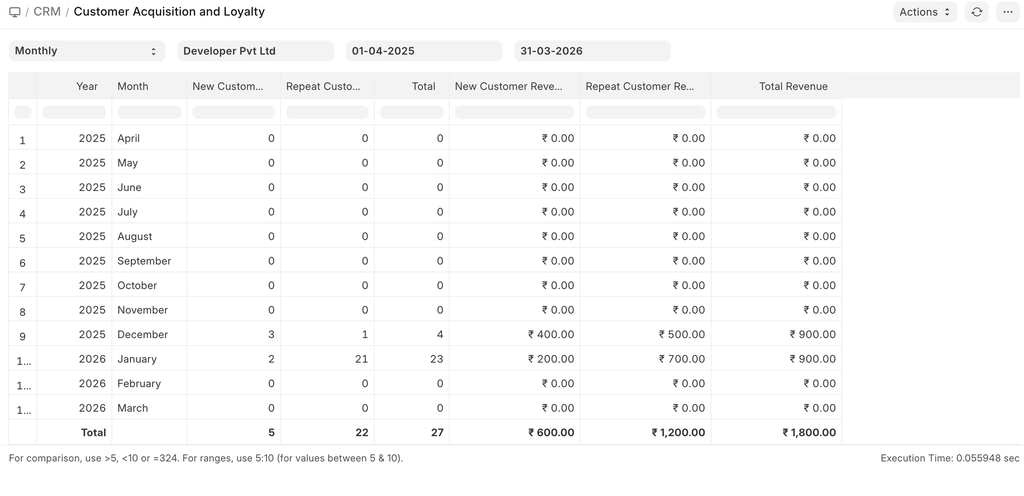
Accessing the Filter Window, the company and date ranges can be applied. Data is updated in the Data Window as changes are applied.
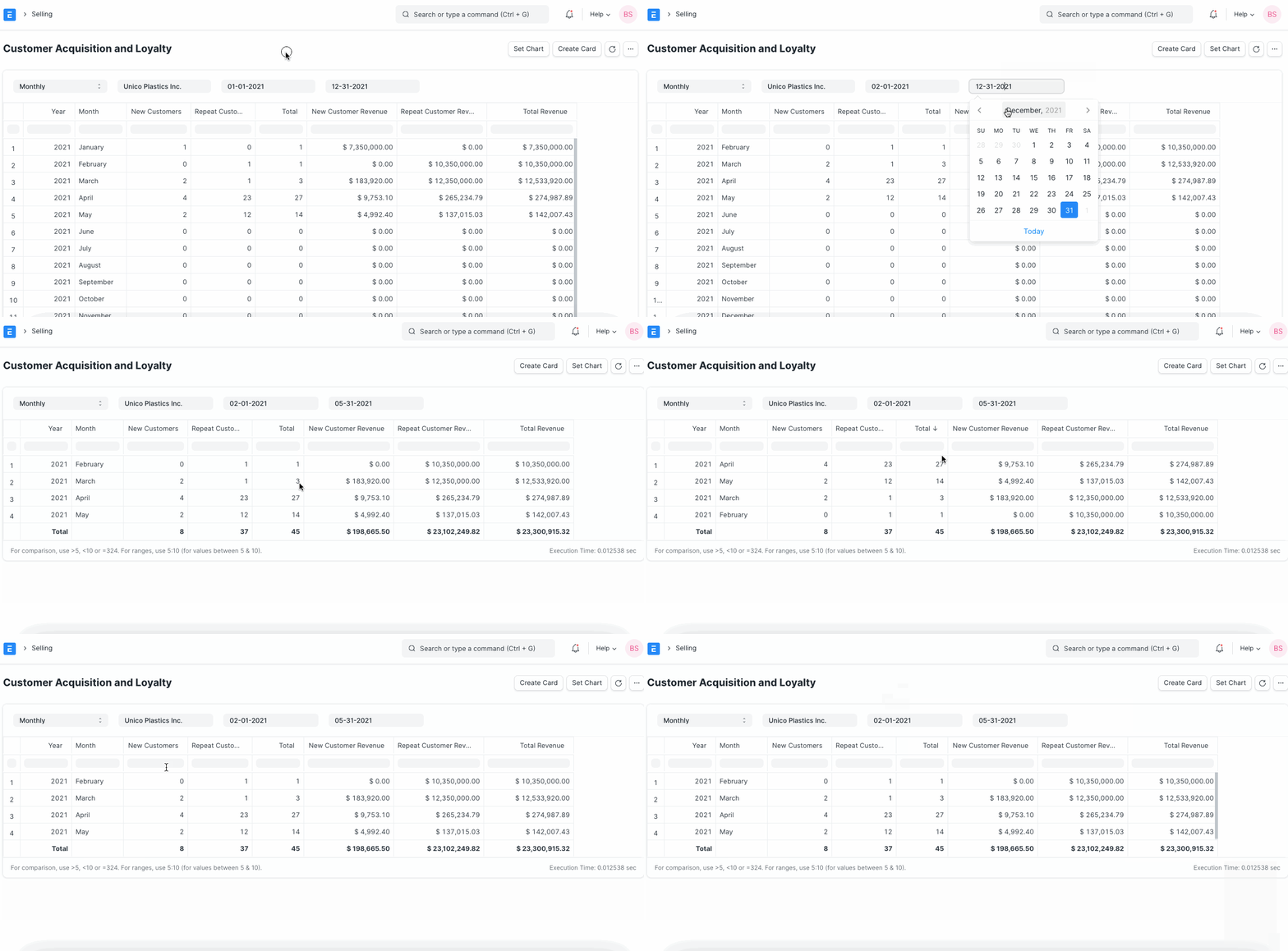
Within the Data Window, columns of information are accessible.
- Moving columns: The columns can be moved, re-arranged by clicking on the column headings and dragging them.
- Sorting: To sort the data in columns, click on the right-hand side of a column heading and you’ll see options to sort as ascending, descending, reset sorting, or remove a column.
- Filtering: The text boxes below the column headings work as instant filters. Enter a number there and all matching records will be shown.
Under Key Reports there are reports for Inactive Customers, Ordered Items To Be Delivered, Sales Person-wise Transaction Summary, Item-wise Sales History, Quotation Trends, Sales Order Trends in the Selling module.
In the Other Reports section there are reports for the following:
- Lead Details
- Customer Addresses And Contacts
- BOM Search
- Available Stock for Packing Items
- Pending SO Items For Purchase Request
- Customer Credit Balance
- Customers Without Any Sales Transactions
- Sales Partners Commission