

Introduction Stock Module #
The Stock module in Emeron ERP is a comprehensive tool designed to manage inventory and streamline supply chain operations. It offers functionalities to handle various aspects of stock management as mentioned below.
- Inventory Tracking: Monitor stock levels, track movements, and manage warehouses effectively.
- Item Management: Define and categorize products, track item variants, and manage pricing.
- Stock Transactions: Record and process transactions such as stock receipts, deliveries, and transfers.
- Stock Reconciliation: Perform periodic audits to ensure stock records align with physical inventory.
- Reports and Analytics: Generate detailed reports on stock levels, valuations, and trends to support decision-making.
Overall, the Stock module helps businesses maintain optimal inventory levels, reduce carrying costs, and improve operational efficiency.
Video Tutorials #
1. Stock Transactions #
- Frappe School Course on Stock Module
- Stock Opening Balance
- Stock Entries
2. Items #
- Item and Pricing
- Item Variant
3. Inventory #
- Batched Inventory
- Serialized Inventory
4. Other #
- Fixed Assets Management
- Managing Subcontracting
- Quality Inspection
Stock Masters #
In Emeron ERP, the masters play a crucial role in managing stock-related data, such as items, warehouses, batches, and stock transactions. They provide a structured way to input, store, and retrieve data related to stock items, their attributes, and movements within the system.
Masters in the stock enable businesses to maintain accurate inventory records, track stock movements, and make informed decisions regarding procurement, sales, and stock optimisation. Following are the quick links to some of the important masters in the stock module.
- Item
- Item Group
- Brand
- Product Bundle
- Item Alternative
- Manufacturer
- Item Variants
- Item Attribute
- Unit of Measure
- Fractions in UOM
- Inventory Dimension
Item #
An Item is a product or a service offered by your company.
The term Item is also applicable to raw materials or components of products yet to be produced (before they can be sold to customers). Emeron ERP allows you to manage all sorts of items like raw-materials, sub-assemblies, finished goods, item variants, and service items.
Emeron ERP is optimized for itemized management of your sales and purchase. If you are in services, you can create an Item for each service that you offer. Completing the Item Master is very essential for the successful implementation of Emeron ERP.
To access the Item list, go to: > Home > Stock > Items and Pricing > Item
- Prerequisites
Item Group #
An Item Group is a way to classify items based on types.
Depending on the type of product, you can categorize an item under its respective field. If the product is service-oriented, assign it under the Item Group – service. If the product is used as a raw-material, assign it under the Raw Material category. In case, an item is used only in trading, you can categorize it under an Item Group called Trading.
To access the Item Group list, go to:
Home > Stock > Items and Pricing > Item Group
This is what the Item Group tree looks like: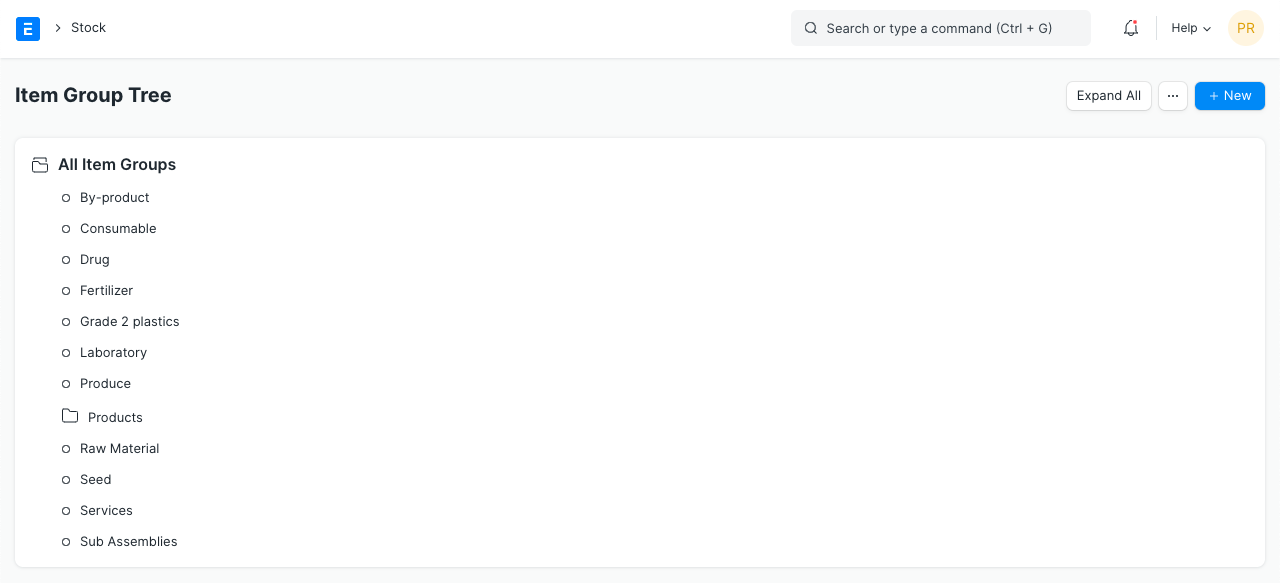
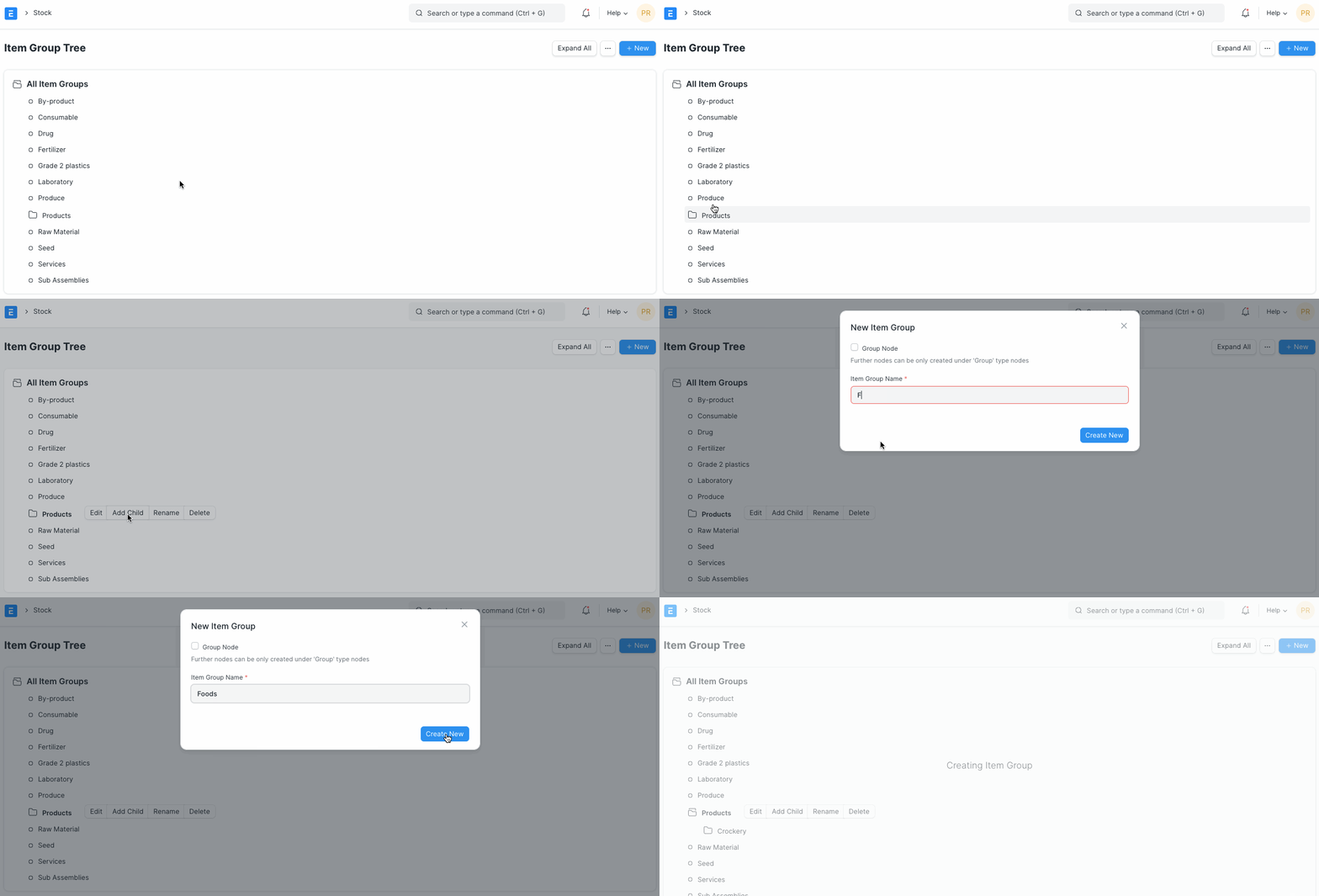
- How to create an Item Group
- Go to the Item Group list, click on New.
- Select a group node under which you wish to create the Item Group, the default root is ‘All Item Groups’.
- Select ‘Add Child’ or click on the New button.
- To make this child a category/group node, tick on Group Node.
- Click on Create New.
Note:
- Nodes in different parts of the tree cannot have the same name.
- The child notes get alphabetically arranged.
1.2 Delete an Item Group #
- Select the Item Group you want to delete.
- Select ‘Delete’.
- Click on Yes.
- Features
To see the following options, click on an Item Group, click on Edit.
2.1 Parent Item Group #
You can change the parent Item Group of an item by choosing another one under General Settings.
2.2 Defaults #
- Default Price List: A default price list that’ll determine the Item Prices for this Item Group.
- Default Warehouse: Default Warehouse set in transactions for the items that belong to this group.
- Default Buying/Selling Cost Center: The default Buying/Selling Cost Center to which items in this group will be billed against.
- Default Expense/Income Account: The default accounts for items that belong to this group.
- Default Supplier: On setting a Supplier here, this supplier will be chosen in purchase transactions by default for items in this group.
2.3 Item Tax #
A default item tax template will be applied to all items belonging to this group. Similarly a Tax Category can also be selected, visit Quotation to know more about Tax Categories.
2.4 Website Settings #
- Show in Website: Items belonging to this group will be shown on your website under the Item Group.
- Weightage: This is the weight for the Item Groups themselves, item groups with higher weights will be shown first.
- Slideshow: A slideshow for the Item Group, just like in an Item. Visit the Homepage page in Website module to know more.
- Description: This will appear on the Item Group page.
- Website Specifications: Label and its description for an item group.
Unit of Measure (UoM) #
A UoM is a unit using which an Item is measured.
By default, there are many UoMs created in Emeron ERP. However, more can be added depending on your business use case. In the UoM there is an option ‘Must be Whole Number’. If this is checked, you cannot use fraction numbers in this UoM. To know more about fractions and UoMs, check out this page.
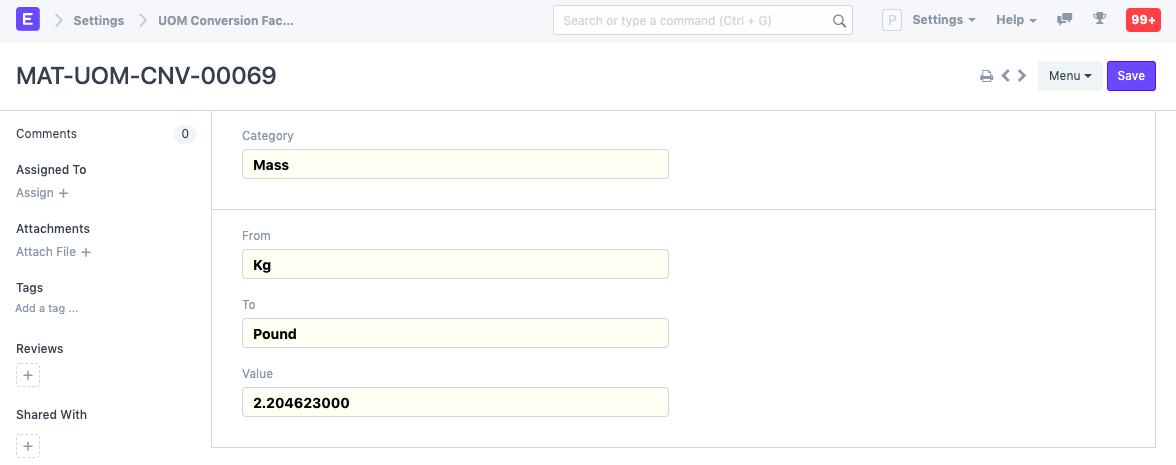
The UoM list by itself only stores the name. The actual conversion rates are stored in a document called ‘UoM Conversion Factor’. If you add new UoMs and plan to use it in transactions where it’ll be converted to other UoMs, it is advised that you add it to this list.
For example, here 1 Kg is approximately 2.2 Pounds and the exact conversion factor is stored:
Item Variants #
An Item Variant is a version of an Item with different attributes like sizes or colors.
Eg: Suppose t-shirt is an Item and it comes in different sizes and colors like small, medium, large and red, blue, green. In Emeron ERP the t-shirt will be considered as an Item template and each of the variations will be an Item Variant.
A _blue_ t-shirt in size _small_ rather than just a t-shirt. Item variants let you treat the _small_, _medium_, and _large_ versions of a t-shirt as variations of one Item ‘t-shirt’.
Without Item variants, you would have to treat the _small_, _medium_ and _large_ versions of a t-shirt as three separate Items.
1. Using Item Variants #
Variants can be based on two things:
- Item Attributes
- Manufacturers
> Tip: Once an item template is created, when you update this template, all the variants are also updated accordingly.
1.1 Creating the Item Variant Template #
- To use Item Variants in Emeron ERP, create an Item and tick ‘Has Variants’ under Variants.
- The Item then shall be referred to as a so-called ‘Template’. Such a Template is not identical to a regular ‘Item’ any longer. For example, it (the Template) cannot be used directly in any transaction (Sales Order, Delivery Note, Purchase Invoice) itself.
- Only the Variants of the Item (_blue_ t-shirt in size _small)_ can be practically used. Therefore it would be ideal to decide whether an item ‘Has Variants’ or not directly when creating it.
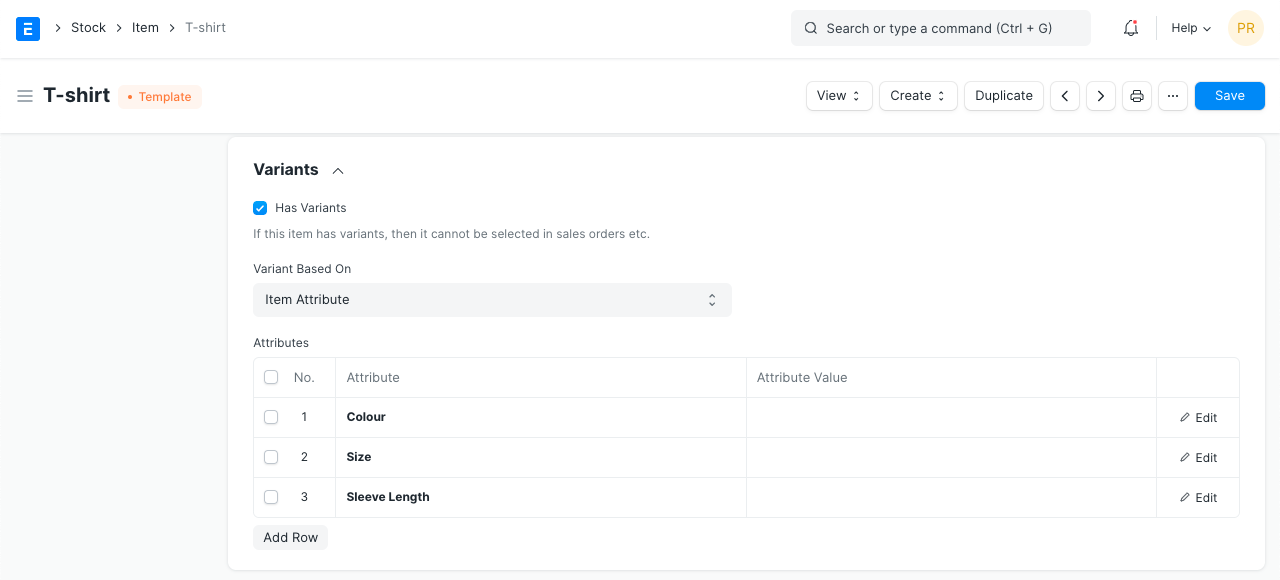
- On selecting ‘Has Variants’ a table will appear. Specify the variant attributes for the Item in the table. In case the attribute has Numeric Values, you can specify the range and create intervals based on the increment values.
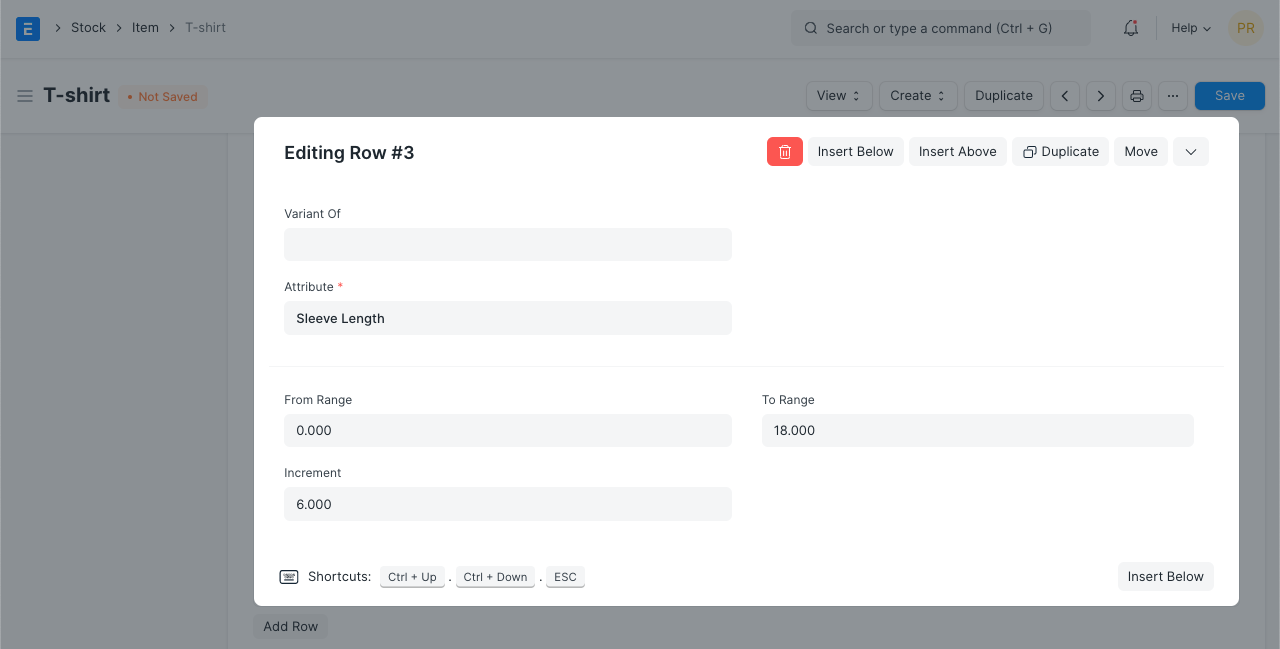 > Note: You cannot make Transactions against a ‘Template’.
1.2 Creating the Item Variants Based on Item Attributes #
To create ‘Item Variants’ against a ‘Template’ click on ‘Create’. From there, choose whether to create a single variant or multiple. Single is simple where you create just one or more attributes and one Item will be created. When choosing multiple variants, tick the attributes and multiple items will be created. For example, if you choose Color: Red, Green and Size: Small, Medium, Large, 6 variants will be created.
Creating multiple variants in Emeron ERP:
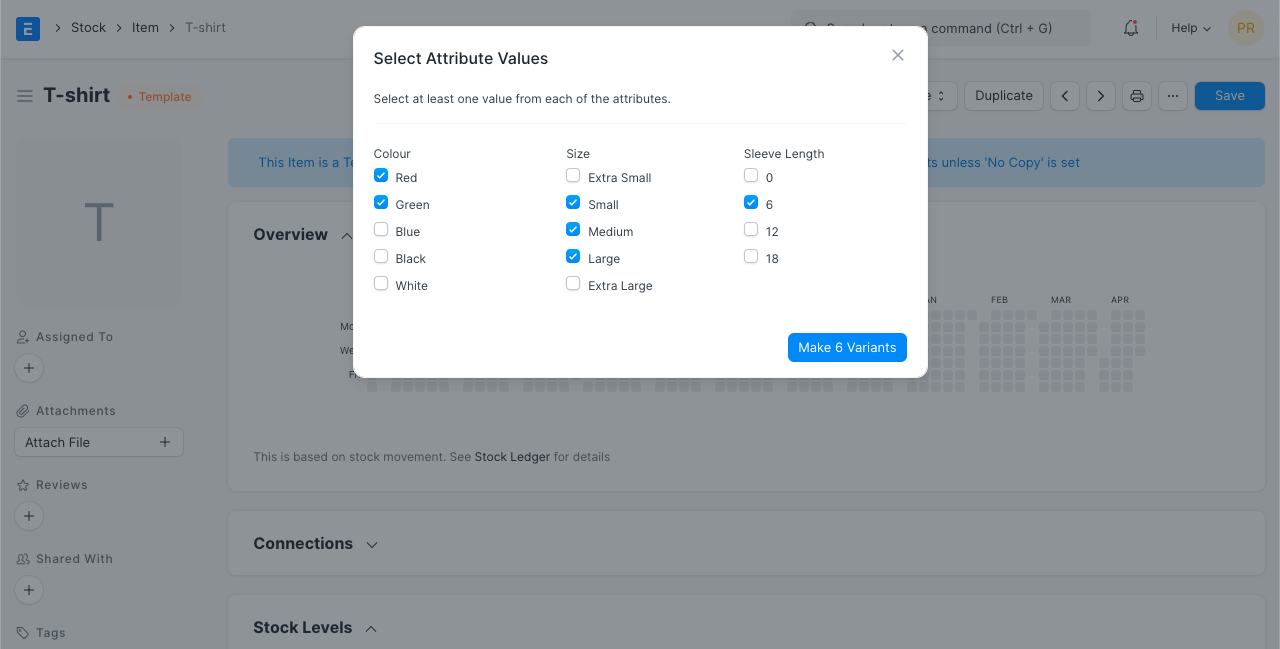
To learn more about setting attributes check out Item Attributes
1.3 Item Variants Based on Manufacturers #
To setup variants based on Manufacturers, in your Item template, set “Variants Based On” as “Manufacturers” In this case, to create variants, click on Create > Make Variant. The system will prompt you to select a Manufacturer. You can also optionally put in a Manufacturer Part Number.
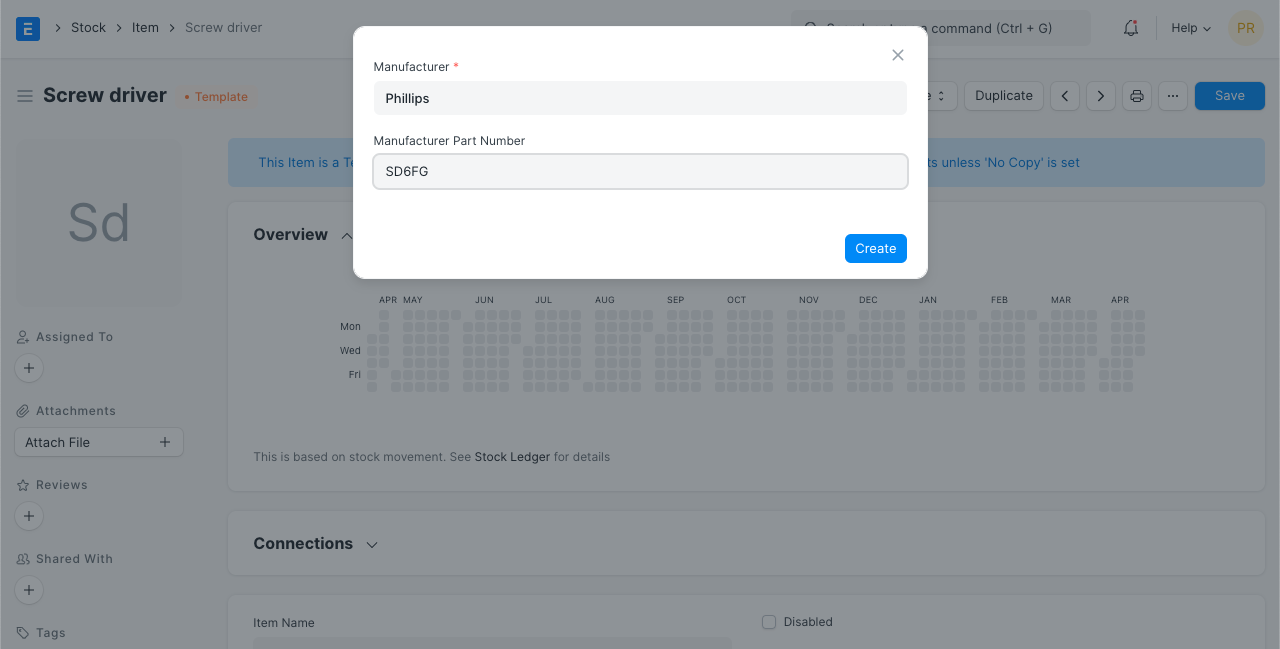
The naming of the variant will be based on the name (ID) of the template Item with a number suffix. e.g. “Screwdriver” will have variant “Screwdriver-1”.
2. Update Item Variants Based on Template #
Go to: Home > Stock > Items and Pricing > Item Variant Settings. The fields displayed here will be copied over to the variants as well. By default, all fields are shown, delete any rows you don’t want to be updated from the item template to the variants.
3. Video #
3.1 Creating Item Variant one by one #
<iframe allowfullscreen=”” frameborder=”0″ src=”https://www.youtube.com/embed/kogIricF40I?rel=0″> </iframe>
3.2 Creating Item Variants in bulk #
<iframe allowfullscreen=”” frameborder=”0″ src=”https://www.youtube.com/embed/SngZtDIMdiQ”> </iframe>
Pricing #
In the stock module of Emeron ERP, item pricing plays a vital role in managing the cost and selling price of items. Each item in the system can have a defined purchase price, which reflects the cost incurred to acquire the item. Emeron ERP allows businesses to set different pricing levels based on factors such as currency, customer groups, or pricing rules.
This flexibility enables businesses to implement diverse pricing strategies, such as volume discounts, promotional pricing, or tiered pricing based on customer relationships. Effective item pricing in Emeron ERP helps businesses maintain accurate cost calculations, optimize profit margins, and tailor pricing strategies to meet customer needs and market demands.
- Price Lists
- Item Price
Price Lists #
A Price List is a collection of Item Prices either Selling, Buying, or both.
Emeron ERP lets you maintain multiple Selling and Buying Item Prices using Price Lists.
Price Lists can be used in scenarios where you have different prices for different zones (based on the shipping costs), for different currencies, etc. An Item can have multiple prices based on customer, currency, region, shipping cost, etc, which can be stored as different rate plans.
In Emeron ERP, all the Item Prices are stored separately. Buying Price for an item is different from Selling Price and thus they’re stored separately.
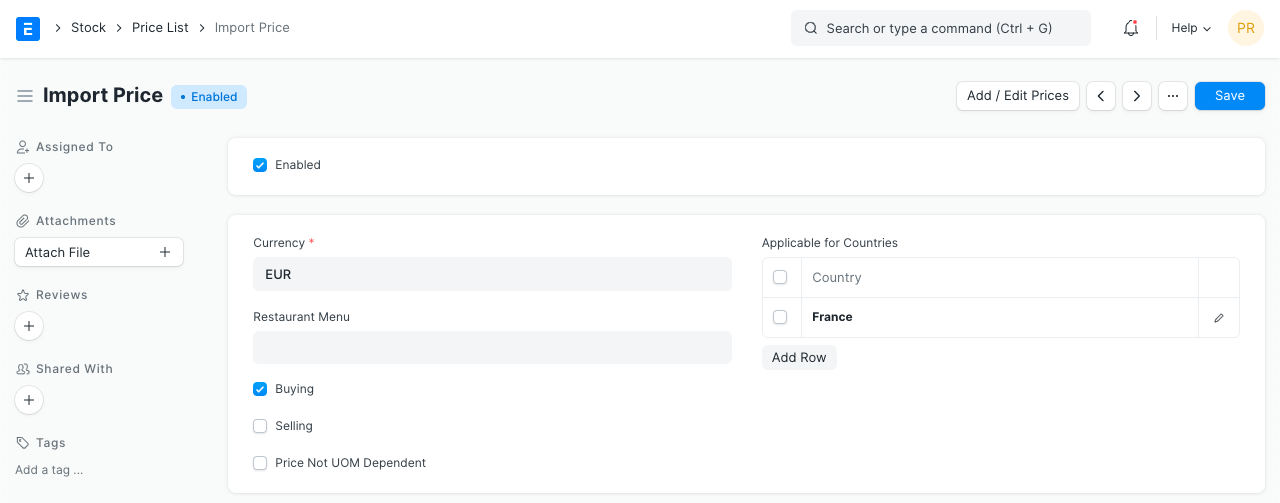
To access a Price List go to:
Home > Selling/Buying/Stock > Items and Pricing > Price List
- How to use a Price List
- Price Lists will be used when creating an Item Prices to track selling or buying price of an item.
- Specific countries can be assigned in the Price List.
- To disable specific Price List, untick the ‘Enabled’ checkbox. Disabled Price List will not be available for selection in the Sales and Purchase transactions.
- Price Not UOM Dependent: Consider an item, Tomatoes which you buy in Boxes and sell in Kilos. 1 Box = 10 Kilos and 1 Kilo buying price is 10rs. If this Box is unchecked and you select 1 Box in your transaction, the price will show up only for a Kilo since that’s the only Item Price saved.
Now, if you tick this checkbox and make a transaction with a Box of Tomatoes, then the price will be automatically set as 100 since the price of 1 Box (10 Kilos) is 100.
- Standard Buying and Selling Price Lists are created by default.
Note: If you have multiple Price Lists, you can select a Price List or tag it to a Customer (so that it is auto-selected). Your Item Prices will automatically be updated from the Price List.
Stock Ledger Report #
A Stock Ledger Report is a detailed record that keeps track of stock movements for a company.
Inward or outward transactions related to Manufacturing, Purchasing, Selling, and Stock Transfers are recorded in the Stock Ledger which then is reflected in the Stock Ledger Report.
It reflects the quantity and value of stock issued, received, or transferred along with the stock item and its warehouse details.
It can be referred when the Perpetual Inventory system is enabled, as this report reflects the history of all your stock transactions. It presents a more granular view of the stock transactions.
Stock Ledger Report Attributes #
- Incoming Rate: It reflects the actual value of the stock at which it was brought under your inventory. It reflects the same value as entered in the Rate field of the document.
- Balance Value: It represents the total value of the remainder stock in the inventory. It is the product of Valuation Rate and Balance Quantity of a stock item.
- Valuation Rate: It is calculated based upon the valuation method selected.
Here is how Stock Ledger Report represents a Stock Entry of type Material Receipt.
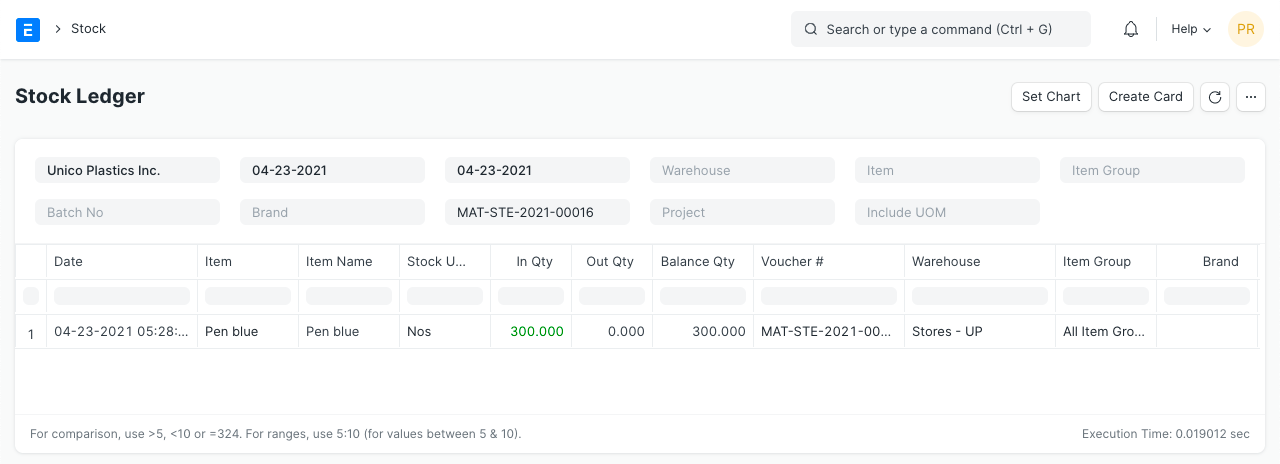
It reflects an item Chair of quantity 1000 units with Incoming Rate (Basic Rate) as Rs.3000 received in warehouse Stores – L along with calculating Valuation Rate and Balance Value.
You can click on Voucher # to open the document this transaction was created from.
Stock Ledger entries are generated from the following transactions:
- Sales Invoice, Purchase Invoice (with Update Stock checked)
- Delivery Note
- Purchase Receipt
- Stock Entry
- Stock Reconciliation
You can add fields from the previously mentioned Document Types by clicking on Menu > Add Column.
Stock Level Report #
Stock Level report list stock item’s quantity available in a particular warehouse.
There are multiple reports available you can check for item’s stock level.
Stock Projected Quantity Report #
This report list item wise – warehouse wise stock level of an item considering all the stock transactions. With Actual Quantity of an item, it also provide other details like:
- Actual Qty: Quantity available in the warehouse.
- Planned Qty: Quantity, for which, Work Order has been raised, but is pending to be manufactured.
- Requested Qty: Quantity requested for purchase, but not ordered.
- Ordered Qty: Quantity ordered for purchase, but not received.
- Reserved Qty: Quantity ordered for sale, but not delivered.
- Project Qty: Project Quantity is calculated as
Projected Qty = Actual Qty + Planned Qty + Requested Qty + Ordered Qty – Reserved Qty
The projected inventory is used by the planning system to monitor the reorder point and to determine the reorder quantity. The projected Quantity is used by the planning engine to monitor the safety stock levels. These levels are maintained to serve unexpected demands.
Having a tight control of the projected inventory is crucial to determine shortages and to calculate the right order quantity.
Quick Stock Balance #
Quick Stock Balance is a tool that can be used to quickly retrieve the current stock balance (quantity) and value of an item, in the specified warehouse, on the specified date.
It comes in handy during audits, while verifying stock details before transactions, etc.
To access this tool, go to:
Home > Stock > Tools > Quick Stock Balance
1. Using Quick Stock Balance #
Item and Warehouse are the basic fields required to fully utilize Quick Stock Balance. Item Barcode can also be used to fetch stock details.
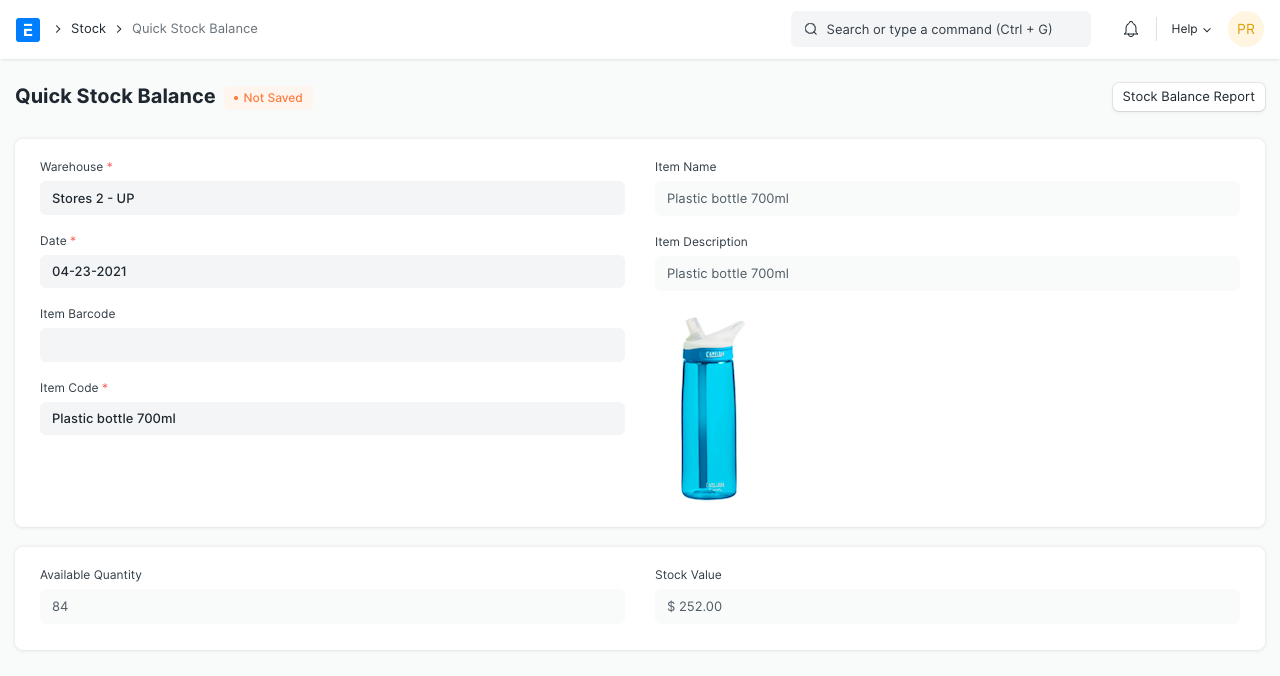
You can opt to select a different warehouse or date. The stock value and quantity, will be fetched real-time according to the specified values.
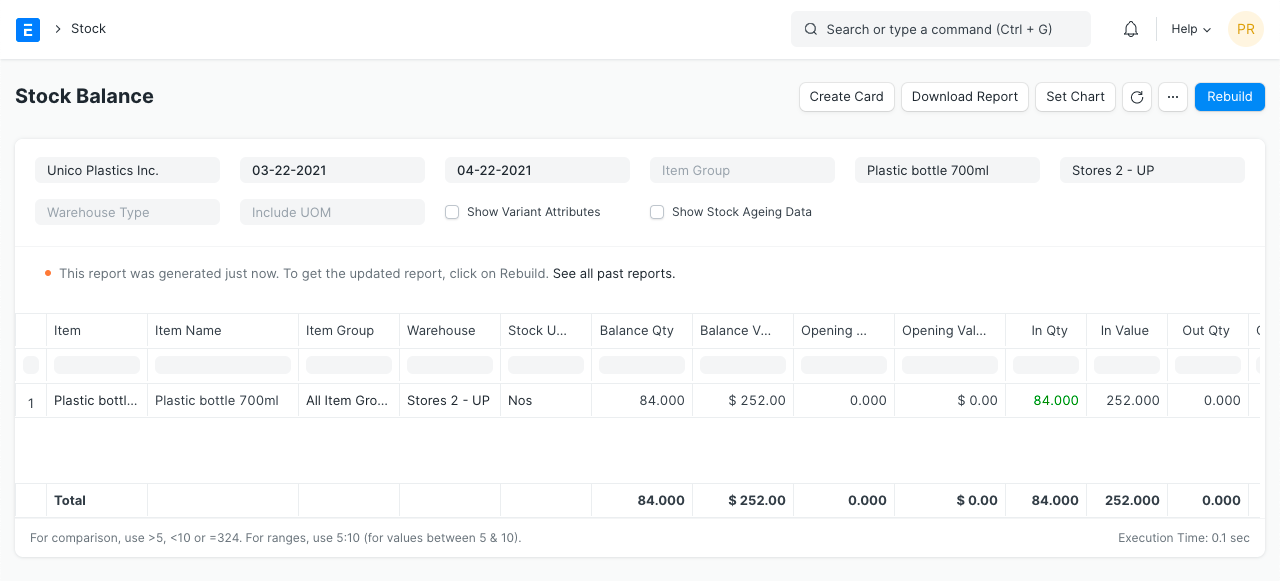
You can also view the Stock Balance report by clicking on ‘Stock Balance Report’ . It will redirect you to the report with the Item and Warehouse filters populated.
Quick Stock Balance #
Quick Stock Balance is a tool that can be used to quickly retrieve the current stock balance (quantity) and value of an item, in the specified warehouse, on the specified date.
It comes in handy during audits, while verifying stock details before transactions, etc.
To access this tool, go to:
Home > Stock > Tools > Quick Stock Balance
1. Using Quick Stock Balance #
Item and Warehouse are the basic fields required to fully utilize Quick Stock Balance. Item Barcode can also be used to fetch stock details.
You can opt to select a different warehouse or date. The stock value and quantity, will be fetched real-time according to the specified values.
You can also view the Stock Balance report by clicking on ‘Stock Balance Report’ . It will redirect you to the report with the Item and Warehouse filters populated.
Closing Stock Balance #
Note: In v16 the closing stock balance has renamed as Stock Closing Entry
How the Stock Balance Report is Prepared #
The Stock Balance report is a crucial tool for businesses to monitor their inventory levels and make informed decisions. It consists of four main columns: Opening Stock, In Stock, Out Stock, and Balance Stock. The Balance Stock is calculated using the formula Opening Stock + In Stock – Out Stock.
One of the key challenges in preparing the Stock Balance report is the calculation of the Opening Stock. To determine the Opening Stock, the system reads all the rows in the Stock Ledger Entry table that come before the specified From Date filter. However, a potential issue arises when the filter for item code or warehouse is not set, and the Stock Ledger Entry table contains a vast number of records. This situation can significantly slow down the process and cause performance problems.
Closing Stock Balance #
To address this issue, a solution has been introduced – the “Closing Stock Balance” feature. This feature allows the system to prepare the Opening Stock in advance, reducing the time taken to generate the Stock Balance report.
Here’s how to use the “Closing Stock Balance” feature effectively:
- Closing Stock Balance Creation: After the financial year has ended, and the necessary audits have been completed for that year (in this example, the financial year 2022-2023), you should create the Closing Stock Balance. This should be done for the specific end date of the financial year 2022-2023.
- Data Preparation: Once the Closing Stock Balance is submitted, the system will take some time to prepare the data. During this process, the Opening Stock values are calculated and stored for future use.
- Utilizing Closing Stock Balance: With the Closing Stock data prepared, the system will utilize this data to generate the Stock Balance report efficiently. Now, whenever a user opens the Stock Balance Report, the system can quickly read the necessary data from the Closing Stock Balance for the Opening Stock values.
- Annual Closing Stock Balance: It is essential to create the closing stock balance every year after the closing of the financial year. This ensures that the Opening Stock values are updated and accurate for each reporting period.
By implementing the “Closing Stock Balance” feature and following the recommended steps, businesses can significantly improve the performance and efficiency of generating Stock Balance reports, even with a vast amount of data in the Stock Ledger Entry table.