

What is Frappe CRM? #
Frappe CRM is a simple, affordable, open-source CRM tool designed for modern sales teams with unlimited users. Frappe CRM is crafted for providing a great user experience, packed with features for core CRM activities helping you build strong customer relationships while keeping things clean and organised.
Why Frappe CRM? #
Many existing CRMs are either too complex, overly generic, or locked behind steep pricing models that hinder accessibility and flexibility. Frappe CRM was designed to bridge this gap, offering a tool that empowers businesses to manage their customer relationships seamlessly while being easy to adapt to specific workflows. Built on the Frappe framework, it prioritizes usability, extensibility, and affordability, making it an ideal choice for growing teams and organizations looking for a CRM that aligns with their unique processes.
Key Features #
- Views: Tailor your view to display essential information by defining filters, sorting, and columns.
- Pinned: Pin frequently used views for instant access.
- Public: You can access pre-configured views with commonly used filters and data.
- Saved: For easy access later, save your customized view.
- Email Communication: Send and receive emails directly from the Lead/Deal Page.
- Email Templates: Create and use email templates for faster communication.
- Comments: Add comments to leads and deals to keep track of the conversation.
- Notifications: Get notified when someone mentions you in a comment.
- Service Level Agreement: Set SLA for leads and deals and get notified when the SLA is breached.
- Assignment Rule: Automatically assign leads and deals to users based on the criteria.
- Tasks: Create tasks for leads and deals.
- Notes: Add notes to leads and deals.
- Call Logs: See the call logs with call details and recordings.
Integrations #
- Twilio: Integrate Twilio to make and receive calls from the CRM.
- Exotel: Use Exotel to make & receive call via mobile phone and log it on CRM.
- WhatsApp: WhatsApp your customer right from the lead/deal page.
- Emeron ERP: Integrate with Emeron ERP to extend the CRM capabilities to include invoicing, accounting, and more.
Under the Hood #
- Frappe Framework: A full-stack web application framework.
- Frappe UI: A Vue-based UI library, to provide a modern user interface.
Installation #
Frappe CRM can be installed in multiple ways, depending on your requirements. You can either use Frappe Cloud for a fully managed experience or install CRM on your own server.
The following sections explain each installation method in detail.
Managed Hosting (Frappe Cloud) #
You can install Frappe CRM with a single click using Frappe Cloud, the managed hosting platform for Frappe applications.
- Sign up here to get started
- Your CRM instance will be ready in a few minutes
If you already have a Frappe Cloud site, you can install Frappe CRM directly from the Frappe Cloud Marketplace.
Tip
Recommendation: We strongly recommend trying Frappe Cloud before opting for self-hosting.
Self Hosting #
Production Setup #
Follow these steps to set up Frappe CRM in production:
Step 1: Download the easy install script
wget https://frappe.io/easy-install.py
Step 2: Run the deployment command
python3 ./easy-install.py deploy \
    --project=crm_prod_setup \
    --email=email.example.com \
    --image=ghcr.io/frappe/crm \
    --version=stable \
    --app=crm \
    --sitename subdomain.domain.tld
Replace the following parameters with your values:
your_email.example.com: Your email addresssubdomain.domain.tld: Your domain name where CRM will be hosted
The script will set up a production-ready instance of Frappe CRM with all the necessary configurations in about 5 minutes.
Note
If hosting on a public server, make sure your DNS A record points to your server’s IP and if hosting locally, map your domain to 127.0.0.1 in your /etc/hosts file to avoid 404 Page Not Found error.
Development Setup #
Docker Setup #
To run CRM using Docker, ensure the following are installed:
- Docker
- Docker Compose
- Git
Refer to Docker documentation. After that, follow the steps below:
Step 1: Create a directory and download the required files
mkdir frappe-crm
cd frappe-crm

# Download the docker-compose file
wget -O docker-compose.yml https://raw.githubusercontent.com/frappe/crm/develop/docker/docker-compose.yml

# Download the setup script
wget -O init.sh https://raw.githubusercontent.com/frappe/crm/develop/docker/init.sh
Step 2: Start the containers
docker compose up -d
Step 3: Access the application.
The site http://crm.localhost:8000/crm should now be available. The default credentials are:
Username: Administrator
Password: admin
Tip
Security note: Recommend changing the default password after login.
Local Setup (Bench) #
- Setup Bench.
- In the frappe-bench directory, run
bench startand keep it running. - Open a new terminal session and cd into
frappe-benchdirectory and run following commands:
$ bench get-app crm
$ bench new-site sitename.localhost --install-app crm
$ bench browse sitename.localhost --user Administrator
- Access the crm page at
sitename.localhost:8000/crmin your web browser.
For Frontend Development
- Open a new terminal session and cd into
frappe-bench/apps/crm, and run the following commands:
yarn install
yarn dev
- Now, you can access the site on the Vite dev server at
http://sitename.localhost:8080
Setting Up #
This guide will walk you through the setup process for your Frappe CRM after installation. You’ll learn how to configure essential elements, import data, and access your CRM portal.
Navigating your workspace #
Once you’ve set up your CRM, you’ll land on the Frappe CRM workspace. This central hub provides easy access to all the essential setup tools:
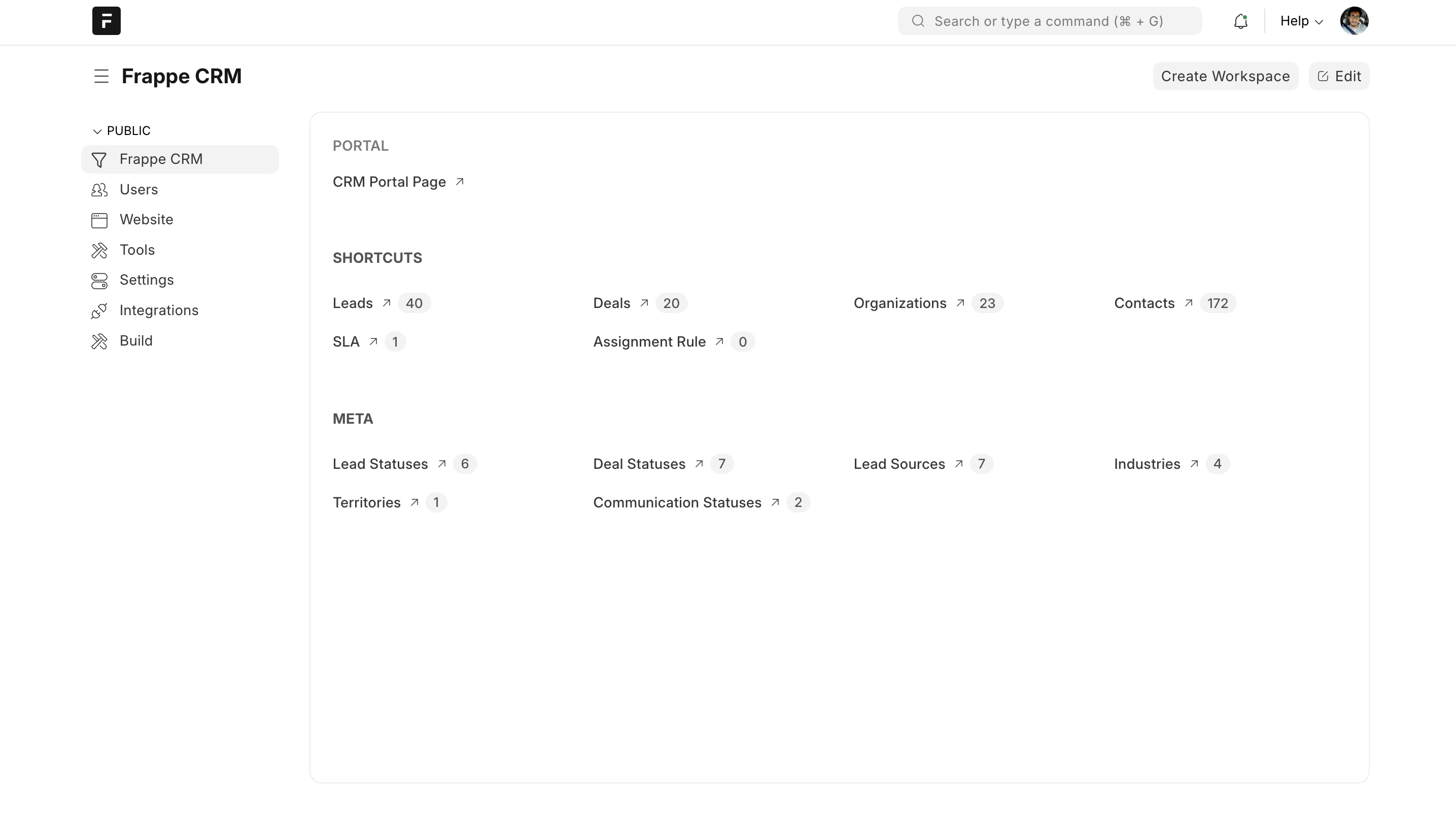
- Master Data: Manage core CRM elements like Leads, Deals, Organizations, and Contacts. Create and customize these masters to fit your specific sales process.
- SLA and Assignment Rules: Define service level agreements (SLAs) for timely lead and deal follow-up. Set up assignment rules to automatically assign leads and deals to the appropriate sales representatives.
- Dependent Meta: Configure additional details related to your masters, such as Lead Statuses, Deal Statuses, and Lead Sources. These help categorize and track progress through your sales pipeline.
Data population #
There are two ways to populate your CRM with data:
- Manual Entry: Manually add data for each master record directly within the system.
- Data Import: Utilize the framework’s data import feature to efficiently import data from Excel or CSV files. This saves time and ensures accuracy.
Adding users #
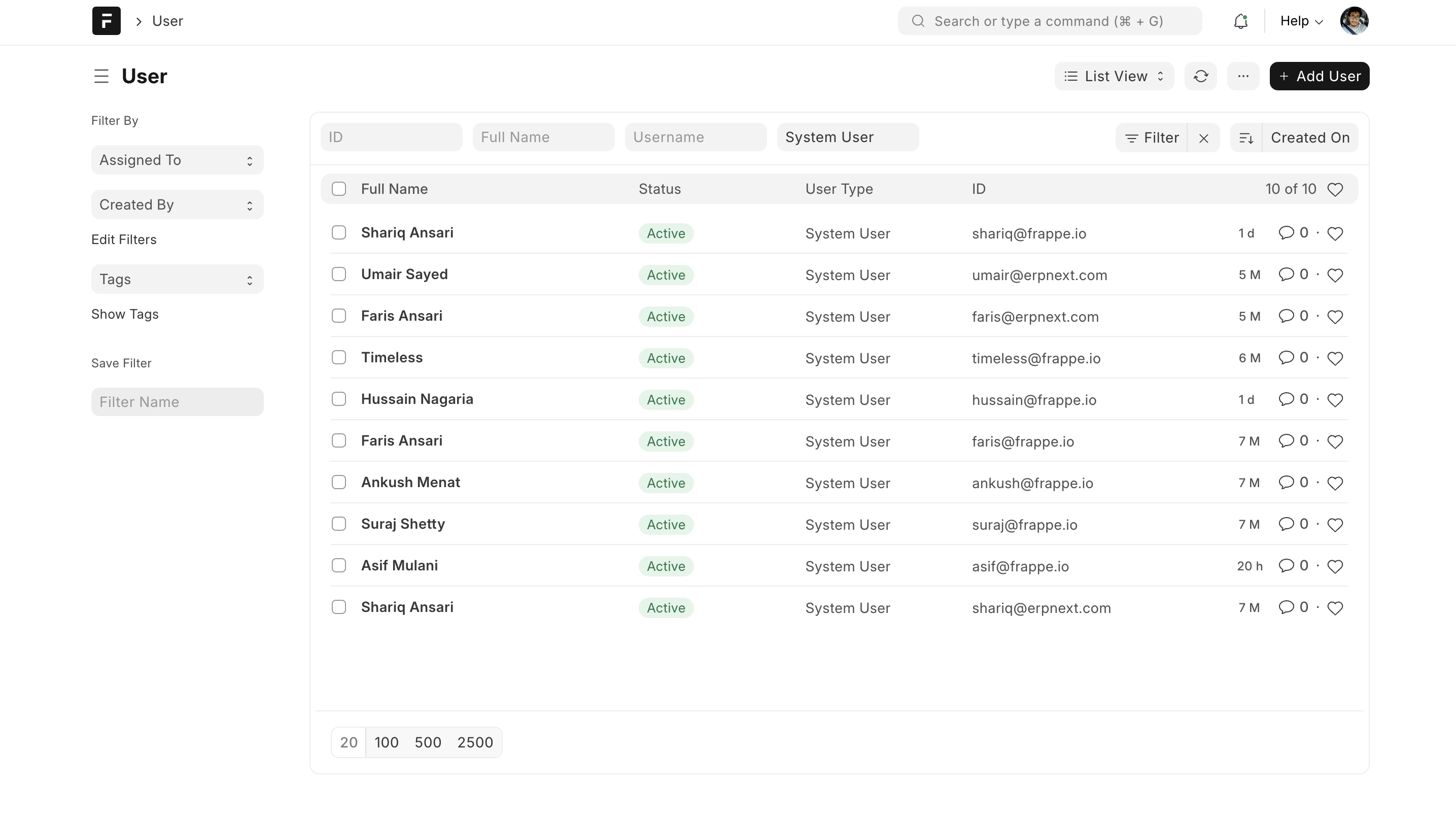
Don’t forget to create user accounts from the User Master section. This grants access to your CRM to team members who will be using the system.
Accessing your CRM portal #
The “CRM Portal Page” link provides access to your agent/salesperson-facing portal. Here, agents/salespersons can work on their leads & deals, creating a seamless sales experience.

Start your sales journey #
With your Frappe CRM set up, you’re now ready to manage leads, track deals, and collaborate with your team to achieve your sales goals.