Skip to content
  • Home
  • Company
    • Overview
    • Technology
    • Key Highlights
    • Mile Stones
    • Careers
  • Service

    List One

    1

    List One

    1

    List One

    1

    List One

    1

    List One

    1

    ERP Solutions

    ERP SME

    Business Management

    ERP Retail

    POS & Inventory

    ERP Services

    Project Management

    ERP Garage

    Workshop System

    List One

    1

    List One

    1

    List One

    1

    List One

    1

    List One

    1

    ERP Real Estate

    Property Management

    ERP Typing Center

    Document Tracking

    ERP Tailoring

    Order Management

    ERP Production

    Manufacturing ERP

    List One

    1

    List One

    1

    List One

    1

    List One

    1

    List One

    1

    ERP Solutions

    OrderByMe Retail

    Smart POS

    OrderByMe Restaurant

    Digital Ordering

    Kiosk OrderByMe

    Self Ordering System

    List One

    1

    List One

    1

    List One

    1

    List One

    1

    List One

    1

    ERP Solutions

    Self Ordering System

    Customer Management

    HR & Payroll

    Employee Management

    ERP Solutions

    ERP SME

    Business Management

    ERP Retail

    POS & Inventory

    ERP Services

    Project Management

    ERP Garage

    Workshop System

    ERP Real Estate

    Property Management

    ERP Typing Center

    Document Tracking

    OrderByMe Solutions

    OrderByMe Retail

    Smart POS

    OrderByMe Restaurant

    Digital Ordering

    Kiosk OrderByMe

    Self Ordering System

    ERP Tailoring

    Order Management

    ERP Production

    Manufacturing ERP

    ERP Construction

    Project ERP

    Business System

    CRM

    Customer Management

    HR & Payroll

    Employee Management

    ERP Solutions

    ERP SME

    Business Management

    ERP Retail

    POS & Inventory

    ERP Services

    Project Management

    OrderByMe Solutions

    OrderByMe Retail

    Smart POS

    OrderByMe Restaurant

    Digital Ordering

    Kiosk OrderByMe

    Self Ordering System

    ERP Tailoring

    Order Management

    ERP Production

    Manufacturing ERP

    ERP Construction

    Project ERP

    Business System

    CRM

    Customer Management

    HR & Payroll

    Employee Management

  • Indusrties
    • Construction
    • Healthcare
    • Insurance
    • Ecommerce
    • Service Businesses
    • Retail
  • Contact
  • Resources
    • Blog
    • Documentation
Get Quoatation
  • Home
  • Company
    • Overview
    • Technology
    • Key Highlights
    • Mile Stones
    • Careers
  • Service

    List One

    1

    List One

    1

    List One

    1

    List One

    1

    List One

    1

    ERP Solutions

    ERP SME

    Business Management

    ERP Retail

    POS & Inventory

    ERP Services

    Project Management

    ERP Garage

    Workshop System

    List One

    1

    List One

    1

    List One

    1

    List One

    1

    List One

    1

    ERP Real Estate

    Property Management

    ERP Typing Center

    Document Tracking

    ERP Tailoring

    Order Management

    ERP Production

    Manufacturing ERP

    List One

    1

    List One

    1

    List One

    1

    List One

    1

    List One

    1

    ERP Solutions

    OrderByMe Retail

    Smart POS

    OrderByMe Restaurant

    Digital Ordering

    Kiosk OrderByMe

    Self Ordering System

    List One

    1

    List One

    1

    List One

    1

    List One

    1

    List One

    1

    ERP Solutions

    Self Ordering System

    Customer Management

    HR & Payroll

    Employee Management

    ERP Solutions

    ERP SME

    Business Management

    ERP Retail

    POS & Inventory

    ERP Services

    Project Management

    ERP Garage

    Workshop System

    ERP Real Estate

    Property Management

    ERP Typing Center

    Document Tracking

    OrderByMe Solutions

    OrderByMe Retail

    Smart POS

    OrderByMe Restaurant

    Digital Ordering

    Kiosk OrderByMe

    Self Ordering System

    ERP Tailoring

    Order Management

    ERP Production

    Manufacturing ERP

    ERP Construction

    Project ERP

    Business System

    CRM

    Customer Management

    HR & Payroll

    Employee Management

    ERP Solutions

    ERP SME

    Business Management

    ERP Retail

    POS & Inventory

    ERP Services

    Project Management

    OrderByMe Solutions

    OrderByMe Retail

    Smart POS

    OrderByMe Restaurant

    Digital Ordering

    Kiosk OrderByMe

    Self Ordering System

    ERP Tailoring

    Order Management

    ERP Production

    Manufacturing ERP

    ERP Construction

    Project ERP

    Business System

    CRM

    Customer Management

    HR & Payroll

    Employee Management

  • Indusrties
    • Construction
    • Healthcare
    • Insurance
    • Ecommerce
    • Service Businesses
    • Retail
  • Contact
  • Resources
    • Blog
    • Documentation
Get Quoatation

How can we help you?

Emeron ERP

20
  • Manufacturing in Emeron ERP
  • Manufacturing
  • CRM
  • Stock
  • Stock Masters
  • Accounting
  • Buying
  • Selling
  • Assets
  • Reports
  • Users and Permissions
  • Data Management
  • Setting Up
  • The Project Champion
  • Introduction
  • Why should businesses use an ERP?
  • Do I Need Emeron ERP?
  • Open Source
  • Concepts and Terms
  • Getting Started with Emeron ERP

Emeron HR

14
  • Recruitment
  • Training
  • Employee Lifecycle
  • Fleet Management
  • Salary
  • Employee Tax and Benefits
  • Overtime
  • Flexible Benefits
  • Payroll Correction
  • Arrears
  • Human Resource Setup
  • Reports
  • Emeron HR
  • Why should businesses use an ERP?

CRM

8
  • Mobile App Installation
  • Customization
  • Integrations
  • Other Features
  • Maters
  • Settings
  • Introduction
  • Emeron HR

Accounting

13
  • Purchase Invoice
  • 0verview
  • Opening and Closing
  • Accounting Masters
  • Taxes
  • Fiscal Year
  • Opening Balance in Accounts
  • Setting Up Taxes
  • Chart Of Accounts
  • Tax Category
  • Item Tax Template
  • Tax Withholding Category
  • Reports
  • Home
  • Docs
  • Accounting
  • Opening Balance in Accounts
View Categories

Opening Balance in Accounts

The opening balance is the balance that is brought forward at the beginning of an accounting period from the end of a previous accounting period or when starting out.

This also applies when starting a new Company and would like your offline balances to be updated in Emeron ERP.

1. Introduction #

If you are a new company, you will have minimal opening balances to be imported. However, if you are migrating from a legacy accounting system like Tally or a Fox Pro based software you will have considerable data to be imported as opening balance.

We recommend that you start using Emeron ERP for accounting from a new financial year, but you could start midway too. To set up your accounts, you will need the following for the “day” you start using accounting in Emeron ERP:

1.1 Assets #
  1. Stock assets (stock in hand).
  2. Fixed assets like furnitures, computers, etc.
  3. Accounts Receivables (AR) i.e. unpaid invoices which you have sent to your Customers.
  4. Current assets like bank balances, cash in hand, deposits, etc.
1.2 Liabilities #
  1. Capital accounts like your shareholder’s (or owner’s) capital
  2. Current liabilities like loans, salary payables etc
  3. Accounts Payables(AP) i.e. unpaid invoices which your suppliers have sent you

If you were using another accounting software before, you should close financial statements in that software first. The closing balance of the accounts should be updated as an opening balance in the Emeron ERP. Before starting to update opening balance, ensure that your Chart of Accounts has all the Accounts required.

Opening entries can be created using the Opening Invoice Creation Tool in Emeron ERP.

Opening entry is only for Balance Sheet accounts and not for Profit and Loss Accounts.

2. Opening Balance of Assets #
2.1 Update Fixed Assets #

To import all the existing fixed assets first create the asset record and then create a Journal Entry to update the General Ledger.

Step 1. Create Asset Records

To know about Assets in detail, visit this page.

Create Asset record for each asset that your company owns which is not fully depreciated.

To create a new Asset:

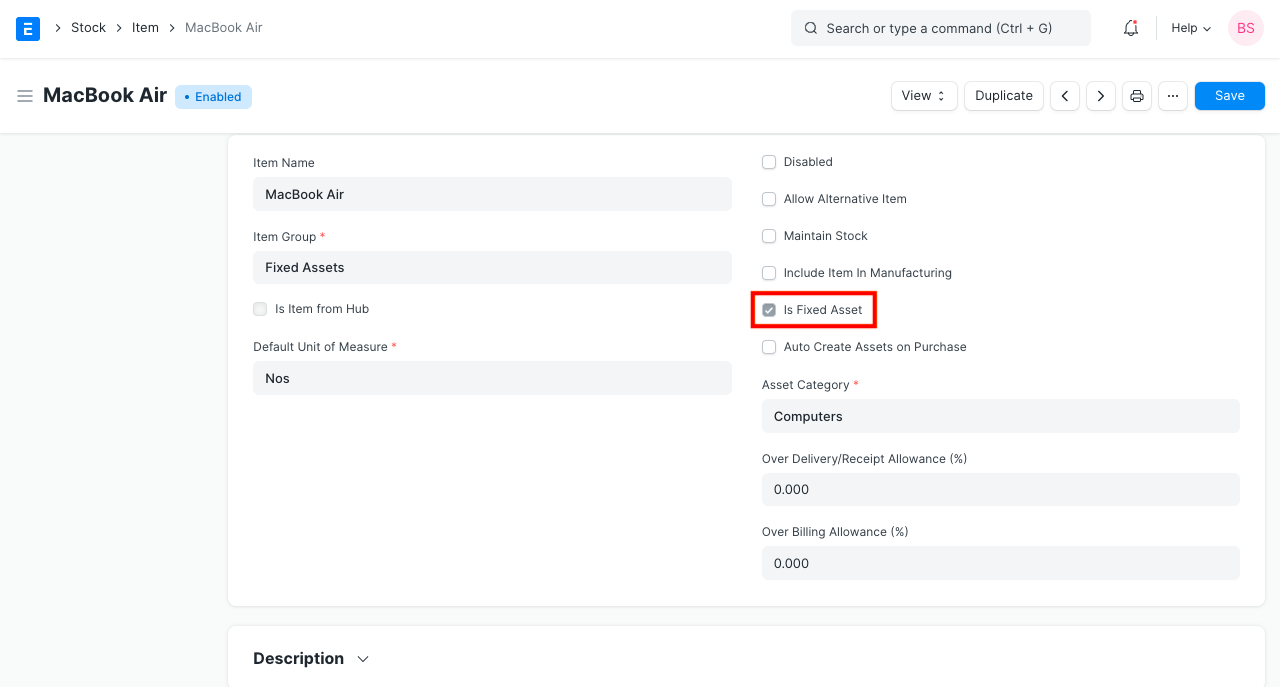
  1. Create an Item with ‘Is fixed Asset’ enabled.
  2. Go to Assets > Assets > New.
  3. Enter Asset Name.
  4. Enter Item Code.
  5. Enter Location.
  6. Enter the Purchase Date.
  7. Enter Gross Amount.
  8. Tick Is Existing Asset.
  9. Save.
Opening Stock Balance

Step 2. Create Journal Entry to Update the Ledgers

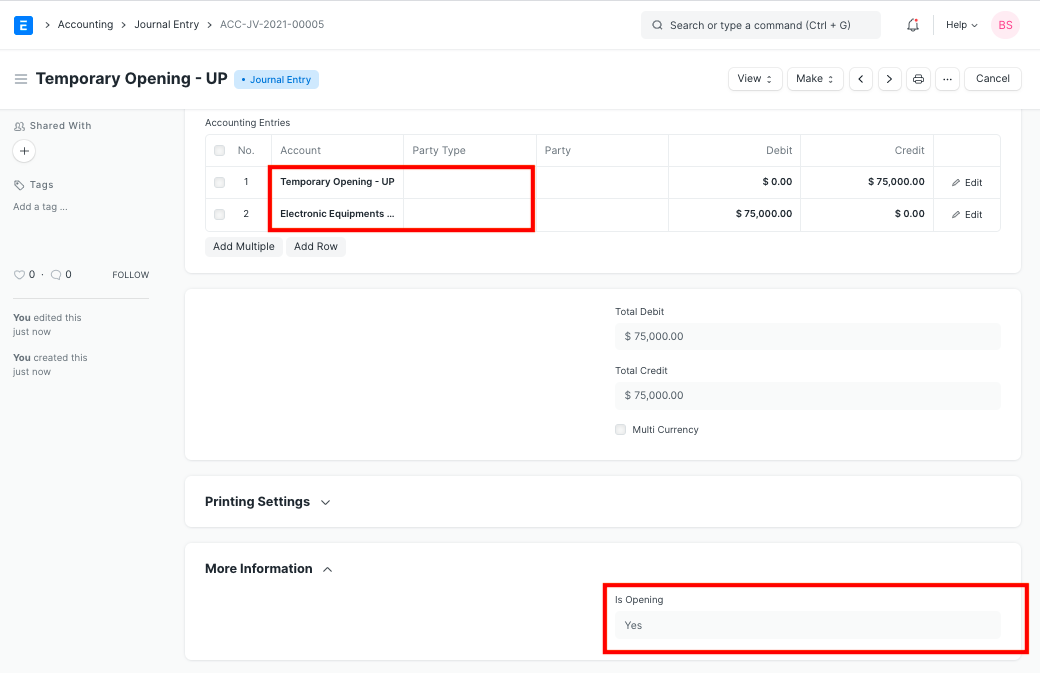
When you create an Asset with ‘Is Existing Asset’ checkbox ticked, the General Ledger is not updated. You will have to update the value via a Journal Entry.

To create a new Journal Entry:

  1. Go to: Accounting > Masters and Accounts > Journal Entry > New.
  2. Enter Posting Date.
  3. Select the appropriate fixed asset ledgers in Account column and enter the value in Debit column.
  4. Select ‘Temporary Opening’ ledger in Account column and enter the balancing amount in Credit column.
  5. Set ‘Is Opening’ to Yes.
Journal Entry Fixed Asset Opening
2.2 Update Stock Assets #

Read Opening Stock to understand how to set this up

2.3 Update Accounts Receivable #

Accounts Receivables is the balance amount your Customer owes you towards the Sales Invoices you have already sent to them.

You can import the accounts receivables details using the Opening Invoice Creation Tool.

After importing, Sales Invoices will be created. You can post Payment Entry against these invoices as and when you receive payment from your customer.https://www.youtube.com/embed/vfWmugaO1zw

2.4 Update Current Assets #

Before importing current assets, make sure that you have created the required ledgers under Chart of Accounts > Assets > Current Assets group.

To import details of current assets:

  1. Go to: Accounting > Company and Accounts > Journal Entry > New.
  2. Enter Posting Date.
  3. Select the appropriate current asset ledger in the Account column and enter the value in Debit.
  4. Select ‘Temporary Opening’ ledger in Account and enter the balancing amount in Credit.
  5. Set ‘Is Opening’ to Yes.

To know about Journal Enter in detail, visit this page.
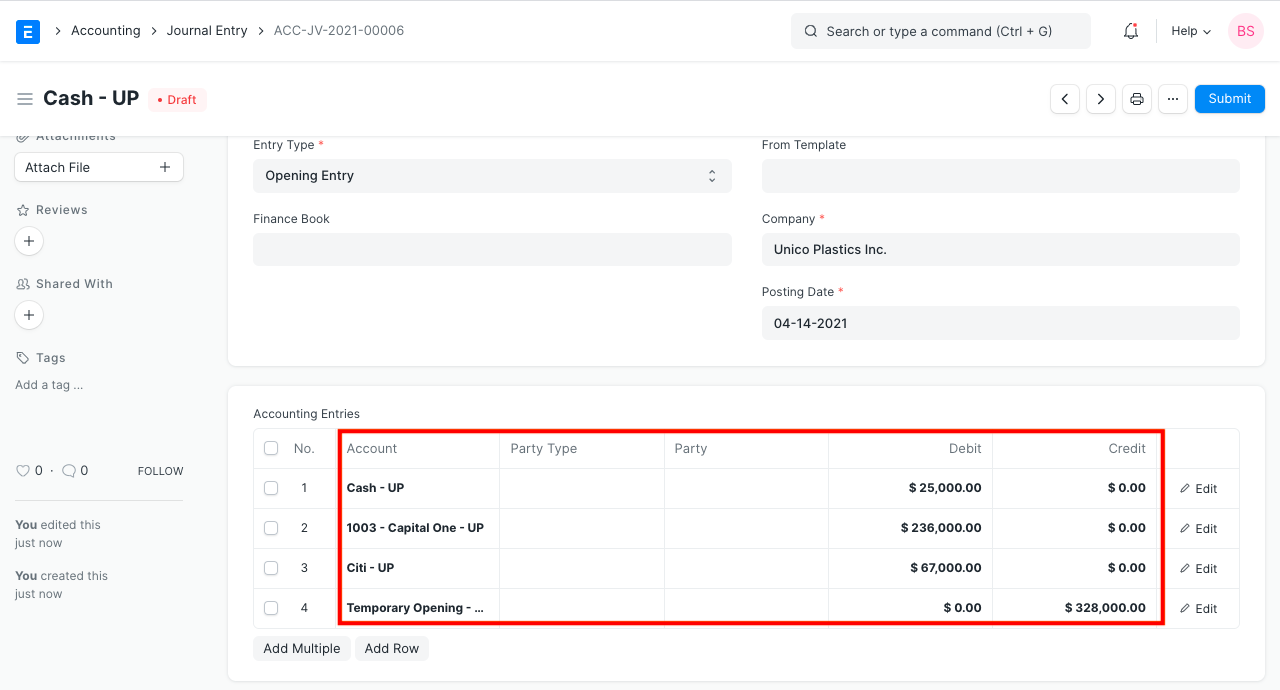
Opening Balance Current Assets
3. Opening Balance of Liabilities #
3.1 Update Capital Accounts #

Before importing capital accounts, make sure that you have created the required ledgers under Chart of Accounts > Liabilities > Capital Accounts group.

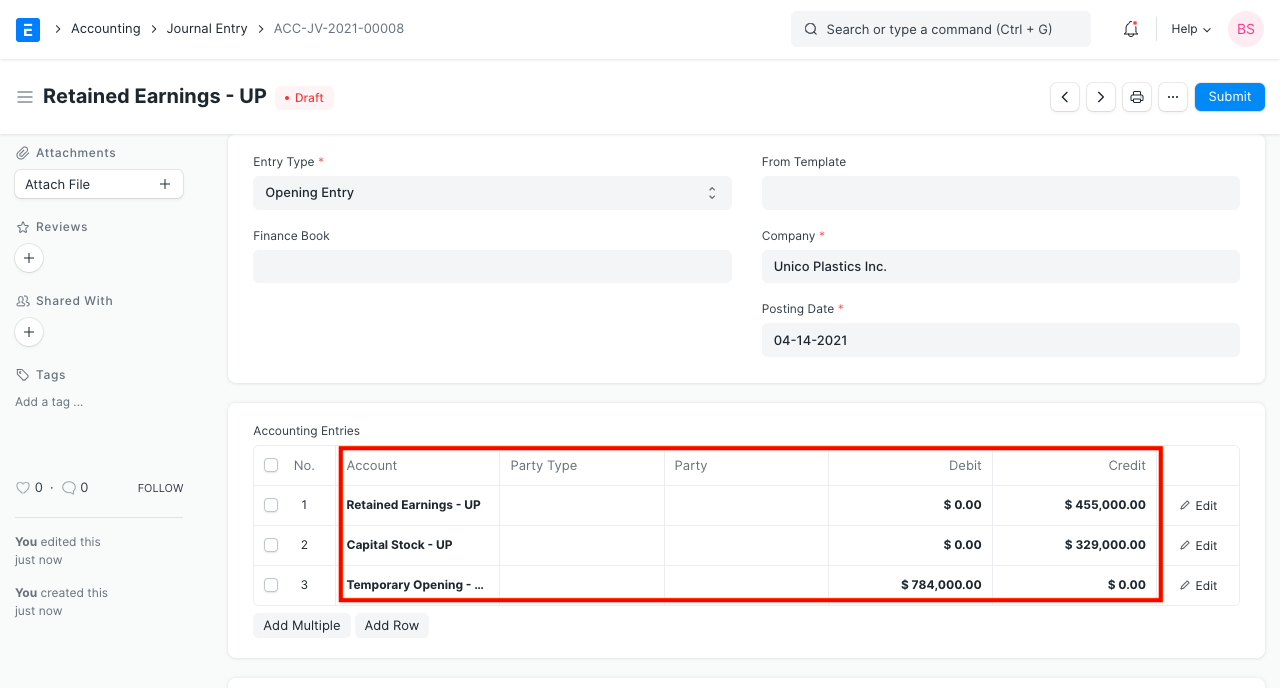
To import details of capital accounts:

  1. Go to: Accounting > Masters and Accounts > Journal Entry > New.
  2. Enter Posting Date.
  3. Select the appropriate capital account ledgers in Account column and enter the value in Credit column.
  4. Select ‘Temporary Opening’ ledger in Account and enter the balancing amount in Debit column.
  5. Set ‘Is Opening’ to Yes.
Opening Entry Capital Accounts
3.2 Update Current Liabilities #

Before importing current liabilities, make sure that you have created the required ledgers under Chart of Accounts > Liabilities > Current Liabilities group.

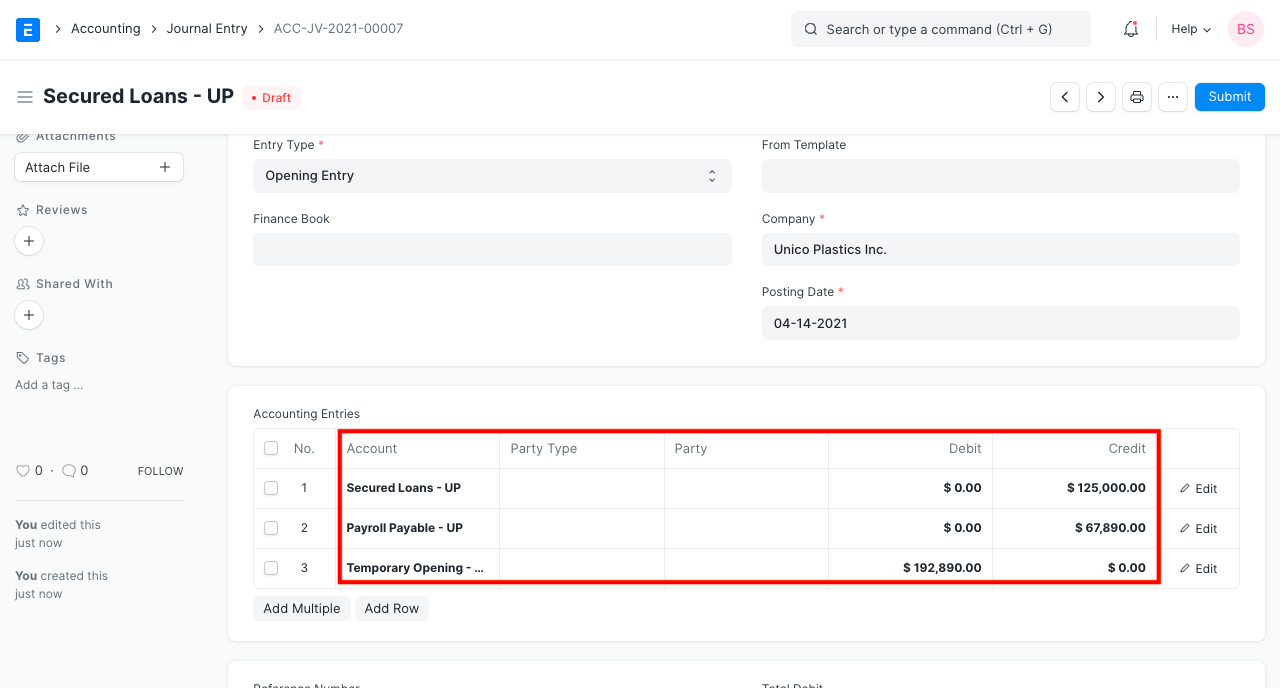
To import details of current liabilities:

  1. Go to: Accounting > Masters and Accounts > Journal Entry > New.
  2. Enter Posting Date.
  3. Select the appropriate current liability ledgers in the Account column and enter the value in the Credit column.
  4. Select ‘Temporary Opening’ ledger in Account and enter the balancing amount in Debit column.
  5. Set ‘Is Opening’ to Yes.
Opening Balance Current Liabilities
3.3 Update Accounts Payable #

Accounts Payables is the balance amount you owe your Suppliers towards the invoices they have already sent you.

You can import the accounts payables details using the Opening Invoice Creation Tool.

After importing, Purchase Invoices will be created. You can post Payment Entry against these invoices as and when you make the payment.https://www.youtube.com/embed/vfWmugaO1zw

4. Verify the Opening Balance #

Once all assets and liabilities have been imported, the balance of Temporary Opening ledger should be zero.

Still stuck? How can we help?

How can we help?

Fiscal YearSetting Up Taxes

Powered by BetterDocs

Table of Contents
  • 1. Introduction
    • 1.1 Assets
    • 1.2 Liabilities
  • 2. Opening Balance of Assets
    • 2.1 Update Fixed Assets
    • 2.2 Update Stock Assets
    • 2.3 Update Accounts Receivable
    • 2.4 Update Current Assets
  • 3. Opening Balance of Liabilities
    • 3.1 Update Capital Accounts
    • 3.2 Update Current Liabilities
    • 3.3 Update Accounts Payable
  • 4. Verify the Opening Balance

Get smarter with tech! Join our newsletter for tips, trends, and solutions that save you time and money.

At Emeron Infospace, we design and deliver future‑ready digital solutions that simplify operations, accelerate growth, and create measurable impact for businesses across the GCC.

Company
  • Home
  • About
  • Services
  • Contact
Our Products
  • ERP SME
  • ERP Retail
  • ERP Services
  • ERP Garage
  • ERP Realestate
  • ERP Typing Center
  • Tailoring
  • OrderByMe Retail
Contact Us
  • Qatar
  • info@emeron.io
  • +971 55 635 1717
Facebook Twitter Youtube
  • Copyright © 2026 Emeron Infospace

Get smarter with tech! Join our newsletter for tips, trends, and solutions that save you time and money.

At Emeron Solutions, we design and deliver future‑ready digital solutions that simplify operations, accelerate growth, and create measurable impact for businesses across the GCC.

Quick Links

  • Home
  • Company
  • Services
  • Contact
  • Documentation

Services

  • ERP SME
  • ERP Retail
  • ERP Services
  • ERP Garage
  • ERP Realestate
  • ERP Typing Center
  • Tailoring
  • OrderByMe Retail
  • OrderByMe Restaurants
  • Kiosk OrderMe
  • ERP Production
  • ERP Construction
Phone

+974 70696100

Email

info@emeronsolutions.com

Address

Street 205, Building 84, Zone 56, Post box 22382 Doha

Copyright©2026 Emeron Solutions. All Rights Reserved.