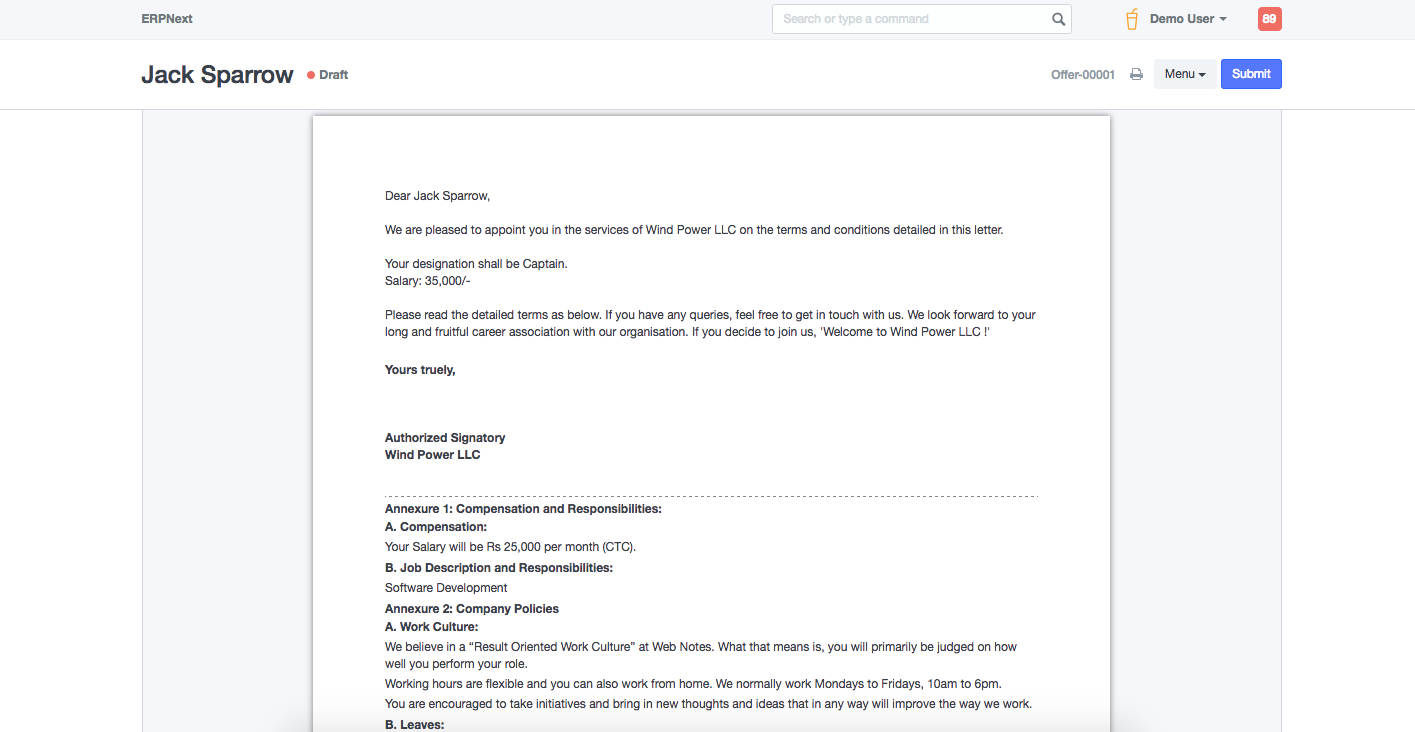
It is important for enterprises to create and manage vacant positions, job applicants and also create and manage recruitment plans. Emeron HR helps you create recruitment plans and create and publish job openings accordingly, making it easy to manage your hiring process. To understand how you can do configure this, check Staffing Plan
Staffing Plan #
Staffing Plan helps you to plan manpower requirements for your Company.
Emeron HR allows you to do this at a company level helping you efficiently plan and budget new hirings for a period. Job Openings can only be created as per the number of vacancies and budget as per the active Staffing Plan.
To access Staffing, go to:
Home > Human Resources > Recruitment > Staffing Plan
1. Prerequisites #
Before creating a Staffing Plan, it is necessary you create the following:
- Department
- Designation
2. How to create a Staffing Plan #
- Go to Staffing Plan list, click on New.
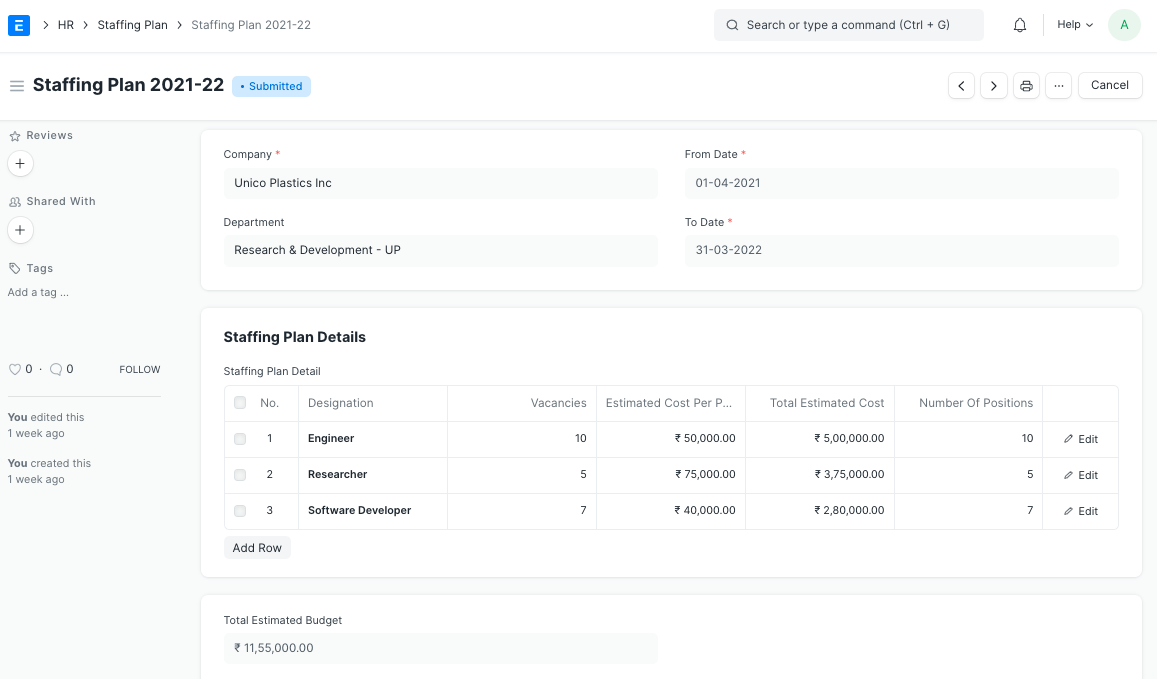
- Enter the Name, From and To Date and select the Department for which you want to create the Staffing Plan.
- Enter the Staffing Plan Details such as Designation, Vacancies, Estimated Cost Per Position, Total Estimated Cost and Number of Positions.
- Save and Submit.
3. Features #
Some of the additional features in the Staffing Plan doctype are explained below:
- Designation: The designations for which the Staffing Plan is created.
- Number of Positions: The number of positions you plan to recruit for between the From and To Dates of the Staffing Plan.
- Current Count: This is the number of Employees already hired against the particular Designation.
- Vacancies: The number of vacancies based on the Number of Positions you wish to recruit and the current Employee count.
- Estimated Cost Per Position: You can specify the cost to company per position so that hiring officials can stick to the budget.
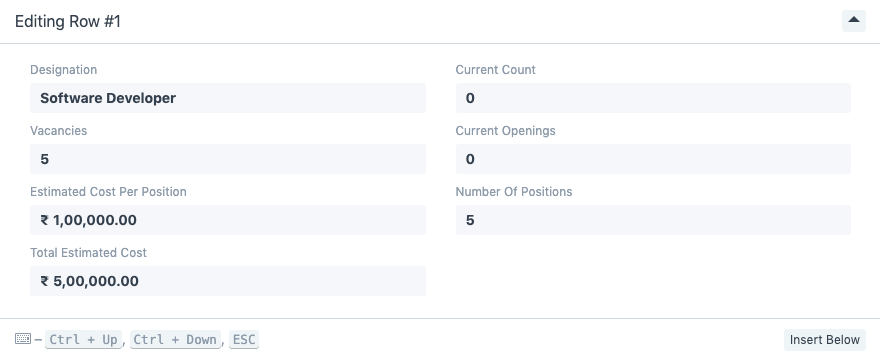
- Total Estimated Budget: Once you enter the recruitment plan for all the designations, Staffing Plan will draw up the total estimated budget as per the plan.
Job Requisition #
Job Requisition is an internal document raised to request a new hire. These requisitions are then converted to Job Openings or considered for budgeting while making the Staffing Plan.
To access Job Requisition, go to:
Home > Human Resources > Recruitment > Job Requisition
1. Prerequisites #
Before creating a Job Requisition, you should create the following:
- Designation
- Department (Optional)
2. How to create a Job Requisition #
- Go to the Job Requisition list, and click on New.
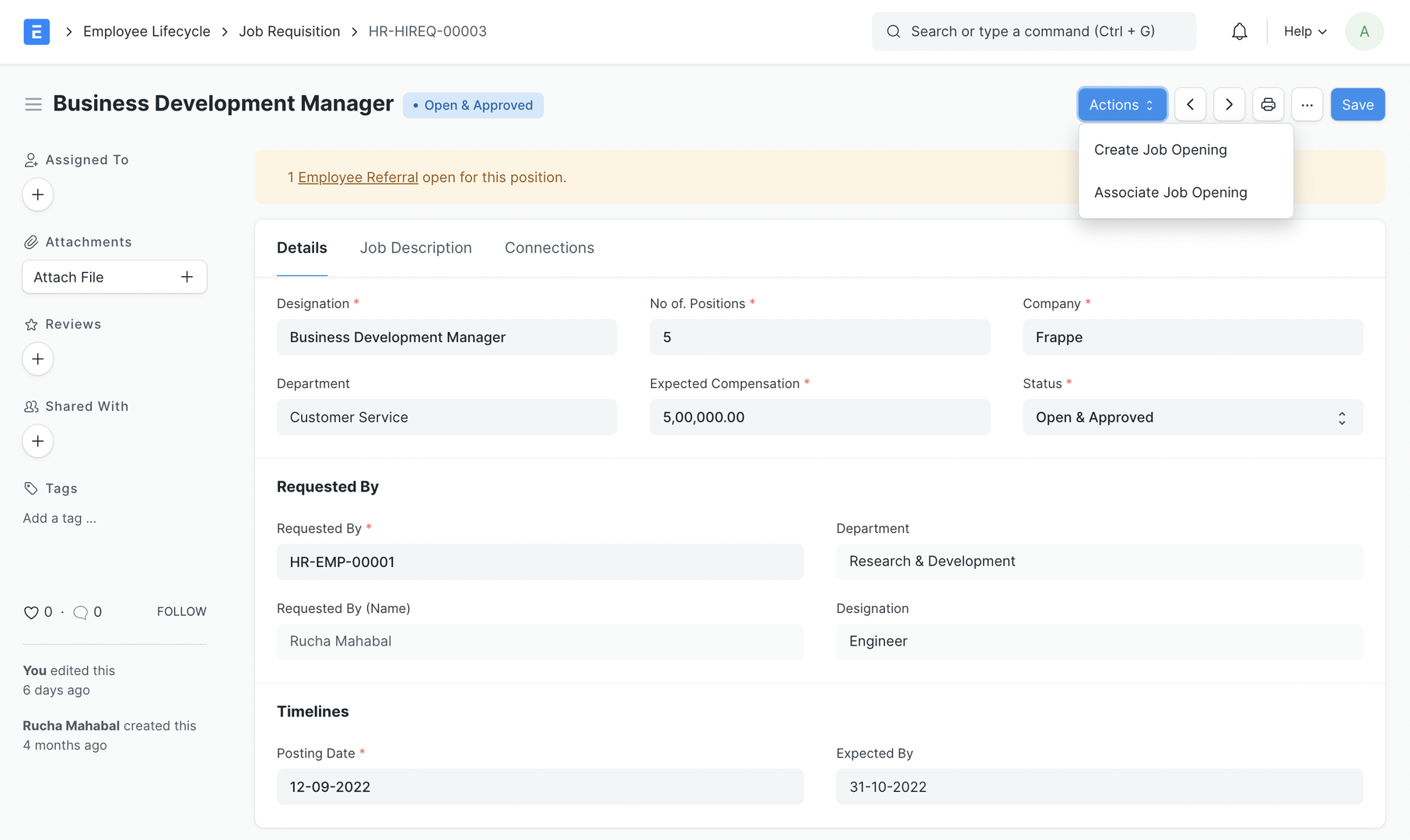
- Enter the Designation you want to place the request for.
- Enter the No of Positions, Expected Compensation, Company, and Department (optional).
- Select the employee who is applying for the requisition in the Requested By field.
- Optionally, you can set the Expected By date.
- The Job Description will be fetched from the Designation. If you want to add additional information for the opening, you can do so here.
- Save.
- By default, the status will be Pending. You can set up workflows to change the status to Open & Approved.
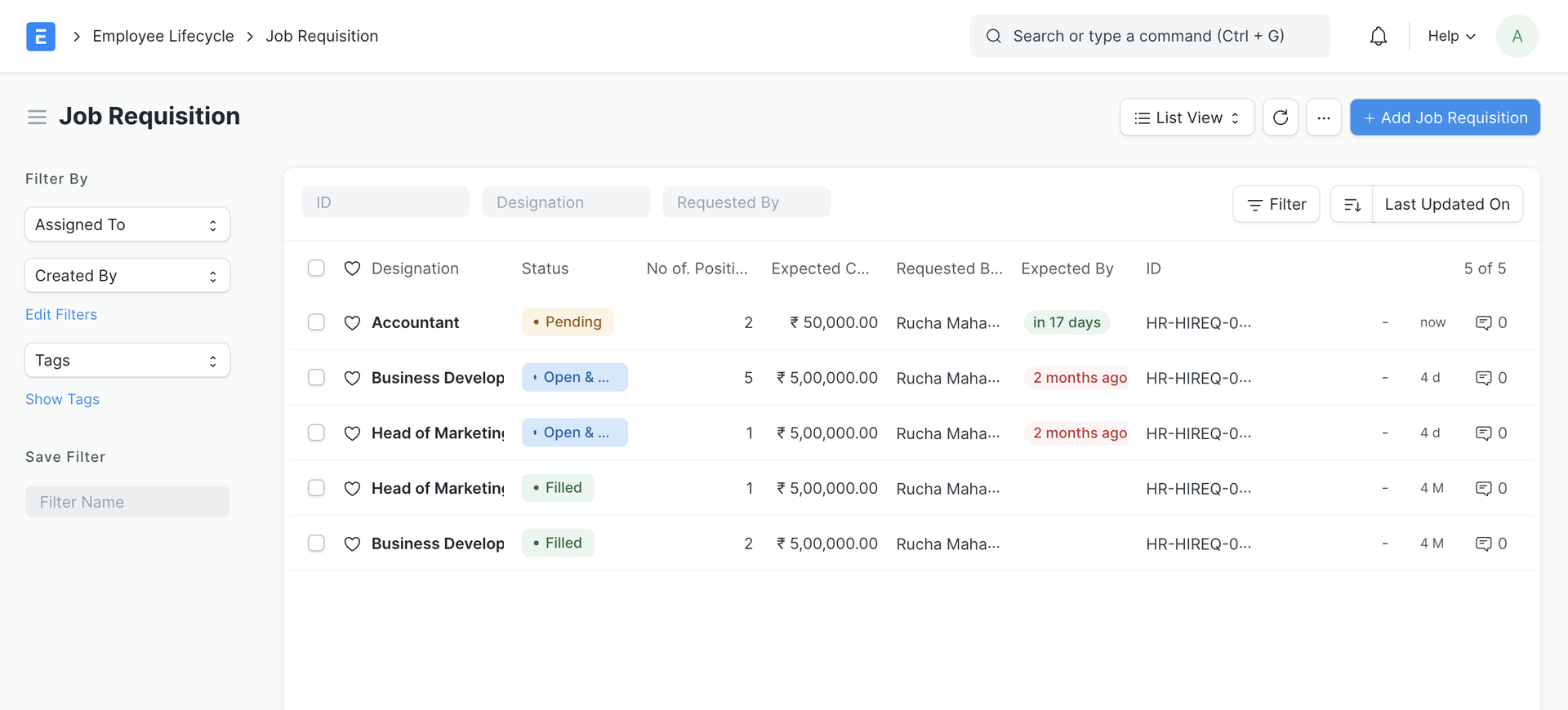
3. Actions #
3.1 Create Job Opening #
Once the Job Requisition is Open & Approved, you can create a new Job Opening against the Job Requisition or associate an existing one.
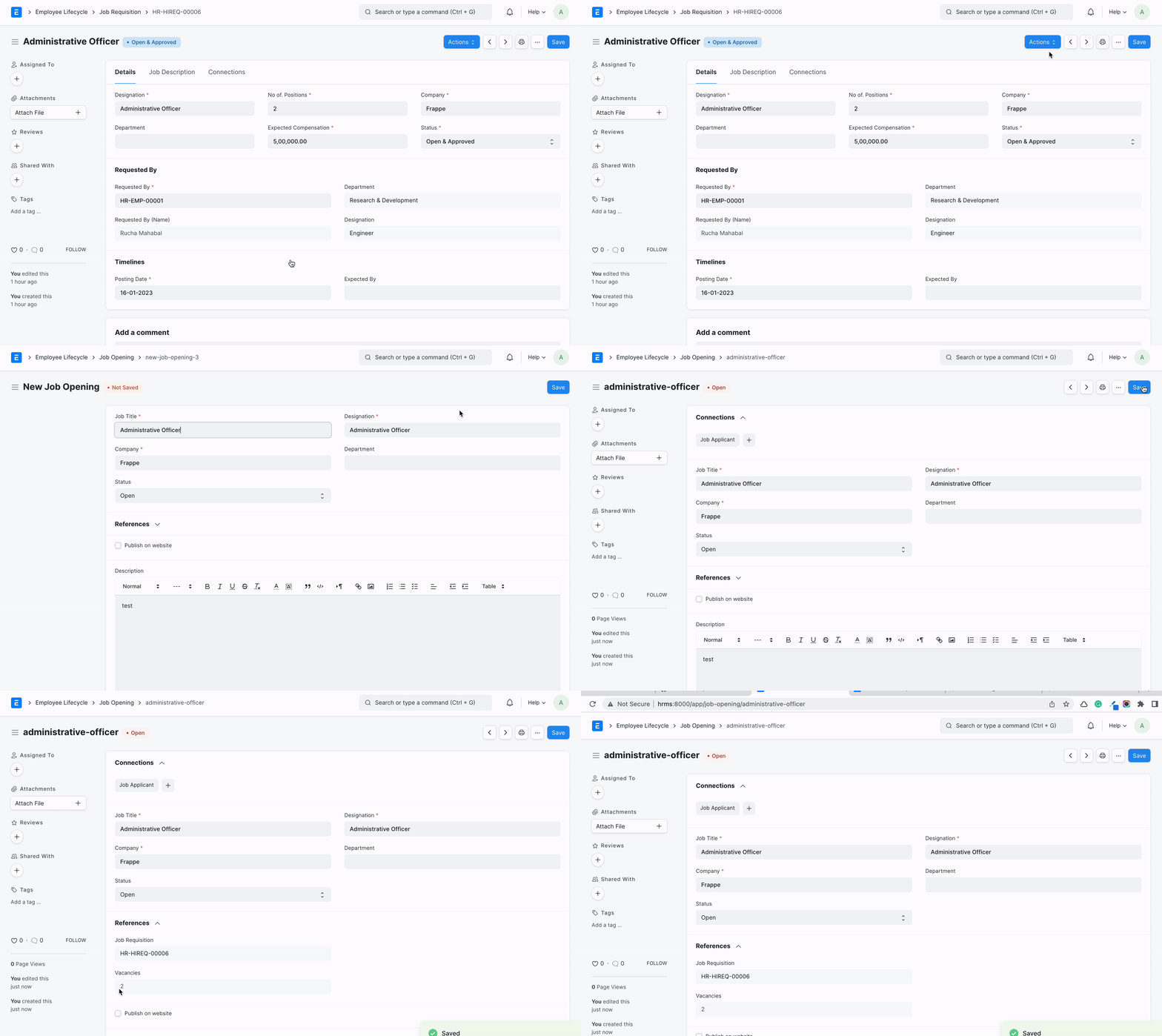
3.2 Associate Job Opening #
If you already have an existing Open Job Opening for that designation, you can associate it with the requisition.
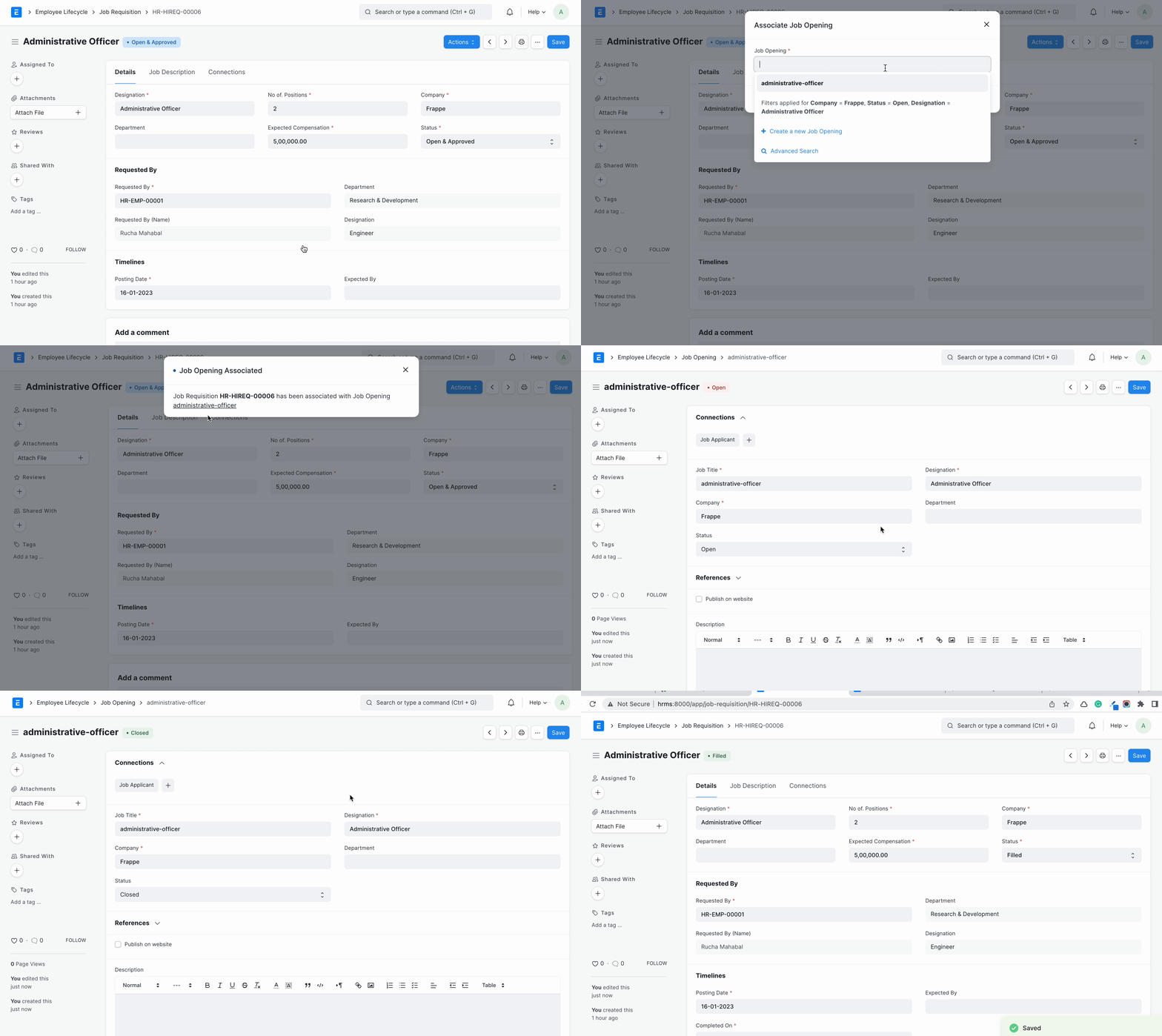
Once the Job Opening is closed, the Job Requisition’s status is updated to Filled
4. Features #
4.1 Check existing Employee Referrals #
If there is an existing Employee Referral for that designation, you might want to consider referrals instead of creating new openings. A banner is visible on the Job Requisition form with the links to these employee referrals in these cases.
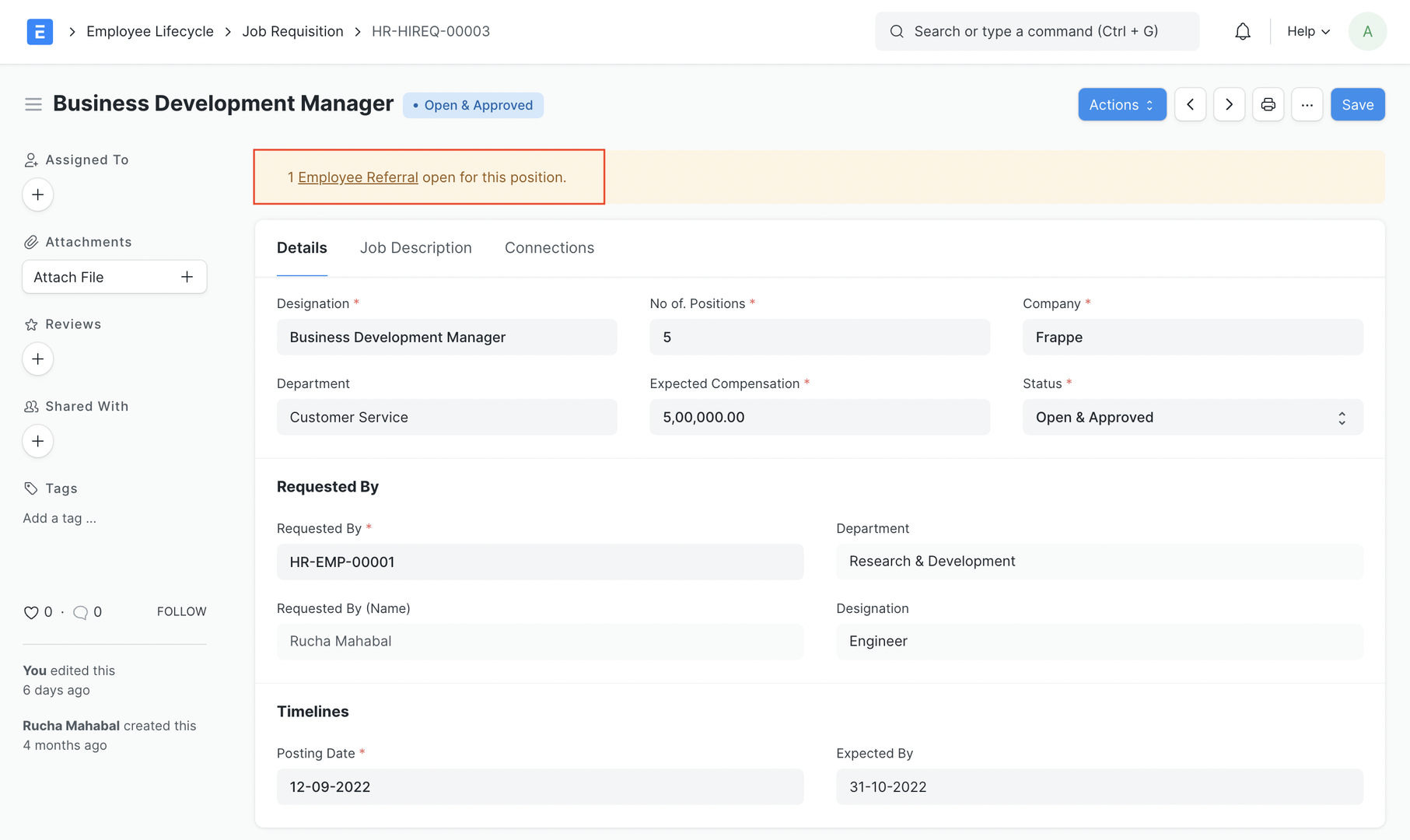
4.2 Get Job Requisitions in Staffing Plan #
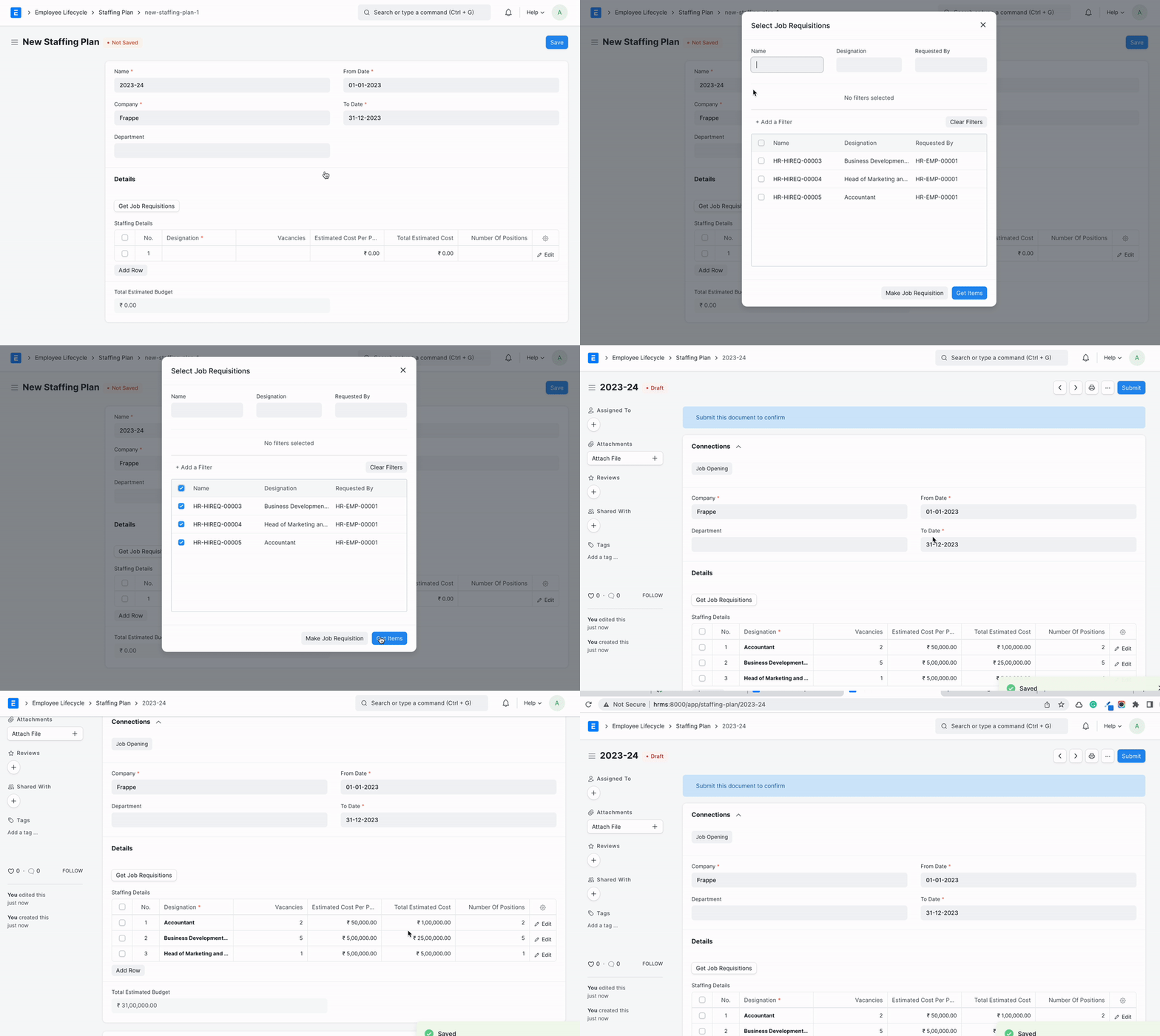
While creating a budget with the Staffing Plan, you can fetch the existing Pending or Open & Approved Job Requisitions.
4.3 Time to Fill Metric #
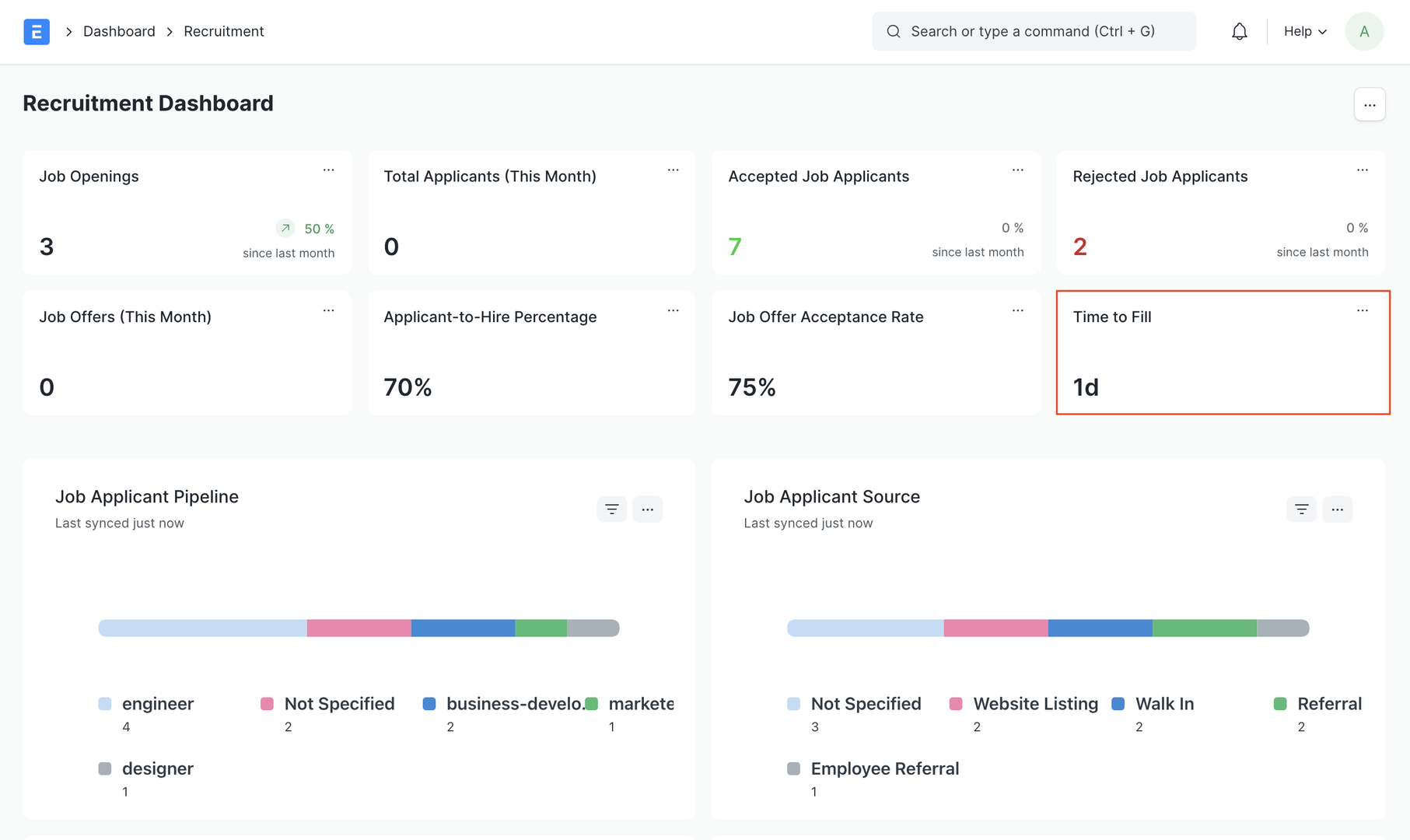
Time to Fill measures the number of days it takes to fill an open position, from the date a job requisition is posted to the date when it is marked as Filled. This metric is auto-calculated and set in Job Requisition.
The Average Time to Fill is also displayed on the Hiring Dashboard:
Job Opening #
A Job Opening is a job vacancy in your Company. You can make a record of the open vacancies in your company using Job Opening.
Emeron HR allows to plan recruitments for your company. The number of Job Openings you can create for a Designation is restricted according to the vacancies planned by the Staffing Plan defined for the company or one of its parent group companies in the hierarchy.
Note: Make sure the “Check Vacancies On Job Offer Creation” checkbox is checked in the Hiring Settings section of the HR Settings.
To access Job Opening, go to:
Home > Human Resource > Recruitment > Job Opening
1. Prerequisites #
Before creating a Job Opening, it is advisable you create the following:
- Staffing Plan
- Department
2. How to create a Job Opening #
- Go to Job Opening list, click on New.
- Enter the Job Title.
- Select the Designation and Department. Based on Designation selected, appropriate Staffing Plan and Planned Number of Positions will be fetched.
- Save.
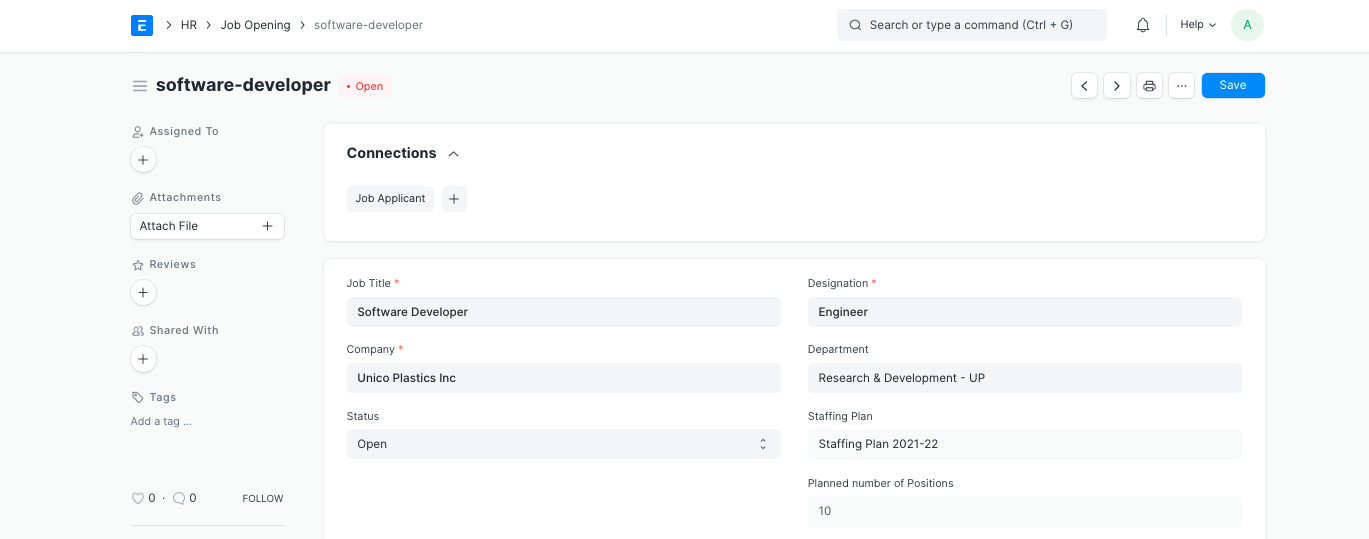
Once the Job Opening is saved, you can directly create a new Job Applicant from the dashboard.
Note: You can set the Status of the Job Opening as Open/Closed. Once a Job Opening is Closed, you cannot create a Job Applicant against it.
3. Features #
3.1 Job Portal #
You can enable ‘Publish on website’ to publish a Job Opening to the Job Portal. This will make it possible for users to view and apply to these openings from your site.

Job Portal #
The Job Portal provides an interface for applicants to browse and apply to published Job Openings.
1. Prerequisites #
Before using the Job Portal, it is advisable you create the following:
- Job Opening
Note: For an opening to be visible on the Job Portal, you must enable the ‘Publish on website’ field for that specific Job Opening.
2. How to Apply Using the Job Portal #
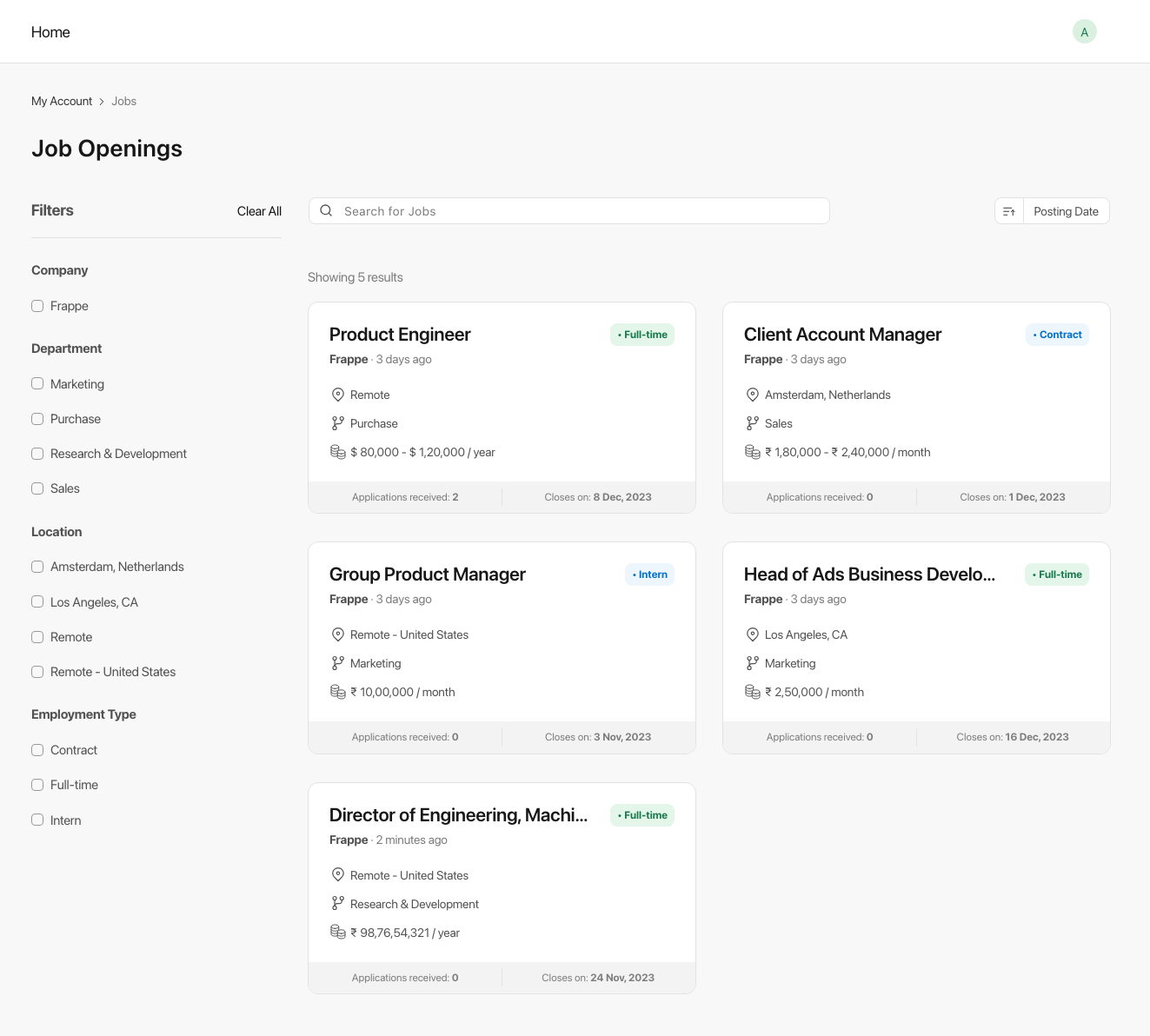 2. You can use the search bar to search for jobs by title or description. You can also filter jobs by company, department, location, or employment type, and sort them by the latest or oldest posting date. 3. Click on a job card to view it in detail.
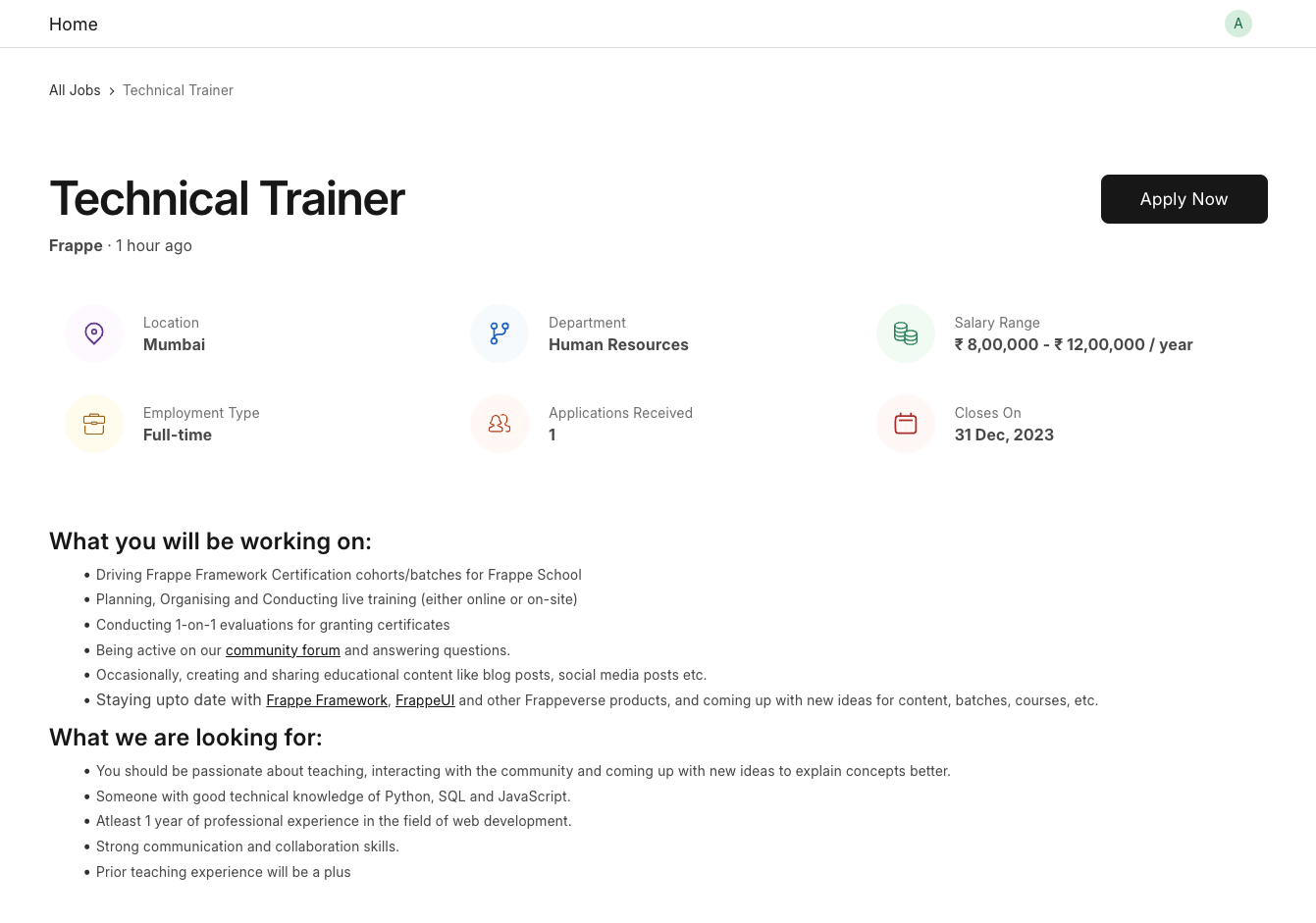 4. Click on the ‘Apply Now’ button at the top-right corner. This will open a web form where applicants can enter their details.
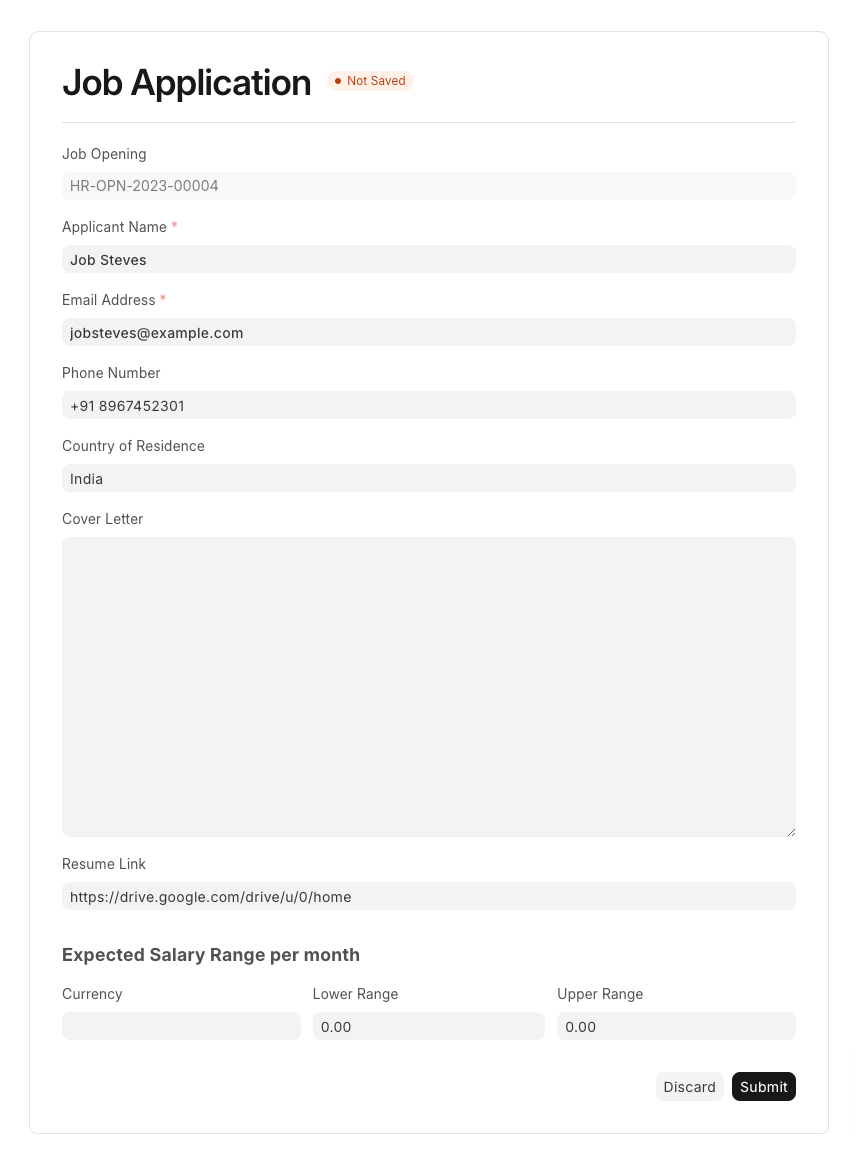 5. Fill in the appropriate details and click on Submit. This will result in the creation of the corresponding Job Applicant document.
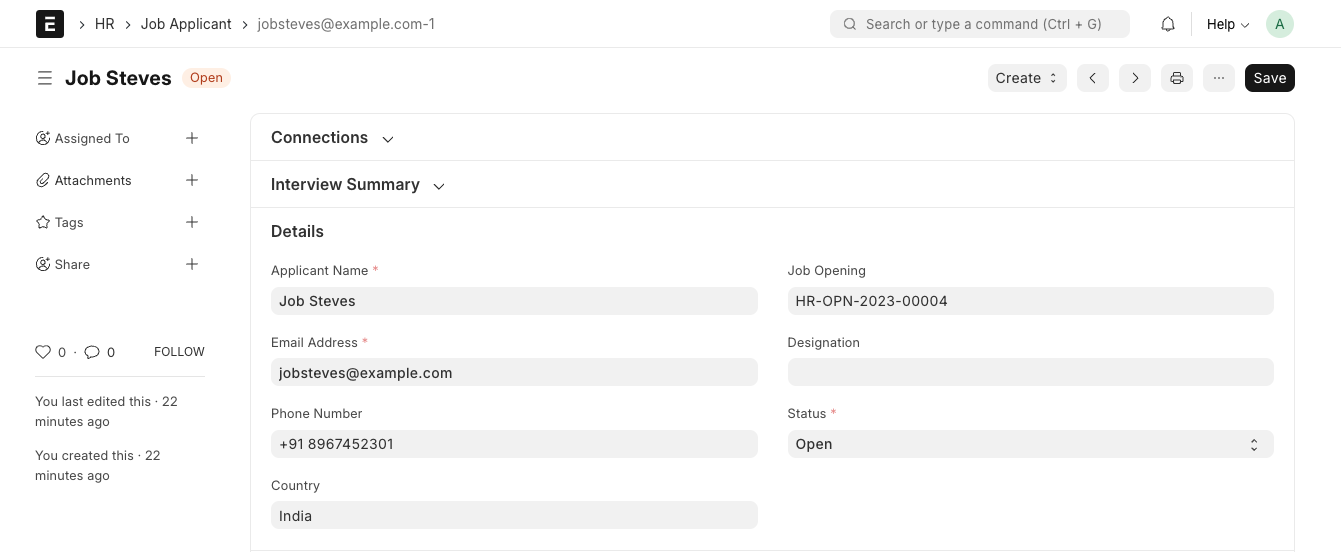
Job Applicant #
A Job Applicant is a person who applies for a job in your Company against a particular Job Opening.
In Emeron HR, you can maintain a list of people who have applied against a particular Job Opening.
To create a Job Applicant, go to:
Home > Human Resource > Recruitment > Job Applicant
1. Prerequisites #
Before creating a Job Applicant, it is advisable you create the following:
2. How to Create a Job Applicant #
- Go to Job Applicant list, click on New.
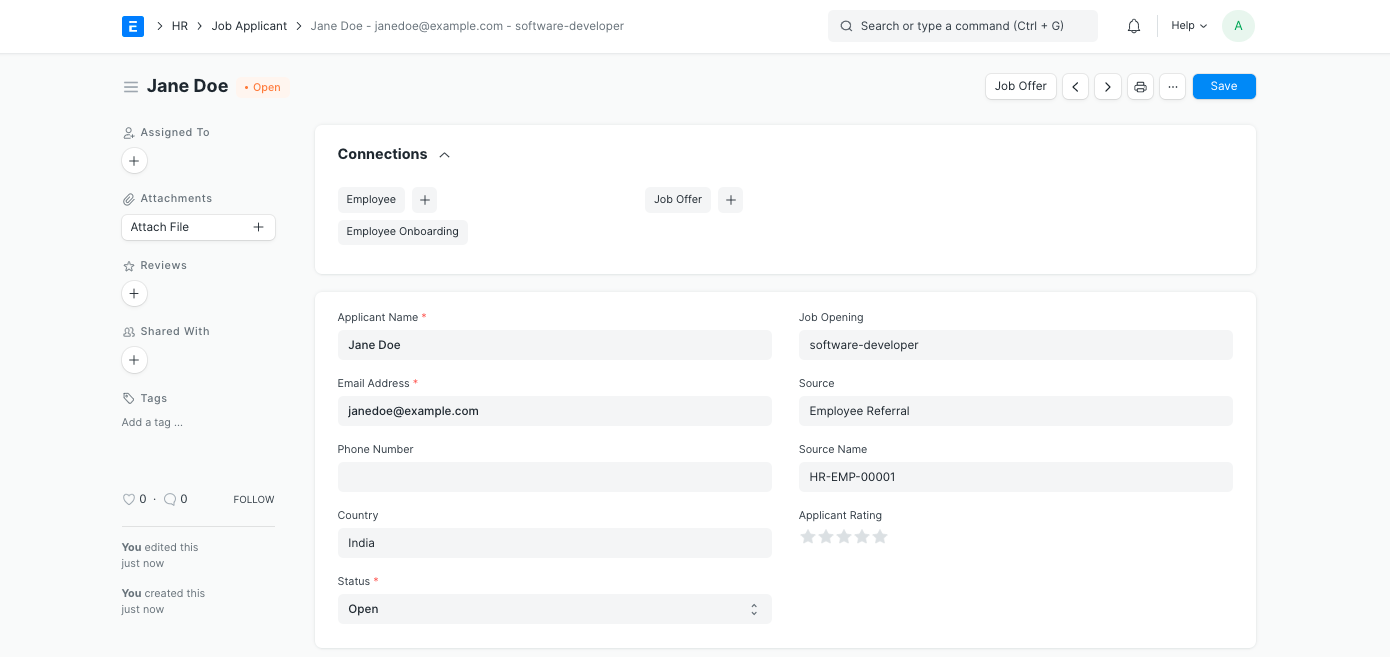
- Enter Applicant Name and Email Address.
- Select Job Opening.
- Select Source (Campaign, Employee Referral, Walk In, Website Listing).
Note: If you select the Source as Employee Referral, you will have to select the Employee name in the Source Name Field.
3. Features #
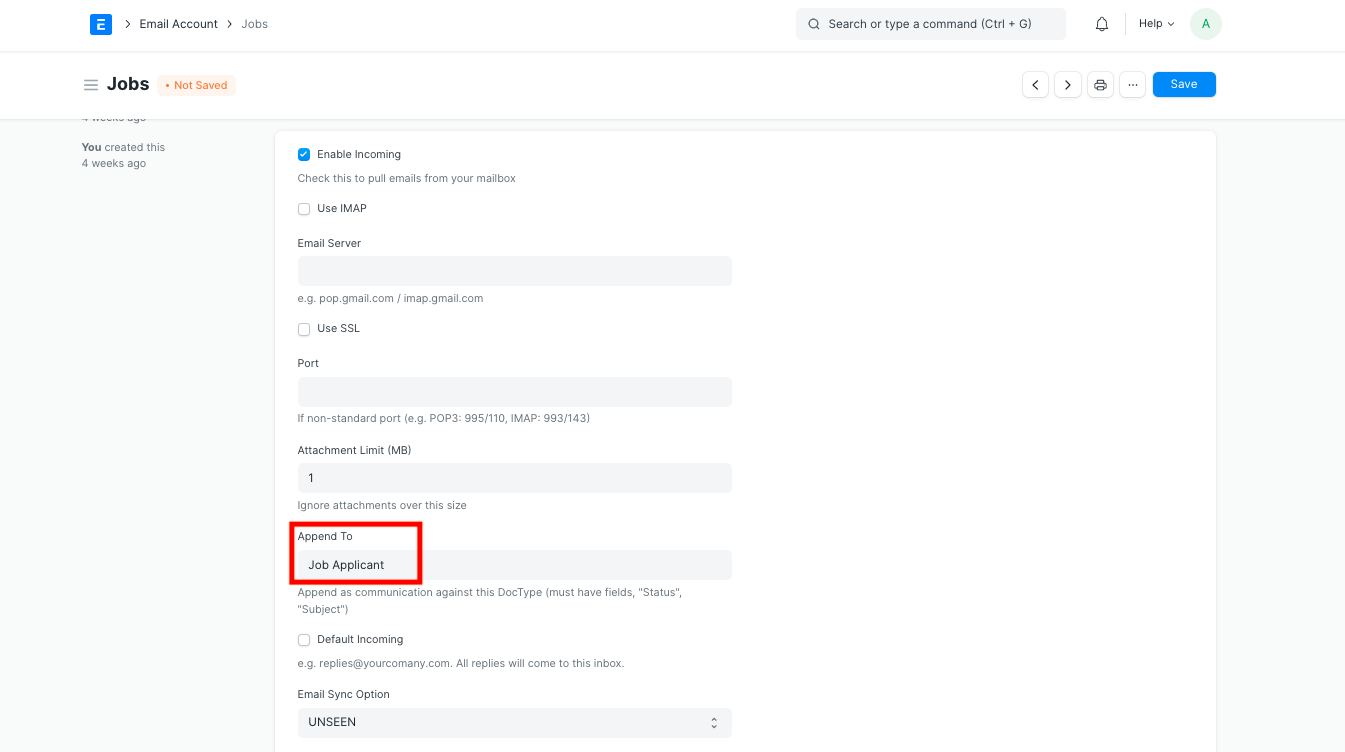
3.1 Linking with an Email Account #
You can link Job Application with an Email account. Suppose you link Job Application with an email job@example.com, the system will create a New Job Applicant against each email received on the mailbox.
- To link Email Account with Job Applicant, go to:
Settings > Email Account > New Email Account
- Enter the Email Address and the password, and select ‘Enable Incoming’
- In ‘Append To’ select ‘Job Applicant’
3.2 Tracking Interviews #
After creating Interviews, you can easily track them within the Job Applicant dashboard. This enables you to compare all the interviews conducted with the applicant and evaluate their overall performance to make an acceptance decision.

Interview Type #
Interview type refers to the various types of interviews conducted by an organization, such as panel interviews, walk-in interviews, etc.
Interview Types can be used to specify the type of interview for a particular Interview Round.
To access Interview Type, go to:
Home > Human Resources > Recruitment > Interview Type
1. How to Create an Interview Type #
- Click on Add Interview Type.
- Enter the Name and Description
- Save

Interview Round #
Interview rounds are a series of interviews that a candidate goes through during the recruitment process. For example, technical interviews, HR interviews, etc.
The Interview Round doctype enables you to define and set up these rounds for future Interviews.
To access Interview Round, go to:
Home > Human Resources > Recruitment > Interview Round
1. How to create an Interview Round #
- From the Interview Round list, click on Add Interview Round.
- Enter the Round Name.
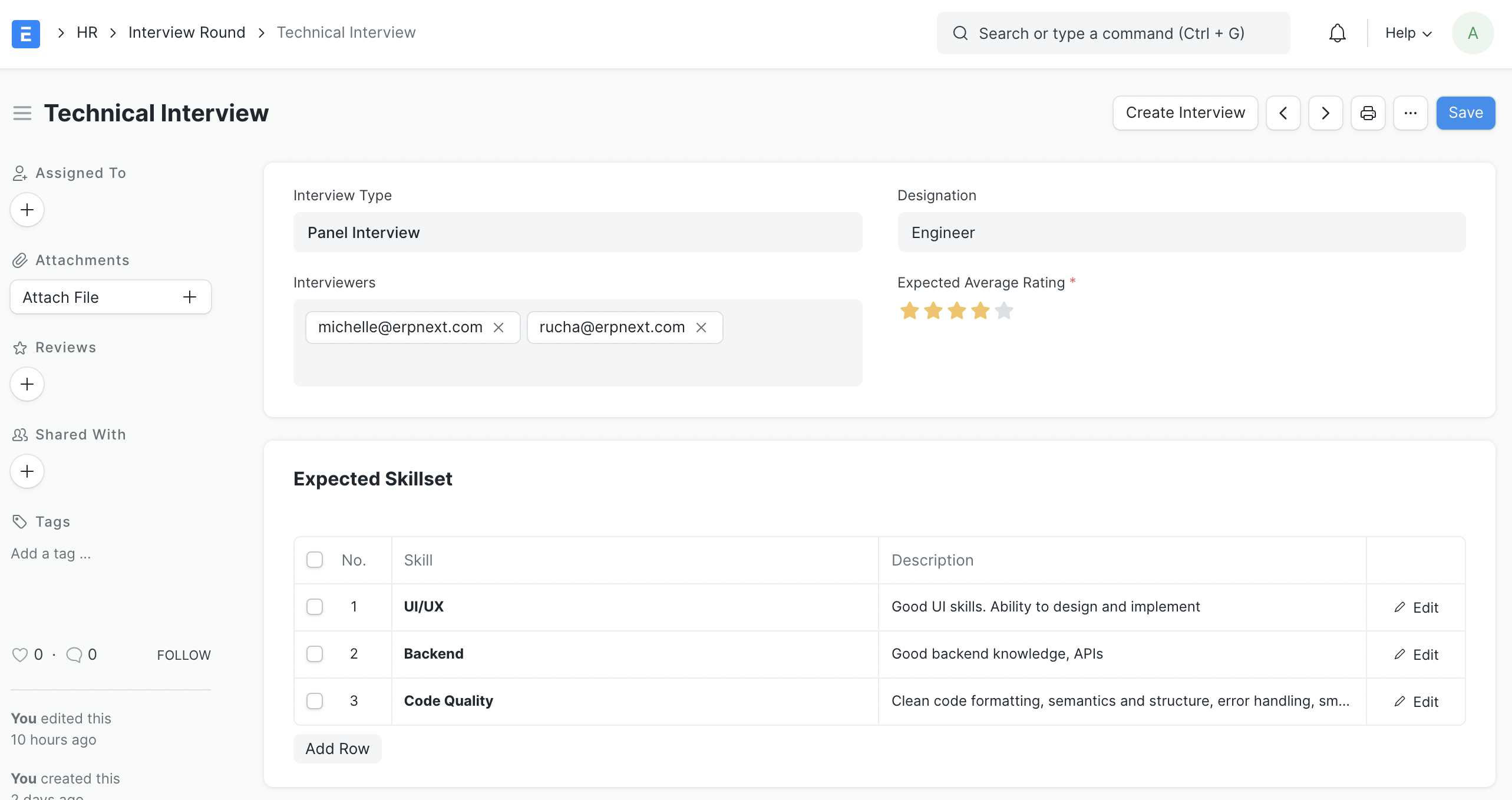
- Enter the Interview Type and the Expected Average Rating (optional).
- You can assign Interviewers, authorizing them to provide feedback for upcoming Interviews of this round.
- You can also enter Designation to filter Job Applicants during Interview creation.
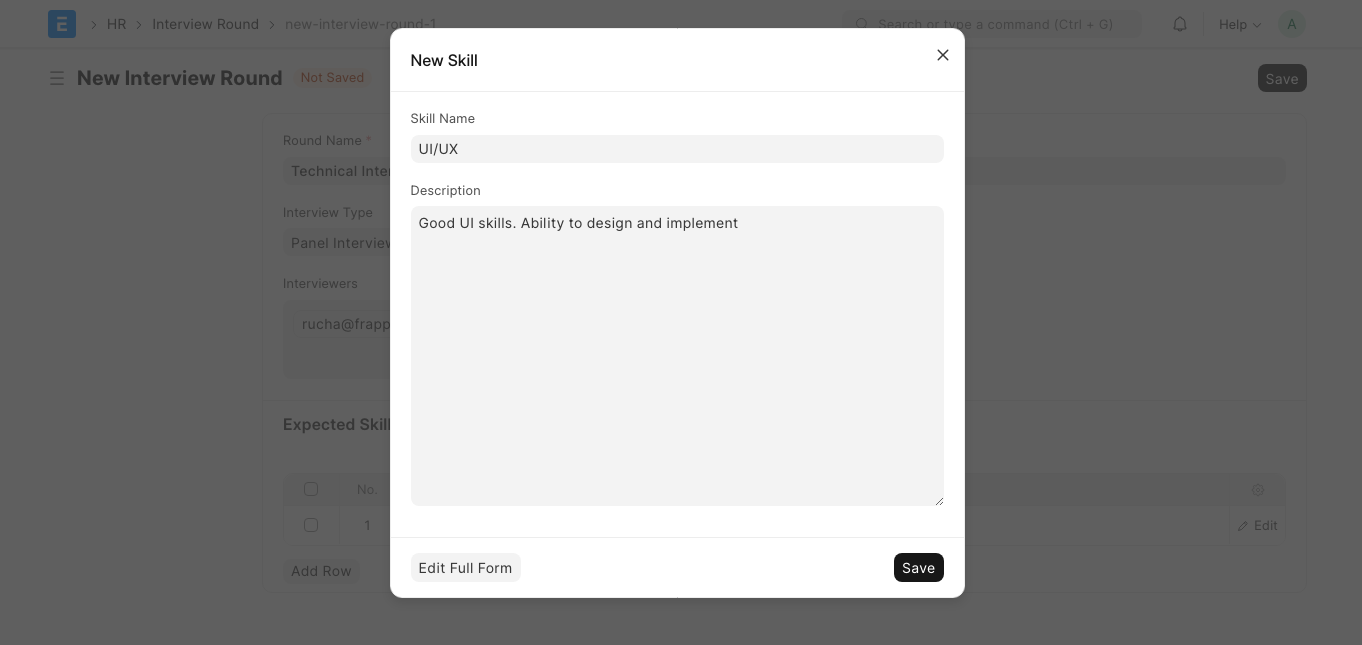
- Fill in the Expected Skillset table by clicking on Skill and creating Skills as shown below.
 7. Save
Interview #
Interviews are formal meetings between Job Applicants and Interviewers to assess whether the former is suitable for the Job Opening they’re applying for.
Emeron HR allows you to maintain a record of all Interviews conducted with Job Applicants.
To access Interview, go to:
Home > Human Resources > Recruitment > Interview
1. Prerequisites #
Before creating an Interview, it is advisable you create the following:
- Interview Round
- Job Applicant
2. How to Create an Interview #
- Go to Interview list, click on Add Interview.
- First select the Interview Round and then Job Applicant. Order is important.
- Enter the date (Scheduled On) and time (From Time & To Time).
- Enter the Resume Link (optional).
- Click on Save.
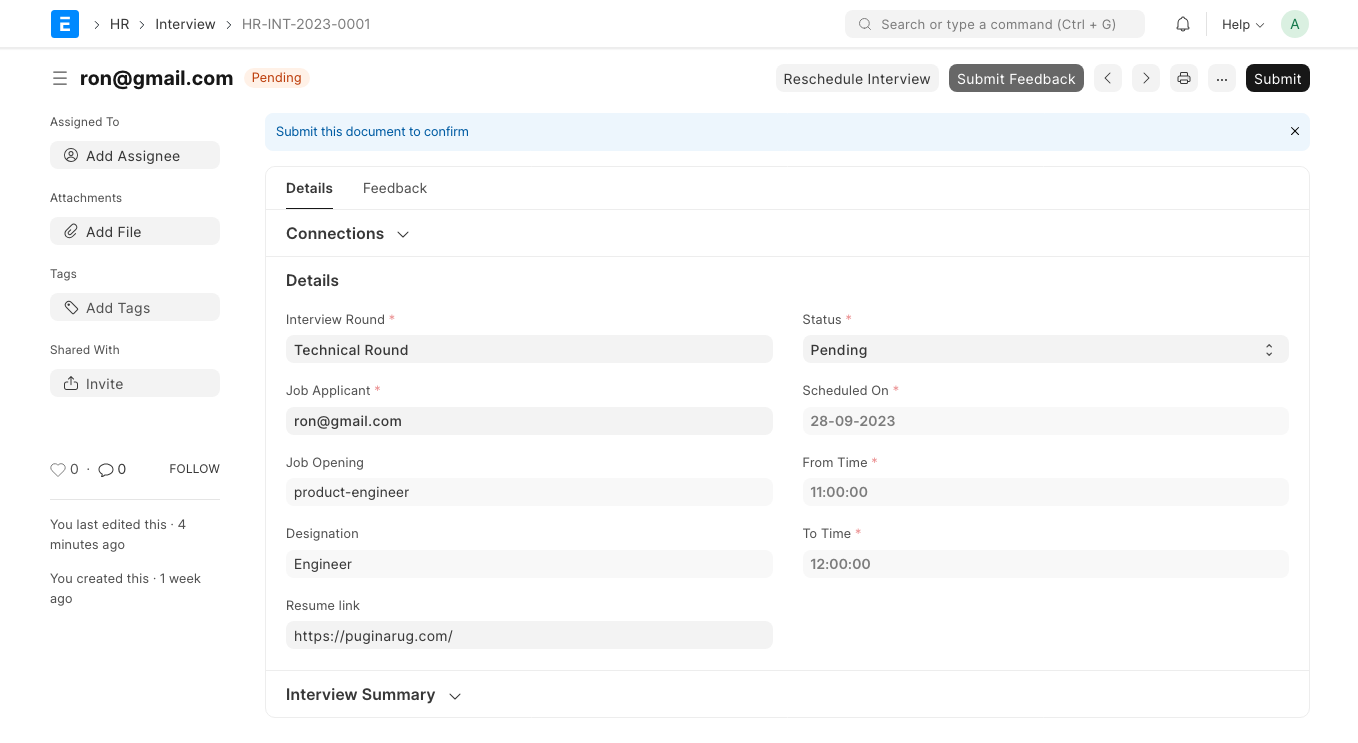
After saving the Interview, you can reschedule the interview using the Reschedule Interview button. You can also directly Submit Feedback from the dashboard.
Note: Only Interviewers associated with the selected Interview Round can submit Feedback.
3. Features #
3.1 Calendar View #
Scheduled interviews can be viewed in a color-coded calendar format by going to the Interview list, clicking on List View, and selecting Calendar.

3.2 Interview Feedback #
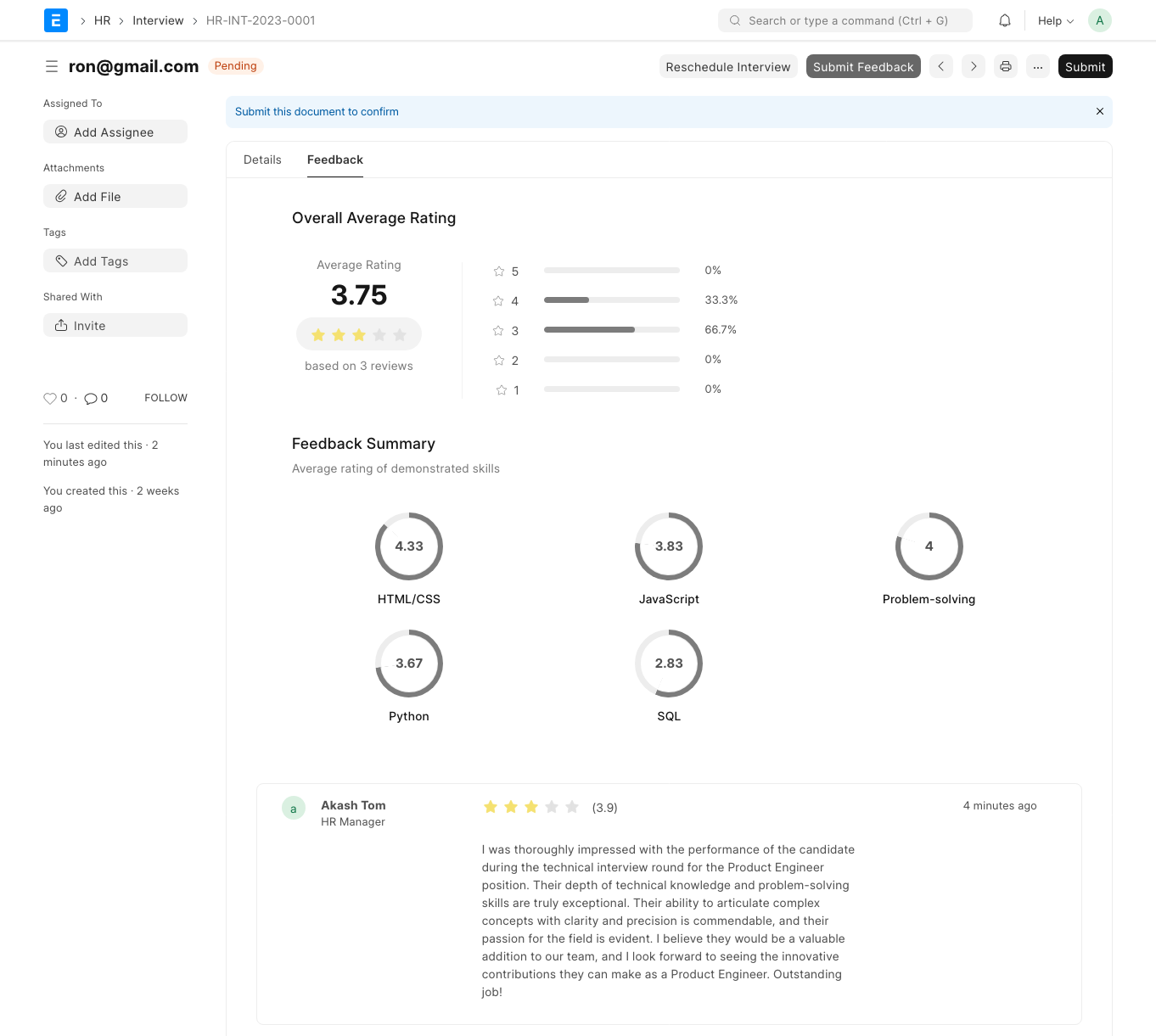
After an interview has received Feedback, you can click on the Feedback tab to access a summary of the feedback. This summary includes the overall average rating, the distribution of ratings for each Feedback, the average rating for each Skill, and the individual Feedback comments.
3.3 Tracking Interviews #
Interviews related to a Job Applicant can be easily tracked from its dashboard.
3.4 Interview Reminder #
You can configure Emeron HR to send reminder emails to Interviewers for upcoming Interviews.
Job Offer #
Job Offer is given to selected candidates after interview and selection which states the offered salary package, designation, grade, department, number of days entitled for leave among other information.
In Emeron HR you can make a record of the Job Offers that you can give to candidates. To access Job Offer, go to:
Home > Human Resource > Recruitment > Job Offer
1. Prerequisites #
Before creating a Job Offer, it is advisable to create the following:
- Staffing Plan
- Job Applicant
- Job Opening
2. How to Create a Job Offer #
- Go to Job Offer list, click on New.
- Select the Job Applicant, Offer Date and Designation.
- Set the Status of the Job Offer (Awaiting Response, Accepted, Rejected).
- Save and Submit.
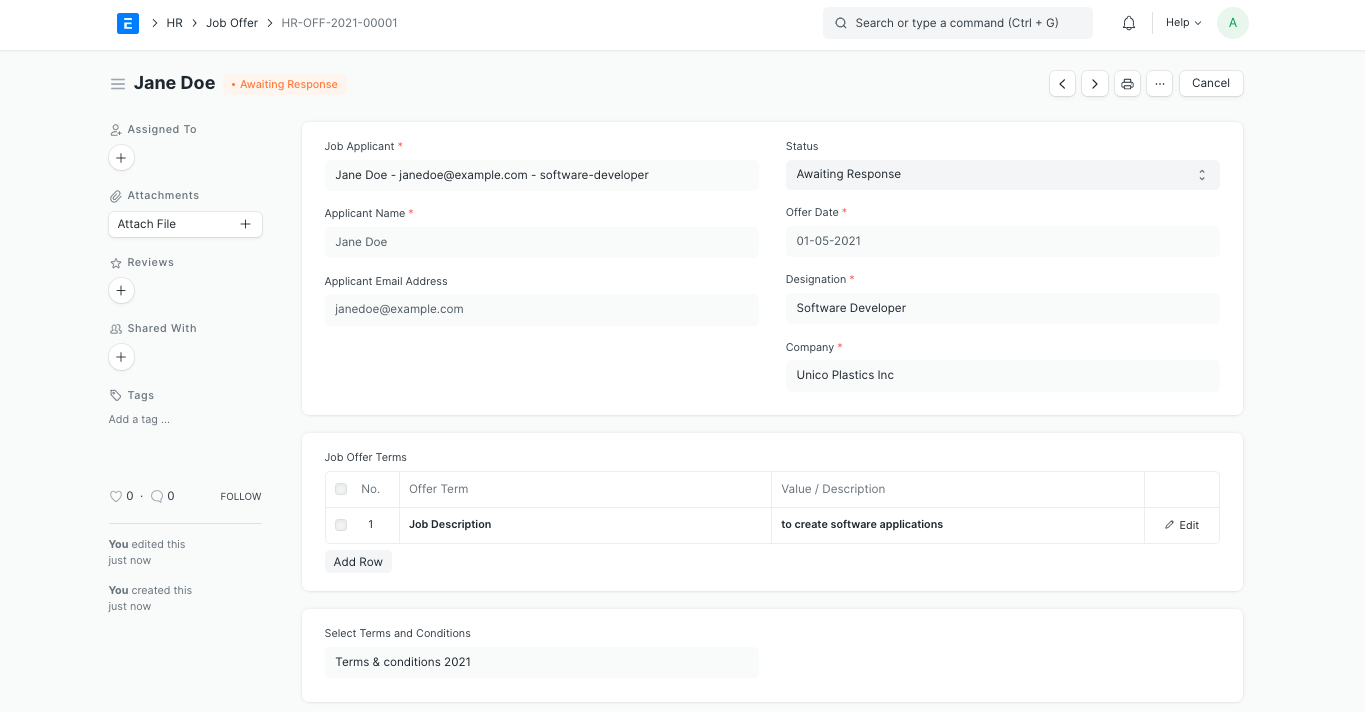
Note: A Job Offer can be made only against a Job Applicant
3. Features #
3.1 Job Offer Terms #
In this section, you can enter the Job Offer Term such as job description, notice period, incentives, leaves per year, etc. and specify its Value/ Description.
3.2 Select Terms and Conditions #
All the Terms and Conditions related to the Job Offer can be specified in this section. To do this, create a new Terms and Conditions template and link it to the Job Offer.
3.3 Printing Details #
You can create a pre-designed print format to print you Job Offer. To do so, select the Letter Head and Print Heading in the Printing Details section.